Choose between password with an authenticator app and passwordless sign-in, add and remove passkeys, and know how to get back in when you lose a device.
The Account Security page controls how you sign in to ComplyTrain. Everyone can use it, and it only changes your own account. What it offers depends on your organisation: whether passkeys and email codes are enabled for it, and whether an Admin requires multi-factor authentication (MFA) for everyone.
Signing documents uses a separate signing credential, not your sign-in method. See Register a biometric signing credential.
Product location: /settings/my-account/security. Select your name at the top of the page and choose Two-Factor Authentication. Or open My Account, then Account Security, in Settings.
Select your name at the top of any page and choose Two-Factor Authentication. You can also open Settings, My Account, Account Security. The page has up to three sections: Your Authentication Preference, Passkeys and Authenticator App (TOTP).
Product location: /settings/my-account/security. Select your name at the top of the page and choose Two-Factor Authentication. Or open My Account, then Account Security, in Settings.
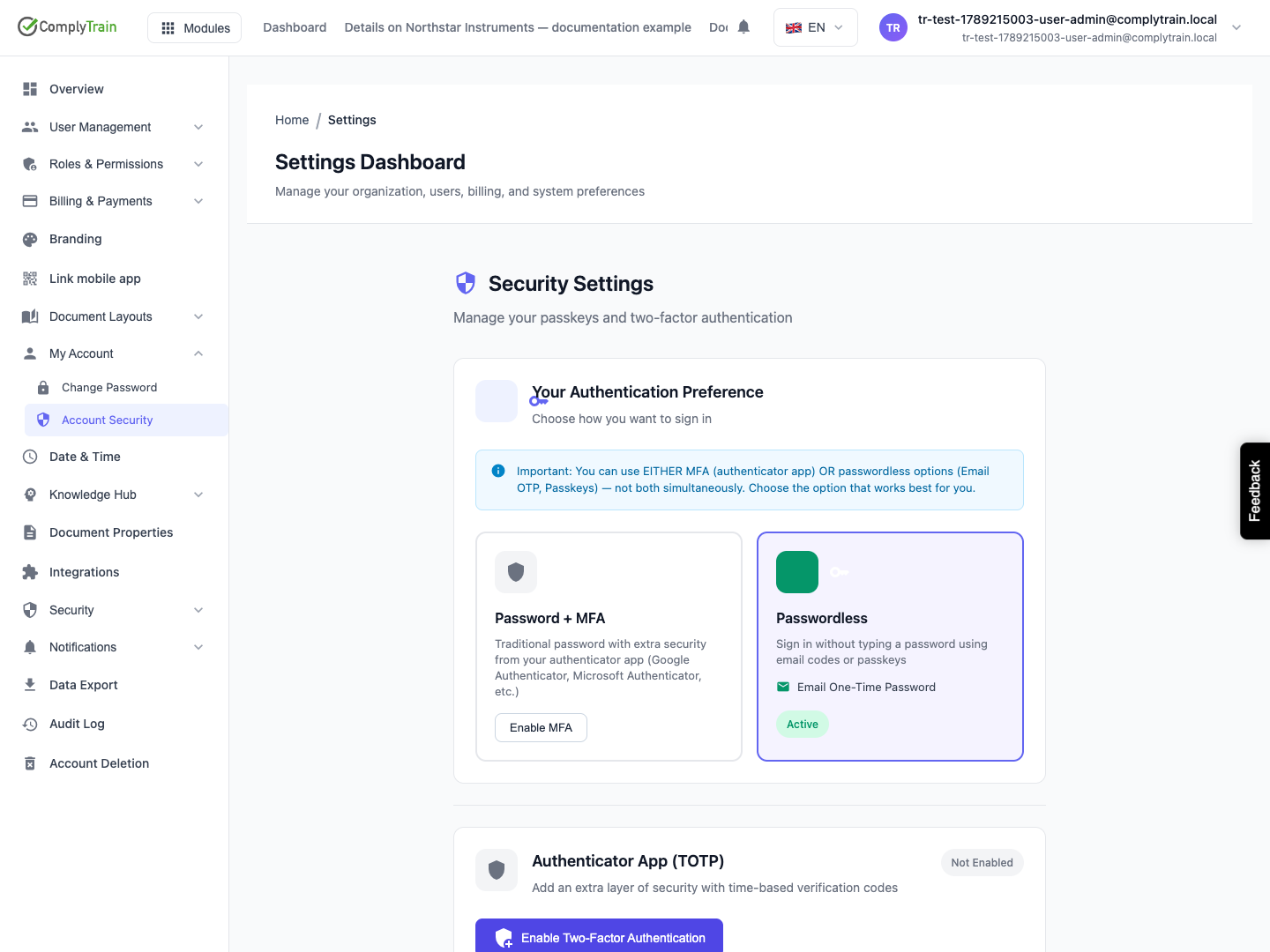
Your Authentication Preference shows two ways of signing in. The one you use now is marked Active. You use one or the other, never both at once.
Preference | How you sign in | How you get it |
|---|---|---|
Password + MFA | Your password, followed by a 6-digit code from an authenticator app such as Google Authenticator or Microsoft Authenticator. Passkeys and email codes cannot be used. | Set up the authenticator app with Enable MFA or Enable Two-Factor Authentication. |
Passwordless | Your password, an Email One-Time Password, or one of your Passkeys. The card lists the methods open to you, with the number of passkeys you have registered. | This is the preference when no authenticator app is set up. Use Switch to Passwordless to leave Password + MFA. |
Email codes appear only when your organisation allows them. Passkeys can be used to sign in only when passkey sign-in is enabled for your organisation and you have registered at least one.
When your organisation requires MFA, this section is replaced by a notice. See When MFA is required.
Product location: /settings/my-account/security. Select your name at the top of the page and choose Two-Factor Authentication. Or open My Account, then Account Security, in Settings.
A passkey lets you sign in with your fingerprint, your face, a device PIN or a security key instead of typing a password. It combines something you have, the device, with something you are or know, so it needs no extra code. The Passkeys section appears when passkey sign-in is enabled for your organisation. It is dimmed while you use Password + MFA, because passkeys work only with Passwordless.
In Passkeys, choose Add Passkey.
Read the Add Passkey message. Passkeys must be registered on the sign-in page, so ComplyTrain opens it in a separate window.
Choose Continue to Sign-In. Your browser must allow pop-up windows from ComplyTrain.
In the new window, sign in and follow the prompts to create the passkey with Touch ID, Face ID, Windows Hello, your phone or a security key.
When the window closes, Passkey Added appears and the passkey is listed.
If you close the window before finishing, no passkey is added. Each passkey is listed by its name, or Unnamed Passkey, with the date it was added. A passkey belongs to the device or password manager that created it, so add one on each computer or phone you sign in from.
Product location: /settings/my-account/security. Select your name at the top of the page and choose Two-Factor Authentication. Or open My Account, then Account Security, in Settings.
In Passkeys, choose the bin button next to the passkey.
Read Delete Passkey?, which names the passkey you are about to remove.
Choose Delete. Passkey Deleted confirms it.
You can no longer sign in with that passkey. Remove passkeys from devices you have lost, sold or stopped using.
Product location: /settings/my-account/security. Select your name at the top of the page and choose Two-Factor Authentication. Or open My Account, then Account Security, in Settings.
In Authenticator App (TOTP), choose Enable Two-Factor Authentication. Enable MFA on the Password + MFA card does the same.
Under Set Up Two-Factor Authentication, install an authenticator app on your phone if you do not have one. The page suggests Google Authenticator, Microsoft Authenticator and 1Password.
Scan the QR code with the app. If you cannot scan it, type the key shown under Or enter this key manually: into the app. The copy button copies it.
Enter the current 6-digit code from the app and choose Verify & Enable.
Wait for Two-Factor Enabled. The section now shows Enabled.
Codes change every 30 seconds. If Invalid code. Please enter the current code from your authenticator app. appears, wait for a new code and enter it. Cancel stops the setup without changing anything.
From now on your preference is Password + MFA. You sign in with your password and then a code from the app. Keep the QR code and setup key private: anyone who has them can generate your codes.
Product location: /settings/my-account/security. Select your name at the top of the page and choose Two-Factor Authentication. Or open My Account, then Account Security, in Settings.
You can leave Password + MFA in two ways, as long as your organisation does not require MFA. Both disconnect your authenticator app.
To switch with confirmation from your app:
On the Passwordless card, choose Switch to Passwordless.
Read Switch to Passwordless? and enter the current 6-digit code from your authenticator app.
Choose Confirm Switch. Switched to Passwordless confirms the change.
A wrong or expired code is refused with Switch Failed, and nothing changes. Enter the code your app shows at that moment.
To turn the app off directly, choose Disable Two-Factor Authentication in Authenticator App (TOTP), then Yes, Disable in Disable Two-Factor Authentication?. Two-Factor Disabled confirms it.
Afterwards you sign in with your password, an email code or a passkey, as your organisation allows. Remove the ComplyTrain entry from your authenticator app, because its codes no longer work. You can set the app up again at any time.
Product location: /settings/my-account/security. Select your name at the top of the page and choose Two-Factor Authentication. Or open My Account, then Account Security, in Settings.
An Admin can require MFA for everyone by turning on Require MFA for All Users in Settings, Security, Security Settings; see organisation security. Your Account Security page then shows Multi-Factor Authentication Required: you must sign in with an authenticator app, and passwordless options are not available.
If you have not set up an authenticator app yet, the page reminds you that your organisation requires two-factor authentication. Follow Set up an authenticator app straight away.
You cannot switch to passwordless or turn the authenticator app off while the requirement is in place. Switch to Passwordless is not offered.
Passkeys cannot be used to sign in, because they only work with Passwordless.
Product location: /settings/my-account/security. Select your name at the top of the page and choose Two-Factor Authentication. Or open My Account, then Account Security, in Settings.
Situation | What to do |
|---|---|
You lost the phone with your authenticator app, or deleted the app's ComplyTrain entry | You cannot finish signing in with a password alone. Ask your organisation's administrator to contact ComplyTrain support, which can remove the authenticator app from your account. Administrators in your organisation cannot do this themselves. Then sign in and set the app up again on your new phone. |
You lost a device that holds a passkey | Sign in with your password, an email code or another passkey. Then remove the lost passkey and add one on your new device. |
You forgot your password | Ask an administrator to use Reset password on your user details in User Management. You receive an email with a temporary password, and you must choose a new password the first time you sign in with it. If the email cannot be sent, the administrator is given the temporary password to pass on to you. Only an Admin can reset an Admin's password. |
You sign in with single sign-on | Your organisation's identity provider controls your password and its extra checks. Contact your IT department. |
You lost the device with your signing credential | Your sign-in is not affected. Register a new signing credential and delete the old one; see signing credentials. |
Set up more than one way in before you need it. For example, register a passkey on both your laptop and your phone.
Product location: /settings/my-account/security. Select your name at the top of the page and choose Two-Factor Authentication. Or open My Account, then Account Security, in Settings.
Suppose you use Passwordless and sign in with Touch ID on a laptop you are about to hand back. On the new laptop, sign in with your password or an email code. Open Account Security, choose Add Passkey and create a passkey with the new laptop's fingerprint reader or Windows Hello. Check that the new passkey is listed, then delete the passkey for the old laptop.
If you sign documents, register a signing credential on the new laptop as well, and delete the old laptop's credential. Sign-in passkeys and signing credentials are managed separately.
