Select an eligible engagement and audited standard, resolve creation errors and understand the released report controls.
Product location: /qms/audits. Select Reports, then create or view the intended report. The tab and selected record are not encoded in this URL.
Open Quality (QMS) → Audit & Inspection → Reports for reports belonging to internal audit engagements. These records are different from external-audit ZIP packages and management-review minutes. Viewing and creating them requires Manage Audits access.
The released screen creates a report record, displays its basic details and shows its event history. It does not offer report-section authoring, AI report generation, submission, approval, publication, deletion or PDF download. Plan the complete reporting process with your administrator; creating the record here is not the same as producing an approved report ready for distribution.
Product location: /qms/audits. Select Reports, then create or view the intended report. The tab and selected record are not encoded in this URL.
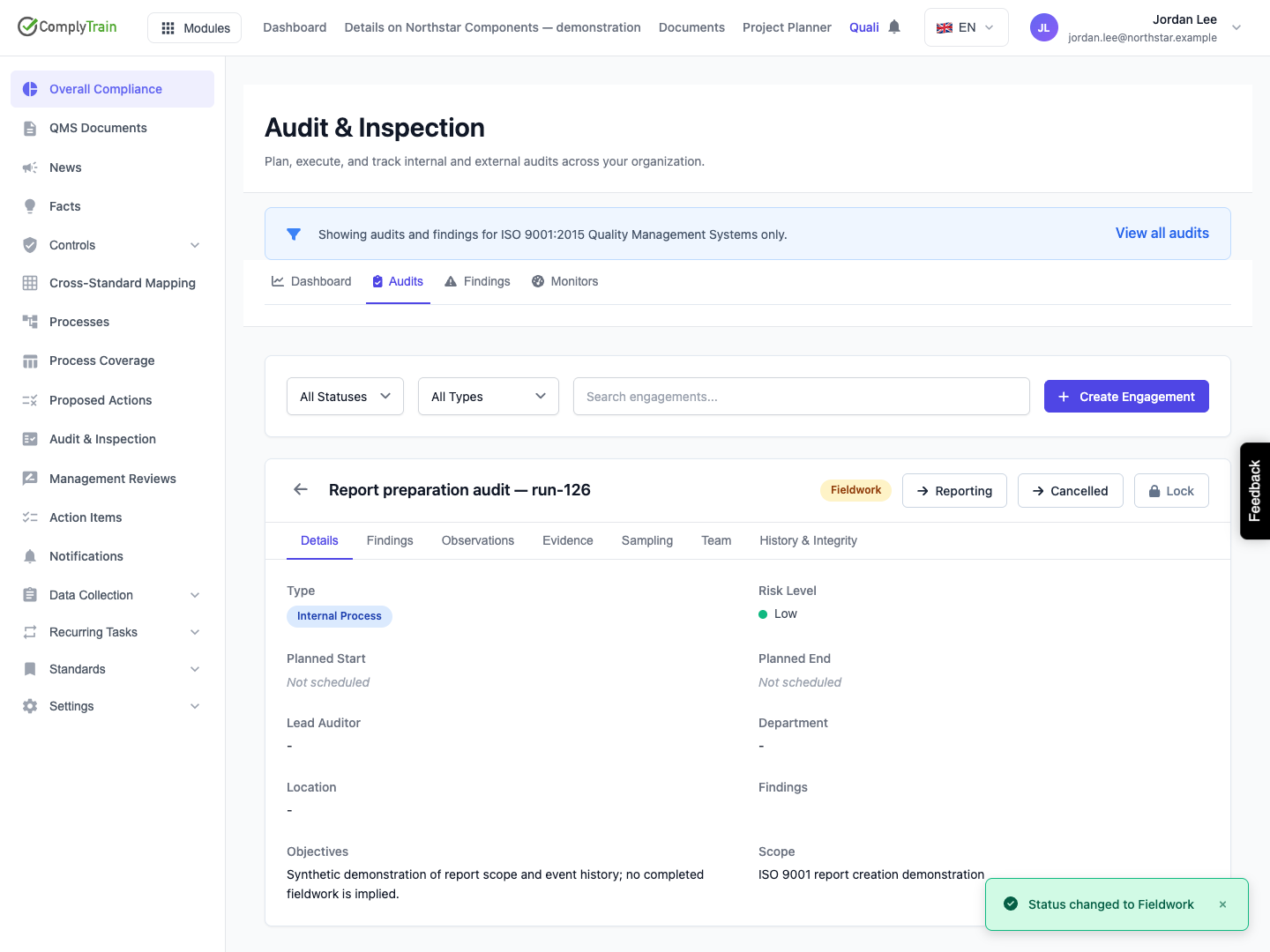
The report chooser includes engagements in Fieldwork, Reporting, Follow-up or Closed. It excludes Planning, Preparation and Cancelled engagements. An eligible state controls availability in the chooser; it does not prove that the evidence collection or review work is complete.
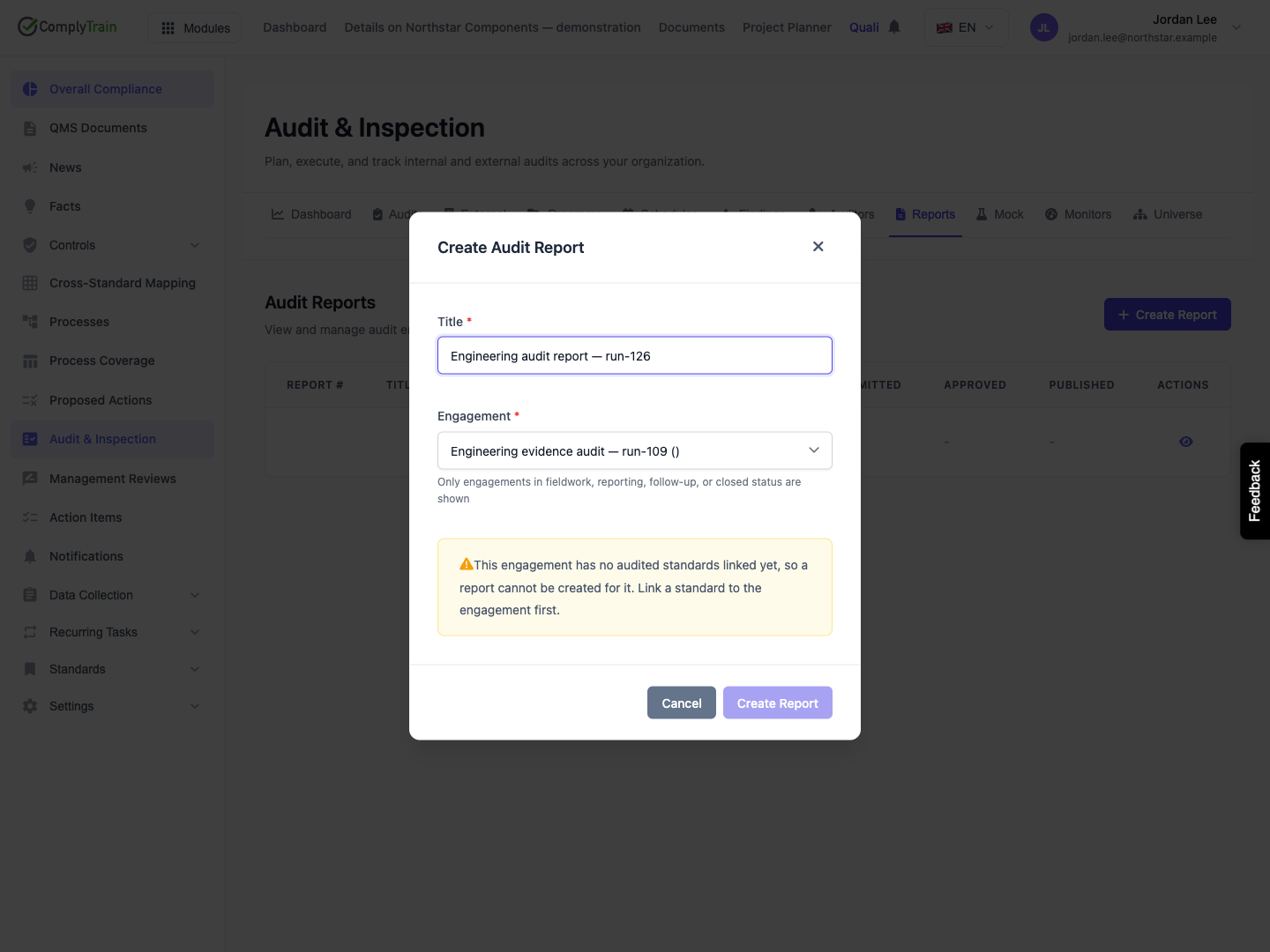
Confirm the engagement's scope and audited standards first. Reports are scoped to an engagement and one of its audited standards. An organisation-wide engagement with no audited standard cannot create a report through this form, even if its scope text mentions ISO 9001.
If the engagement is missing from the chooser, check its saved state and your access. If the engagement request failed, reopening or refreshing can reload the choices. Do not advance an actual audit's status merely to make a report button available before its work is ready.
Product location: /qms/audits. Select Reports, then create or view the intended report. The tab and selected record are not encoded in this URL.
Select Create Report and complete the modal.
Field | Meaning and rules |
|---|---|
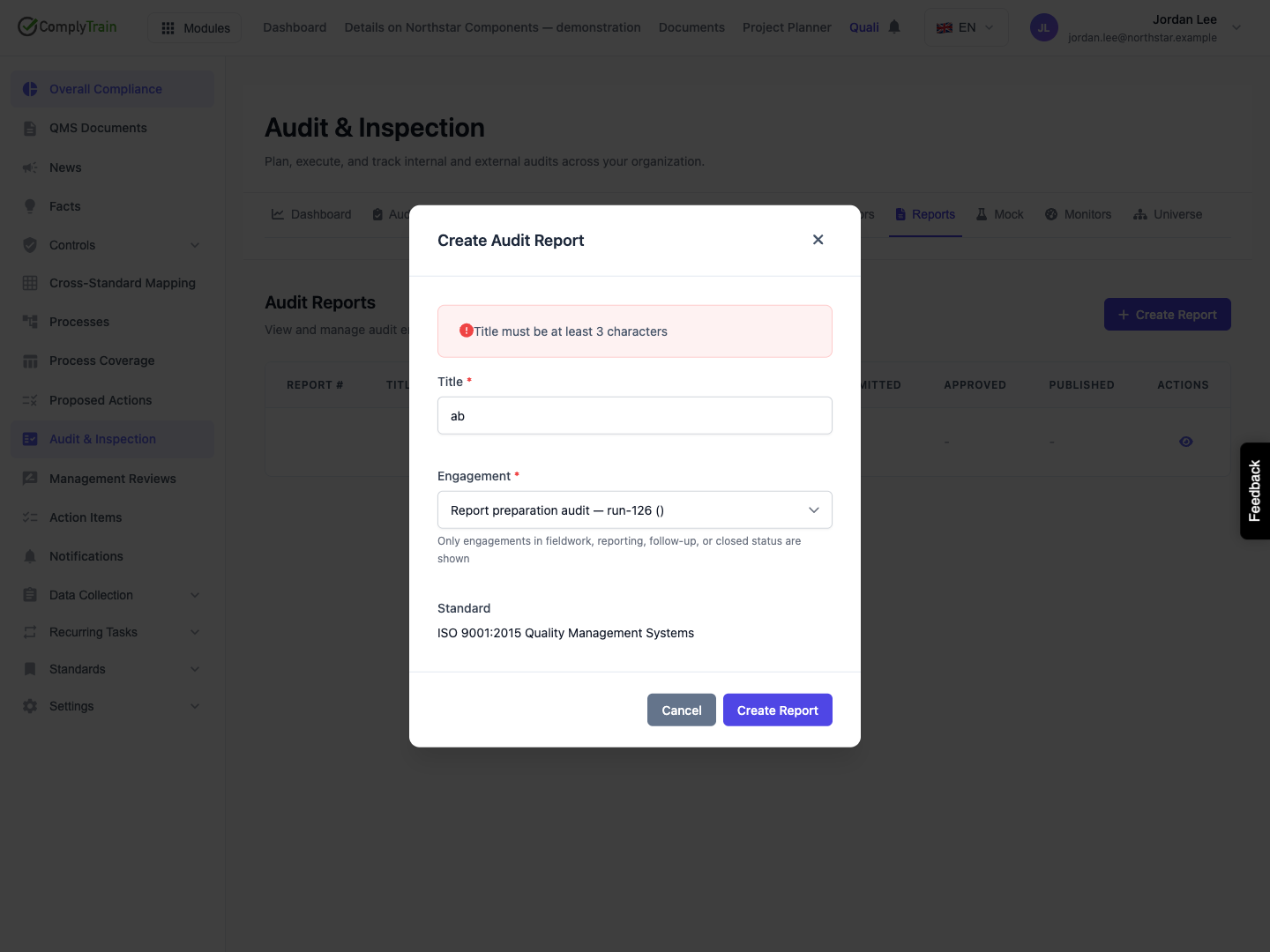
Title | Required, 3–300 characters. Use a distinct name identifying the audit purpose and reporting period. Leading and trailing spaces are removed. |
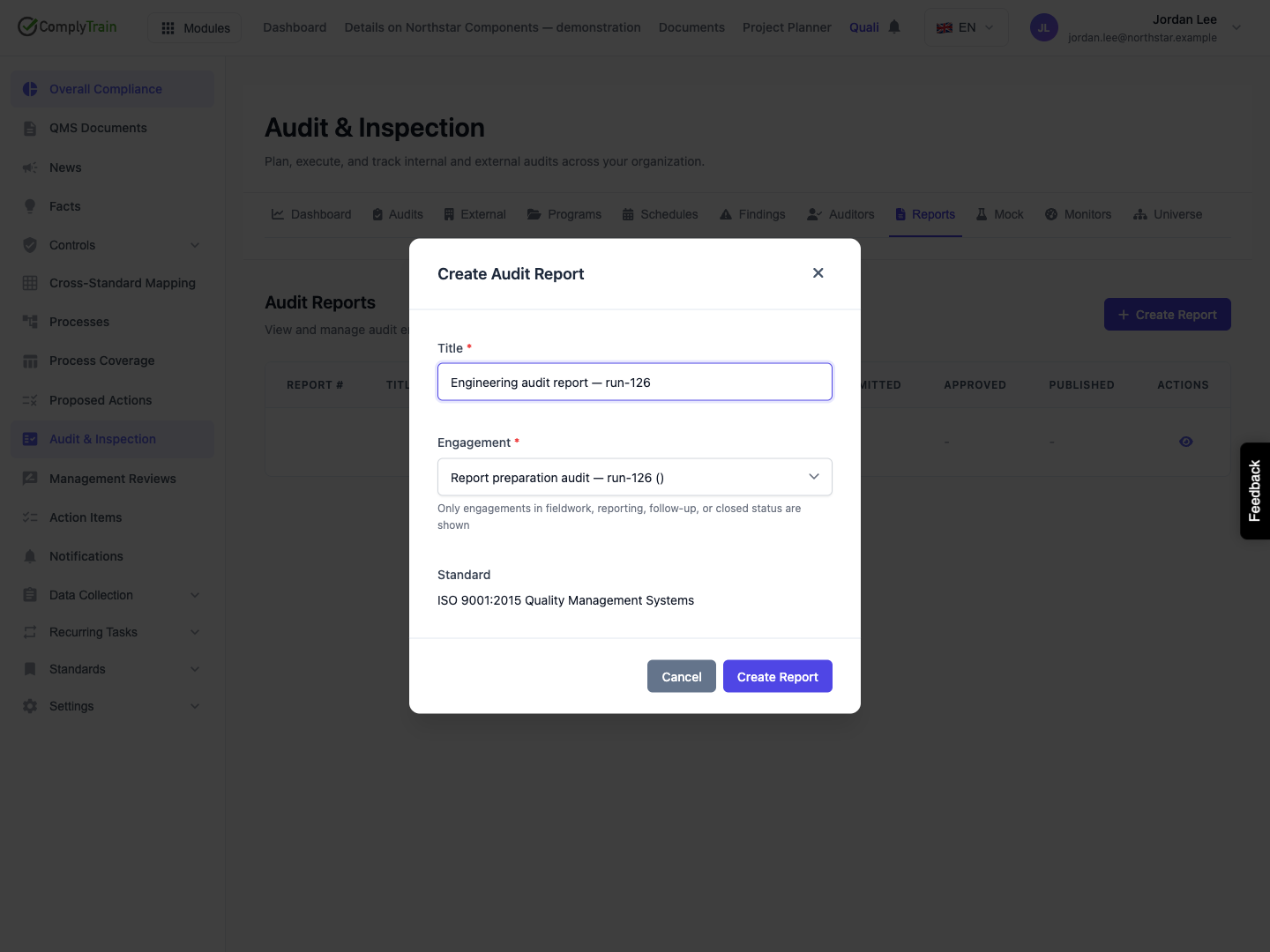
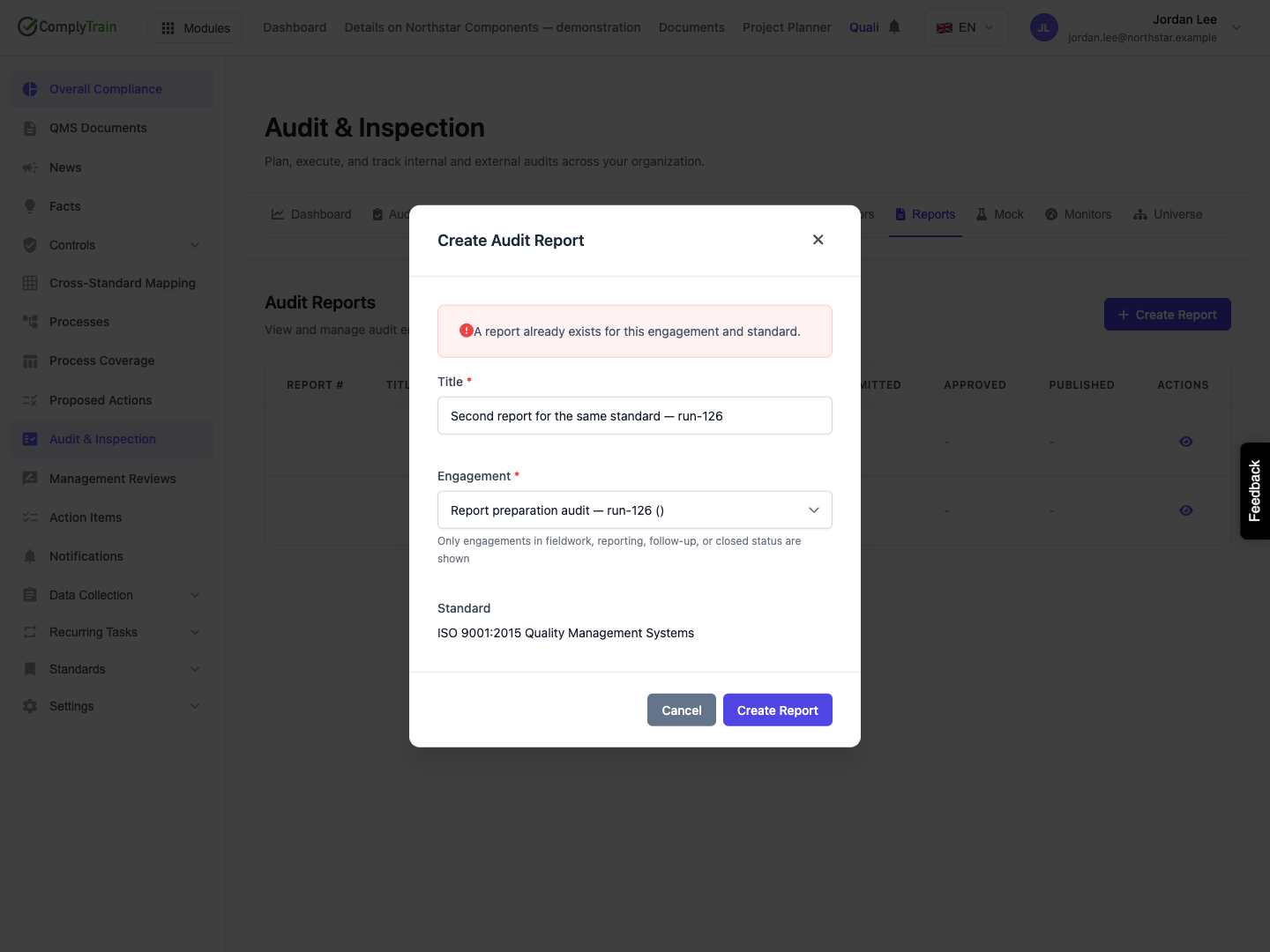
Engagement | Required selection from eligible engagements. The chooser displays each available engagement's title and number; a missing number can leave empty parentheses. |
Standard | Resolved from the selected engagement's audited standards. With one standard, the form selects and displays it automatically. With several, choose which standard this report covers. |
Wait for the standard lookup to finish. Create Report stays disabled while standards load, when the lookup fails, when the engagement has no audited standard, or when a required choice is missing. Choosing another engagement clears the previous standard selection and starts a new lookup.
There are no report-number, section-content, distribution-list, recipient, AI-prompt or approval fields in this modal. The report number can remain blank after creation. Select Create Report once and check the saved state. Cancel, closing the modal or selecting its backdrop abandons an unsaved form; reopening starts empty fields.
Product location: /qms/audits. Select Reports, then create or view the intended report. The tab and selected record are not encoded in this URL.
Situation | What to do |
|---|---|
Title must be at least 3 characters | Enter a meaningful title of at least three nonblank characters. The form retains the engagement and standard for correction. |
Title exceeds 300 characters | Shorten the title; keep detailed narrative in the supported reporting process. |
No audited standards | Return to the engagement and establish the actual audited standard through the supported scope workflow. Scope prose alone is insufficient. |
Standard lookup fails | Check access and connection, then reselect the engagement or reopen the form. A failed lookup does not permit a report with unknown scope. |
A report already exists for this engagement and standard | Inspect the existing report. Changing its proposed title does not create another report for that pair. A multi-standard engagement can have a separate report for each audited standard. |
Save outcome is uncertain | Refresh the register and establish whether a record exists before submitting again. Preserve the engagement identity, intended standard and title when requesting help. |
The uniqueness rule applies to the engagement-and-standard pair, not just the title. The screen has no replacement-version or duplicate-report override.
Product location: /qms/audits. Select Reports, then create or view the intended report. The tab and selected record are not encoded in this URL.
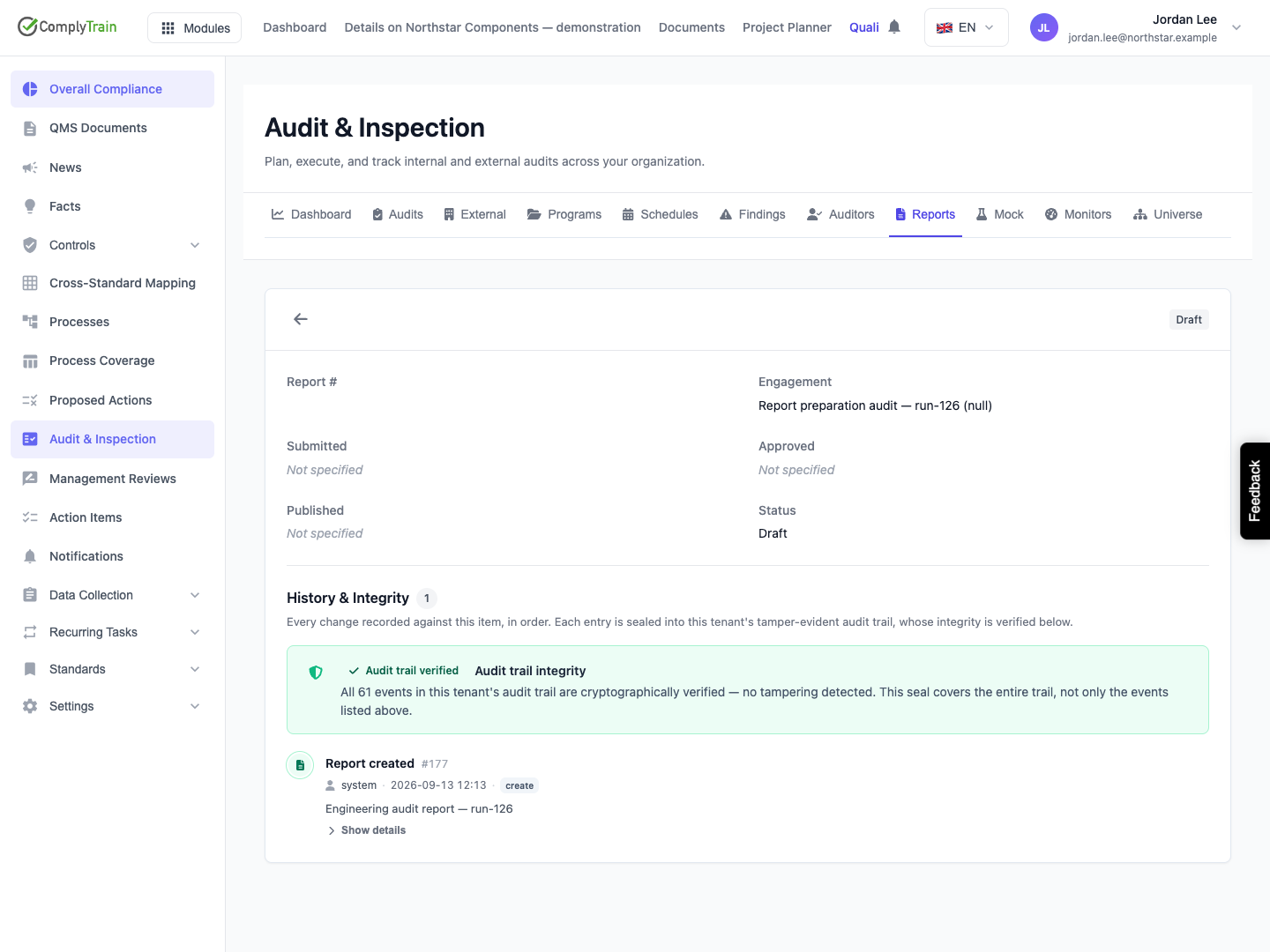
A new report starts Draft, with no approval or publication date. Use View report to inspect its engagement, status and History & Integrity panel.
The illustrated release has a material refresh limitation: the report-list response omits fields that the screen expects, including the saved title, standard and lock information. Immediately after creation the title can appear because the page still has the creation response. After refresh the Title cell and detail heading can be blank, although the dedicated report record retains the title and standard. The engagement column may show its identifier instead of its name; the detail can resolve the name after the engagement list loads.
Do not create another report to replace a row solely because its title disappeared. Identify the parent engagement and ask your administrator to confirm the retained report and standard. The detail uses the list record when opened; reopening it does not itself retrieve the complete report fields.
Missing Submitted, Approved or lock information in this view is not reliable proof that those events never occurred. The returned report detail uses review fields while the screen expects a submitted date, and the list omits several lifecycle fields. Use the retained record and event history when establishing what actually happened.
Product location: /qms/audits. Select Reports, then create or view the intended report. The tab and selected record are not encoded in this URL.
The report's service lifecycle includes Draft, In Review, Approved, Published and Archived states. The released Reports screen displays states but provides no buttons to carry out that sequence. It also provides no section editor or generated-report download; do not infer those actions from introductory text promising formal reports.
Publication through the supported reporting service finalizes and locks a report. A lock governs content changes; it is separate from a hash check, reviewer identity, digital signature or evidence that a recipient received the report. The associated controlled record, where one exists, has its own document lifecycle.
When the screen has complete lock information, a locked report displays a lock badge. Unlock is restricted to users with Manage Settings access and requires a reason of 10–2,000 characters. The reason is recorded in the audit trail. Reopening a lock does not itself revise the report, reset its lifecycle, regenerate a previously filed artifact or make an immutable prior artifact editable.
Because refreshed list records omit the lock fields in this release, the lock badge and Unlock action may be absent even for a locked report. Do not interpret their absence as proof that the report is unlocked, and do not attempt to work around that display by recreating the record. Ask your administrator to inspect the retained state and supported correction process.
Product location: /qms/audits. Select Reports, then create or view the intended report. The tab and selected record are not encoded in this URL.
Keep a clear distinction between the created Draft record and the actual report to be authored, reviewed and issued. Preserve the engagement, audited standard, title and creation event. Resolve the missing display fields and establish the supported authoring and approval path before treating this screen as a complete reporting workflow.
For an external auditor's curated evidence ZIP, use external-audit export packages. For the record of a management-review meeting, use management-review minutes. Those workflows do not complete this internal report automatically.
