Investigate recurring patterns, understand detection thresholds, and distinguish acknowledgement, dismissal and automatic resolution.
Product location: /qms/audits. Select Dashboard. Scroll to Cross-audit AI insights.
Open Audit & Inspection → Dashboard and scroll to Cross-audit AI insights. Reading and acting on insights requires Manage audits permission. The tenant workspace includes all standards; a standard's audit workspace filters the displayed feed to insights assigned to that standard.
An empty feed means no active insights were returned for display. It does not prove that detection has recently succeeded, that there are no findings, or that all relevant controls have been examined. In the illustrated environment the feed was empty despite existing findings.
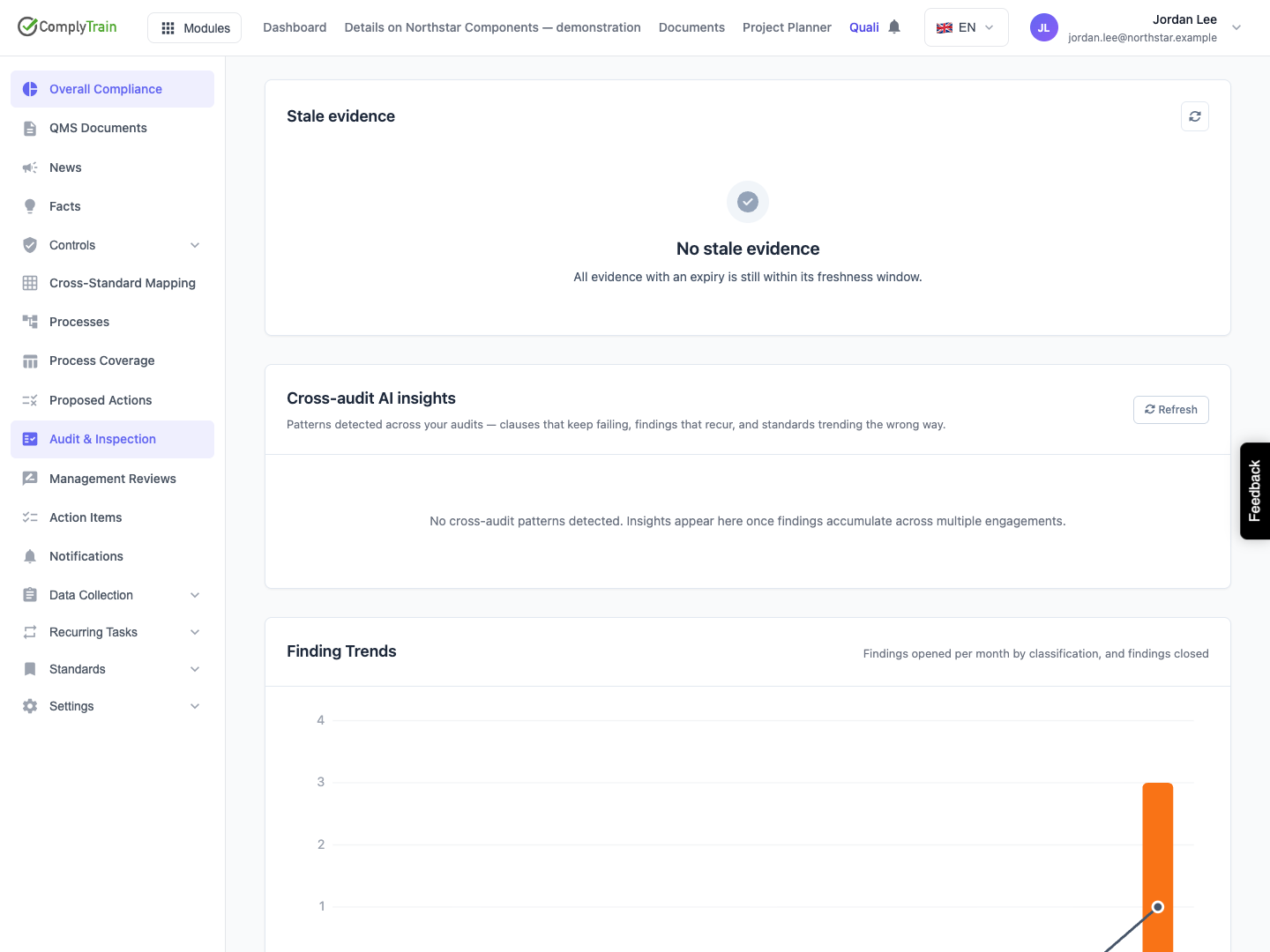
Product location: /qms/audits. Select Dashboard. Scroll to Cross-audit AI insights.
The product detects patterns from audit records and monitor results. For the first three types below, deterministic rules identify a signal before any optional AI summary is written.
Pattern | Inputs and default detection rule |
|---|---|
Clause cluster | At least three major/minor nonconformity findings mapped to the same standard clause across at least two distinct engagements. Historical closed findings still count toward this pattern. |
Repeat finding chain | At least three linked occurrences: the original finding plus recurrences sharing its root. A repeat flag without the relevant previous-finding links is not the same evidence as a recurrence chain. |
Negative trend | A rising count of major/minor nonconformities over six calendar months, including the current month. Defaults require at least four findings and a fitted increase of at least 0.75 findings per month. This is not simply a comparison of the last two months. |
Drift | A continuous monitor breaches its configured threshold. Investigate that monitor's source records and last evaluation. |
These are released defaults, controlled by application configuration. There are no threshold fields in this dashboard. A larger or differently configured organisation may use different detection settings. Clause clusters and recurrence groups are not restricted to the twelve months displayed in Finding Trends.
The negative-trend detector attributes findings by explicit clause mappings, falling back to engagement standards only for findings without mappings. This differs from the standard-filtered dashboard trend chart's engagement-only filter.
AI enrichment can provide a title and narrative. If enrichment fails, deterministic detection can still persist an insight. A later run can retain an earlier successful AI narrative when it cannot create a replacement. Review the underlying records and counts rather than assuming the prose is a fresh assessment of every detail.
Product location: /qms/audits. Select Dashboard. Scroll to Cross-audit AI insights.
A populated row shows severity, title, summary, type, optional standard and detected date. Acknowledged rows have a status badge. The badge beside the feed heading counts New insights in the current standard scope.
Rows are ordered by severity, then detection date. The date can update when a pattern is detected again; it is not necessarily the first occurrence date. The displayed summary prefers the stored AI narrative when available.
This release does not provide a source-record drill-down or full payload viewer on the row. Use Findings, the appropriate engagement under Audits, or Monitors to inspect its source. A pattern alone does not create or close a finding, CAPA or audit engagement. Record the decision and follow-up through the relevant workflow.
The illustrated walkthrough covers an empty feed and the refresh request. Populated-row acknowledgement, dismissal, automatic resolution and reappearance are described from the released implementation and remain to be exercised in the documentation environment.
Product location: /qms/audits. Select Dashboard. Scroll to Cross-audit AI insights.
Select Refresh in the insight panel. The button remains disabled while its request is pending. This requests a background detection job for the whole tenant, including when you use it from a standard workspace; the displayed feed remains filtered to that standard.
Outcome shown by the page | What to do |
|---|---|
Detection queued | A request was queued, or detection was already running. Allow the job to finish, then reload the dashboard to see the resulting feed. The notice itself does not prove completion. |
Recently refreshed | The request is inside the configured minimum refresh interval. The default is 60 minutes since the last detection run. Use the current feed and avoid repeated requests. |
Refresh unavailable | Detection could not be queued, for example because the job is disabled or unavailable. Ask the administrator to check the job state. |
Loading/request error | The panel failed to load or its action failed. Retry the failed operation; do not treat this as a clear finding result. |
The page immediately reloads the currently available feed after a refresh response. It does not poll until the job completes. A daily detection job is also defined, but opening the dashboard does not run it or prove it is healthy.
The first documentation request received Detection queued with a successful trigger response. A later request reported that detection had run recently and returned the 60-minute minimum interval, as illustrated below. The feed remained empty; the walkthrough did not exercise newly generated insight content or the populated-row lifecycle.
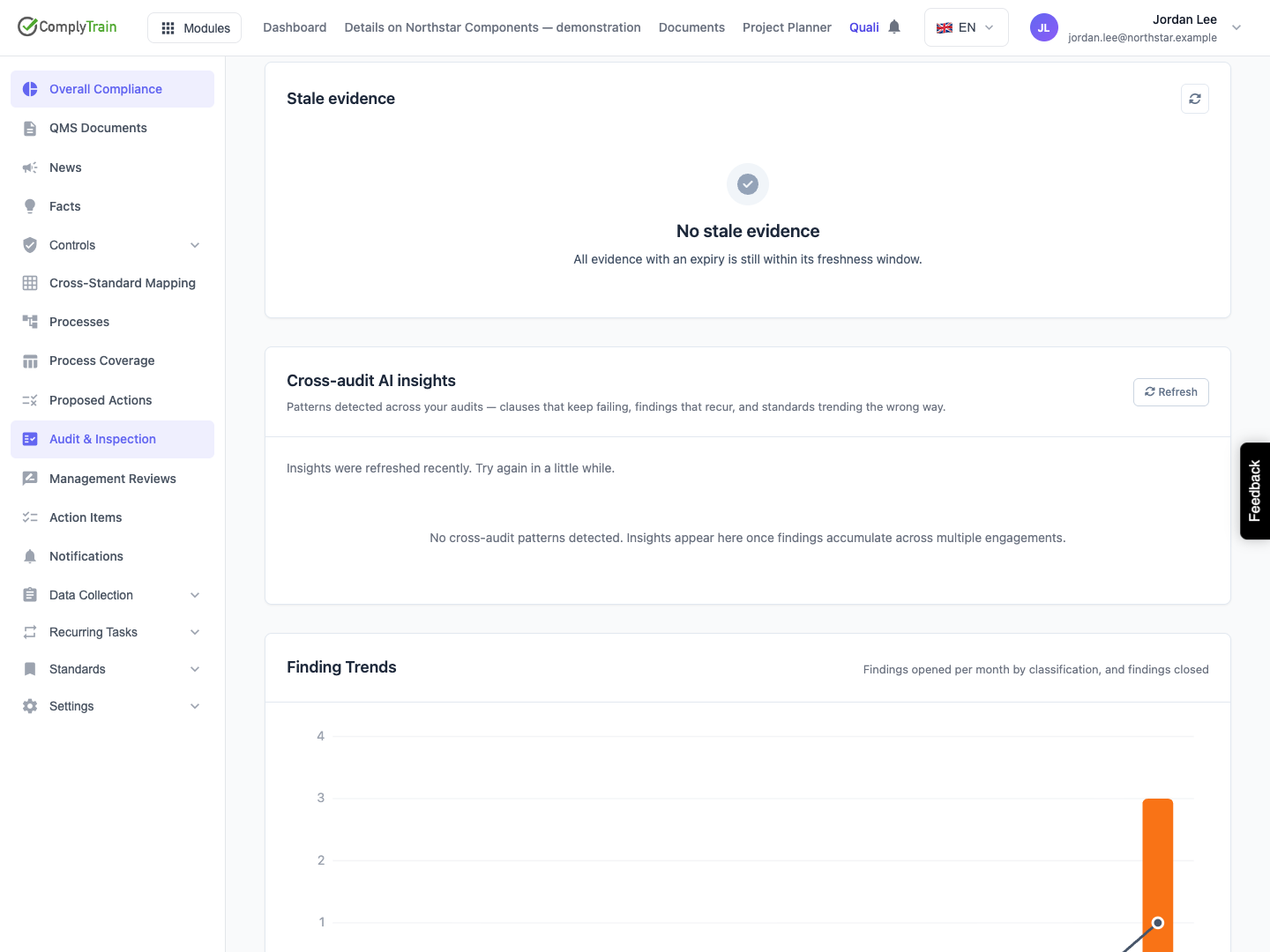
Product location: /qms/audits. Select Dashboard. Scroll to Cross-audit AI insights.
For a New row, choose Acknowledge after reviewing it. The row stays visible with its acknowledgement badge, the New count decreases, and the system records who acknowledged it and when. Acknowledgement does not resolve the underlying findings or stop a monitor breach.
When the same pattern is detected again, its acknowledgement is preserved while its metrics and detection date can update. If the request fails, reload the feed and check the persisted status before assuming your acknowledgement was saved.
Product location: /qms/audits. Select Dashboard. Scroll to Cross-audit AI insights.
Choose Dismiss to open the confirmation, then confirm only when hiding the signal is justified. Cancel retains the row. Confirmed dismissal hides it from the default feed and records the actor and time; the source findings and monitor records remain.
The dashboard has no restore control or dismissed-items view in this release. Re-detection of the same pattern preserves a user's dismissal. Do not dismiss an item merely to mark that someone is working on it; acknowledgement keeps that work visible.
Product location: /qms/audits. Select Dashboard. Scroll to Cross-audit AI insights.
A detection run can mark a previously New or Acknowledged insight Resolved when its signal no longer qualifies. Resolved rows disappear from the default feed. If that same resolved pattern qualifies again later, it returns as New with the old acknowledgement cleared.
A dismissed pattern keeps its user disposition. Closing findings does not necessarily clear every pattern: clause clusters and recurrence history still include historical occurrences. Judge the actual rule, and use the source workflow to record corrective action and verification.
Product location: /qms/audits. Select Dashboard. Scroll to Cross-audit AI insights.
The dashboard requests the first 50 insights in severity/date order, then hides Dismissed and Resolved rows in the browser. There are no pagination or status-filter controls. Hidden rows can therefore consume part of that first batch, and the visible list can contain fewer than 50 rows or be empty while additional active records exist beyond it.
The New badge is counted across the standard scope, so it can exceed the visible New rows. If the badge and visible list disagree, or an expected record is missing, ask the administrator to inspect the stored insight list. Repeated refreshing does not remove this pagination limit.
