Assemble a review pack, record accountable decisions and track follow-up after closing the meeting.
Product location: /qms/management-reviews/new. For a standard-scoped review, use the selected standard → Management Reviews → New review.
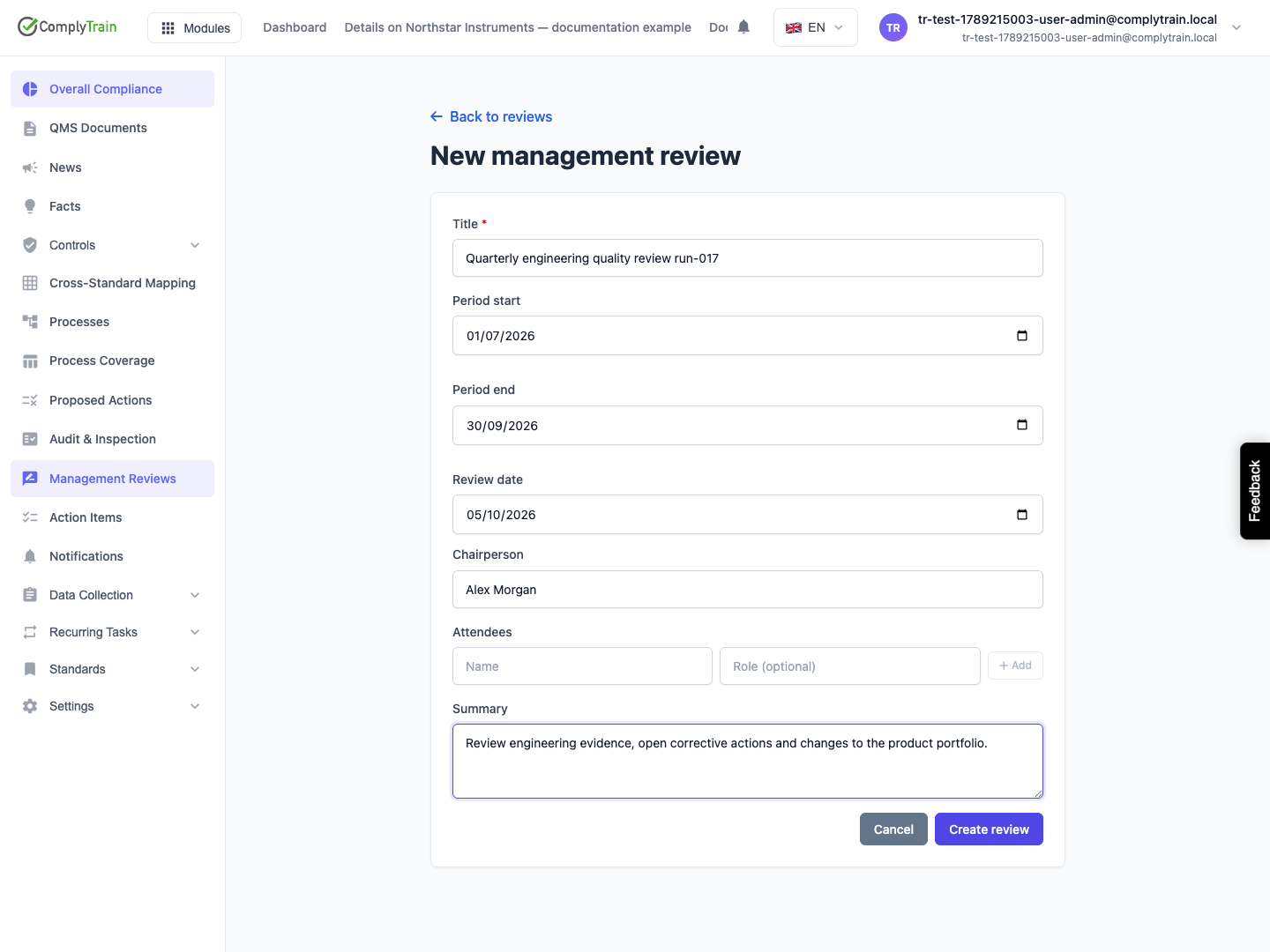
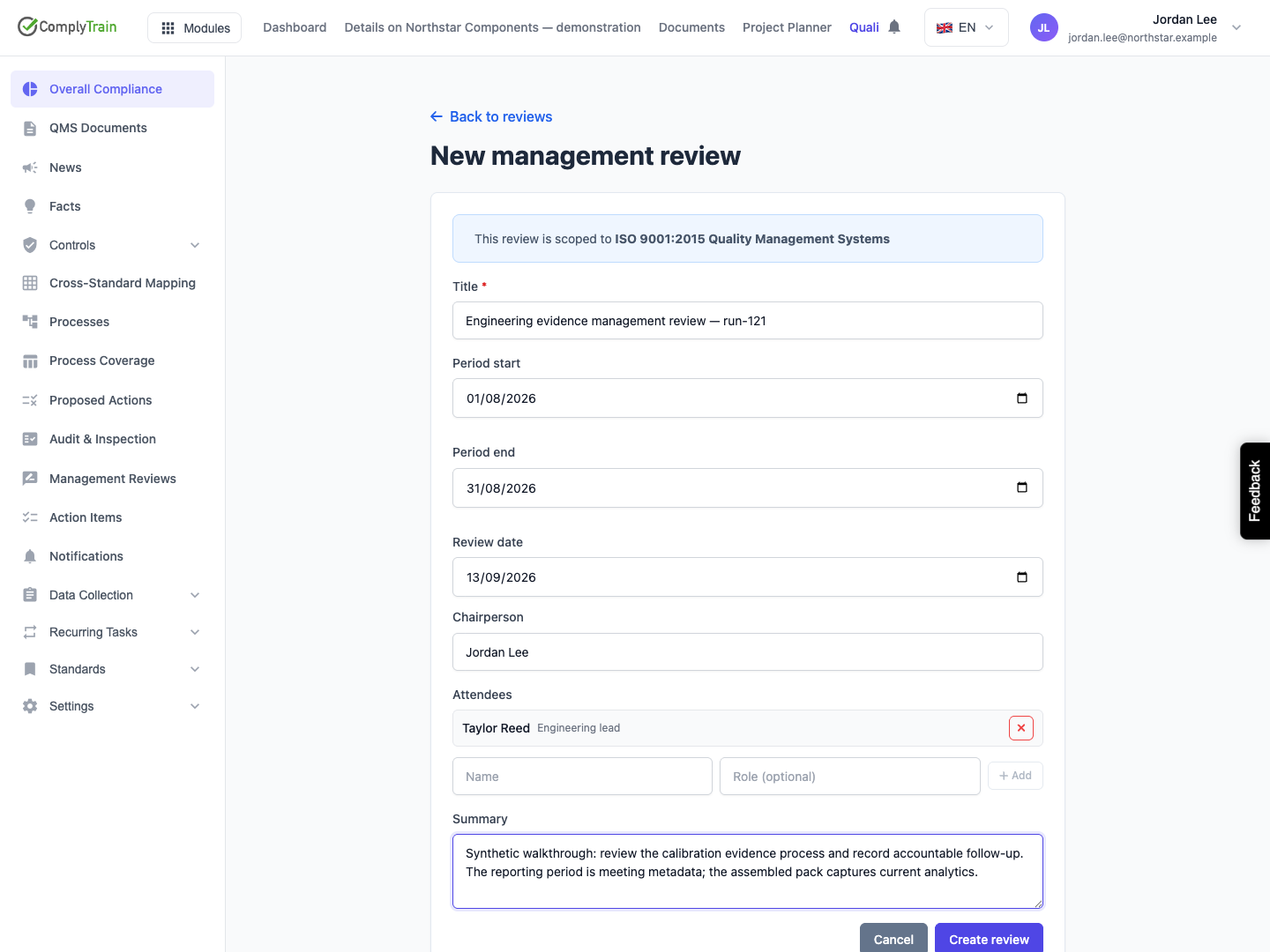
Open Quality (QMS) → Management Reviews → New review for an organisation-wide review. For a standard-specific review, open Management Reviews inside the standard, select New review and check the This review is scoped to… notice. The general list includes reviews across the organisation; the standard-specific list shows that standard's reviews.
Review management requires Manage Audits access. Recording someone as a chair or attendee identifies their meeting role; access comes from their configured permissions.
Field | What to enter |
|---|---|
Title | A required, nonblank title, up to 300 characters. Identify the review's period and purpose. |
Period start / Period end | Optional dates describing the period discussed. The end must be on or after the start; a single-day period is valid. Keep these separate from the assembly time of the input snapshots. |
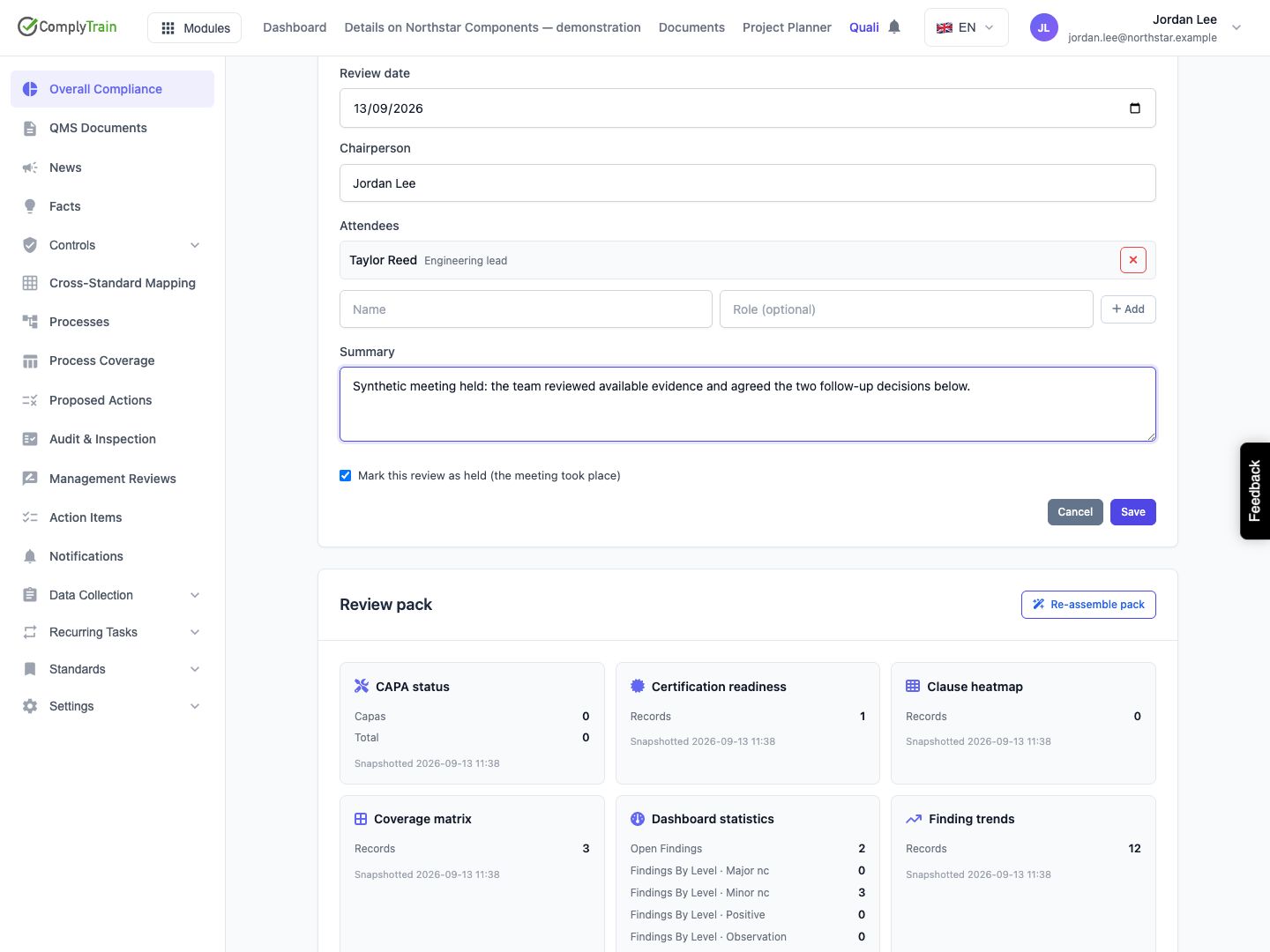
Review date | The planned or actual meeting date. Mark the meeting Held separately when it takes place. |
Chairperson | The chair's name, up to 200 characters. This identifies their meeting role. |
Attendees | Enter a Name and optional Role, then select Add. Each added row belongs to the attendee list. Remove a row with its remove control. |
Summary | The purpose, scope and context of the meeting. Update it with the discussion and conclusions after the meeting. |
Select Create review. Reopen the saved Draft and check its scope, dates, chair, attendees and summary. Cancel returns to the list without creating a record. If the scope is still loading or an error is shown, resolve it before creating the review.
For example, an August review can have a September meeting date. Record August as the reporting period and the actual September date as the meeting date. The input pack's snapshot times show when its supporting analytics were assembled.
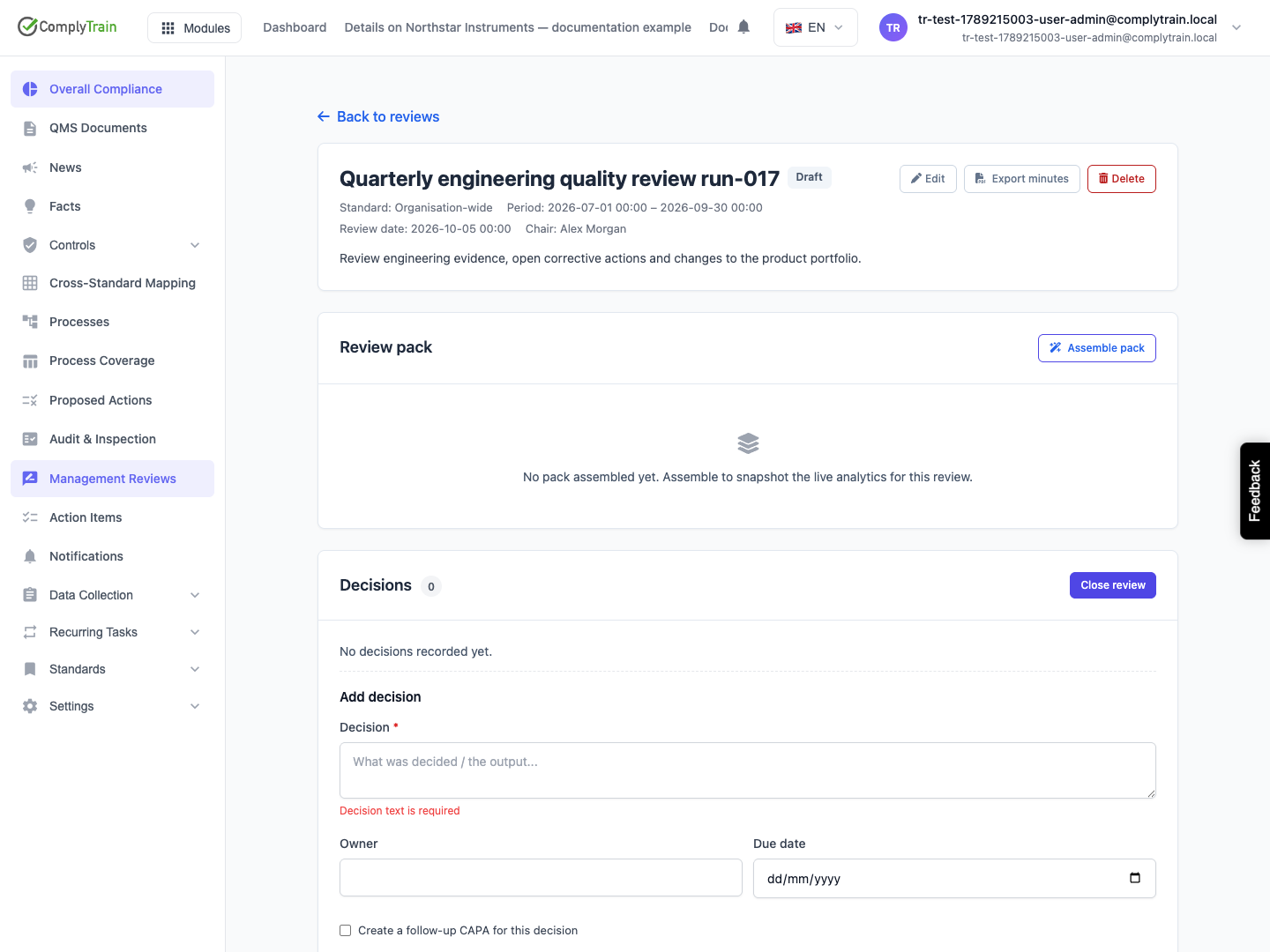
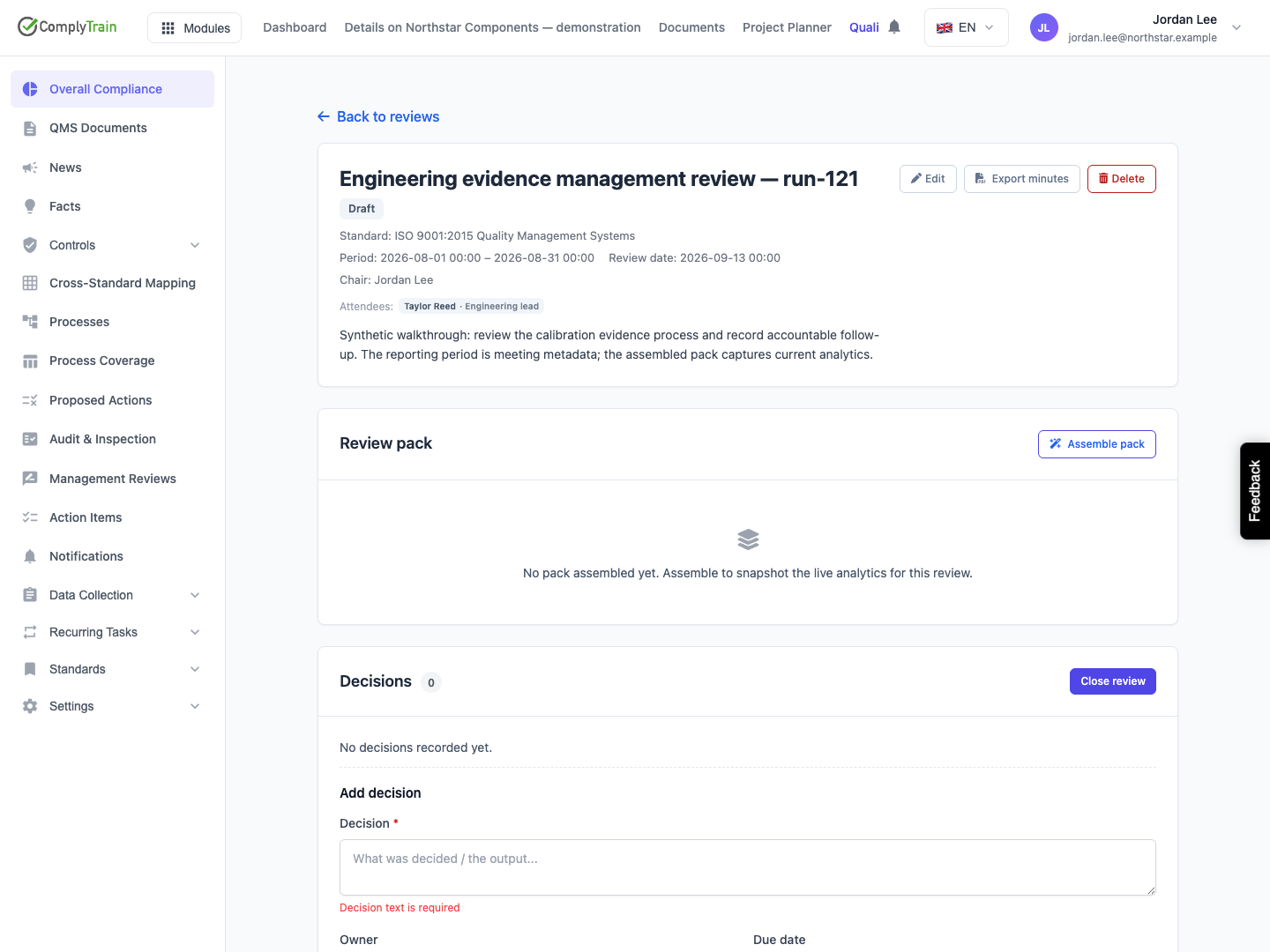
Product location: /qms/management-reviews/{reviewId} (fallback: /qms/management-reviews). Open the organisation-wide review. For a standard-scoped review, use that standard → Management Reviews and open the review.
Use the header's Edit control while preparing or holding the review. Change the title, dates, chair, summary or attendee list and select Save. To remove optional information, clear its field and save. To remove attendees, remove their rows and save the updated list. Reopen the record to check the result.
Select Mark this review as held (the meeting took place) in the edit form when the meeting has occurred. Saving advances the record from Draft to Held. Update the summary and attendees to reflect the actual meeting.
If someone else changes the review during your edit, reload the newer record before applying your changes again. Check what changed so that you preserve the other person's work.
Product location: /qms/management-reviews/{reviewId} (fallback: /qms/management-reviews). Open the organisation-wide review. For a standard-scoped review, use that standard → Management Reviews and open the review.
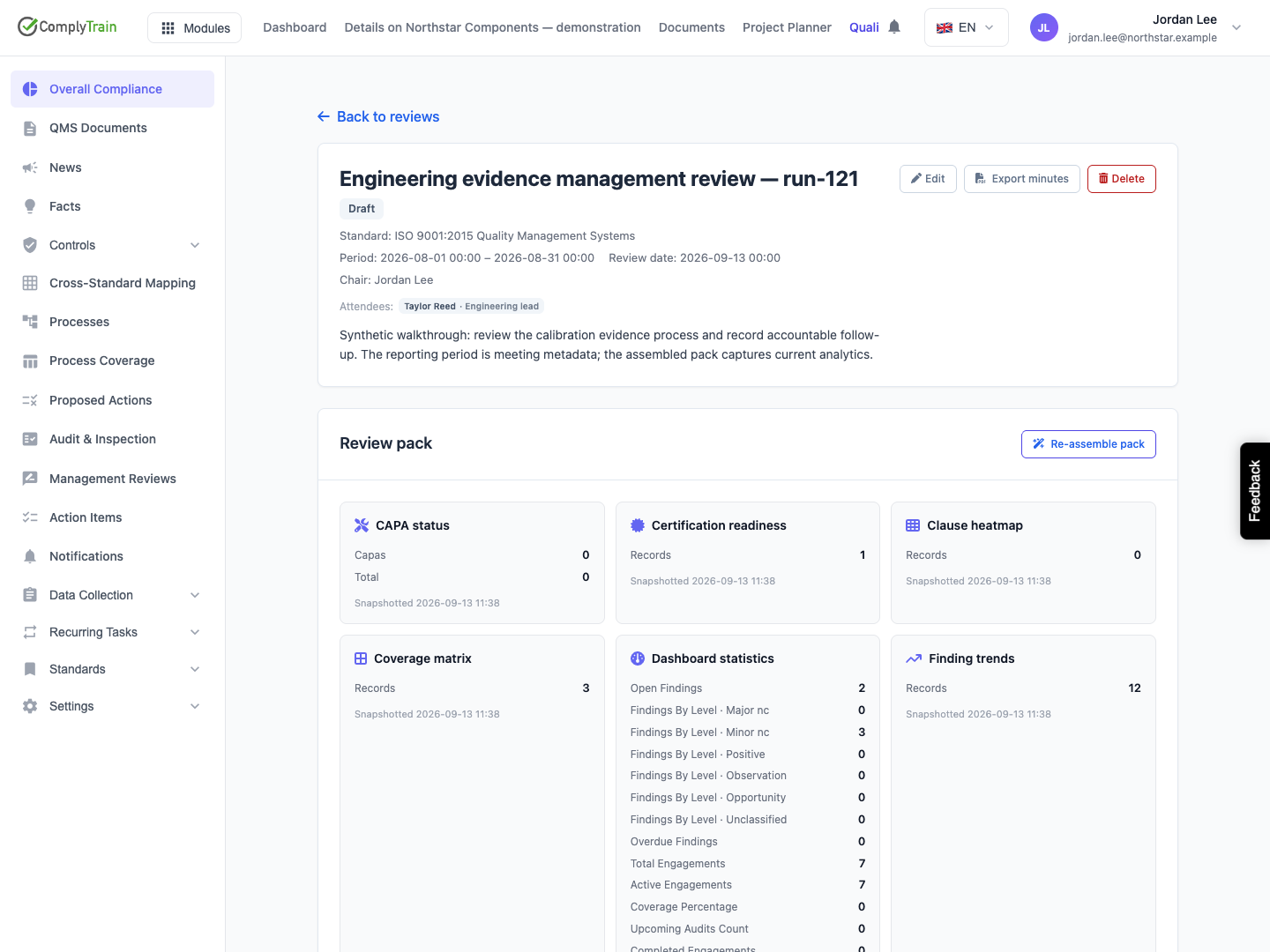
Select Assemble pack to save a snapshot of the available audit analytics. Wait for the sections to appear and inspect their Snapshotted times. Reopening the review displays that saved pack.
Input | What to discuss |
|---|---|
Dashboard statistics | Organisation-wide audit activity, including active and completed work. |
Finding trends | The pattern of findings over the source dashboard's twelve-month trend window, scoped to the review's standard where selected. |
Clause heatmap | Finding concentrations against clauses for the selected standard. |
Coverage matrix | Organisation-wide audit coverage and areas that need attention. |
Certification readiness | The organisation's readiness indicators and supporting gaps. Use the underlying evidence when deciding actions. |
Overdue findings | Organisation-wide findings requiring overdue follow-up. |
Audit insights | Insights relevant to the selected standard, or the wider organisation for an organisation-wide review. |
CAPA status | Corrective and preventive work for the selected standard, or the organisation-wide set. |
The reporting period identifies the period discussed at the meeting. The pack records the source dashboards at assembly time, with each source's own scope and trend window. A standard-specific review can therefore use both standard-specific and organisation-wide inputs. Record how those inputs relate to the meeting's scope in the summary and decisions.
Open the source registers when you need the underlying findings, CAPAs or evidence behind a summary. Discuss the cause of a trend, the effectiveness of earlier actions, changes affecting the system, resource needs and the next actions required.
Use Re-assemble pack during preparation when you need newer input snapshots. This replaces the saved pack and keeps the meeting details and decisions. Review the new snapshot times and revise conclusions that depended on the earlier data. At closure, the meeting's pack becomes part of its retained record.
Product location: /qms/management-reviews/{reviewId} (fallback: /qms/management-reviews). Open the organisation-wide review. For a standard-scoped review, use that standard → Management Reviews and open the review.
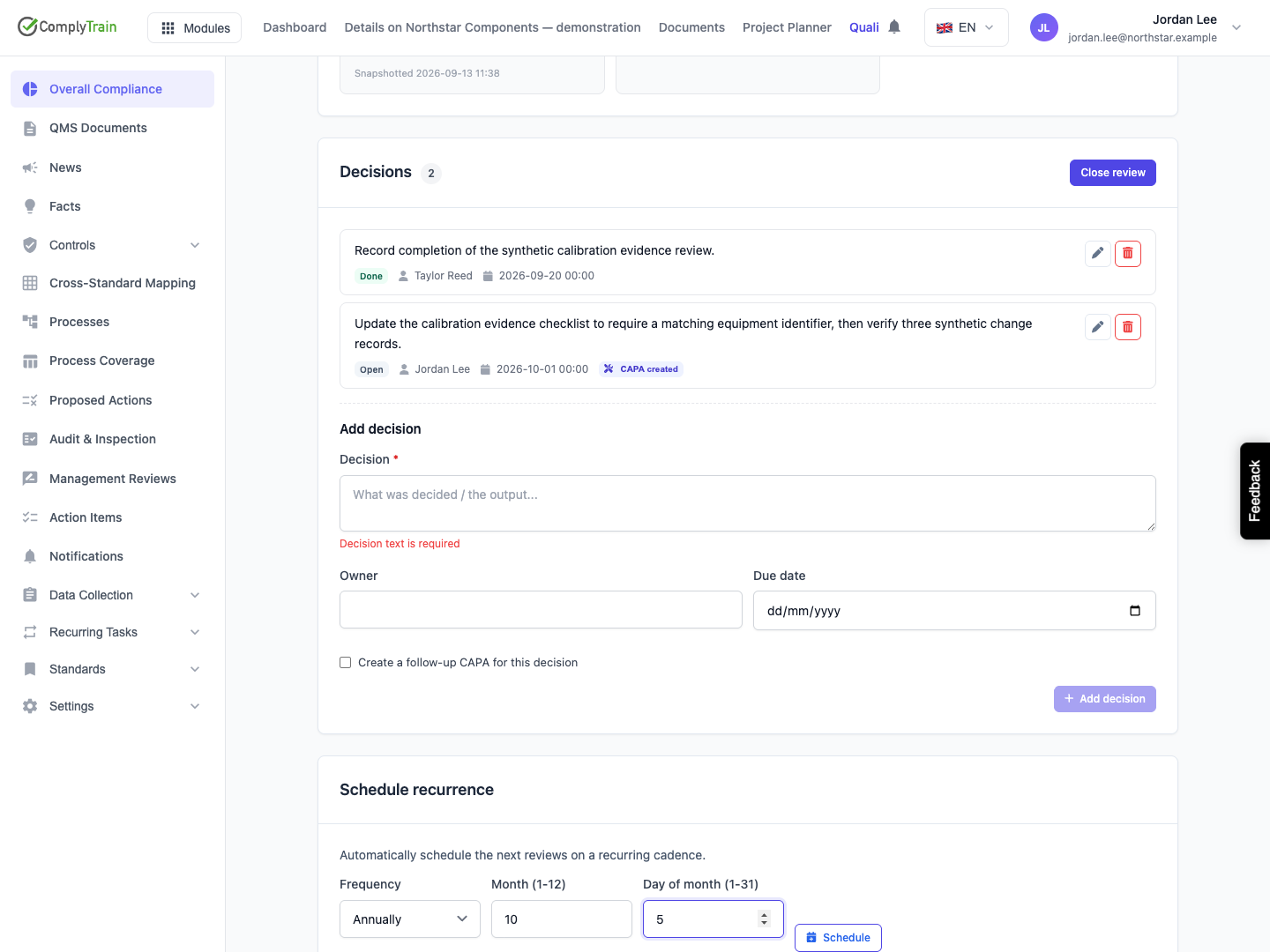
Under Decisions, enter the agreed result in Decision, assign the responsible Owner, set a Due date and select Add decision. Use one decision per outcome so that its responsibility and completion are clear.
For example: “Update the calibration evidence checklist to require the equipment identifier, then review three completed records.” Assign the person responsible for that work and choose a realistic due date.
In Owner, select the responsible user so the follow-up reaches their inbox. For someone without an account, leave the picker empty and type the name in Named person without an account; that person receives no inbox task. Confirm the saved owner and due date. Chairperson and attendee names describe meeting participation; decision ownership assigns the follow-up.
Status | When to use it |
|---|---|
Open | The action is agreed and awaiting work. |
In progress | The owner has started work. |
Done | The agreed outcome has been achieved. |
Use Mark done on a decision to complete it in one step; the decision then shows when and by whom it was completed.
Use a decision's Edit control during preparation to change its text, owner, due date or status. Select Save to retain the change. If you clear the owner or due date, restore the required accountability details before closing the review. Missing details are highlighted on the decision.
If a decision was entered in error, select Delete, review the confirmation and confirm its removal. Cancel keeps it. Check any separately linked CAPA before removing the decision from the meeting record.
Product location: /qms/management-reviews/{reviewId} (fallback: /qms/management-reviews). Open the organisation-wide review. For a standard-scoped review, use that standard → Management Reviews and open the review.
When a new decision needs corrective-action analysis and verification, select Create a follow-up CAPA for this decision before adding it. Explain the problem and intended action in the decision. Use a configured default CAPA workflow.
After saving, confirm CAPA created and open the link. Check the new Corrective CAPA's review reference, standard, owner, severity, workflow and target dates. The decision and CAPA describe related work with separate status and scheduling fields; keep both records aligned with the agreed responsibility and deadlines.
Use the CAPA workflow to analyse the cause, record actions and verify their result. When the agreed work is complete, choose Mark done on the decision. This records the decision's completion; the linked CAPA must satisfy its own closure and verification requirements.
For corrective work identified later, create the CAPA through the CAPA workspace and retain a clear reference to the originating review and decision. Check the saved links before retrying an interrupted creation so that you continue the existing work.
Product location: /qms/management-reviews/{reviewId} (fallback: /qms/management-reviews). Open the organisation-wide review. For a standard-scoped review, use that standard → Management Reviews and open the review.
While preparing the review, open Schedule recurrence. The form initially shows Quarterly, day 1.
Frequency | Schedule fields |
|---|---|
Monthly | Day of month, 1–31. |
Quarterly | Day of month, 1–31, in January, April, July and October. |
Annually | Month, 1–12, and day of month, 1–31. |
Select Schedule and confirm the result. Open the corresponding definition in Recurring Tasks to check its next occurrence, responsible user or role, active state and lead time. The review schedule uses seven days of lead time. Check the calculated next date when selecting days 29–31.
Recurring work prompts preparation for the next review. For each occurrence, prepare the relevant meeting details, assemble its own pack and record the actual meeting and decisions.
When replacing a schedule, confirm the linked definition's new dates and the previous definition's inactive state. Use the recurring definition to review the saved settings and manage future occurrences. Closing the current meeting and preparing its next occurrence are separate activities.
Product location: /qms/management-reviews/{reviewId} (fallback: /qms/management-reviews). Open the organisation-wide review. For a standard-scoped review, use that standard → Management Reviews and open the review.
Before closing, confirm the meeting details, attendees, summary, input snapshots and agreed decisions. Every decision needs an owner and a due date. Review any outstanding work with its owner and confirm the next step.
Select Close review and read the confirmation. Cancel keeps the meeting open for editing. Confirming records Closed and preserves the meeting details, input pack and decisions as they stood at closure.
Outstanding actions can remain Open or In progress. Closing the meeting preserves their follow-up responsibility and due dates. The meeting record is ready for minutes and sign-off while its remaining actions continue to be tracked.
Open the review again to check the Closed state, recorded decisions and links to follow-up work. Then use the minutes workflow to file the meeting record for signature.
Product location: /qms/management-reviews/{reviewId} (fallback: /qms/management-reviews). Open the closed review and the relevant decision or linked follow-up action. For a standard-scoped review, open it from that standard’s Management Reviews.
Open the closed review. Its decisions stay actionable: use a decision's Update follow-up control to change its owner, due date or status, or Mark done to complete it. The decision text is part of the closed meeting record and cannot be changed, and decisions can no longer be added or deleted. The progress line shows how many decisions are completed. An owner selected as a user can also open the review from the follow-up task in their inbox.
Keep the follow-up owner, due date and status current. Each reassignment, due-date change, status change and completion is recorded automatically. Choose Show history on the decision to read it. Keep completion evidence and the reason for any change in the linked CAPA or your organisation's records. Choose Mark done when the agreed outcome has been achieved.
The meeting's record at closure and the action's current progress serve different purposes. Later reassignment, progress or completion belongs in follow-up history. When a decision's current status differs from the minutes, it shows At closure with the status recorded when the review was closed. The frozen meeting details, input snapshots and filed minutes continue to show what was recorded for that meeting.
For example, a review closed on 5 October can record an action due on 20 October. The owner marks it done on 18 October; the decision records that completion and its history shows who marked it done. The closed meeting and its signed minutes retain the decision as it stood at closure.
Keep a linked CAPA's analysis, action verification and closure in its own workflow. Review outstanding work at the next management review and refer back to the original decision and its recorded outcome.
Product location: /qms/management-reviews/{reviewId} (fallback: /qms/management-reviews). Open the organisation-wide review. For a standard-scoped review, use that standard → Management Reviews and open the review.
Use management-review minutes and sign-off to export the PDF, file the closed record in Audit Records and complete the controlled document's signature workflow.
Product location: /qms/management-reviews/{reviewId} (fallback: /qms/management-reviews). Open the organisation-wide review. For a standard-scoped review, use that standard → Management Reviews and open the review.
Correct invalid calendar values and check that the reporting period is ordered. If a save reports a conflicting edit, reload and review the newer record before saving again. After a failed pack assembly, check the retained snapshot times before retrying.
An unwanted open review can be deleted from its header after confirmation. Check the review identity and retain any information your process still needs before removing its pack and decisions. Review linked CAPAs and recurring definitions separately, and deactivate recurring work that should stop.
For a correction discovered after closure, preserve the original meeting record and follow your organisation's controlled correction procedure. Keep the correction linked to the original review, relevant decision and filed document version.
