Choose a mode, start a conversation, answer questions, use knowledge sources and verify the resulting QMS work.
Use the AI conversation for a standard to understand requirements, prepare quality-system work and discuss evidence in that standard's context. Keep separate conversations for separate questions or pieces of work so that each history remains understandable.
Product location: /qms/{standardCode}/chat (fallback: /qms/standards). Use the named conversation control; confirm the standard and conversation title.
Open Standards, choose the enabled standard and select its chat workspace at /qms/{standardCode}/chat. Confirm the standard code in the heading before asking a question or requesting work.
The workspace has a conversation sidebar, a Chat Mode selector and the message area. Opening the workspace can return you to a recent conversation. Check its title and previous messages; choose New conversation when you need a fresh discussion.
Use AI Sessions to find an older conversation or review its status. Access to the standard and the actions you request depends on your role.
Product location: /qms/{standardCode}/chat (fallback: /qms/standards). Use the named conversation control; confirm the standard and conversation title.
Choose the mode that fits the work you want to do. The selector shows a description for each choice.
Mode | Use it for | Example starting request |
|---|---|---|
Scoping | Define the operating scope and discuss possible exclusions. | “Help me describe which sites and services belong in our quality-system scope.” |
Explaining | Understand requirements and ways to meet them. | “Explain this requirement and the kinds of records that would demonstrate it.” |
Producing | Generate and refine compliance documents. | “Help prepare a procedure for reviewing supplier performance.” |
Evaluating | Assess evidence and identify missing support. | “Review whether these records support this requirement, and explain any gaps.” |
Reviewing | Review existing content for compliance and quality. | “Review this procedure for unclear responsibilities and missing review steps.” |
Analyzing | Investigate gaps and areas for improvement. | “Help prioritize the remaining gaps for this standard.” |
Query | Ask questions about standards and requirements. | “Where can I find the requirements about management review?” |
Selecting a mode starts a conversation for that purpose. Use the sidebar to return to the earlier discussion. A mode guides the assistant's focus; verify the actual records and actions involved in a request.
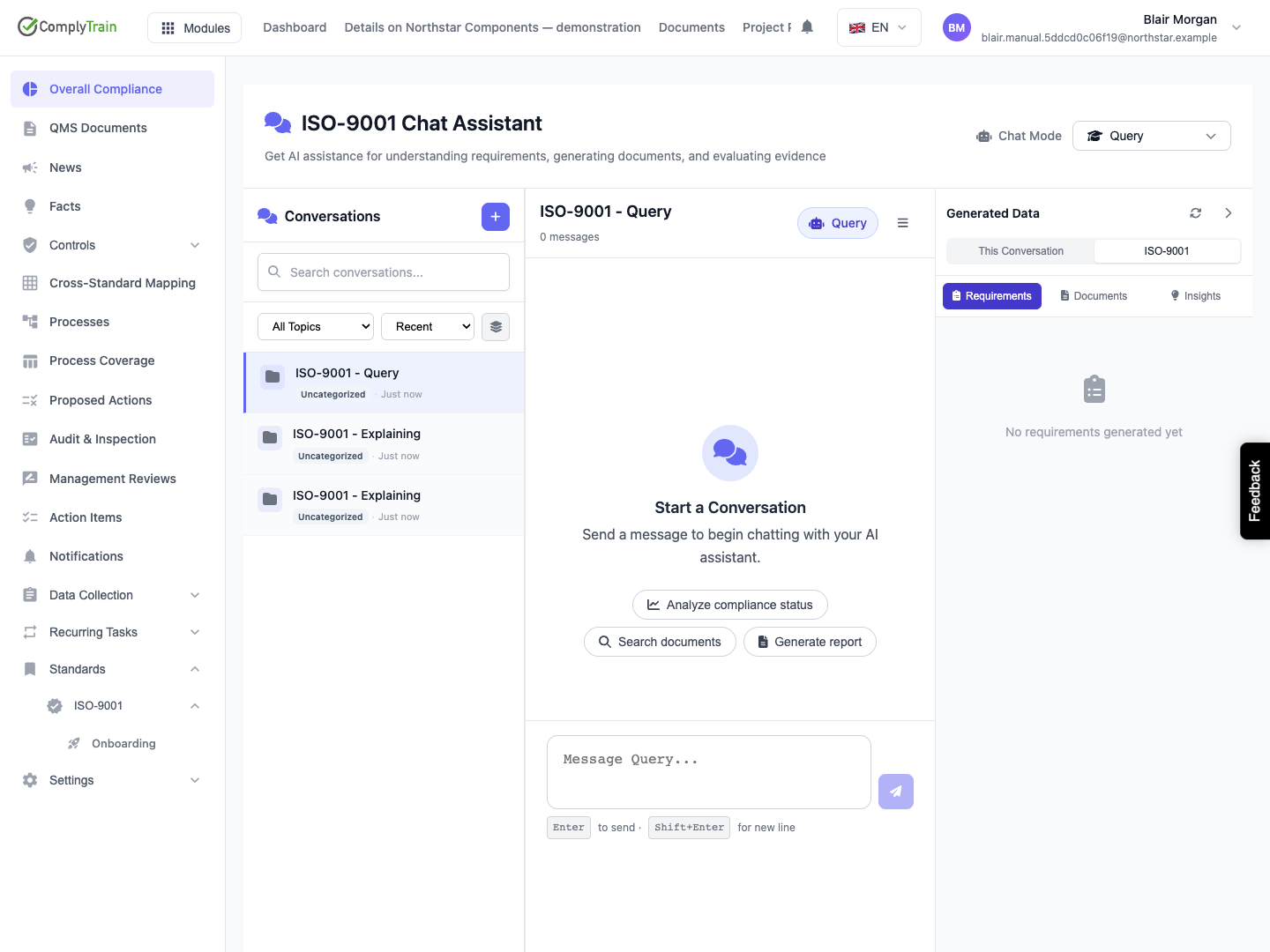
Product location: /qms/{standardCode}/chat (fallback: /qms/standards). Use the named conversation control; confirm the standard and conversation title.
Confirm the standard and mode.
Choose New conversation when the work should have its own history.
State the outcome you want, the relevant document or requirement, and the scope of the request.
Include the information needed to distinguish similarly named records.
Send the message and allow the response to finish before deciding the next step.
For example: “For our supplier-review procedure, help me define the review inputs and who should own each action. Use the existing approved procedure as context.” Follow up with the specific document when the assistant needs clarification.
Keep related follow-up questions in the same conversation. Begin another conversation when changing to unrelated work or when earlier assumptions should no longer influence the discussion.
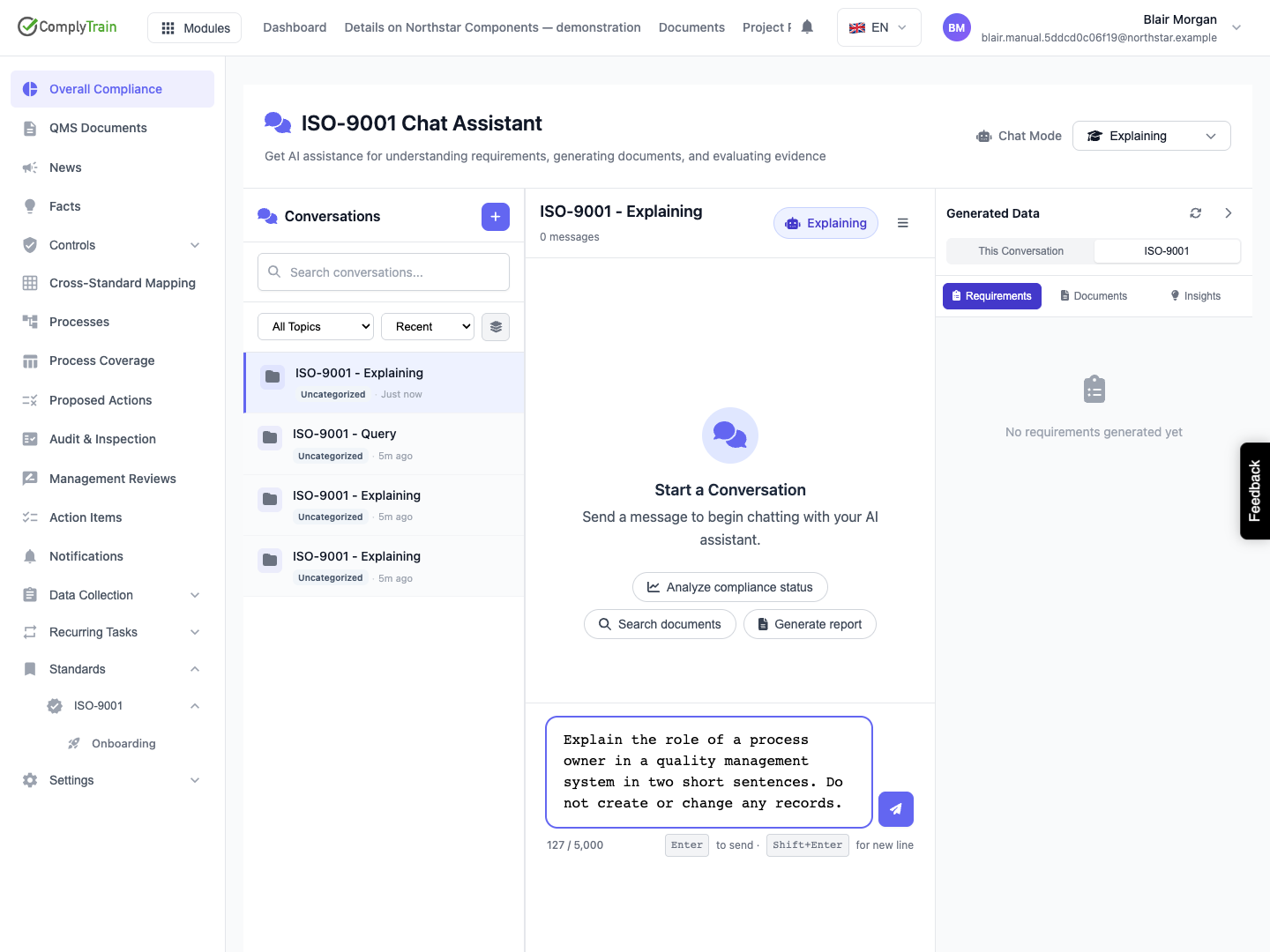
Product location: /qms/{standardCode}/chat (fallback: /qms/standards). Use the named conversation control; confirm the standard and conversation title.
Read the complete answer, including references, questions and any proposed next steps. Confirm that it concerns the intended standard and records. Ask for clarification when a statement or recommendation is ambiguous.
When you request creation or modification of a QMS record, open that record through its normal product page and check the saved result. A conversational answer and a formal approval are separate steps. Use the record's review, approval or publication workflow when it is ready.
For document edits, use AI change review to inspect the proposals and make the required acceptance decisions. For evidence, verify the linked requirement and supporting material using the evidence workflow.
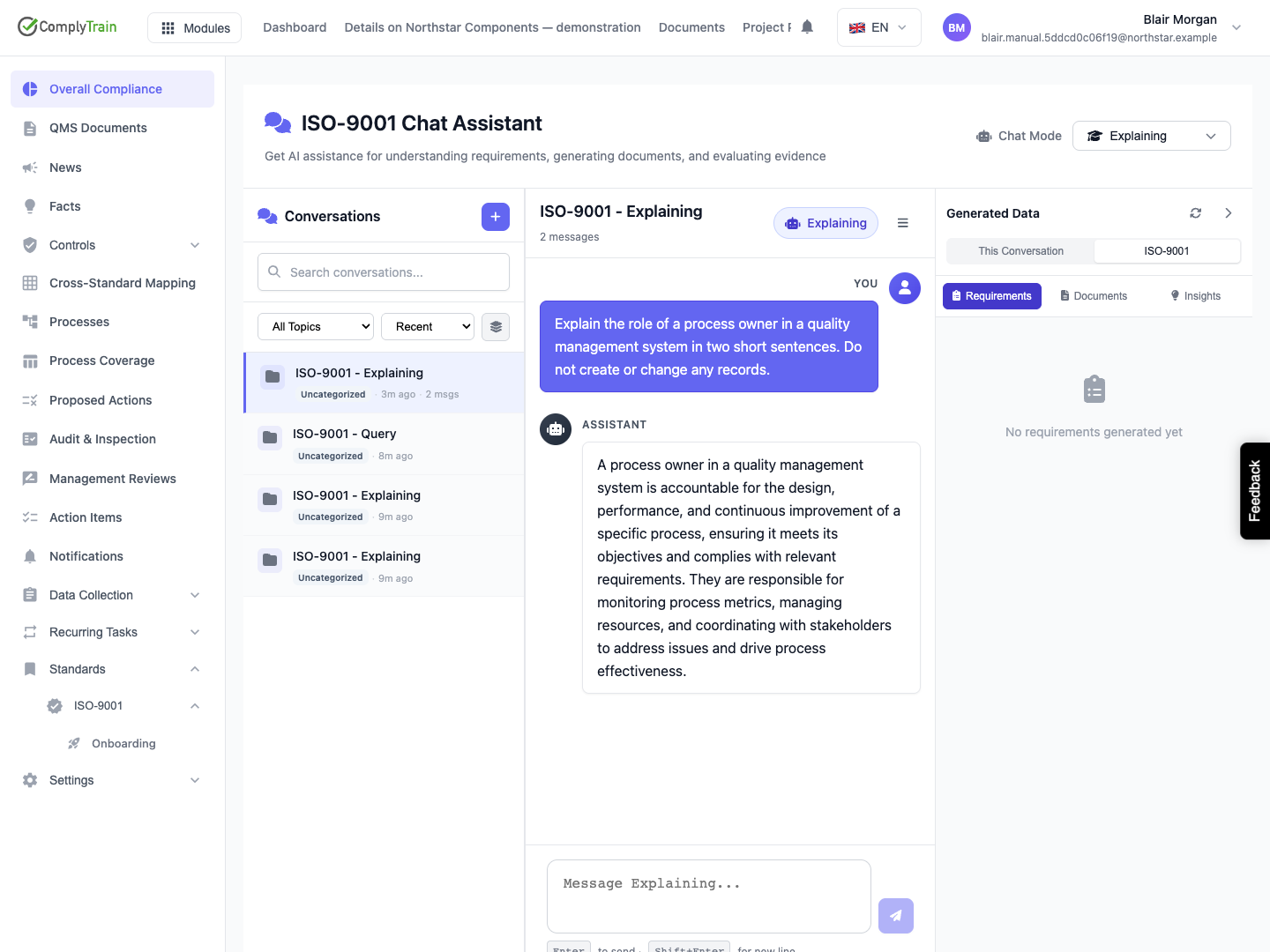
Product location: /qms/{standardCode}/chat (fallback: /qms/standards). Use the named conversation control; confirm the standard and conversation title.
When the assistant presents a question with selectable options, read the question and the option labels before answering. Select the applicable choice or choices, and enter additional text where the question allows it.
Submit the answer once and let the assistant continue. A selected option should represent your actual decision; use the free-text response when the available choices do not describe it adequately.
Use Skip when you want to continue without answering that question. The conversation retains that a question was skipped. If you return to a conversation with an unanswered question, review its context before responding.
Product location: /qms/{standardCode}/chat (fallback: /qms/standards). Use the named conversation control; confirm the standard and conversation title.
Knowledge commands operate in the current standard's chat. Enter them in the message field.
Command | Purpose |
|---|---|
| List the knowledge sources this standard uses (those marked In use on its Knowledge page). |
| Add the named knowledge source to the conversation's knowledge context. |
| Search the standard's sources for relevant passages, limited to the sources in use in this conversation when you have added any. |
Start with /list kb so that you can use the actual source name. For example, replace source name with a name shown in your list, or choose Use on a listed source. Check for the In use badge before relying on a selection.
Choose Stop using when a source should no longer be part of this conversation's knowledge. Removing it from the conversation is separate from withdrawing the standard's access to the source.
To change which sources the standard uses, or their order, use the standard's Knowledge page. To maintain a source itself, use the Knowledge Hub; see Connect and monitor knowledge sources. Verify its edition, scope and processed content before relying on it for current work.
Product location: /qms/{standardCode}/chat (fallback: /qms/standards). Use the named conversation control; confirm the standard and conversation title.
Enter /search kb:search phrase, using terms specific to the subject. Read each result's source, match percentage and passage before choosing it.
Choose Quote in message on a relevant result to send a message into the conversation quoting the passage and its source. Review the source and passage first, then ask the follow-up question that explains what you need to do with it.
You can also begin from the Search tab on the standard's Knowledge page. Its Use in chat action opens the standard's chat with that result's knowledge base in use, confirmed by "The assistant is now using …". It does not quote the passage. If the standard does not draw on that source, the chat says so. Check the standard and conversation after navigation.
For no matching passages, try a more specific term or check which sources are in use. A failed request needs recovery before you interpret the result as an empty search.
Product location: /qms/{standardCode}/chat (fallback: /qms/standards). Use the named conversation control; confirm the standard and conversation title.
A QMS page can open chat for a specific purpose. Start Evidence Collection begins evidence-focused work; a follow-up action on an AI summary carries that summary into a new conversation.
Read the opening context and correct any mistaken assumptions before continuing. For evidence work, identify the requirement and the actual supporting material. For a summary follow-up, identify the point you want explained or investigated.
After the discussion, return to the relevant QMS page and inspect the saved evidence, document or action. Keep the conversation as supporting context for the work you performed.
Product location: /qms/{standardCode}/chat (fallback: /qms/standards). Use the named conversation control; confirm the standard and conversation title.
Use Stop when you want to interrupt the response being displayed. Read any partial response before deciding whether to continue the discussion.
When a response offers regeneration, use it to request another answer to the preceding user message. Compare the new answer with the intended request and source material.
After a request involving product changes, inspect the affected record before repeating it. Stopping or requesting another response does not itself undo a saved QMS record.
Product location: /qms/{standardCode}/chat (fallback: /qms/standards). Use the named conversation control; confirm the standard and conversation title.
If the conversation cannot load, check access and connectivity, then retry opening the intended session. Confirm its identity and existing messages before sending another request.
If sending fails, inspect the saved conversation and any affected record before repeating the action. Provide the standard, conversation title, attempted action and visible message when reporting a persistent problem.
Use conversation history and lifecycle controls to find earlier work, archive a finished discussion or deliberately delete history that should no longer be available to future conversations.
