Find the correct session, organise conversations, archive transcripts and delete unwanted history with an audit record.
Use AI Sessions to find conversations for a QMS standard, review their status and return to the right discussion. Use the chat sidebar for day-to-day conversation navigation and archived history when you need an earlier transcript.
Product location: /qms/{standardCode}/sessions (fallback: /qms/standards). Use the named conversation control; confirm the standard and conversation title.
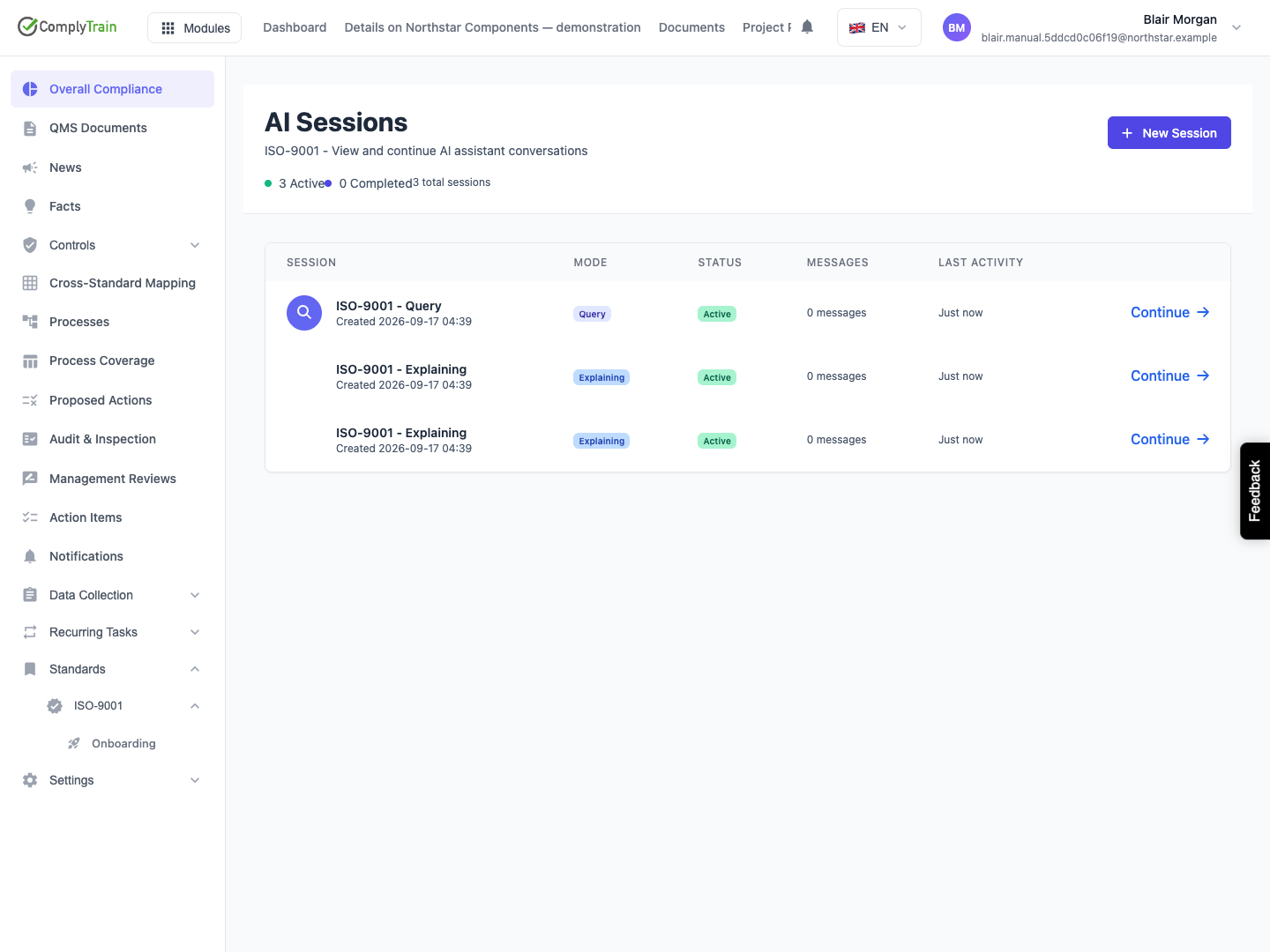
Select the intended standard and open AI Sessions at /qms/{standardCode}/sessions. Confirm the standard code in the subtitle.
Each row identifies a session by its purpose or title, creation date, mode, status, message count and last activity. Use those details together when several conversations have similar names.
Access and ownership still apply. Open the history while signed into the account that has access to the conversation you need.
Product location: /qms/{standardCode}/sessions (fallback: /qms/standards). Use the named conversation control; confirm the standard and conversation title.
Information | How to use it |
|---|---|
Session | Identify the purpose or title and when the conversation was created. |
Mode | Check whether it concerns scoping, explanation, document production, evidence evaluation, review, analysis or general questions. |
Status | Distinguish new or active work from paused, completed or failed work. |
Messages | Estimate the amount of conversation history to review. |
Last activity | Identify when the discussion was last used. |
A session's status describes the conversation's progress. It does not approve, publish or close the documents, evidence or actions discussed within it. Inspect those records in their own workflows.
Use the displayed totals and pagination to determine whether additional sessions are available. When changing to another standard, confirm that the heading and rows match the new scope.
Product location: /qms/{standardCode}/sessions (fallback: /qms/standards). Use the named conversation control; confirm the standard and conversation title.
Use Next and Previous to move through the AI Sessions catalogue. Check the displayed range, session title, mode and last activity before selecting a row.
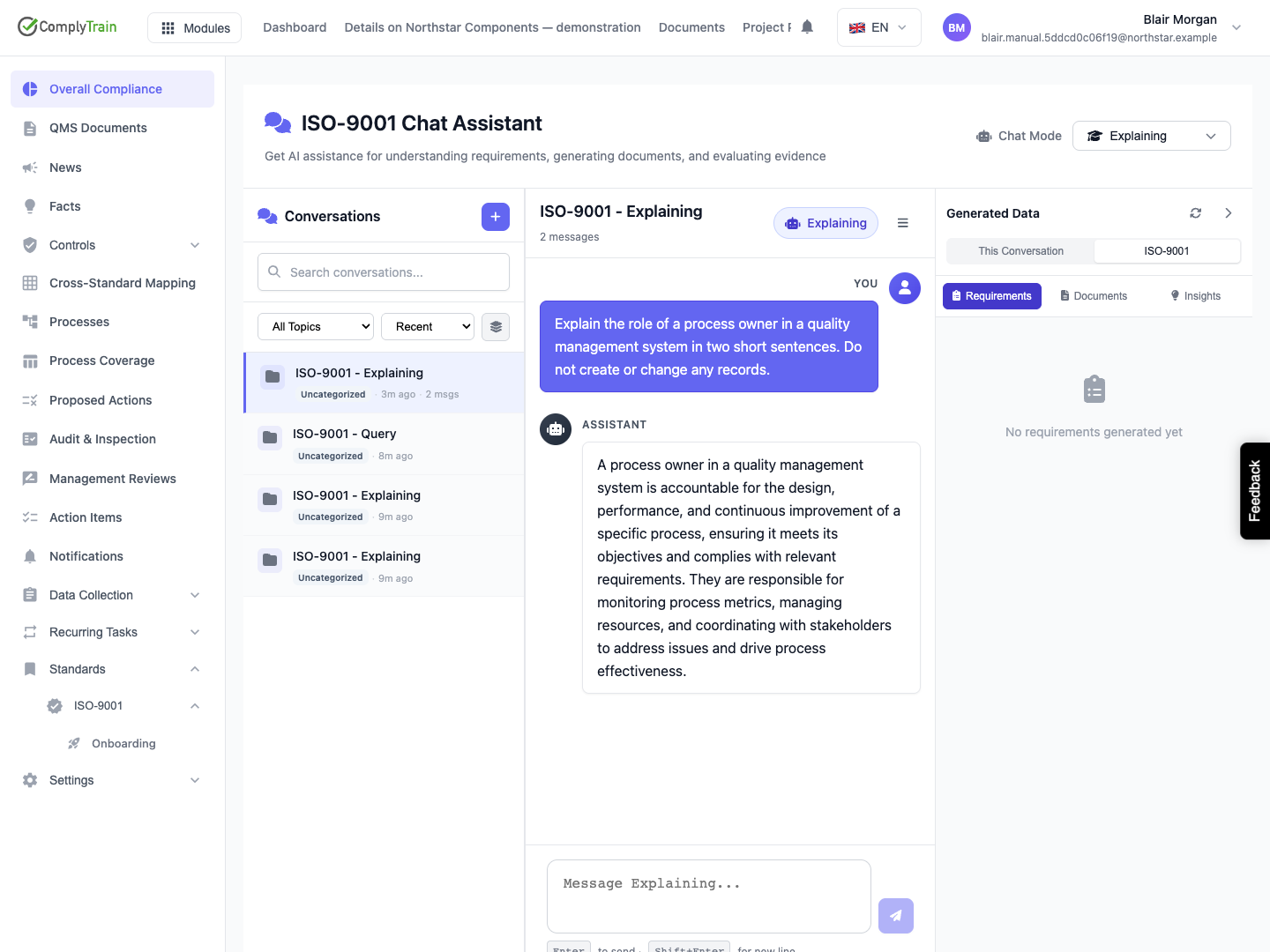
Within the chat workspace, use Search conversations and the topic selector to narrow the sidebar. Start with a distinctive part of the conversation title. Use Clear all filters to restore the complete view when the intended thread is absent.
Allow the results to load after changing the standard or filters. Distinguish a successful empty result from a failed loading request before starting a replacement conversation.
Product location: /qms/{standardCode}/chat (fallback: /qms/standards). Open the actual session link and confirm its title, transcript and mode.
Select the intended row or its Continue action. The chat opens that session with its existing transcript and associated mode.
Read the recent messages and any unanswered question before sending a follow-up. Confirm the standard and purpose so that your new information goes into the right discussion.
A product-supplied session link uses /qms/{standardCode}/chat?sessionId={sessionId}. Use the actual session identifier, and include the conversation title when sharing a location. The recipient's access still determines whether it can be opened.
Product location: /qms/{standardCode}/sessions (fallback: /qms/standards). Use the named conversation control; confirm the standard and conversation title.
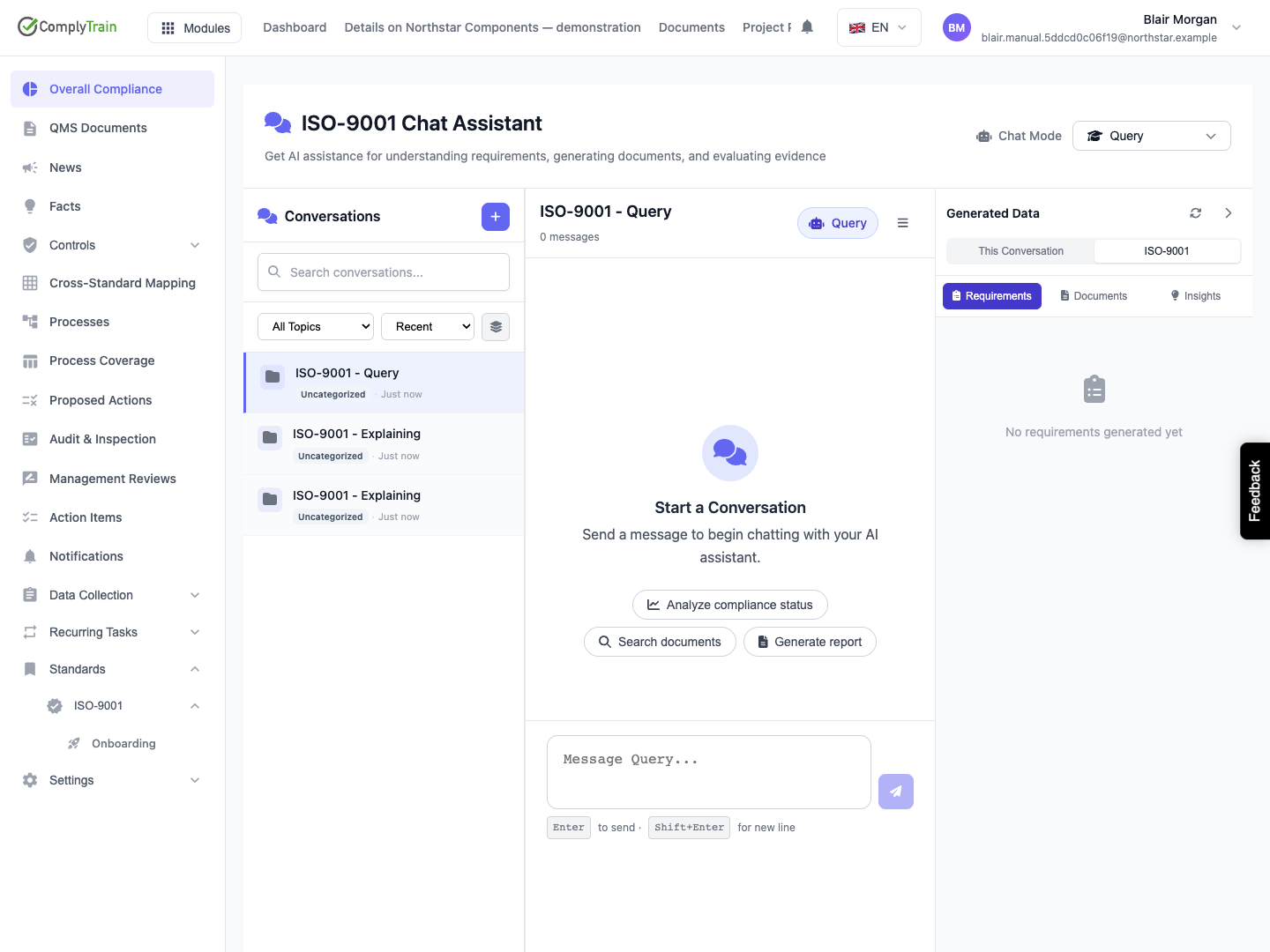
Choose New Session from AI Sessions, or New conversation in the chat sidebar, when the next discussion needs its own context.
Select the appropriate mode, then state a clear purpose in the first message. Check that the new conversation has opened before sending information that belongs there.
Starting a new discussion leaves earlier conversations available through their history. Use the standard chat guide for modes, questions, knowledge sources and result checks.
Product location: /qms/{standardCode}/chat (fallback: /qms/standards). Use the named conversation control; confirm the standard and conversation title.
Use the sidebar's topic selector to focus on a kind of work. Switch between Group by topic and Show flat list according to how you want to scan the conversations.
Control | Purpose |
|---|---|
Recent | Order by recent activity. |
A-Z | Find a conversation by its title. |
Messages | Compare conversations by message count. |
Pin / Unpin | Keep an important conversation easy to reach or remove that priority. |
Expand All / Collapse All | Open or close the visible topic groups. |
Clear all filters | Remove search and topic selections. |
Grouping, sorting and pinning organise the list; they do not change the content or approval state of the QMS records discussed in a conversation.
Product location: /qms/{standardCode}/chat (fallback: /qms/standards). Use the named conversation control; confirm the standard and conversation title.
Archive a conversation when you want to remove it from the working list while keeping its transcript for reference.
Identify the conversation by its title, standard and recent messages.
In the chat sidebar, choose the conversation's archive icon (Archive this conversation), then choose Archive in the confirmation.
Confirm that it leaves the working list.
In AI Sessions, choose Show archived to list archived conversations. Each is marked Archived; select it to read the transcript.
Choose Restore on an archived conversation to return it to the working list. Hide archived returns AI Sessions to the working list. Archiving retains the conversation. Use explicit deletion when its history should no longer be retained or used as conversation context.
Product location: /qms/{standardCode}/sessions (fallback: /qms/standards). Use the named conversation control; confirm the standard and conversation title.
In AI Sessions, choose Show archived, find the conversation marked Archived, and verify its identity before choosing Delete on its row. Delete is offered only for archived conversations. Delete this conversation? explains that deleting removes its transcript and stops the assistant drawing on it, that documents, facts and other records it produced are kept, and that this cannot be undone. Confirm Delete only when that conversation history should be removed. Choose Cancel to leave it unchanged.
Deletion removes the conversation transcript from history and excludes that deleted content from future AI conversation context and history retrieval. Documents, facts and other QMS records created during the conversation remain independent records; manage them in their own product workflows.
Check that the deleted conversation is no longer available through history. If the request fails, The conversation could not be deleted. It is still here. appears; retry after resolving the reported cause.
Product location: /settings/audit-log. Locate the deletion event using the conversation identifier, actor and deletion time.
Archiving, restoring and deleting a conversation each create an audit-trail entry recording who did it, when, and which conversation. The deletion entry remains after the transcript is removed, so it establishes the deletion event while the removed transcript stays excluded from future conversation context.
Open Settings → Audit Trail at /settings/audit-trail, or ask a tenant administrator to find the event there; the page is available to tenant administrators only. Use the conversation identifier and deletion time to identify it. See Audit Trail for finding and reading entries. The deletion event does not replace the independent history of documents, facts or other records created through the conversation.
Product location: /qms/{standardCode}/sessions (fallback: /qms/standards). Use the named conversation control; confirm the standard and conversation title.
Check the standard, signed-in account, active filters, catalogue pages and archived history when a conversation is unexpectedly absent. Confirm that it has not been deliberately deleted.
For a failed load or lifecycle action, read the visible feedback and retry after checking access and connectivity. Verify the saved state before repeating an action in another tab.
When reporting a persistent problem, provide the standard, session title or link, the action attempted and the visible message. Use a fresh conversation for unrelated work while the original history is being investigated.
