Find QMS facts, combine category and evidence filters, identify the correct scope and direct others to an answer.
Use QMS → Facts to find the organisation information used by QMS. Each definition identifies a question to answer; its captured value records your organisation's answer. Start with the definition, then check the answer's scope, evidence status and currency.
Product location: /qms/facts. Use the catalogue categories, search and filter chips described below.
Sign in to the intended organisation and open QMS.
Choose Facts in the sidebar.
Read the catalogue summary and category list.
Open a definition to inspect its description and captured answers.
Viewing the catalogue needs the View Organisation Facts permission, which a tenant administrator grants in Settings.
Choose Open unified Fact Catalog to browse the wider organisational catalogue at /context/fact-catalog. Use the QMS view for QMS definitions and the unified view when the information belongs to another area of the organisation.
Product location: /qms/facts. Use the catalogue categories, search and filter chips described below.
The summary reports the loaded catalogue's total definitions, categories, captured definitions and definitions needing review. Use it to assess overall coverage; use the category list and result rows to investigate individual facts.
Choose All categories or a category such as Training & Competency. On a narrow screen, use the category selector. The available categories and definitions reflect your organisation's provisioned catalogue.
Category counts reflect the search, evidence filter and review filter. The overall summary continues to describe the loaded catalogue. A search can therefore leave one matching row while the summary still reports all definitions. A definition captured for several standards contributes once to the captured-definition total.
Product location: /qms/facts. Use the catalogue categories, search and filter chips described below.
Enter part of a definition's name, description or code into Search facts…. Search ignores letter case and surrounding spaces. For example, search for Current Training Records Location, then open that definition to read the records location your organisation has saved.
Search combines with the selected category and filter chips. If you need a broader result, choose All categories or remove a filter. Changing category preserves the other selections.
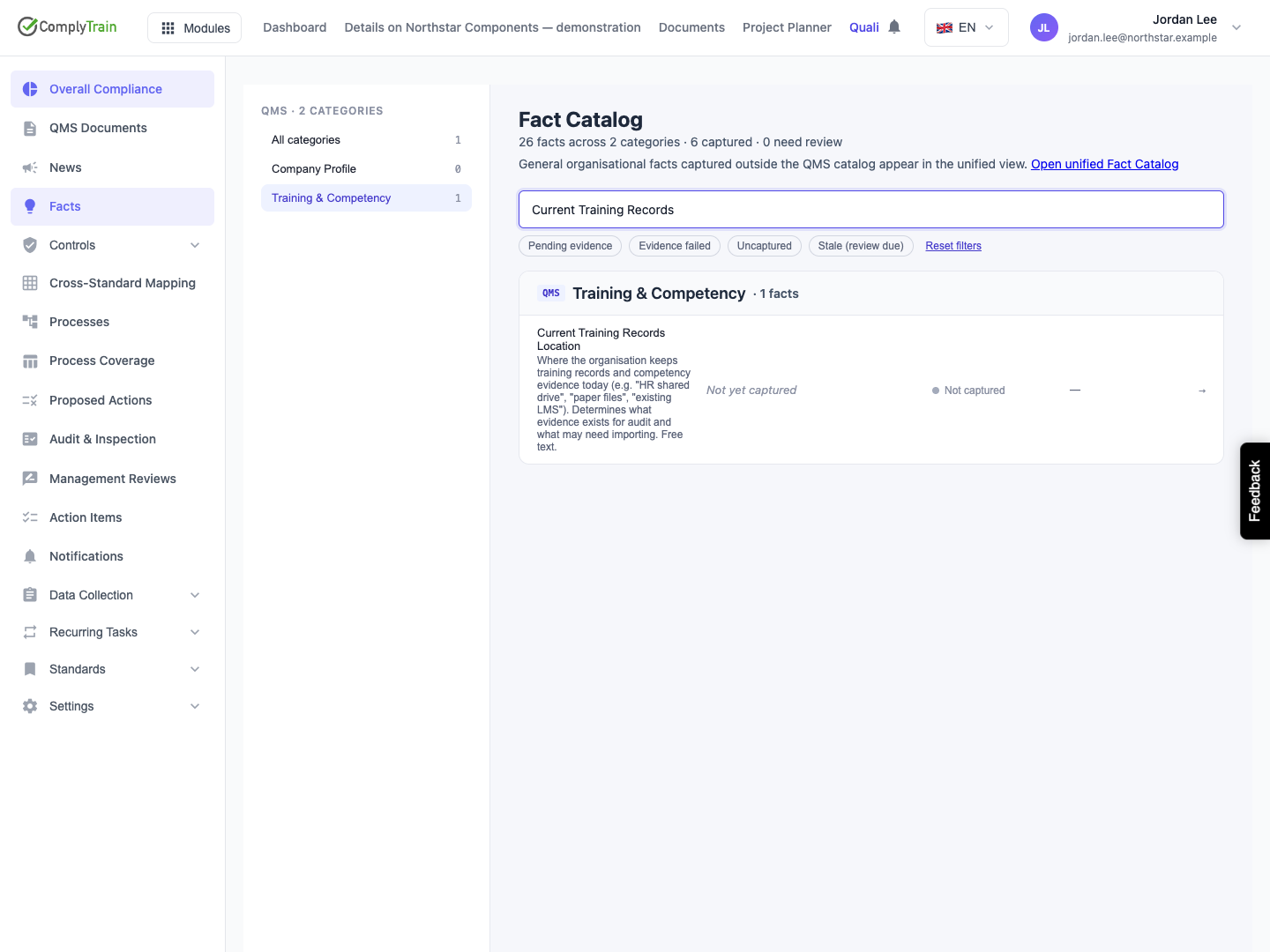
Product location: /qms/facts. Use the catalogue categories, search and filter chips described below.
Control | Use it to find |
|---|---|
Pending evidence | Definitions whose displayed answer is awaiting evidence processing. |
Evidence failed | Definitions whose displayed answer has a failed evidence-processing status. |
Uncaptured | Definitions awaiting an answer in the active scope. |
Stale (review due) | Definitions whose displayed answer has a review date that has passed. |
Reset filters | The full catalogue, with category, search and chips cleared. |
Pending evidence, Evidence failed and Uncaptured are alternative selections. Choose an active chip again to clear it. Stale (review due) is an additional filter: when combined with an evidence chip, the result must satisfy both.
For example, select Training & Competency, choose Pending evidence and add Stale (review due) to find displayed training answers needing both evidence follow-up and scheduled review. Remove Stale to broaden the list to all pending evidence in that category.
Product location: /qms/facts. Find the definition by name; open its drawer and use the controls described below for the intended scope.
Select a row to open its detail drawer. Read the complete description and answer there, then identify whether the definition is tenant-wide or per-standard.
Scope | How to interpret the answer |
|---|---|
Tenant-wide value | One shared answer applying across the organisation's subscribed standards. |
Per-standard values | Separate answers associated with named standards. Check the standard code beside the value you intend to use. |
Required by | The standards associated with the definition, with Required or Optional criticality. Use this to understand why the information is requested. |
For a per-standard definition, the catalogue row summarises the most recently updated answer among currently subscribed standards. Its scope count indicates how many standard scopes have answers. Open the drawer to assess each relevant standard individually; the row's evidence and review filters apply to the displayed answer.
Product location: /qms/facts. Find the definition by name; open its drawer and use the controls described below for the intended scope.
Read evidence status alongside the answer and its intended scope.
Indicator | Interpretation |
|---|---|
Not yet captured | Supply the information for this definition and scope. |
No evidence required | Evidence gathering is recorded as unnecessary for this answer. Check that the answer remains accurate and appropriate for its use. |
Evidence pending | Evidence processing is awaiting completion. Follow the associated work before relying on the evidence outcome. |
Evidence gathered | Supporting evidence has been gathered. Assess its relevance to the answer and the decision being made. |
Evidence failed | Evidence processing requires attention. Inspect the associated work and supporting information. |
Stale (review due) | The recorded review date has passed. Arrange review of the relevant answer. |
The update age tells you when an answer changed. The review date controls whether it appears under Stale. Use both when prioritising work: a recently changed answer and a scheduled review answer different questions about its currency.
Changing an answer that requires supporting evidence returns it to Evidence pending for reassessment. Earlier evidence is retained for traceability; assess the new outcome for the changed answer. An answer whose definition needs no evidence shows No evidence required after an edit.
Editing the answer leaves its review deadline unchanged. A recent correction therefore does not remove an overdue answer from the review work.
Follow Capture, edit and review QMS facts to maintain the answer and examine its history.
Product location: /qms/facts. Use the catalogue categories, search and filter chips described below.
For No facts match these filters, choose Clear filters or Reset filters and narrow the results again. Check the active category and spelling of the definition name before concluding that information is missing.
If initial setup is needed, follow the page's QMS standards action and have the administrator check the organisation's subscriptions and catalogue provisioning. If the page shows You do not have access to organisation facts, ask a tenant administrator to grant View Organisation Facts in Settings. For a request that fails to load, check connectivity and choose Retry. Once the catalogue loads, inspect its actual contents.
When asking for help, include the definition name, standard code if relevant, active filters and visible message. This lets the administrator distinguish setup, access and request problems.
Product location: /qms/facts. Open Facts in QMS and follow this section for the intended definition and standard.
Share /qms/facts with the exact definition name and the intended scope. For example: “Open /qms/facts, search for Current Training Records Location and inspect the tenant-wide value.” For a standard-specific answer, include the standard code.
The recipient opens the page in their own organisation and follows those selections. Include the category or review filter when it is relevant to the task, and confirm the saved answer together before using it in a document or compliance decision.
