Prepare, capture and edit scoped QMS facts; verify saved answers, compare their history and resolve conflicting edits.
Maintain QMS facts through the definition's drawer in QMS → Facts. Prepare an accurate answer, save it in the intended scope and check the resulting value and history. Capturing and editing answers needs the Manage Organisation Facts permission; without it, the drawer shows the facts but offers no capture or edit controls. The examples shown use synthetic demonstration information.
Product location: /qms/facts. Find the definition by name; open its drawer and use the controls described below for the intended scope.
Read the definition's full description and identify who is responsible for maintaining the information. Use a clear answer that another person can understand without the conversation that led to it.
Information requested | What to include |
|---|---|
Organisation or legal name | The intended entity's precise name. |
Number or quantity | The value, units and relevant period or scope. |
Date | An unambiguous date and what it represents. |
Records location | A clear repository, folder, document or system reference. |
Responsibility | The relevant role or named owner and the responsibility being described. |
Standard-specific obligation | The answer for the named standard and organisational scope. |
Keep supporting material available so the answer can be checked. Review existing information before entering a replacement.
Product location: /qms/facts. Find the definition by name; open its drawer and use the controls described below for the intended scope.
Find the definition by name and select its row. The definition determines whether the drawer presents a Tenant-wide value or separate per-standard answers.
Use the tenant-wide answer for information shared across the organisation's subscribed standards. For a per-standard answer, identify the standard code beside the control. Required by shows the associated standards and Required or Optional criticality, helping you understand where the information is needed.
Confirm the organisation, definition and standard before every save. Similar definition names can describe different information.
Product location: /qms/facts. Find the definition by name; open its drawer and use the controls described below for the intended scope.
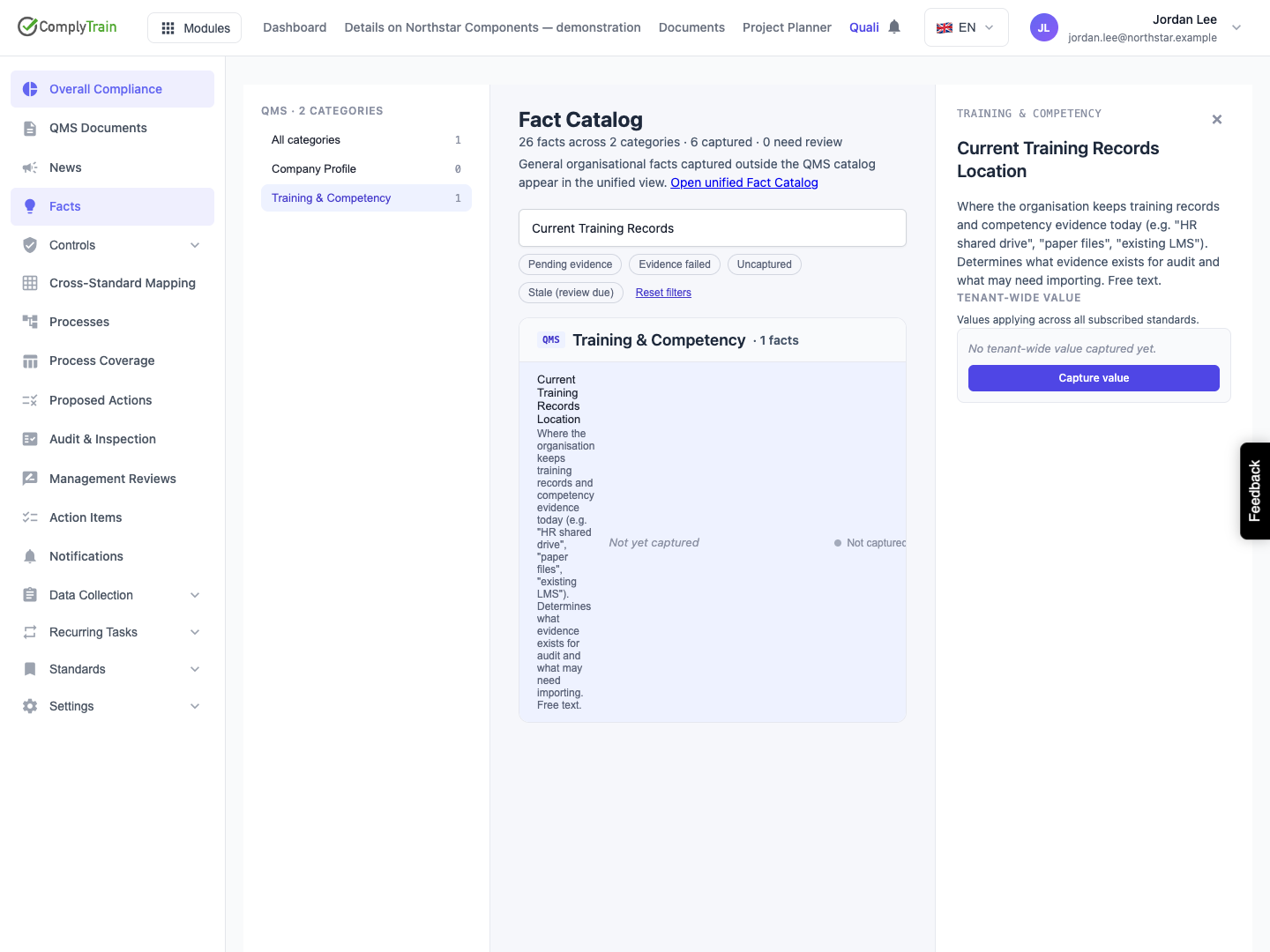
Open an uncaptured tenant-wide definition.
Choose Capture value.
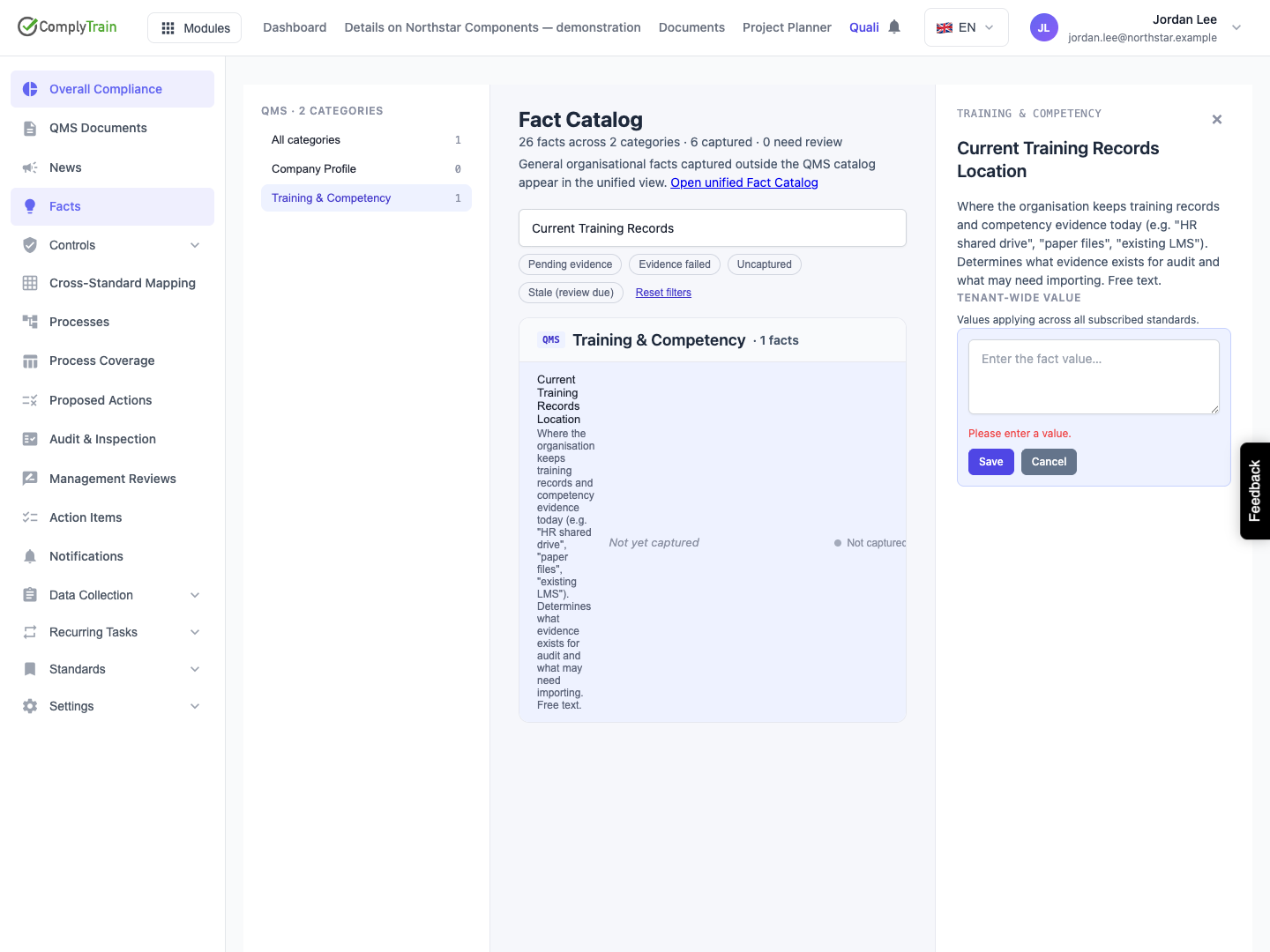
Enter the answer in the text area, following the definition's description.
Choose Save and wait for the request to complete.
Confirm the drawer displays the saved answer and its first version.
Check that the catalogue now shows the captured value.
For Please enter a value, supply meaningful text and choose Save. Surrounding whitespace is trimmed. While saving, allow the request to finish before starting another action.
The saved answer is available when you reopen the definition. For an important change, reload the page and confirm the result before handing it to another person.
Product location: /qms/facts. Find the definition by name; open its drawer and use the controls described below for the intended scope.
Use a definition associated with the intended subscribed standard.
Open the per-standard definition and find the standard code.
Beside an uncaptured standard, choose Capture for this standard.
Enter that standard's answer and choose Save.
Reopen the definition and confirm the value under the same standard code.
Inspect the other standard values to confirm their answers remain appropriate.
When an answer already exists, use Edit value beside its standard. If the intended standard is absent, have the administrator check the subscription and definition mapping before continuing.
Product location: /qms/facts. Find the definition by name; open its drawer and use the controls described below for the intended scope.
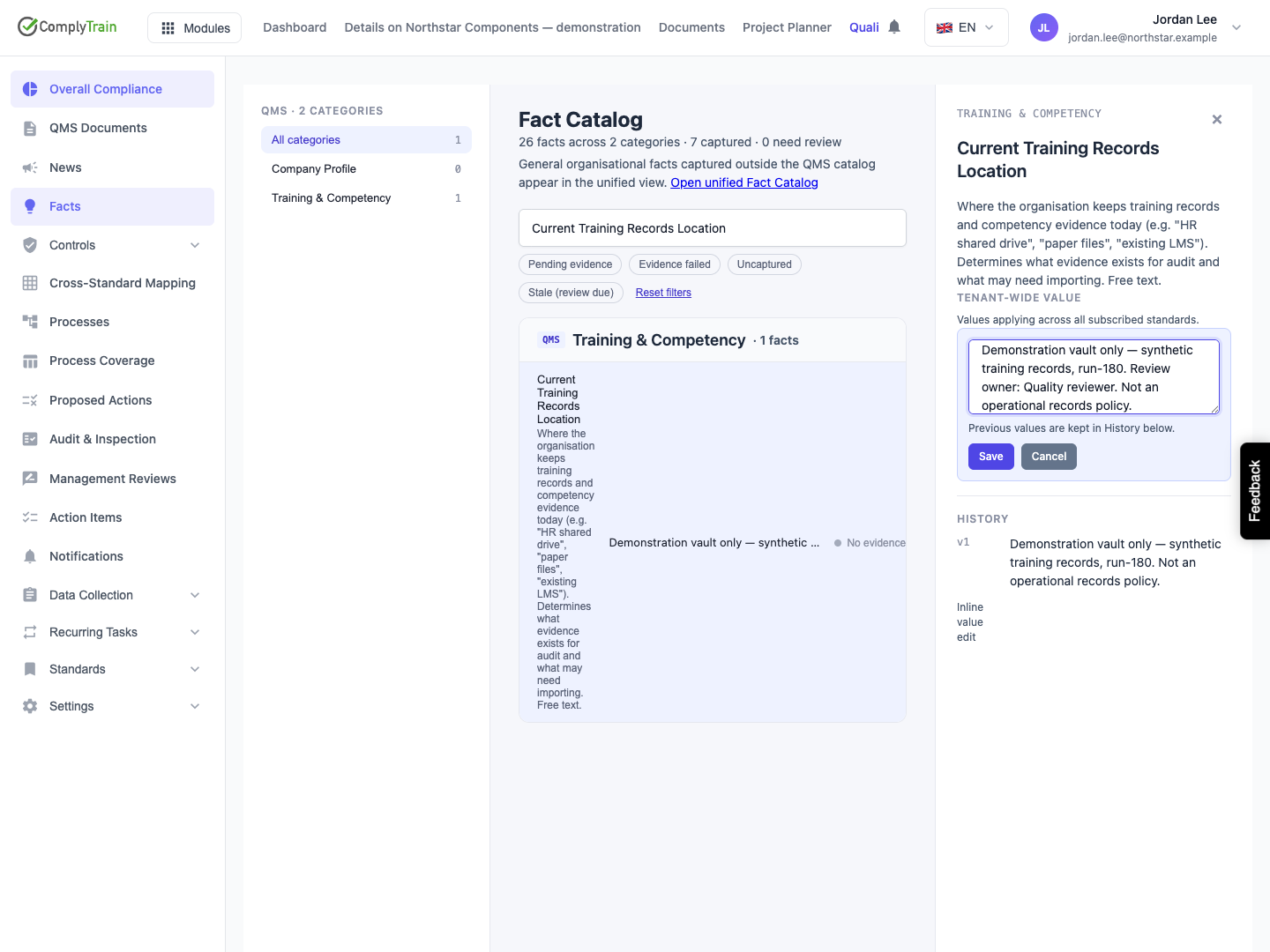
Choose Edit value beside the intended tenant-wide or standard-specific answer. The text area contains the current complete value. Revise it while keeping the information that should remain, then choose Save.
After saving, check the exact wording, scope and new version. The saved text replaces the previous current answer, and the earlier version remains in History. Use the version number and saved content together when describing a correction to a colleague.
Saving an edit preserves the existing review deadline. It does not complete a review or start a new review period. If the answer is already overdue for review, it remains due after you edit it.
Product location: /qms/facts. Find the definition by name; open its drawer and use the controls described below for the intended scope.
Choose Cancel to discard the text entered during the edit and return to the saved answer. Confirm that the stored wording and version remain as before.
Save or cancel deliberately before closing the drawer or switching to another fact. If you decide to keep a correction after cancelling it, open Edit value again and make the change against the current saved answer.
Product location: /qms/facts. Find the definition by name; open its drawer and use the controls described below for the intended scope.
After a successful capture or edit, the drawer and catalogue refresh. Check:
The definition and tenant-wide or standard scope.
The complete saved answer, including dates, units and references.
The new version and corresponding History entry.
The evidence status and any review work associated with the answer.
When you change an answer that requires supporting evidence, its status returns to Evidence pending for reassessment. Earlier evidence is retained for traceability. Check the new assessment outcome before relying on the changed answer; the review deadline remains unchanged.
Manual capture records a user-stated answer and starts version 1. A saved edit creates a new version. Consider the answer, supporting material and review work together before using the information elsewhere.
Product location: /qms/facts. Find the definition by name; open its drawer and use the controls described below for the intended scope.
Inspect History for the specific answer you are reviewing. For per-standard facts, confirm the history's standard identity as well as the definition name. Compare versions from that same answer in newest-first order.
Read the version number, saved text and recorded change reason. An initial capture and subsequent correction produce separate entries, such as v1 and v2. Compare their complete wording to understand the change.
To return to earlier wording, read that version, open Edit value for the intended current answer and save the reviewed wording as a new version. Then check the current answer and its new History entry. This preserves the intervening changes.
Product location: /qms/facts. Find the definition by name; open its drawer and use the controls described below for the intended scope.
If ComplyTrain reports that another person changed the answer while you were editing, retain your proposed wording and open the latest saved value. Compare the two, agree the intended result and apply the remaining correction to that current version.
Check the saved answer and History after retrying. Coordinate with the responsible owner when two changes address the same information.
Product location: /qms/facts. Open Facts in QMS and follow this section for the intended definition and standard.
If a save does not complete, keep the intended wording and inspect the current stored answer before trying again. If the first request already succeeded, use the saved result; otherwise, correct any input problem and retry. A save refused for lack of permission says so; it needs the Manage Organisation Facts permission from a tenant administrator, not a retry.
For a detail-loading error, check connectivity and use Retry. If Capture value, Capture for this standard or Edit value is missing and the drawer says you can read these facts but not change them, ask a tenant administrator for the Manage Organisation Facts permission. Otherwise, confirm the definition and standard setup with the administrator. Provide /qms/facts, the exact definition name, standard code and visible message when asking for help.
Return to Find and assess QMS facts to check the catalogue and direct another person to the answer.
