Search and filter QMS news, read full messages, follow announcement actions and manage your reading progress.
Use News & Announcements to read product announcements and QMS system events, follow links to relevant work and keep track of the items you have read. News is separate from the notification inbox, document approval and training acknowledgement.
Product location: /qms/news. Select the named News control or locate the announcement by its exact title.
Select News in the QMS sidebar or open /qms/news. The listing requires QMS View dashboard access. Ask your QMS administrator to check your role if the feed is unavailable.
Use the refresh icon (Refresh news) to request the current feed. The search and filter selections remain in place when you refresh. Reloading the page starts with All categories and All items.
The feed displays published items that are currently available to your organisation. An item can appear when it is published and leave the feed when its publication window ends. No News is the empty-feed state; check your filters before concluding that there are no relevant updates.
Product location: /qms/news. Select the named News control or locate the announcement by its exact title.
Control | Use it to |
|---|---|
Search news | Find a title or subject by typing a relevant phrase. Search runs shortly after you stop typing. |
Category | Choose All categories, Announcement, Update, Tip, Alert or Release. |
Read status | Choose All items, Unread only or Read only. |
Category or read-status badge close icon | Remove that individual filter. |
Clear all | Clear the search and both filters together. |
Clear filters in an empty result | Return to the complete feed view. |
Combine the controls to focus your work. For example, select Release and Unread only to review release announcements you have not read, then add a phrase to find a particular feature.
Check the active badges and search text when interpreting the results. These selections apply together. After changing them, allow the refreshed result set to load before opening an item or using a bulk action.
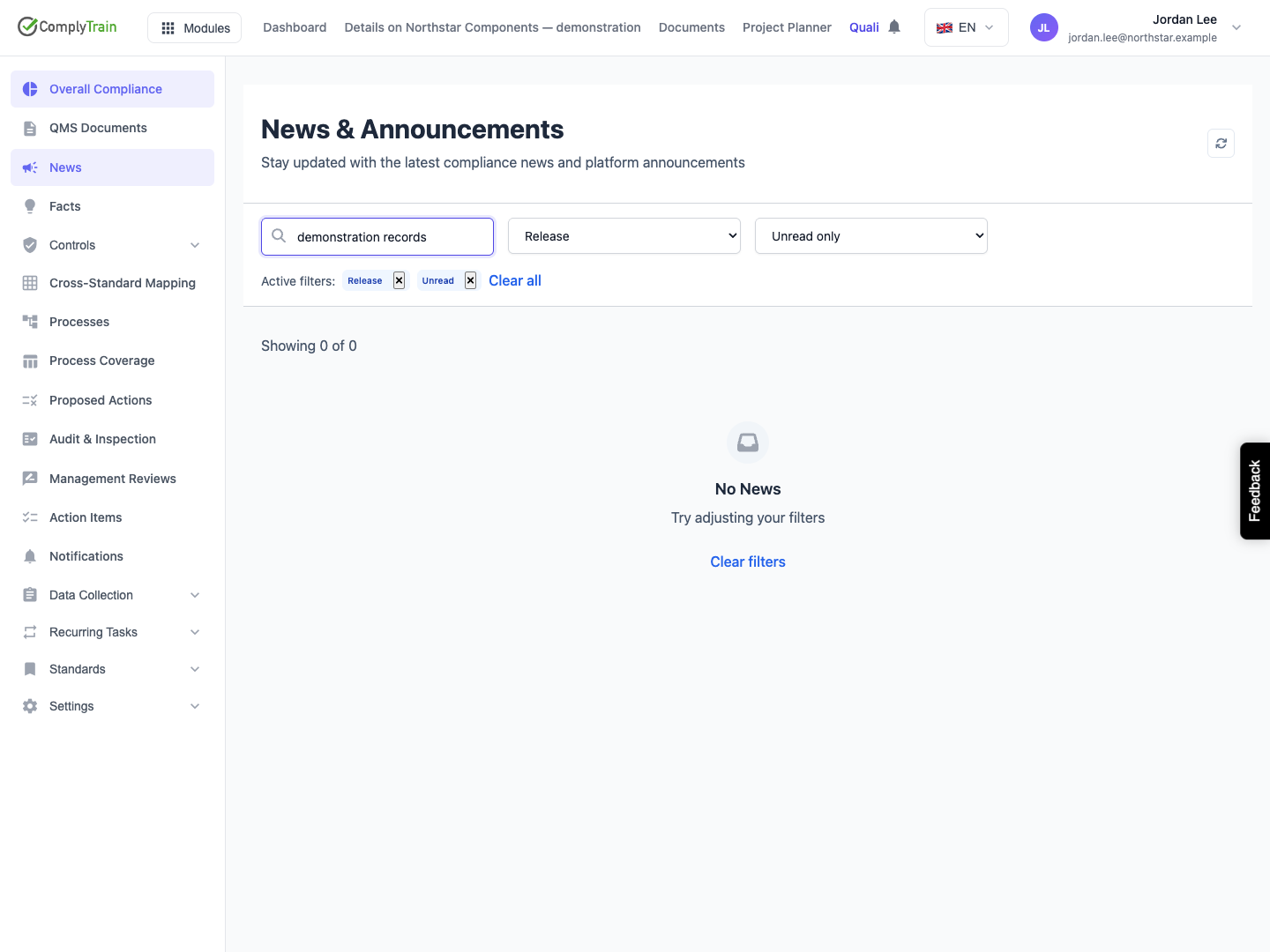
Product location: /qms/news. Select the named News control or locate the announcement by its exact title.
Read the displayed item count alongside the total for your current search and filters. Choose Load more when further items are available, and continue until you have reviewed the relevant set.
Keep the filters unchanged while working through a result set. When you change a search or filter, begin again with the refreshed results. Use the title and publication date to distinguish similar announcements.
For a successful search with no matches, broaden the phrase, remove a filter or choose Clear all. For a request failure, use the recovery steps below before interpreting the result as empty.
Product location: /qms/news. Select the named News control or locate the announcement by its exact title.
A card can show a category, priority, pinned indicator, unread dot, title, summary, image and publication date. Use the title and summary to identify the message, then select the card to open its full details.
Read the complete message and any supporting links or image. Some announcements have a summary without a longer body. Check the publication date when applying instructions to your current work.
Close the message with Close, the header close control or the backdrop. Return to the feed to continue reviewing other items. A high-priority or pinned indicator draws attention to a message; read its content to determine what action is required.
Product location: /qms/news (fallback: /qms/news). Use the actual item identifier from the dashboard link and confirm the announcement title.
The QMS dashboard's news widget offers recent and pinned items. Select an item to open that specific message in the News feed. Use the full feed when you need to search or review older items.
A message link can identify the item using /qms/news?id={newsId}. Use the actual link or identifier supplied by the product. Include the exact title when sharing the location so that the recipient can recognize the intended message.
The recipient views the message through their own access. If it is no longer available, use the feed to look for a current announcement or ask the administrator about the title and publication date.
Product location: /qms/news. Select the named News control or locate the announcement by its exact title.
Opening an unread item records it as read. The full-message dialog also provides Mark as read while the item is unread, followed by Marked as read when the state is saved.
Check the updated indicator, and refresh the feed when you need to confirm the saved state. In an Unread only view, an item you have read leaves the matching set when the results refresh. Your reading state belongs to your account; another person's unread work is separate.
Reading news records your progress through the feed. Perform any requested document approval, process task or training acknowledgement in its own workflow.
Product location: /qms/news. Select the named News control or locate the announcement by its exact title.
Choose Mark all as read when you want to mark every item matching the current search and filters as read. This includes older matching items that have not yet been loaded with Load more.
Before choosing it, check the search text, category and read-status filters. For example, with Release and Unread only selected, the action marks all matching unread release items as read while leaving other categories unchanged. Clear all first when you intend to work across the complete feed.
After the action completes, review the refreshed results; the unread count beside the total covers your whole feed, whatever filters are applied. An Unread only view can become empty because the matching items have been marked as read. Marking the news read does not complete any work described in those messages.
Product location: /qms/news. Select the named News control or locate the announcement by its exact title.
Use a card's dismiss control when you want to remove that item from your normal feed. Confirm it has disappeared, then refresh if you need to verify persistence.
Dismissal applies to your feed. It does not delete the published announcement for other readers or complete a task mentioned in it. Follow an important destination or retain the information you need before dismissing the message.
If the request fails, check the visible feedback and retry after the cause has been resolved. Continue from the saved state rather than assuming that a click completed the change.
Product location: /qms/news. Select the named News control or locate the announcement by its exact title.
A card or full message can provide a labelled action button. Read its label and the message, then choose it to open the related product area or external page.
At the destination, confirm that you are viewing the intended item and complete the relevant workflow. For example, a release announcement may lead to information about a feature, while an operational message can direct you to work that requires your attention.
If the destination requires additional access, ask the responsible administrator to check that access. Opening or marking the announcement read does not grant permission at the destination.
Product location: /qms/news. Select the named News control or locate the announcement by its exact title.
For a visible loading error, check connectivity and access, then choose Try Again. For a failed Load more request, the message reads "The next page could not be loaded. Everything already shown is still here."; choose Try Again beneath it. Check that your intended filters remain selected.
If a read or dismissal request fails, inspect the item's saved state before retrying. If an item is unexpectedly absent, clear the filters and check whether it has expired or was dismissed from your feed.
When reporting a persistent problem, provide /qms/news, the exact title or item link, active search and filters, attempted action and visible message. This gives the administrator enough context to investigate the same item and request.
