Configure matching conditions, inspect saved rules and recognise the missing assignment-target editor.
Product location: /qms/settings/assignment-rules
Open QMS / Settings / Assignment Rules. The page is titled Auto-Assignment Rules and requires QMS settings-management access. It lists rule conditions, priority, active state, actions and matching statistics.
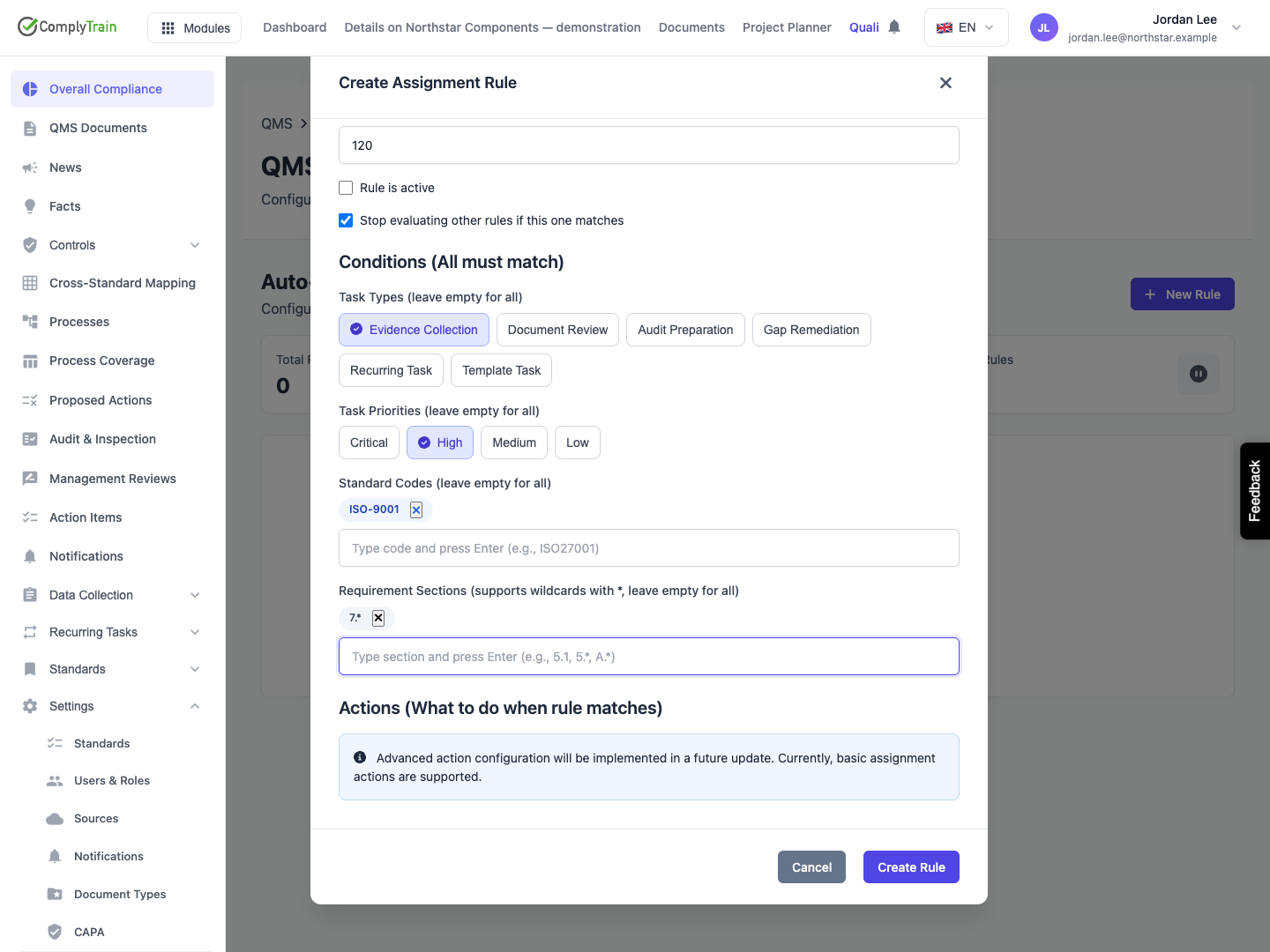
The released form lets you save matching conditions, but its Actions section contains an informational notice and no control for choosing a user, role or round-robin target. A new rule can therefore be saved with an empty assignment target. Its existence, Active badge or successful save does not establish that tasks will be assigned correctly.
Keep an incomplete rule inactive. Continue assigning and reviewing tasks through the supported task workflow while the configuration is resolved. Do not treat the notice about basic assignment support as an instruction to use an absent target editor.
Product location: /qms/settings/assignment-rules
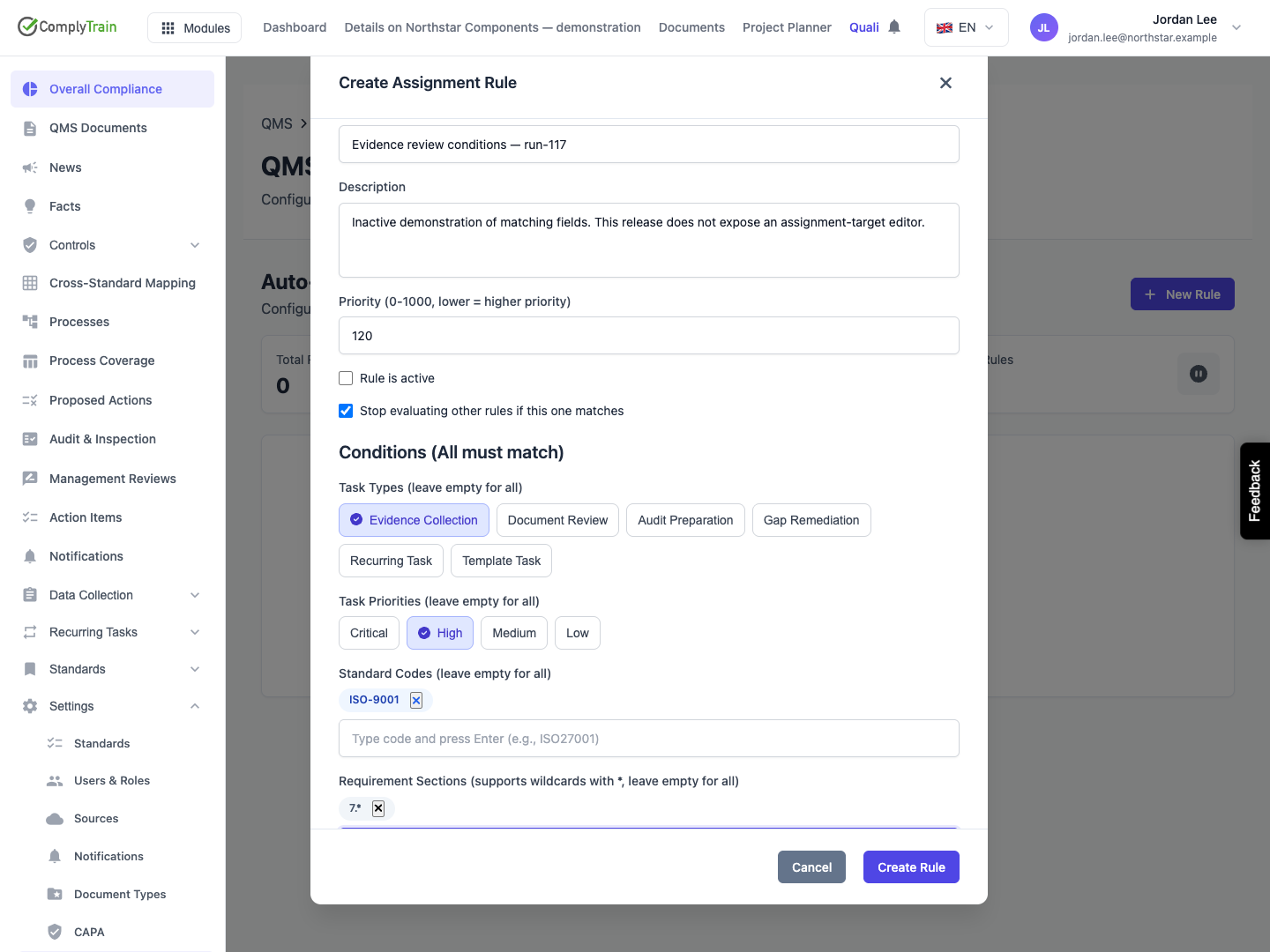
Select New Rule and complete the available fields:
Field | Meaning and initial value |
|---|---|
Rule Name | Required nonblank name describing the intended work. |
Description | Optional explanation of when and why the rule should apply. |
Priority | 0–1000; initially 100. A lower number represents earlier evaluation priority. This is different from the task's urgency. |
Rule is active | Initially selected. Clear it while the rule is incomplete or unvalidated. |
Stop evaluating other rules if this one matches | Initially clear. Represents a request to stop later rule evaluation after a match. |
Task Types | Evidence Collection, Document Review, Audit Preparation, Gap Remediation, Recurring Task or Template Task. Click each applicable choice. |
Task Priorities | Critical, High, Medium or Low. Click each applicable choice. |
Standard Codes | Enter the actual code and press Enter to add a token. Repeat for additional codes. Remove a token with its adjacent remove control. |
Requirement Sections | Enter a section or pattern and press Enter. The form advertises wildcard patterns such as |
The form describes the condition groups as All must match, with an empty selection meaning all values. Use a narrow scope that represents the intended work. A code typed but not added with Enter is not yet one of the saved condition tokens.
These settings record the intended matching rule. The illustrated example does not demonstrate automatic task assignment or execution of wildcard matching. Such an outcome must be checked against actual created tasks once the rule has a valid action and a supported evaluation path.
Product location: /qms/settings/assignment-rules
Scroll to Actions (What to do when rule matches). The notice is the entire action area in this release. There is no selector below it for an assignee, target role or distribution method.
For an existing rule, this form preserves its stored action while allowing other fields to change. It does not provide a way to inspect or correct every detail of that action. A displayed role type without a named role is not a completed assignment target.
If recording preparatory conditions, clear Rule is active and select Create Rule. Check the saved entry and reopen Edit rule to verify the conditions. The example is deliberately inactive and has no successful matches; it is a configuration example rather than a working automation.
Product location: /qms/settings/assignment-rules
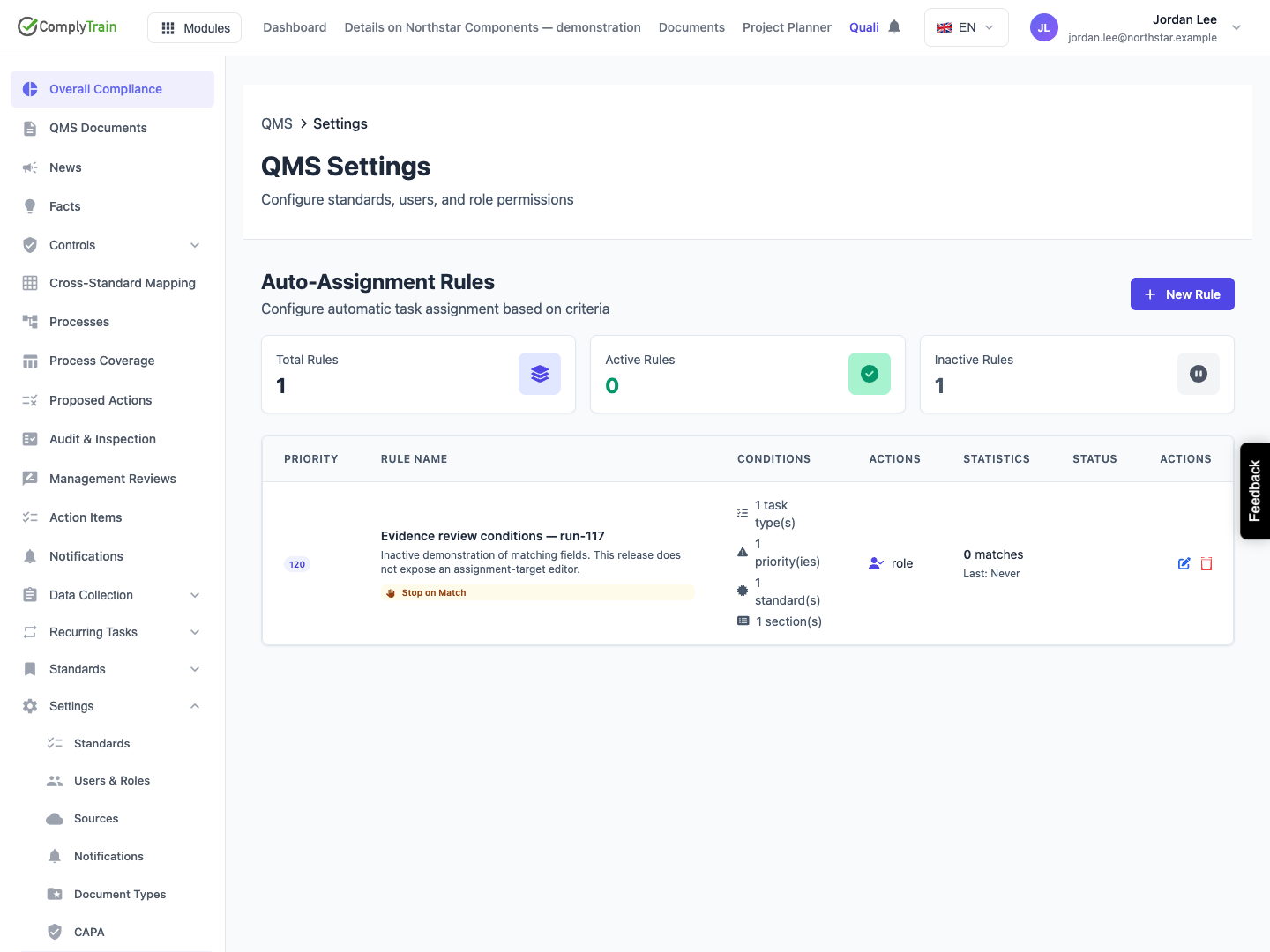
The table shows the numerical evaluation priority, name, condition counts, action summary, match statistics and active status. Rows are displayed by priority and then name. A zero match count or Never date can mean the rule has not been used; it does not establish that its matching logic was tested and found no relevant tasks.
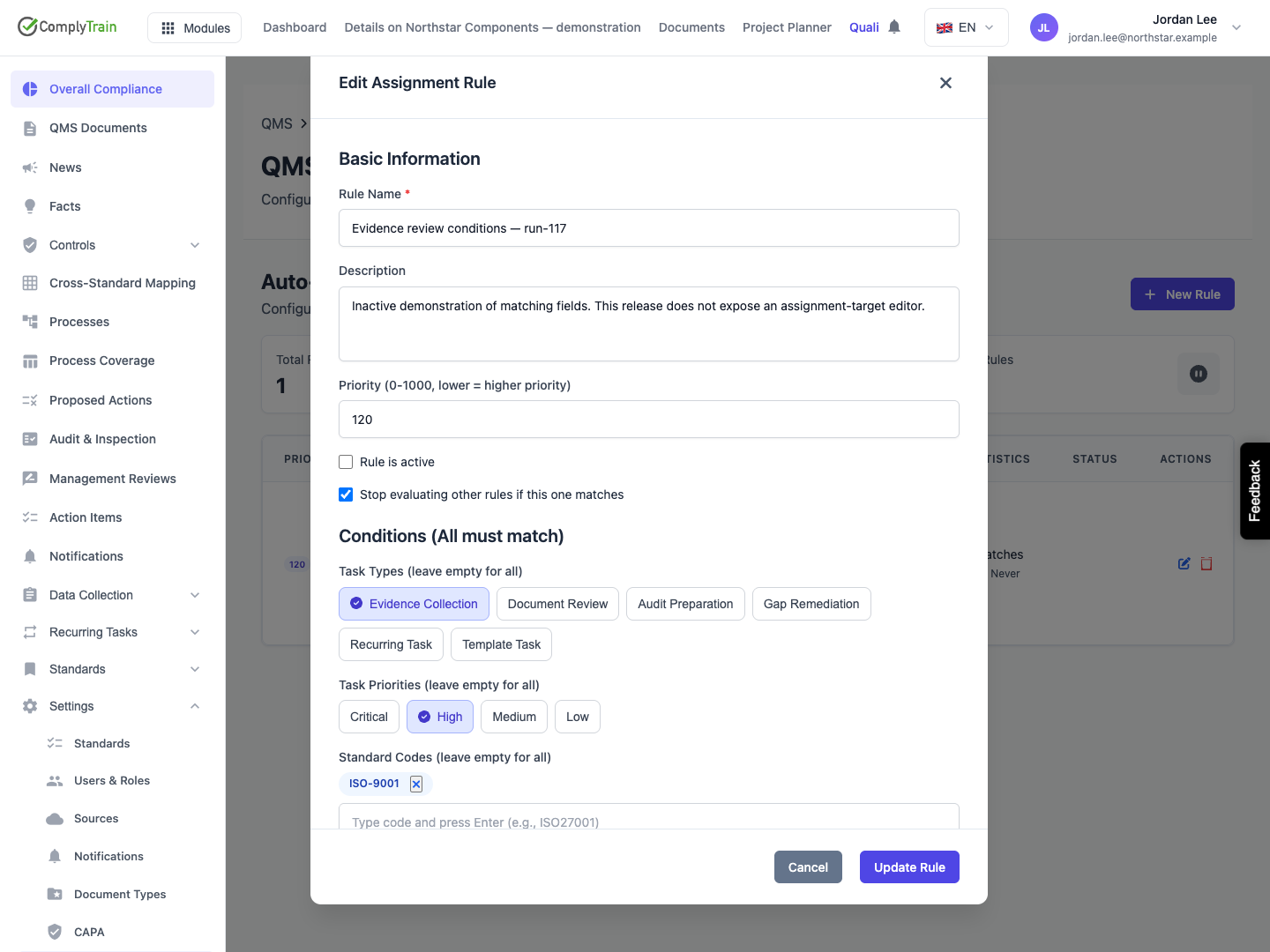
Use Edit rule to change the available fields, then Update Rule. Reopen the saved entry to check the result. Updates include a record version: if another user changed the rule, refresh and reconcile their changes before trying again.
The status control changes whether the rule is Active or Inactive. Confirm the saved status after changing it. Enabling a rule does not repair an empty assignment target, reassign all existing tasks or demonstrate that any task has been evaluated.
Product location: /qms/settings/assignment-rules
Delete rule asks for confirmation and removes the rule. It is different from setting it Inactive for later review. The confirmation states that deletion cannot be undone; do not use it merely to pause an unfinished rule.
Problem | Response |
|---|---|
Name is rejected | Enter a meaningful nonblank rule name. |
Priority is rejected | Use a value in the displayed 0–1000 range. |
A standard or section is missing after reopening | Check that it was added as a token with Enter before saving. |
The save succeeded but no task was assigned | Check the actual action and target. The released form cannot create a complete target configuration on its own. |
An update reports a version conflict | Reload, review the current values and apply the intended change again. |
The list cannot load | Check access and the reported error before treating the list as empty. |
Use quality tasks to inspect real assignments and due work. Rule statistics are supporting information, not a substitute for checking those task records.
