Assign QMS roles deliberately, verify saved access, and distinguish direct assignments from inherited permissions.
Product location: /qms/settings/users
Open Quality (QMS) → Settings → Users & Roles. Use this screen to assign existing roles to existing users. For invitations, role definitions or group membership, open organisation user, role and group settings.
You need View settings to load the QMS user list and Manage users to save assignments. Check the intended user's name and email before editing. Similar display names can belong to different people.
Before changing administrative access, confirm that another suitable administrator can maintain the quality system. Review the person's actual responsibilities and grant the roles needed for that work.
Product location: /qms/settings/users
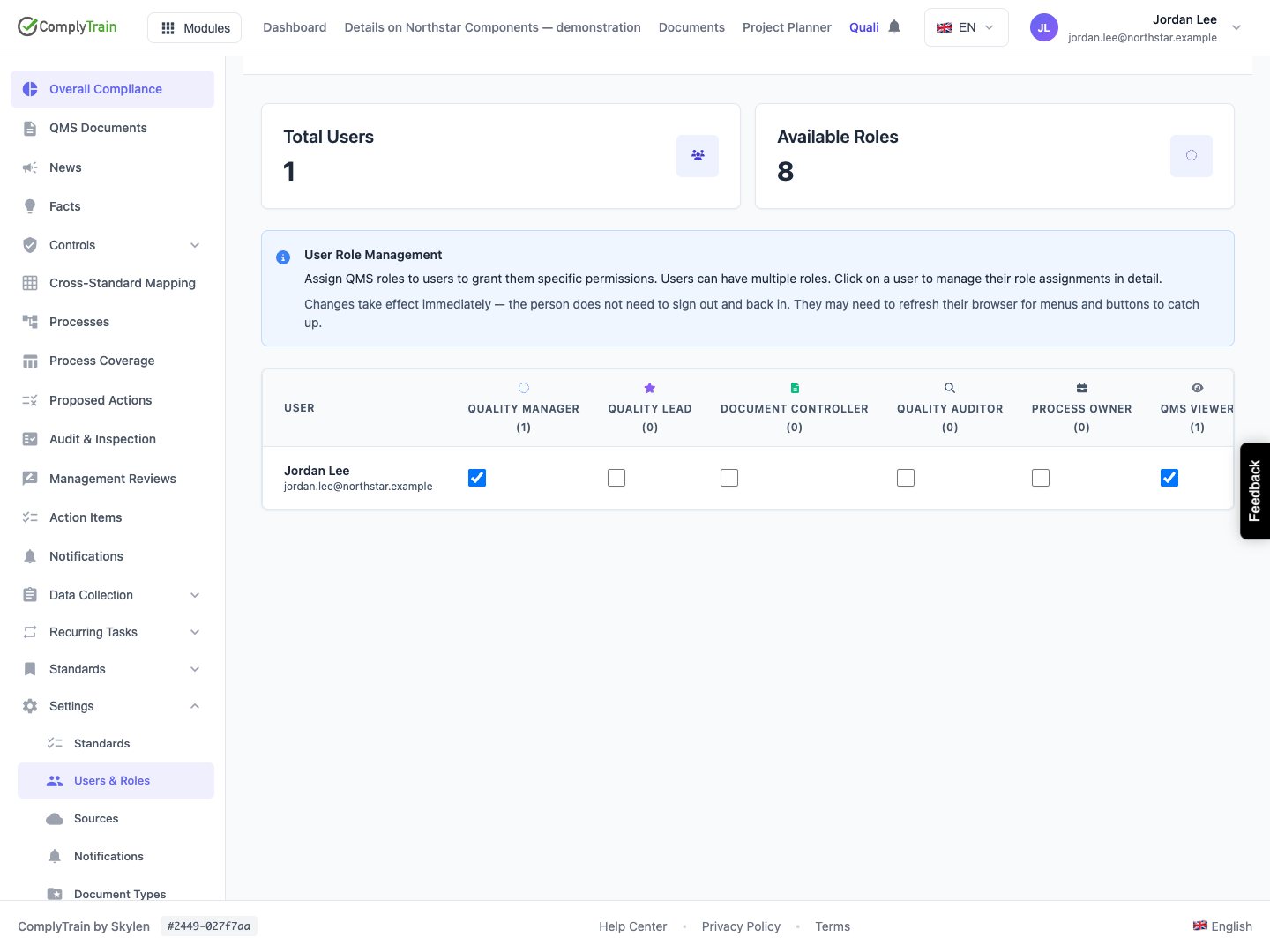
Each user row shows the saved roles: a check mark for a role assigned directly and a group icon for a role inherited through a group. Hover over the group icon to see the group. A person can hold several roles. The matrix cannot be edited; Edit Roles opens the complete direct selection for one person.
Display | What to inspect |
|---|---|
Active users | Every active user in the directory, counted across the whole directory. |
Available Roles | The role catalogue available for assignment, including applicable organisation roles. |
Role assignment count | Direct assignments represented by that count; use effective-permission review for inherited access. |
Check mark / group icon | A role assigned directly, or a role inherited through a group (managed on the group). A dash means not assigned. |
N standard-scoped role(s) | Standard-specific roles the person also holds; review them in that standard's access configuration. |
Edit Roles | The editor for reviewing and saving that user's complete direct-role selection. |
The matrix lists every active user in the directory. Scroll to find the intended person, and scroll the role table horizontally where needed, keeping the user's identity in view.
Product location: /qms/settings/users. Find the intended user and choose Edit Roles.
Find the user and select Edit Roles. Read each role description and review its current permission definition before selecting it. Scroll within the dialog to see all choices.
A role the person already holds through a group is marked Inherited through group: GROUP, and the Also held through groups notice explains that these roles are managed on the group, not here.
Example role | Typical responsibility |
|---|---|
Quality Manager | Quality-system administration, including QMS users and roles. |
Quality Lead | Coordination of quality work and its review. |
Document Controller | Document creation, editing, distribution and archiving. |
Quality Auditor | Audit work, findings and corrective-action verification. |
Process Owner | Ownership of process-related work and assignments. |
QMS Viewer | Reading quality information. |
Form Filler | Completing and submitting forms. |
The role name describes its purpose; the configured permissions determine access. Custom roles and organisation roles may also be present. Select them only where they match the person's responsibilities.
Review roles already checked as well as new selections. Adding QMS Viewer to someone who retains Quality Manager adds an assignment; it does not make the person read-only.
Product location: /qms/settings/users. Find the intended user, choose Edit Roles, review the complete selection and choose Save Changes. Reload to verify.
Confirm the user's name and email.
Select the roles the person should hold directly and clear those to remove.
Review the complete selection, preserving other access still required.
Choose Save Changes and wait for success. Save Changes becomes available once the selection differs from the saved roles. If the save fails, the dialog shows The role assignments could not be saved. Your selection was kept; try again.
Reload, find the same person and reopen Edit Roles to verify the saved set.
Saving replaces the direct global role set managed by this editor. For example, to change a person's direct assignments from Quality Manager plus QMS Viewer to QMS Viewer alone, clear Quality Manager and leave QMS Viewer selected before saving.
Removing every selected role removes those direct global assignments. Review inherited and standard-specific access separately before concluding that all access has been removed.
When several administrators maintain access, coordinate changes and begin from a fresh record. If the save is uncertain, compare the actual saved set before submitting another complete selection.
Product location: /qms/settings/users. Choose Cancel in Edit Roles to discard the unsaved selection. Reopen to review saved assignments.
Use Cancel, the close control or the dialog backdrop to leave the editor without applying its working selection. Open the editor again to start from the saved assignments.
Treat a selection made while editing as a proposed change until the save completes. After cancelling or a failed save, verify the stored roles before telling the user their access has changed.
If a role becomes unavailable while the editor is open, reload the catalogue and review the entire intended selection. Resolve the role's status with its administrator before retrying.
Product location: /qms/settings/users
The matrix shows direct global assignments and roles inherited through groups. It does not show every source of effective permission: standard-specific grants, the permissions inside a role and administrative account access are reviewed elsewhere. A user's access can therefore combine direct roles, group roles, administrative account access and a standard-specific grant where the operation uses that scope.
Access source | Where to review it |
|---|---|
Direct global QMS role | This user's saved Edit Roles selection. |
Permissions within a role | The organisation's role definition. |
Group-derived role | Group membership and the group's assigned roles. |
Standard-specific access | The relevant standard's access configuration and the user's grant. |
Administrative account access | The organisation account and permission configuration. |
If access remains after removing one direct role, inspect the other sources before making more changes. A standard-specific viewer grant does not subtract broader permissions already granted globally.
Process responsibilities also need review. A lane can refer to a role, while an existing process run has its own actual participants. Check running work and task assignments after a responsibility change; changing a role is not proof that those records have been reassigned.
Product location: /qms/settings/users
After a successful assignment change, have the affected user refresh the browser so that menus and controls reflect current access. Verify the intended operation using that user's account and the relevant standard or record.
For an access reduction, check both an operation that should remain available and one that should now be denied. For an addition, check the actual required task rather than only whether a menu item appears.
For example, a colleague moving to a viewing role should be able to open the authorised quality information while being unable to perform the removed editing operation. Review group membership if the edit remains authorised.
Product location: /qms/settings/users
Situation | Next step |
|---|---|
A colleague is missing | Check that the person has an active account in this organisation; use organisation user settings to confirm identity. |
User or role loading fails | Restore the session or connection and choose Try again before editing assignments. |
A role is unavailable | Reload the catalogue and ask its administrator to review its active state and applicability. |
Save fails | Keep the intended selection, read the message and compare the saved assignments before retrying. |
Another administrator changed access | Agree on the current complete role set, then make the required adjustment. |
Access remains after removal | Review other roles, groups, standard grants and administrative access, then test after refresh. |
When requesting help, identify the person, intended role set and affected operation. Share a product link to the settings page or accessible record rather than assuming the screen URL identifies a particular user row.
