Choose personal QMS notification channels and frequencies, save them, and restore defaults when needed.
Product location: /qms/settings/notifications
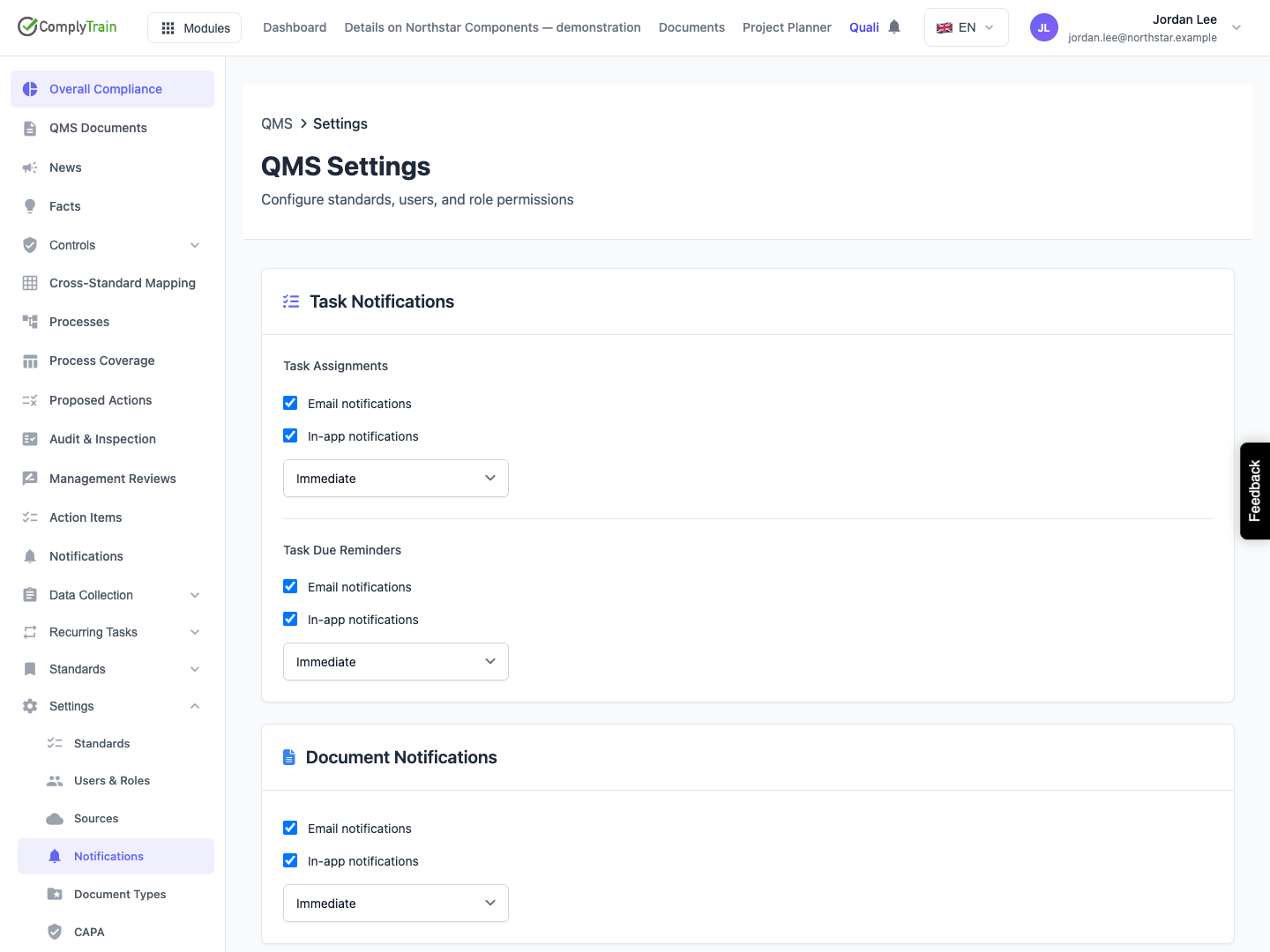
Open Quality (QMS) → Settings → Notifications to configure preferences for the signed-in user. QMS → Notifications opens the inbox instead. Organisation notification administration serves a separate purpose.
You need View dashboard permission to read and update these personal QMS preferences. Check the signed-in account before changing its choices, especially when using more than one organisation.
Product location: /qms/settings/notifications
For each event group, review Email notifications, In-app notifications and its Email frequency. Choose the channels appropriate for how you follow the work.
Group | Events to consider |
|---|---|
Task assignments | When a task is assigned to you. |
Task due reminders | When a task of yours is approaching or past its due date. |
Document review requests | When a document is sent to you for review. |
Audit findings | When a finding is raised that concerns you. |
Audit schedule | When an audit you take part in is scheduled. |
Review every group affected by a change. Turning off a delivery channel changes a preference; it does not remove the underlying obligation, change record access or mark existing notifications read.
Use the notification inbox to review messages already received. Open the original task or document to perform its workflow.
Product location: /qms/settings/notifications
On opening the page, review the loaded preferences before editing. Where you have not customised a group, it shows System default and its default supplies the initial choice. A group you have changed but not saved shows Unsaved; Discard changes in this group returns it to the saved values. A default is a starting configuration, not evidence that a message has already been sent.
When the saved values within a group differ, the channel shows (mixed) and the frequency shows Mixed (choose a frequency to apply to the whole group). Choose a value for every mixed channel and the frequency before saving a changed group. Standard-specific overrides are not shown or changed here; the page notes how many you have.
Write down the intended result when several changes are needed—for example, the channels and frequency for Task assignments—then compare that result after saving and reopening.
Product location: /qms/settings/notifications
Email frequency offers Immediately, one email per event, Daily digest and Weekly digest. It applies to email only; in-app notifications always arrive immediately. A group saved earlier as hourly shows Hourly (saved earlier; kept until you choose another frequency). Immediate email is appropriate for messages that need prompt attention; a digest collects eligible notifications for periodic review.
Each group controls its own frequency. For example, set Task assignments → Immediately, one email per event and Document review requests → Weekly digest to receive prompt assignment emails while collecting review requests for a weekly email. Changing one group does not change another group's frequency.
Check the frequency alongside that group's enabled channels. A digest preference changes when eligible messages are collected for delivery; it does not change the task's due date or the event's business status.
Review the configured delivery schedule when timing matters. Preference persistence, creation of the underlying notification and its actual delivery are separate outcomes. Use the inbox and the original record when following up work that needs immediate action.
Product location: /qms/settings/notifications
Review the intended channels and frequencies for each affected group.
Choose Save Preferences and wait for Preferences saved. The button becomes available once a group has changed and no changed group still has a mixed value.
Reopen or reload the page.
Confirm the saved channels and frequencies match your choices, including different frequencies in two groups.
Review a subsequent relevant event when checking delivery.
If saving fails, the page reports The preferences could not be saved. Your changes were kept; try again. Resolve the problem before trying again. Check the saved values after an interrupted request so that you know which preferences are currently active.
Saving preferences does not send a test notification. When investigating delivery, identify a real event, its recipient, the expected channel and the saved preference that applies to it.
Product location: /qms/settings/notifications. Choose Reset to Defaults. Confirm Reset to restore saved defaults, or Cancel to retain the current preferences.
Choose Reset to Defaults and read Reset notification preferences?. Confirm Reset only when you want your saved preferences removed and every group returned to the system defaults. Standard-specific overrides are kept. Cancel keeps the current preferences.
After reset completes, reopen the page and review the restored values. Adjust and save any choices that still need to differ from the defaults. Restoring notification preferences does not erase existing inbox messages or change the status of their underlying work.
Product location: /qms/settings/notifications
Situation | Next step |
|---|---|
Preferences fail to load | Check the session, access and connection, then use Try Again. |
Save fails | Retain the intended settings, resolve the message and verify saved values before retrying. |
Settings differ after reopening | Confirm the signed-in account and scope, then compare the current values with the intended change. |
An expected message is missing | Check the original event, intended recipient, saved channels/frequency and inbox. |
A record link is inaccessible | Review permission to that record; notification preferences do not grant access. |
You want to review previous messages | Open the inbox; preference changes govern delivery configuration, not prior read state. |
