Use the shared inbox, unread filter and read actions without confusing a notification with completed work.
Product location: /qms/notifications
Open Quality (QMS) → Notifications. All includes read and unread messages; Unread focuses on those still awaiting your attention.
This page uses the shared notification feed for the signed-in user and current tenant, also used by the global bell. Messages can come from different modules. The standard you were previously viewing does not restrict this shared inbox.
Check the notification itself to identify its source and related work. An empty unread list means there are no matching unread messages after loading; it does not establish that every task or obligation is complete.
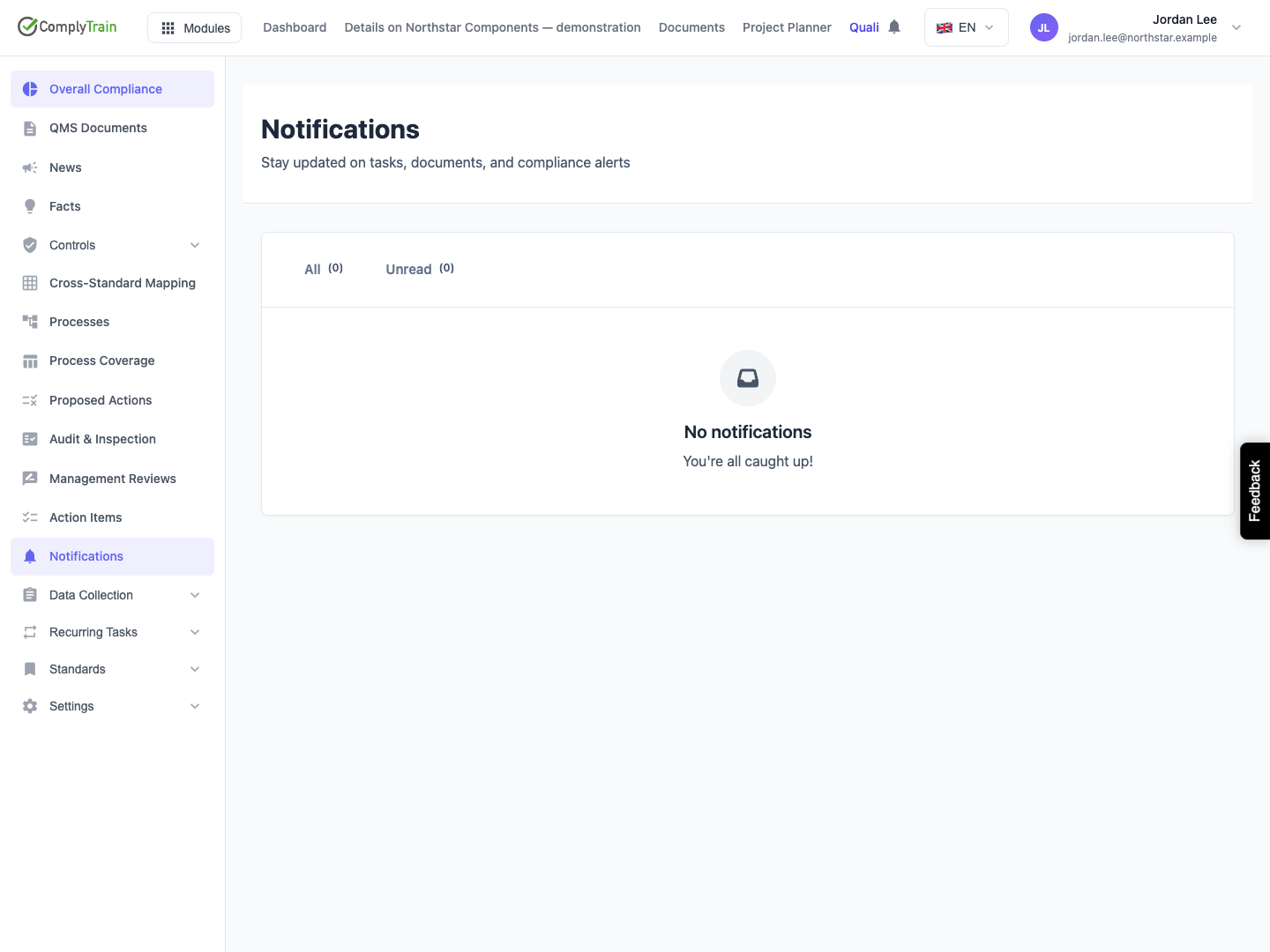
Product location: /qms/notifications. Choose All or Unread; use Previous and Next for additional pages.
Choose Unread or All, then use Previous and Next to move through the results. The list is newest first and presents 20 items per page. Changing tabs returns to the first page and clears the current selection.
Review the relevant count and page before acting. Revisit or reload the inbox when checking newly arrived messages or actions taken in another window.
If loading fails, the inbox shows The notifications could not be loaded; restore the session or connection and choose Try Again. Wait for a successful load before treating an empty result as current. Each tab shows its own count, and Showing X-Y of Z gives the position within the current tab.
Product location: /qms/notifications
Read the title, message and time. An unread dot identifies unread items, and a standard badge provides context when that information is included.
Click the notification body to mark it read. Use its separate action link to open the referenced task, document or other record. Following that action also marks the notification read.
An agent should use the notification's actual action destination. The message text alone is not a reliable record identifier. Access to the destination is checked through the record's own permissions.
Reading a message does not complete a task, approve a document or perform another business action. Open the linked record and follow its workflow to record the required outcome.
Product location: /qms/notifications
Use row checkboxes, or Select everything on this page, to select the intended messages. A selection is kept as you move between pages, and a note states how many selected notifications are on another page. Check the count on Mark Read (N), then choose it. Clear selection removes the selection.
Wait for the result, such as N notification(s) marked as read. If some could not be marked, the message says how many; choose Retry the remaining N to try only those, or Dismiss. Switching between All and Unread clears the selection.
Read messages remain available in All. Selection is useful when you have reviewed a particular set of messages and want to update their read state without marking the entire inbox.
Product location: /qms/notifications
Mark All Read applies to every unread notification you have in the shared feed, including other modules and messages beyond the current page; its tooltip says so. It is broader than the checked rows or current twenty items.
Choose this action when that scope matches your intention. Use the selected-row action for a smaller set. After success, review the refreshed unread count; messages arriving afterwards can still be unread.
The action changes notification read state. It does not change delivery preferences, complete tasks or approve the records referenced by those notifications.
Product location: /qms/notifications
Situation | Next step |
|---|---|
Unread is empty | Check All for previously read items. |
Both tabs are unexpectedly empty | Check the account and tenant, restore any failed load and inspect the original event. |
Clicking the body did not navigate | Use the separate action link to open the related record. |
No action link appears | Find the record through its module using the message's context. |
The destination is unavailable | Check current access and whether the record still exists. |
Some selected read updates fail | Read the result, then choose Retry the remaining N. |
Future delivery needs to change | Open QMS notification preferences and save the intended settings. |
