Apply your logo, brand colours and email footer, set the organisation's time zone and date format, and link the mobile app.
These three pages set how ComplyTrain looks and reads for everyone in your organisation, and how the mobile app is set up. Only an organisation Admin can open them. Everyone sees the results.
Product location: /settings/branding. Open Branding in Settings.
Open Settings, then Branding. The page is titled Branding & Customization.
Under Company Logo, drag a file onto the upload area, or select it and browse. The file must be PNG, JPG or SVG, and smaller than 2 MB.
Wait for Logo Uploaded. The logo appears above the upload area.
To replace the logo, upload a new file with Upload New Logo. To remove it, select the bin icon (Remove logo) and confirm Delete. ComplyTrain's own logo is used again.
The logo is printed on generated documents and reports, such as QMS document front pages, training evidence PDFs and risk reports. It also appears in notification emails. A new logo can take a few minutes to reach every part of the application.
Product location: /settings/branding. Open Branding in Settings.
Under Brand Colors, set three colours. Pick each one with the colour picker, or type a hex code such as #0B5FA5.
Colour | Where it is used | Default |
|---|---|---|
Primary Color | Buttons, links and key interactive elements |
|
Secondary Color | Secondary buttons and supporting elements |
|
Accent Color | Highlights, notifications and success states |
|
A code must have the form #RRGGBB, with six hexadecimal digits. Live Preview shows a sample header, buttons, a badge, a link and secondary text in your colours before you save.
Change one or more colours. The arrow next to a changed colour (Reset to last saved value) undoes that one change.
Select Save Colors, or Cancel to discard all unsaved colour changes.
The colours apply to your screen at once. Everyone else sees them the next time they open or reload ComplyTrain. They also colour notification emails and generated reports. Document layouts can use the brand colours or set their own; see Design reusable document layouts.
To go back to ComplyTrain's colours, select Reset to Defaults and confirm Reset. This button appears when you have no unsaved colour changes.
Product location: /settings/branding. Open Branding in Settings.
Under Email Branding, type the text for Email Footer Text, such as your company name, address and a contact line. The limit is 1,000 characters, and HTML is not supported. Email Footer Preview shows how it will look. Select Save Footer.
The footer appears at the bottom of the system-generated emails ComplyTrain sends for your organisation, such as notification emails. When the field is empty, emails use the standard ComplyTrain footer.
Keep the footer accurate. People trust it as proof that an email really comes from your organisation.
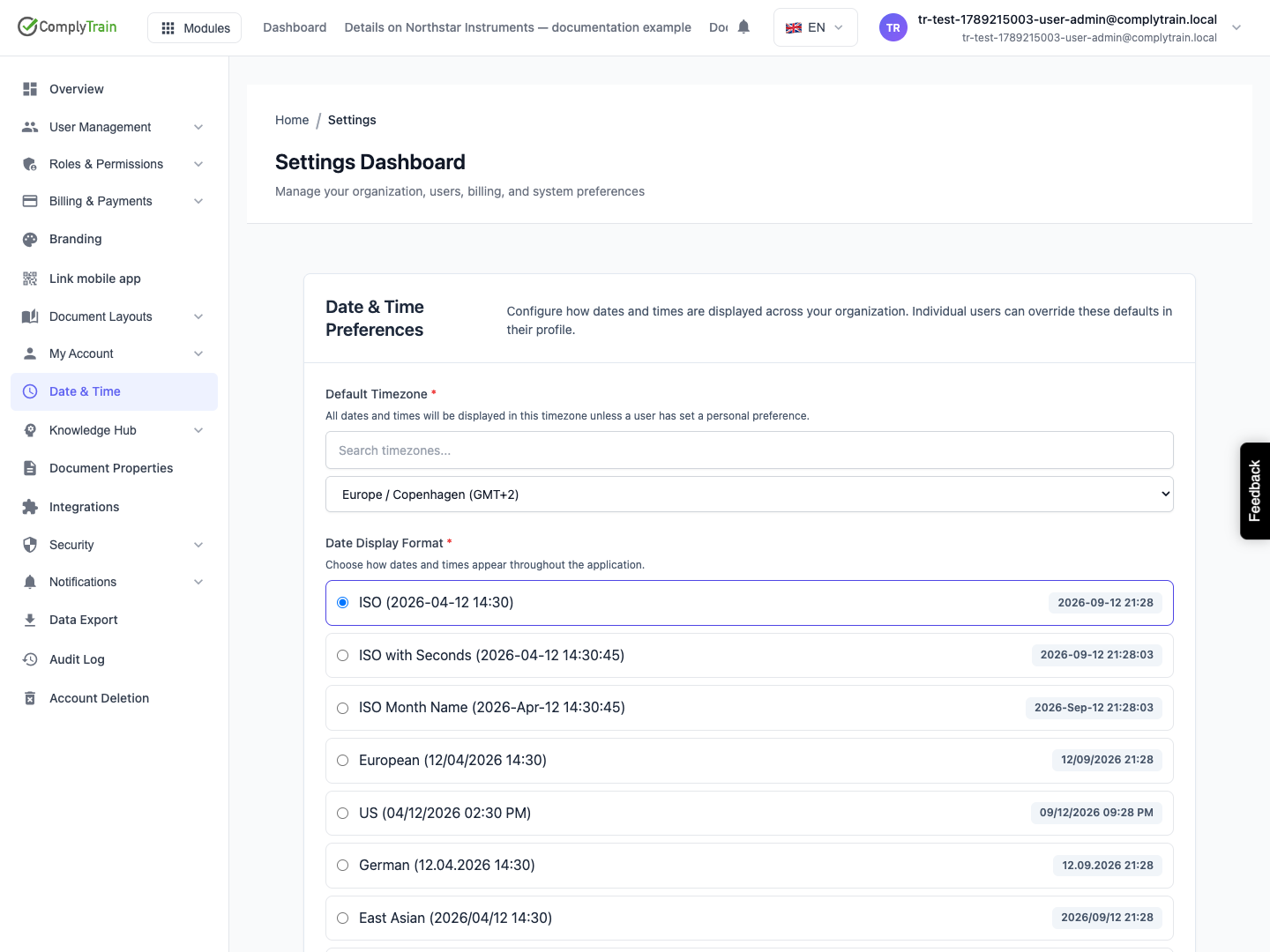
Product location: /settings/date-preferences. Open Date & Time in Settings.
Open Settings, then Date & Time. The page is titled Date & Time Preferences.
Under Default Timezone, type in Search timezones... and choose a zone, for example Europe / Copenhagen. Each zone shows its current offset from UTC.
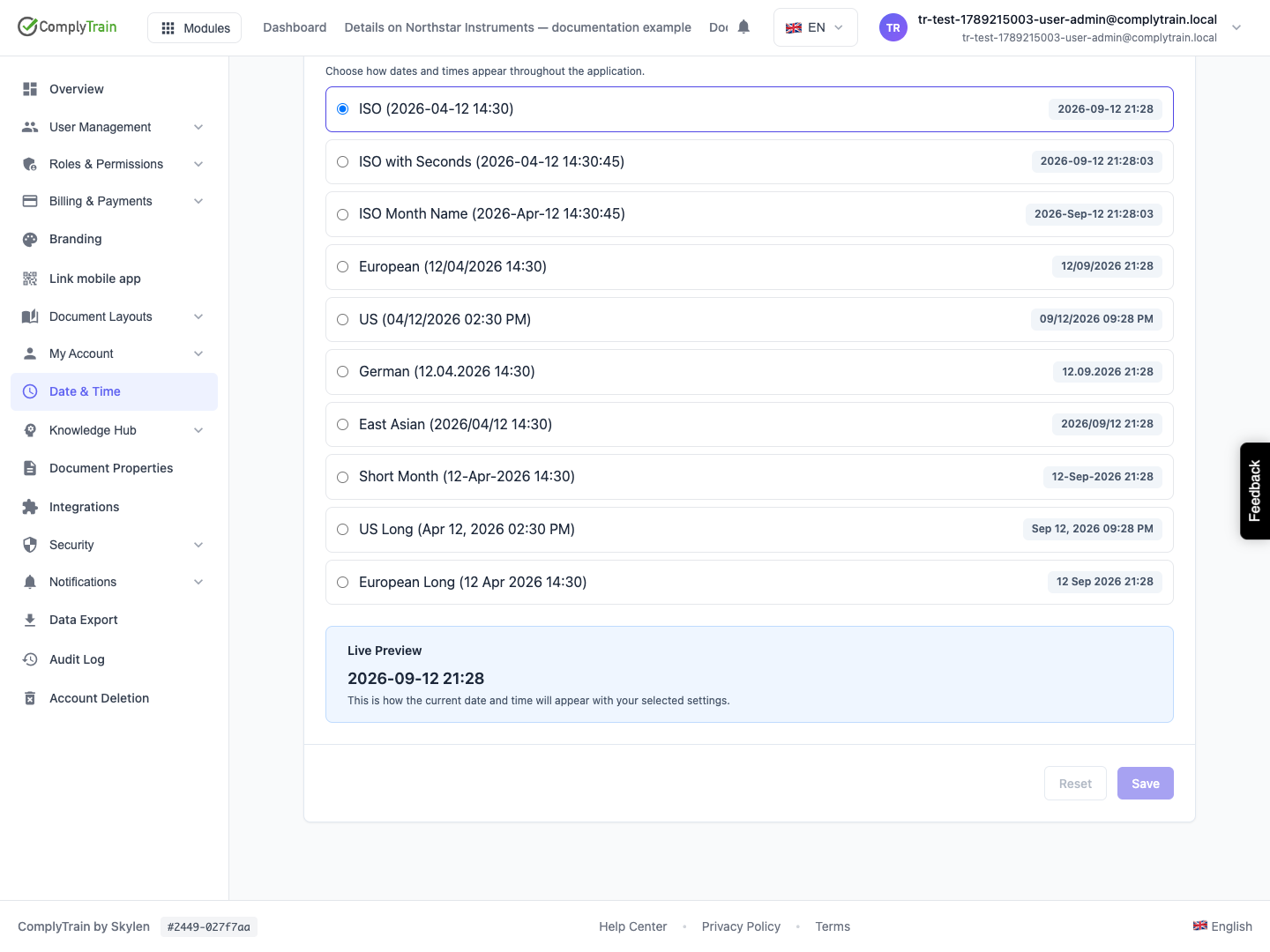
Under Date Display Format, choose a format. Each choice shows today's date and time in that format.
Check Live Preview, then select Save. Reset discards unsaved changes.
Format | Example |
|---|---|
ISO | 2026-04-12 14:30 |
ISO with Seconds | 2026-04-12 14:30:45 |
ISO Month Name | 2026-Apr-12 14:30:45 |
European | 12/04/2026 14:30 |
US | 04/12/2026 02:30 PM |
German | 12.04.2026 14:30 |
East Asian | 2026/04/12 14:30 |
Short Month | 12-Apr-2026 14:30 |
US Long | Apr 12, 2026 02:30 PM |
European Long | 12 Apr 2026 14:30 |
Until an Admin saves a choice, ComplyTrain uses UTC and the ISO format. The saved time zone and format apply to dates and times shown across ComplyTrain for everyone in the organisation.
Each user can choose their own time zone in My Profile. Their own time zone then applies to them instead of the organisation default.
Pick a format that nobody can misread. 12/04/2026 means 12 April to European readers and 4 December to American readers. For an organisation with sites in both regions, ISO or European Long avoids that ambiguity.
Product location: /settings/mobile-app. Open Link mobile app in Settings.
Only an Admin can show the code. To set up a colleague's phone, open the page on your own screen and let them scan it.
Open Settings, then Link mobile app. A code is created as soon as the page opens.
On the phone, install the ComplyTrain app from the App Store and open it.
In the app, choose Scan to set up and point the camera at the code.
On the phone, sign in with the phone owner's own account.
The page also shows the Environment and Workspace the code points to. If the phone cannot scan the code, open the link under Cannot scan? Open this link on the device instead: on the phone. Use Copy to copy it.
The code is valid for a few minutes, and the page counts down under This code expires in. When it shows Expired, select Generate a new code.
Anyone who scans or photographs the code can point their app at your workspace, so do not post it or share it. The code only sets up the app's connection. Each person still signs in with their own account, the organisation's sign-in rules (single sign-on, MFA) still apply, and their permissions do not change.
Product location: /settings/branding. Open Branding in Settings.
Your company's colours are navy and teal, and emails must carry your registered address.
Upload the logo as a PNG with a transparent background.
Set Primary Color to #1F3A5F and Accent Color to #1A9E8F, check Live Preview for readable button text, and select Save Colors.
Enter "Northwind Medical ApS, Havnegade 12, 1058 Copenhagen, Denmark. Questions: [email protected]" in Email Footer Text and select Save Footer.
In Date & Time, choose Europe / Copenhagen and European Long, and select Save.
Ask a colleague to reload ComplyTrain and check the new colours. Then generate a test document to check the logo, and look at the footer of the next notification email.
