Select methodologies and configure the policy and classification used by the register.
Product location: /rms/settings/methodologies. Open Methodologies under Configuration.
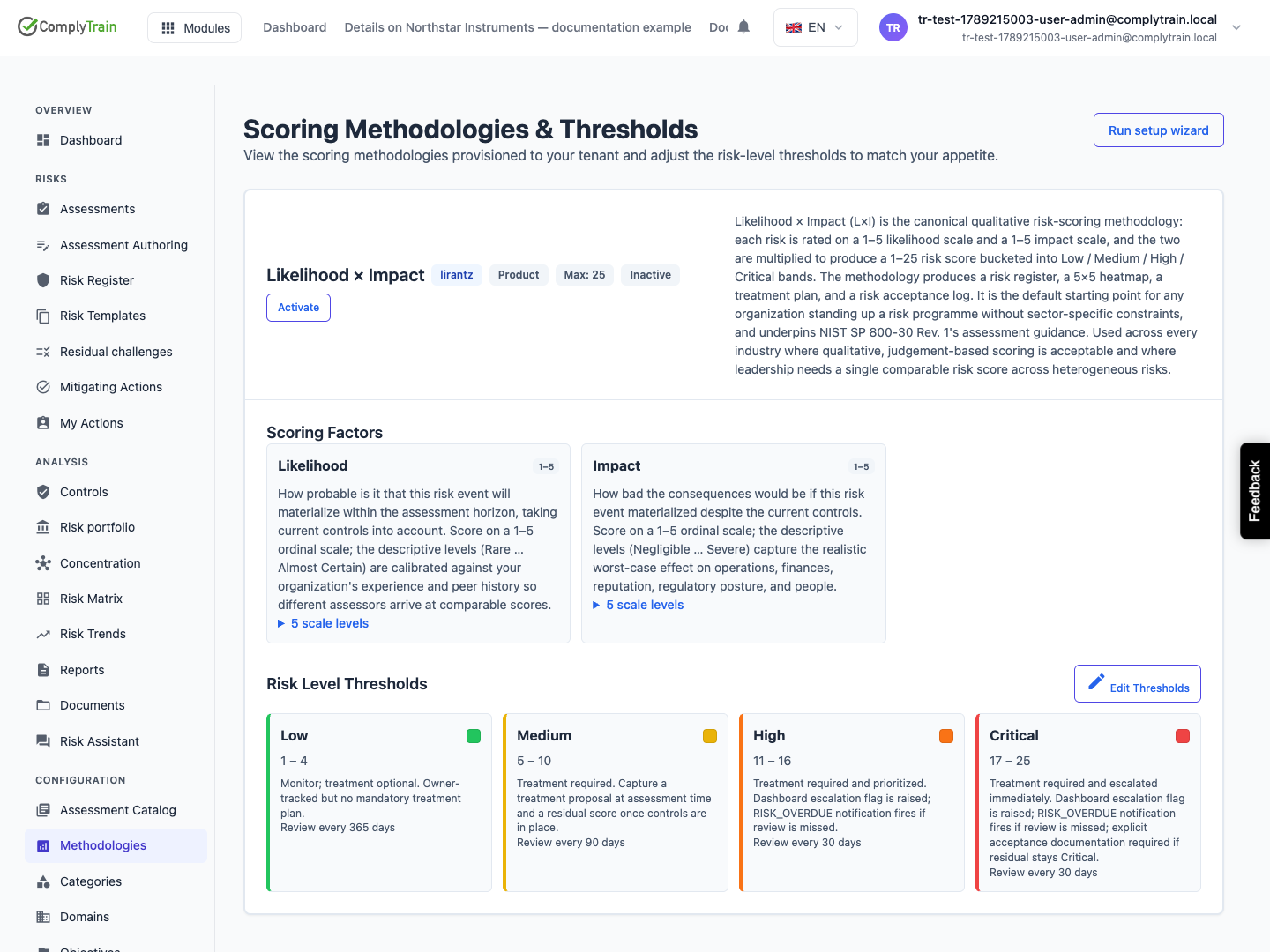
A scoring methodology defines the factors you score, such as likelihood and impact, their scales, how the score is calculated and the thresholds that turn a score into a level. Open Methodologies under Configuration. Scoring Methodologies & Thresholds lists each methodology available to your organisation, with its maximum score and whether it is Active.
The Default methodology is always active and is preselected when logging a risk.
Use Activate or Deactivate on the others. Only active methodologies are offered when logging risks and authoring assessments.
Run setup wizard reopens the setup wizard.
Keep the number of active methodologies small enough for people to choose consistently. Scores from different methodologies are not interchangeable, even when their factor names look similar.
Complete the default methodology's policy questions in policy onboarding. A banner on RMS pages reminds you while required policies are missing.
Product location: /rms/settings/methodologies. Choose Edit Thresholds on the methodology.
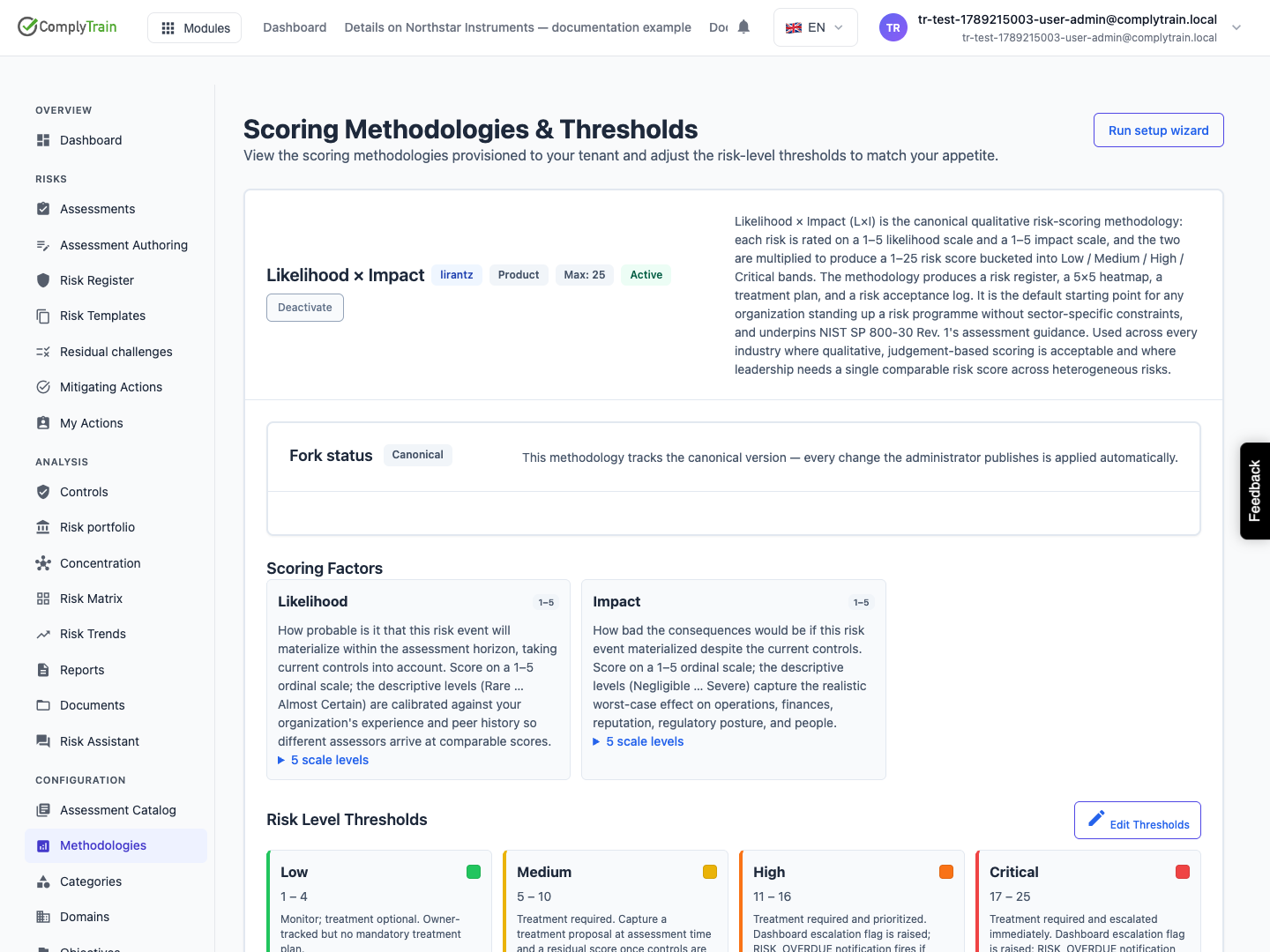
Scoring Factors shows each factor's scale levels with their guidance, and the calculation: Product, Weighted sum or Max. Factors are read-only here.
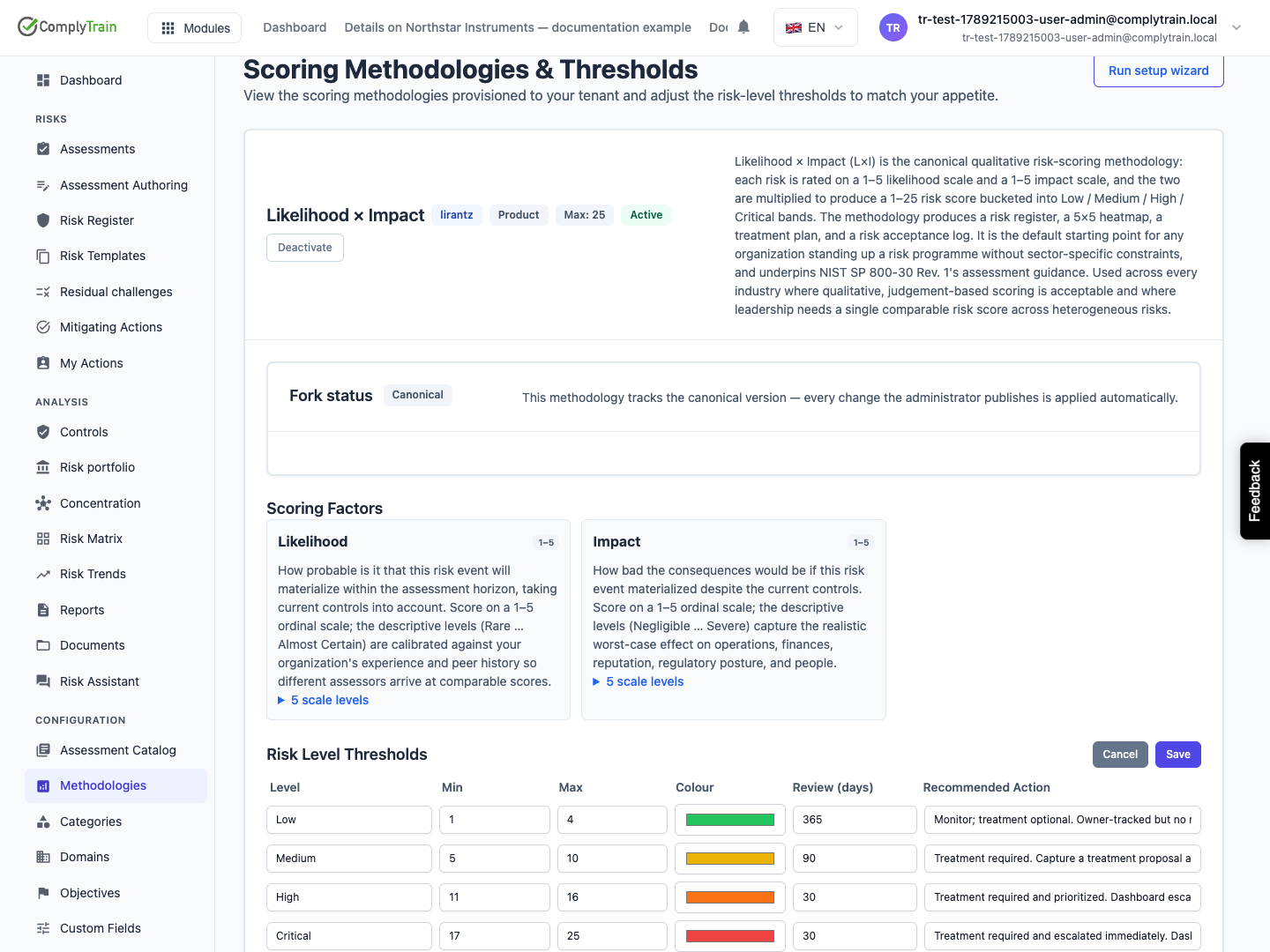
Risk Level Thresholds lists each level with its score range, colour, review interval and Recommended Action. Choose Edit Thresholds to change them:
Column | What to set |
|---|---|
Level | The level name shown on risks and in the heatmap legend, such as High. |
Min, Max | The score range for the level. Ranges must not overlap. |
Colour | The colour used in badges, the heatmap and charts. |
Review (days) | How often risks at this level should be reviewed. |
Recommended Action | The guidance shown on risks at this level. |
Choose Save. Existing levels can be edited but not added or removed here. Align the thresholds with your risk appetite before logging many risks, so levels mean the same thing across the register.
Product location: /rms/settings/methodologies
Each methodology on Scoring Methodologies & Thresholds has a Residual scoring panel with a Mode:
Manual: assessors record the residual score. The nightly review challenges it against control effectiveness and raises a signal when the evidence disagrees.
Derived from controls: the residual score is calculated nightly from control effectiveness. Residual scores cannot be entered by hand while this mode is active.
Changing the mode changes the risks already on the methodology, so the panel asks you to confirm under This changes existing risks. Switching to derived scoring recalculates the residual score of every risk on the methodology; manually entered residuals are kept and restored if you switch back. Choose Switch mode. The panel then reports how many risks were updated.
In derived mode, Reconciliation tuning sets Tolerance (%), Materiality score and Maximum reduction (%) for this methodology. Leave a box empty to follow the platform default, shown as Platform default, and choose Save.
Derived scoring depends on your subscription. If your plan does not include it, the panel shows the reason when you try to switch. Changing the mode or the tuning needs both the Manage RMS configuration and Manage controls permissions, and each change is recorded in the audit trail.
Product location: /rms/settings/methodologies
Your methodology starts Canonical, identical to the published version. The first threshold or custom-field change makes it Customised. From then on, a new published version is not applied automatically. Instead, Fork status shows A new methodology version is available and Open migration wizard.
Reset to canonical discards your customisations and returns to the published version after confirmation. It needs the RMS administrator role.
Product location: /rms/methodologies/{methodologyId}/migration (fallback: /rms/settings/methodologies). Choose Open migration wizard in Fork status.
The migration wizard, Methodology migration, compares your customised methodology with the new version:
The overview counts the changes: Safe to accept, Worth reviewing, Needs your decision, and the number of affected risks. Choose Continue to decisions →.
For each change, compare Current value and Proposed value, read the impact on existing risks and any warning that it will overwrite one of your customisations. Choose Accept, Reject or Edit. Threshold changes can be edited in place; for other changes, Open in chat assistant discusses them with the AI. Add Notes (optional) to record your reasoning.
Review the summary and choose Apply migration. All decisions apply together, or none do.
The result lists what was applied, rejected and edited, and how many risks need follow-up. Open those risks and check their scores and levels.
Product location: /rms/settings/categories. Use Categories, Affected Objectives, Domains and Custom Fields under Configuration.
Setting | Purpose | Rules |
|---|---|---|
Categories | Group risks by type, such as operational, compliance or supplier. | Name up to 200 characters, with description and order. Deactivated categories stay on existing risks but are not offered for new ones. |
Affected Objectives | Link risks to the business outcomes they threaten. | As for categories. |
Domains | Number and group risks by organisational area. Every risk belongs to one domain, chosen when it is logged and fixed afterwards. | Code of 1–20 uppercase letters and digits, fixed once created; it forms the risk number prefix. The last active domain cannot be deactivated. |
Custom fields | Record information your organisation needs on every risk. | See custom fields. |
Use New Category, New Objective or New Domain to add entries, Show inactive to see retired ones, and Edit or Activate / Deactivate on a row. Changing these settings needs the Manage RMS configuration permission.
Continue with RMS roles and retention status.
