
Choose durable field definitions and understand the effect on methodology updates.
Decide what belongs in a custom field
Product location: /rms/settings/custom-fields
Open RMS, Settings, Custom fields. These definitions apply across your organisation's risks. They are a flat list of additional fields, separate from a form template's sections and conditional layout. See methodology setup and RMS roles.
Use a stable value that will be useful when reviewing risks. For example, a field named Service owner needs a clear explanation of whether it describes a person, a team or a supplied service. Avoid using a free-text field to duplicate an existing structured risk property.
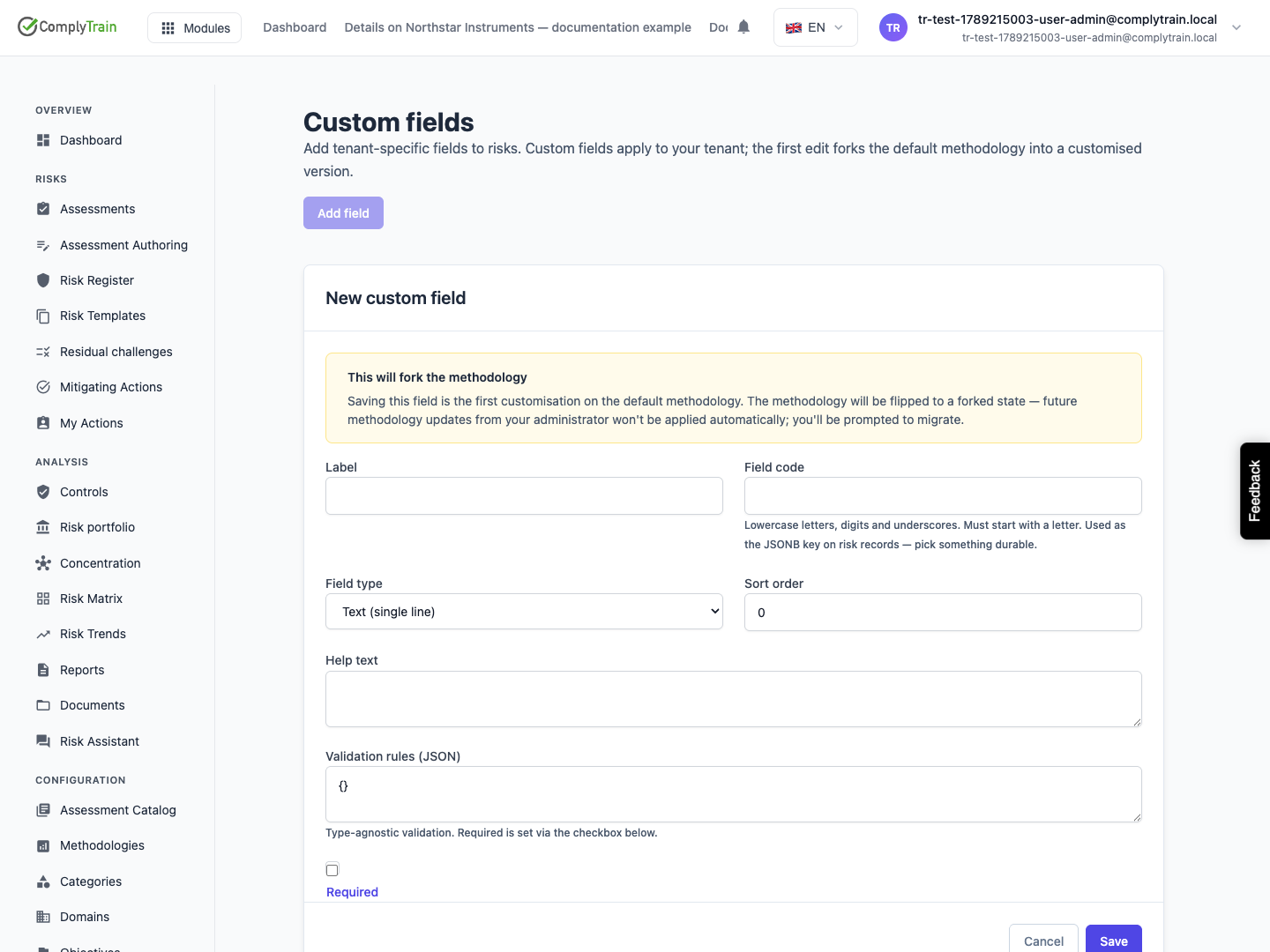
Understand the first customisation
Product location: /rms/settings/custom-fields
The first custom-field change can fork the default methodology. The editor warns before this happens. Later methodology updates then require reviewed migration.
Review the consequence before creating, editing or deleting a field. A field change does not reassess existing risks.
Definition fields
Product location: /rms/settings/custom-fields
Field | Meaning and constraints |
|---|---|
Label | The user-facing name. Required, with a maximum of 200 characters. |
Field code | Stable identifier, created once. Start with a lowercase letter; use lowercase letters, digits or underscores; maximum 64 characters. It must be unique. |
Field type | The kind of input. Chosen at creation and immutable afterwards. |
Sort order | Position in the displayed field list. The list is sorted by this value. |
Help text | Explain the value a risk owner should enter. |
Field options (JSON) | Type-specific choices or bounds where the editor offers them. |
Validation rules (JSON) | Additional validation configuration. Required has its own checkbox. |
Required | Mark the field as required. Check its effect on existing records before rollout. |
Active | Available while editing an existing definition; lets you make the field inactive. |
The code follows the label until you edit it yourself. Choose it before saving; later label changes do not rename the stored field.
Choose the input type
Product location: /rms/settings/custom-fields
The editor offers text, multi-line text and rich text; number, currency and percentage; date, date and time, and time; yes/no and checkbox; single-select, multi-select and radio choices; email, URL and phone; user and multiple-user pickers; document link, tag list and advanced JSON.
Choice fields offer Field options (JSON). For example, the released helper uses:
{"choices": ["Sales", "Operations", "IT"]}
Numeric fields can offer bounds such as {"min": 0, "max": 100}. Check the helper for the selected type. Syntactically valid JSON is not proof that a particular option is enforced in every risk editor; test the expected input behaviour before relying on it as a validation control.
Save and check a field
Product location: /rms/settings/custom-fields
Select Add field, enter the definition and save. Reopen it to check the label, type, options and required state. Test a new and an existing risk with the intended role. Correct any save error; the editor rejects duplicate codes, empty labels and invalid JSON.
Use Inactive to retain an unused definition. Delete irreversibly removes it from forms and lists. The confirmation says existing risks retain their stored values.