
Assign risk permissions, inspect inherited access and retire custom roles.
Open RMS access settings
Product location: /rms/settings/user-roles
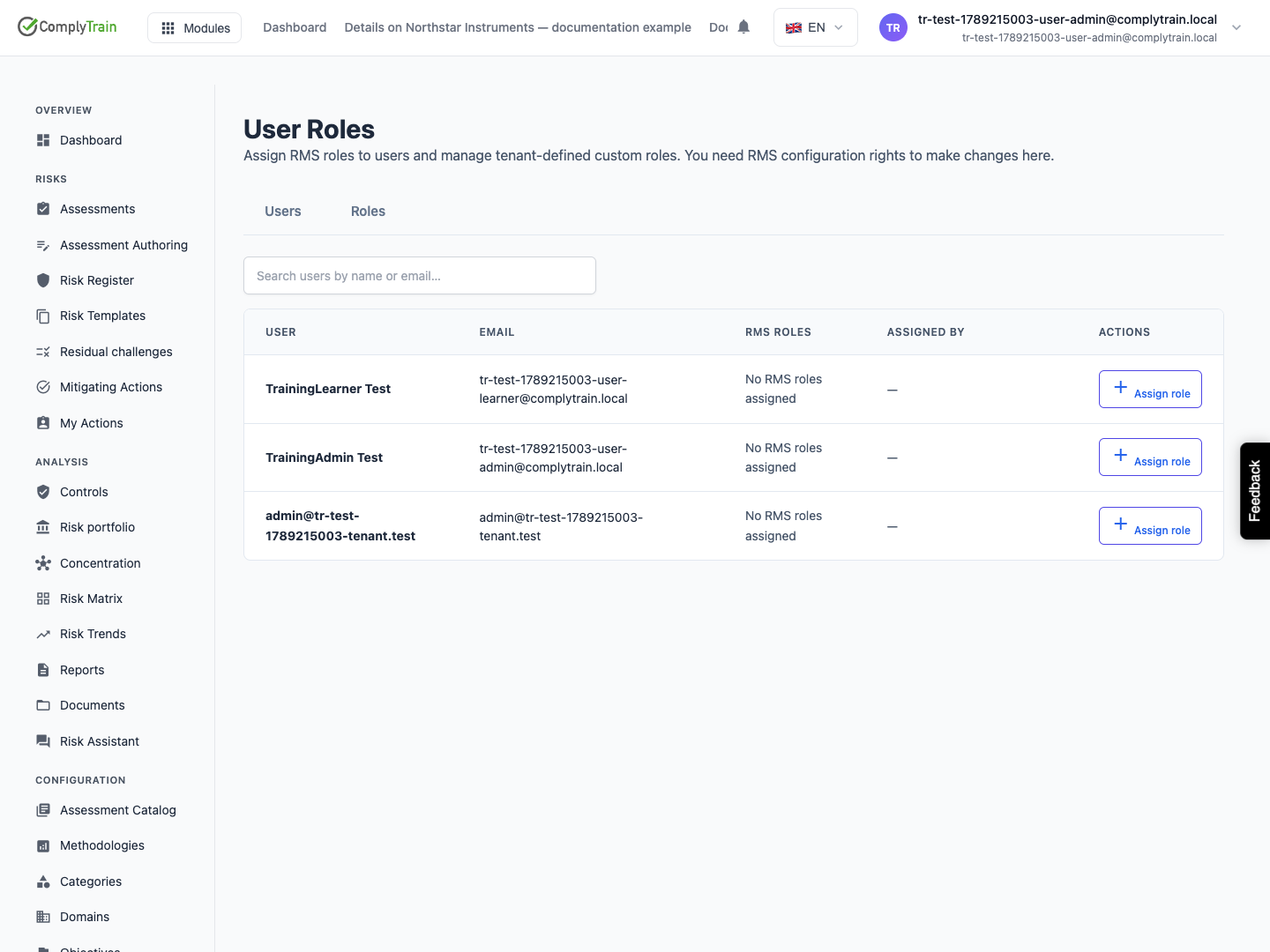
Open RMS, Settings, User Roles. You need RMS configuration rights to make changes. The Users tab manages assignments; Roles lists available roles and supports custom-role creation.
Invite people through organisation Settings → Users first. If this page says it shows only the first part of the user list, use search to find the intended person. Absence from the initial list is not evidence that their account does not exist.
Permission reference
Product location: /rms/settings/user-roles
The role form loads the current permission catalogue and groups permissions by area. The released named permissions include:
Permission | Scope described in the catalogue |
|---|---|
View risks | Read the risk register, risk details, scores and history. |
Create risks | Log a new risk. |
Edit risks | Change existing risk details, scoring inputs and owner. |
Delete risks | Remove risks from the register. |
Score and assess risks | Apply or revise inherent and residual scoring. |
Manage mitigating actions | Create, edit and close risk mitigation actions. |
View reports | Read RMS reports, dashboards and analytics. |
Export reports | Export reports and analytics. |
Manage RMS configuration | Configure methodologies, categories, objectives and roles. |
Use the catalogue shown in the role form when reviewing an actual role. A familiar role name does not establish its exact grants. A permission grants an action; enabled modules, account class and record-specific restrictions still need to be satisfied.
Assign and inspect a role
Product location: /rms/settings/user-roles
Find the user and select Assign role.
Choose an active RMS role and select Assign.
Check the resulting role badge and Assigned by information.
Verify the intended action with that user, including an action they should be unable to perform.
Permissions from a role are added to existing access. Assigning a role already held reports that no change was made. Removing one role revokes its contribution; another role may still grant the same action.
When changing your own access, the interface warns that the assigned role cannot exceed permissions you currently hold. Do not use self-assignment as a way to grant yourself a wider role.
Create a custom RMS role
Product location: /rms/settings/user-roles
On Roles, select New custom role. Enter a unique code beginning with a lowercase letter and containing lowercase letters, digits or underscores; use at least two characters. Enter a name, an optional description and at least one permission. Review category-wide Select all choices before saving.
If the permission catalogue failed to load, an empty picker is a loading/configuration problem to resolve, not a reason to invent permission codes. Correct any server-reported validation or permission error before retrying.
Deactivate or remove access
Product location: /rms/settings/user-roles
Deactivate applies to active custom roles. It leaves user assignments present while the role contributes no permissions. Show inactive roles helps explain an assignment that is still listed but no longer grants access. System roles cannot be deactivated here.
Removing a user's role assignment and deactivating a role are different actions: the latter affects everyone assigned that role. This page does not supply a reactivation action in the inspected release; obtain administrator guidance if a retired role must be restored.
For organisation-level roles and groups, see reviewing role grants.