Create a scoped assessment, answer it with AI help, review and approve submissions, and decide on the risks AI proposes before they enter the register.
Use an assessment when a structured questionnaire should produce risks: a data-protection impact assessment, a vendor review, a product or ICT-system assessment. The assessment records who answered what, who approved it and which risks it produced. Reassessing later shows what changed.
Product location: /rms/assessments/new. Choose a published Template and complete the scope, then Create assessment.
Open Assessments under Risks and choose New Assessment.
Optionally narrow the list with Filter by standard, then choose a published Template.
Enter an Assessment name and choose the Scope type that fits, such as a project, product, vendor, asset or process. Describe exactly what is covered in Scope label, for example “Cloud temperature logging service, EU region”.
Choose the Owner who answers and maintains the assessment. Optionally choose an Approver and a Review frequency (days, optional) for periodic reassessment.
Choose Create assessment.
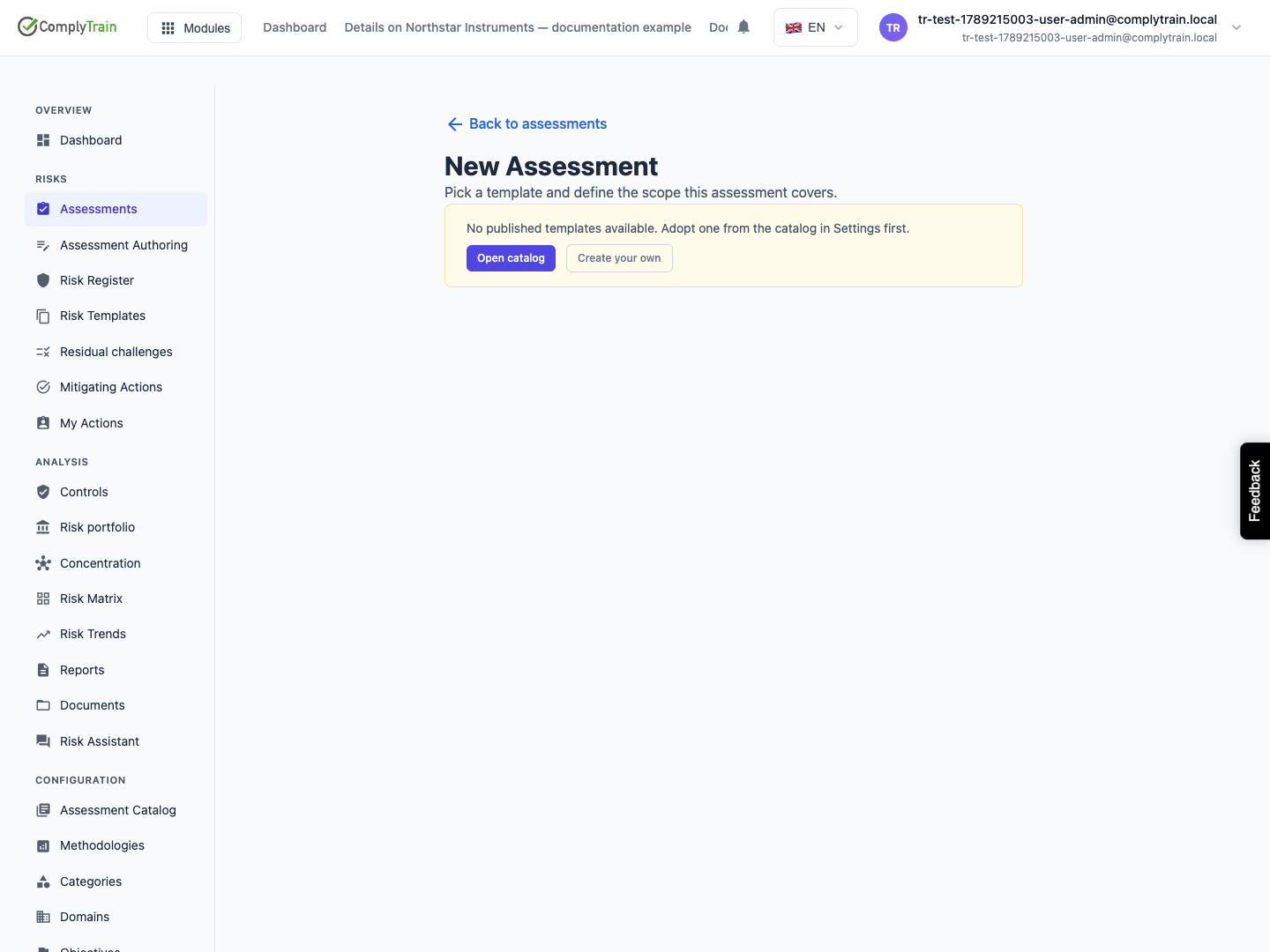
If no published template is available, the page offers Open catalog to adopt a ready-made template and Create your own to author one with AI; see author an assessment template.
Product location: /rms/assessments/{instanceId} (fallback: /rms/assessments). Choose New Submission or open the current submission.
Open the assessment and choose New Submission. Each submission is one complete answer to the template. The assessment keeps every submission as its history.
Answer the questions and use Save draft to keep unfinished work. Submit for review sends the answers to review. A submission can no longer be edited once submitted.
The Risk Assessment Companion beside the form helps you answer well:
Get help with a specific question explains the question and its terms. Help me answer proposes an answer based on what you have already entered and any previous submission.
Use this answer copies a proposed answer into the form. It is not saved until you save the draft or submit.
Check before submit lists Things to consider before you submit, such as gaps or inconsistent answers.
The companion reads and suggests; it does not submit anything.
If a submission is already open, starting another shows a warning. Open the existing submission instead, unless you really need a second draft.
Product location: /rms/assessments/{instanceId}/submissions/{submissionId} (fallback: /rms/assessments). Use the Review panel: Start review, Approve or Reject.
The reviewer opens the submission and chooses Start review, then Approve, or Reject with a Rejection reason. A person cannot approve a submission they submitted themselves, so arrange a separate reviewer. A rejected submission can be returned to its author with Re-open for editing.
Approval seals the submission as the assessment's current answer and updates the assessment's classification and next review date. A previously approved submission becomes superseded but remains in the Timeline.
Product location: /rms/assessments/{instanceId}/submissions/{submissionId} (fallback: /rms/assessments). Open the approved submission and use AI-proposed risks.
After the first approval, AI reads the answers and proposes risks. AI-proposed risks shows how many were proposed, by confidence, and how many await review. If identification is still running, reopen the page shortly.
For each proposal, read the Rationale, Supporting clauses, Category, Methodology and suggested inherent and residual scores. Confidence is shown as high, medium or low. Low confidence means the AI is uncertain and the proposal needs particular care.
Accept creates an Active risk in the register, linked to this submission.
Edit before accepting lets you correct the title, description and methodology, then Accept with changes.
Reject asks for a Rejection reason and adds nothing to the register.
Bulk-accept high-confidence accepts every high-confidence proposal at once. Read the list it will affect first: confidence is not approval.
Product location: /rms/assessments/{instanceId}/submissions/{submissionId} (fallback: /rms/assessments). Open the approved re-submission and use Reconciliation.
When circumstances change, or the review date arrives, start a New Submission. It is pre-filled from the approved one; change what is different and submit it for review.
When the re-submission is approved, Reconciliation compares it with the previous answers and groups the effects:
Group | Accepting it |
|---|---|
New risks | Creates a new Active risk, after you review its details. |
Still applicable | Records that the existing risk was reaffirmed. |
Updated | Applies the proposed changes to the existing risk. |
To close | Sets the existing risk obsolete. Enter a Close reason in Close this risk. |
Each item shows the Changed answers that caused it. Reject this change leaves the register untouched. Confirm all high-confidence accepts the high-confidence items together. Every accepted change appears in the risk's History; see the risk record.
Product location: /rms/assessments/{instanceId} (fallback: /rms/assessments). Use the Overview, Timeline and Risks tabs.
The assessment page has three tabs: Overview shows the template, owner, classification, next review and current submission. Timeline lists every submission with its state and how many risk changes it caused. Risks lists the risks this assessment produced.
Use Retire when the assessment should take no new submissions; clean up open submissions first. Use Archive to make it read-only and hide it from default views. The assessment list filters by status and template.
