Find individual requests to ComplyTrain by period, user and action, read each entry correctly, and export the filtered view as a CSV file.
API Activity lists the requests your organisation's users and integrations make to ComplyTrain: who made each request, when, from where and with what result. Use it to troubleshoot, to see how ComplyTrain is used, or to trace a request that has no entry of its own in the audit trail.
API activity is operational data. Its entries are removed after the retention period and are not tamper-evident, and the page says so under This is not the audit trail. For the protected record of sign-ins, access and changes, use the audit trail; the notice links to it under Audit trail.
Product location: /settings/audit-log. Open API Activity in Settings.
Only organisation Admins can open API Activity and export it. The page does not appear in the Settings navigation for other users. API activity covers your organisation only.
Product location: /settings/audit-log. Open API Activity in Settings.
Every request to ComplyTrain from a signed-in user or an integration is recorded, whether it reads information or changes it. Each entry records the time, the user, the action, the request method, the result status, the duration and the IP address.
An action names the request method and the area it concerned, for example POST /v1/settings/security/password-policy for saving the password policy. A part such as :userId stands for the identifier of the record concerned. The exact address, with the real identifier, is shown when you point to the action.
API activity records requests, not business outcomes. A request entry or a successful response is not, on its own, proof of a completed approval, a signed document or another business result. Follow the affected record when you investigate those, for example in a QMS document's audit event history.
Product location: /settings/audit-log. Open API Activity in Settings.
Open Settings, then API Activity. Before filtering, decide which user, period and kind of action you are looking for. The page opens on the most recent activity, 50 entries per page.
Product location: /settings/audit-log. Open API Activity in Settings.
Four figures above the filters summarise the activity in the selected period.
Figure | What it counts |
|---|---|
Total Requests | Requests recorded. |
Unique Users | Different users who made them. |
Error Rate | The share of requests that ended with an error status (400 or above). |
Avg Response | The average time to answer a request, in milliseconds. |
The figures follow Date Range and Write operations only, across all users and actions. They describe activity and response times; they do not count compliant records or completed work.
Product location: /settings/audit-log. Open API Activity in Settings.
Filter | How it works |
|---|---|
Date Range | Enter the first and last day of the period. Both days are included in full. Leave a date empty for an open-ended range. |
User | All Users, or one user who appears in the log. |
Action | All Actions, or one recorded action. Longer action names that contain the selected one are included too. |
Search | Part of an action name, for example |
Write operations only | Hides requests that only read information, leaving those that create, change or delete something. Ticking or clearing it applies at once. |
Action takes precedence over Search. When both have a value, only Action is used, so set Action back to All Actions when you want the search text to decide the result.
Select Apply Filters to run the query from the first page. Clear removes every filter, including Write operations only, and reloads the lists of users and actions.
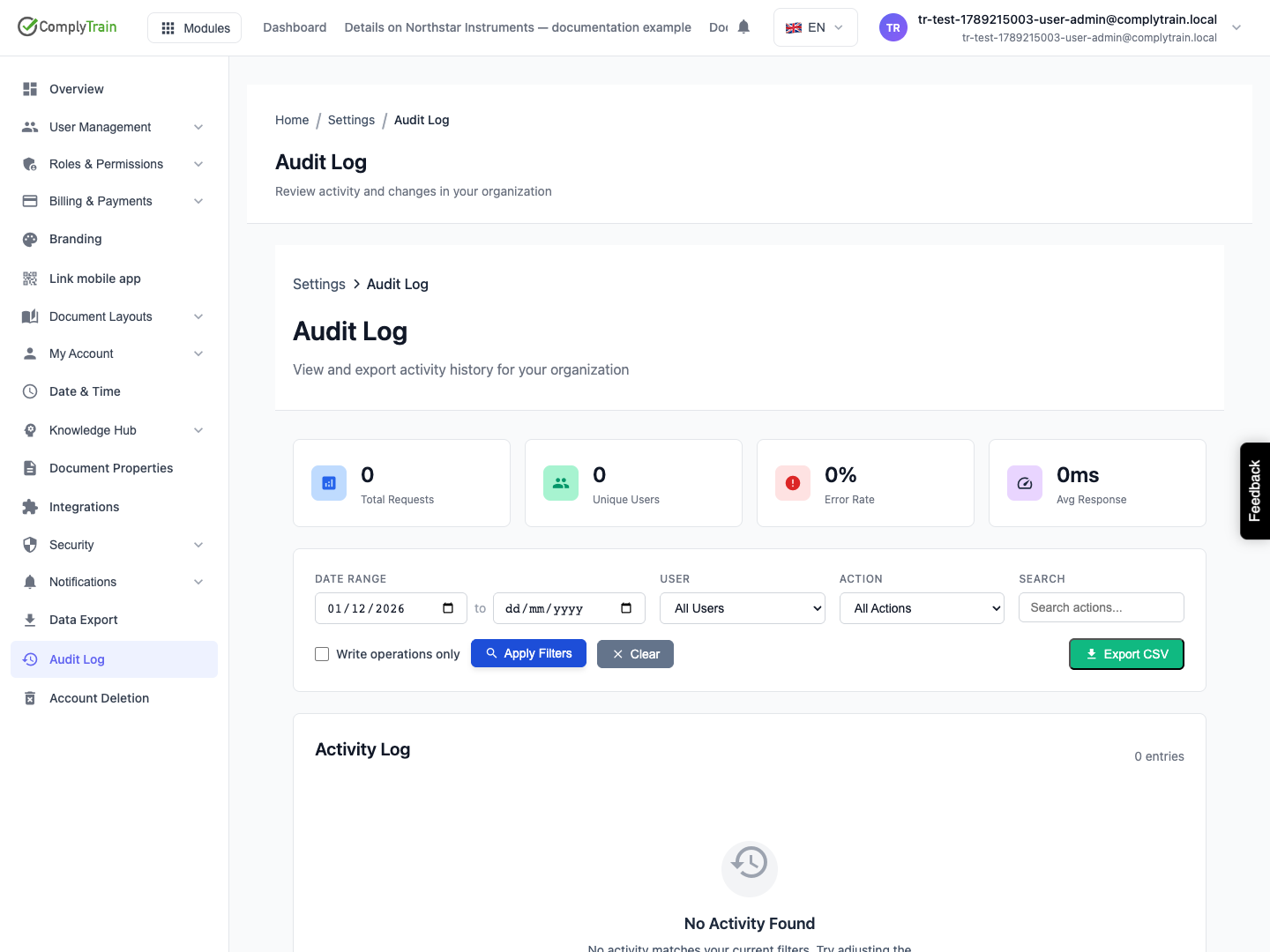
Product location: /settings/audit-log. Open API Activity in Settings.
The API Requests table shows the number of matching entries in its heading.
Column | What it shows |
|---|---|
Timestamp | How long ago the request was made, for example "3h ago", or the date for entries older than a week. Point to it for the exact date and time. |
User | The user's email address, or System when no signed-in user made the request. |
Action | The recorded action. Point to it for the exact address. |
Method | GET reads information, POST creates or submits, PUT and PATCH change, DELETE removes. |
Status | The result. Codes from 200 to 299 mean success, 400 to 499 mean the request was refused (for example, missing permission or invalid input), and 500 or above mean it failed. |
Duration | How long the request took. |
IP Address | The address the request came from. |
Use the first, previous, next and last page buttons to move through the results; Page … of … shows where you are. The first page is not the complete result set.
A failed status needs its own investigation of the outcome. A fast response does not show that background work finished, and a change request does not show that the intended business change was approved. Correlate the entry with the history of the document, risk or other record concerned. If the page reports Failed to Load API Activity, select Try Again before concluding that the period has no activity.
Product location: /settings/audit-log. Open API Activity in Settings.
Select Export CSV. ComplyTrain downloads a CSV file of the view you have filtered: the same Date Range, User, Action or Search, and Write operations only. The file contains every matching entry, not just the page on screen, up to the 100,000 most recent. Export Complete confirms the download.
CSV column | Content |
|---|---|
Timestamp | Date and time of the request, in UTC. |
User, User ID | The user's email address and internal identifier. |
Action, Endpoint | The recorded action and the exact address. |
Method, Status | As in the table on screen. |
IP Address, User Agent | Where the request came from and which browser or client made it. |
Duration (ms) | How long the request took. |
Details | Additional context recorded with the request, where there is any. |
The file is named api-activity- followed by the download date. That date identifies the download, not the period the entries cover. When you keep the file as evidence, record the filters you used, and check the first and last timestamps in the file.
The CSV is a plain export. It carries no digital signature and does not prove that it is a complete record of every event in the product.
Product location: /settings/audit-log. Open API Activity in Settings.
An internal audit finds that the organisation's minimum password length changed in August 2026, and asks who changed it.
Open API Activity.
Under Date Range, enter 1 August 2026 and 31 August 2026.
Tick Write operations only.
In Search, enter password-policy and select Apply Filters.
Read the entry for POST /v1/settings/security/password-policy: User shows who saved the policy, Status 200 confirms that it was saved, and Timestamp gives the exact time when you point to it.
Select Export CSV and file the download with the audit record, noting the filters you used.
To see what the policy is now, open the Security settings described in Configure organisation security policies.
