Build a simple course that asks learners to read and acknowledge a document, then make it available for assignment.
Product location: /training/courses. Create or open the intended course.
You will create Information security essentials, a course with one required Read & acknowledge module. Learners will be asked to read the example Information security policy document and acknowledge it.
This tutorial finishes when the course is published and available for assignment. Assigning learners and recording their completion are separate tasks.
Product location: /training/courses. Create or open the intended course.
Open Training, then Courses.
Select New course.
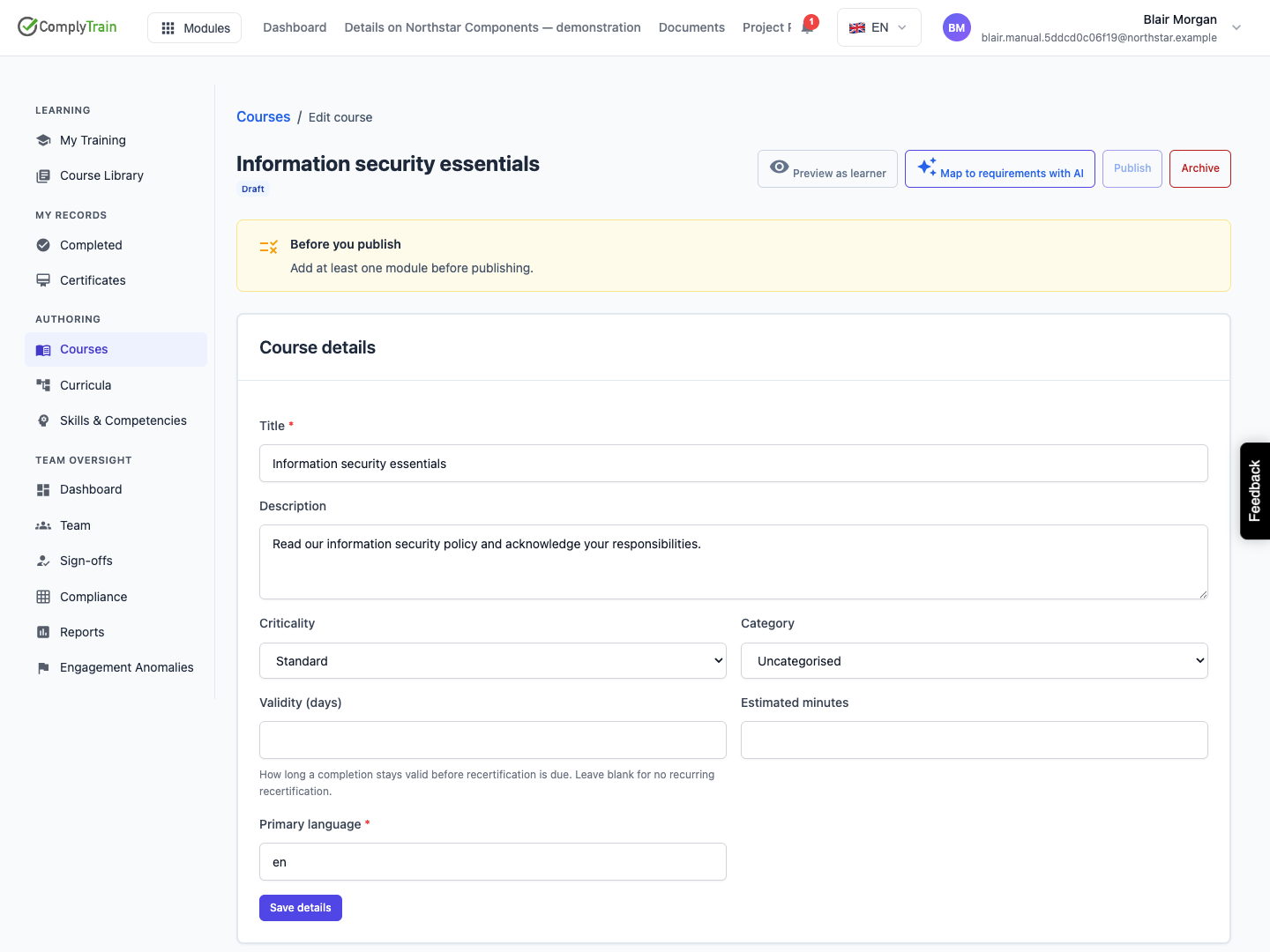
In Course details, enter Information security essentials as the Title.
Enter a short Description, such as: “Read our information security policy and acknowledge your responsibilities.”
For this example, keep Criticality at Standard and enter en in Primary language for English.
Select Save details.
The expected result is a draft course with your saved title and description. Check the details before adding its learning content.
Validity (days) controls how long a completion remains valid before recertification is due. Leave it blank for this practice course. For a real course, follow your organisation's training policy when choosing validity and criticality.
Product location: /training/courses/{id}/edit (fallback: /training/courses). Open the course created in the first step.
In Modules, select Add module.
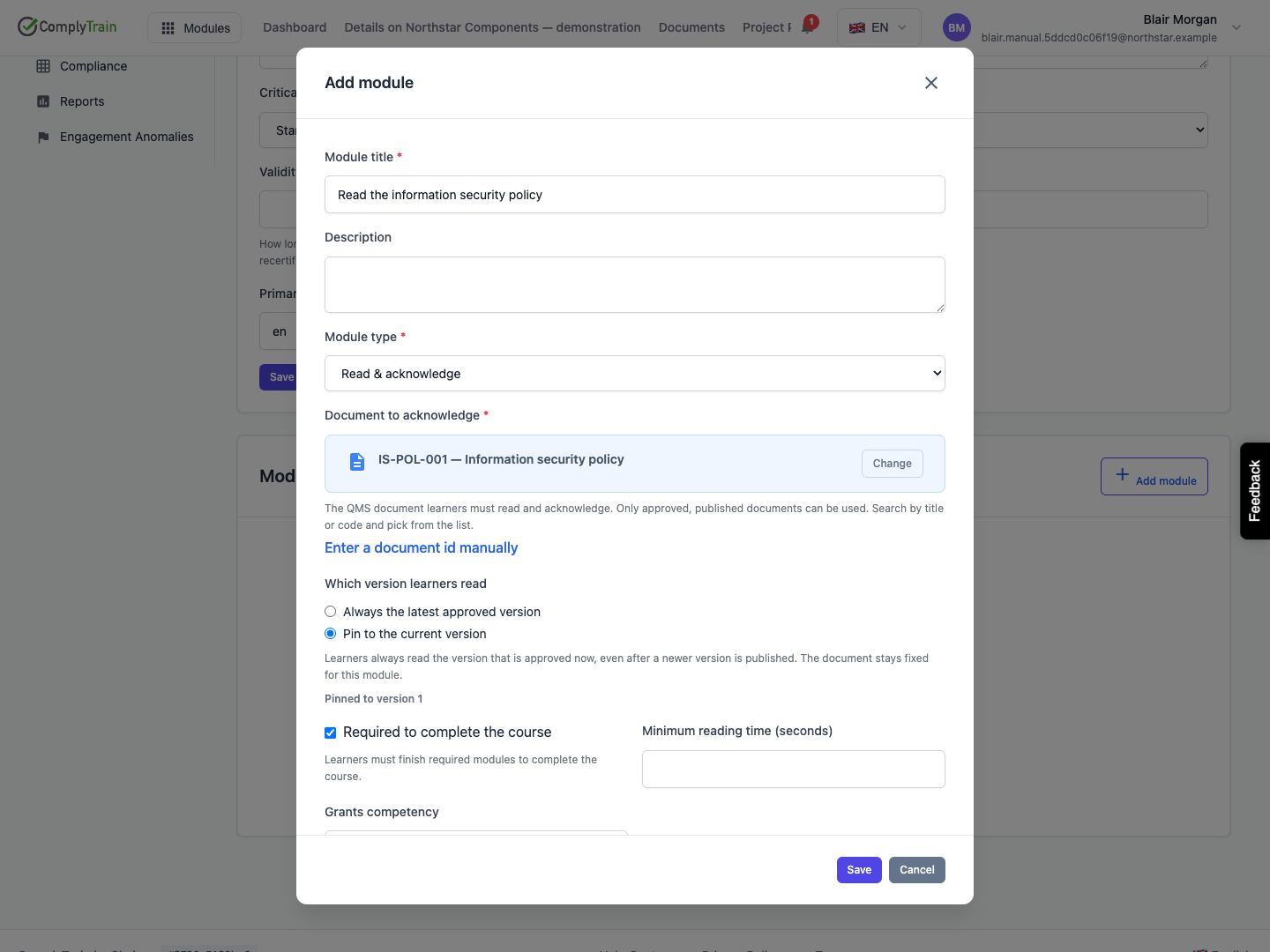
Set Module title to Read the information security policy.
Choose Read & acknowledge as the Module type.
Under Document to acknowledge, search for Information security policy by title or document code.
Select the intended approved document from the results. Check its title and displayed version before continuing.
The document must contain readable content and be available in an approved, published form. If the search returns no readable documents, check the document's status and content with its owner.
Product location: /training/courses/{id}/edit (fallback: /training/courses). Open the course created in the first step.
Under Which version learners read, choose Pin to the current version for this example.
Check that the displayed pinned version is the one you intend learners to read.
Keep Required to complete the course enabled.
Leave Minimum reading time (seconds) unset for this practice exercise.
Select Save.
The expected result is a required reading module listed in your course.
The pinned choice keeps this exercise tied to the same document version. It is a proposed teaching example awaiting product-owner guidance. For a real course, choose between a fixed version and the latest approved version according to your organisation's document-control policy. The Read & acknowledge reference explains the settings.
Product location: /training/courses/{id}/edit (fallback: /training/courses). Open the course created in the first step.
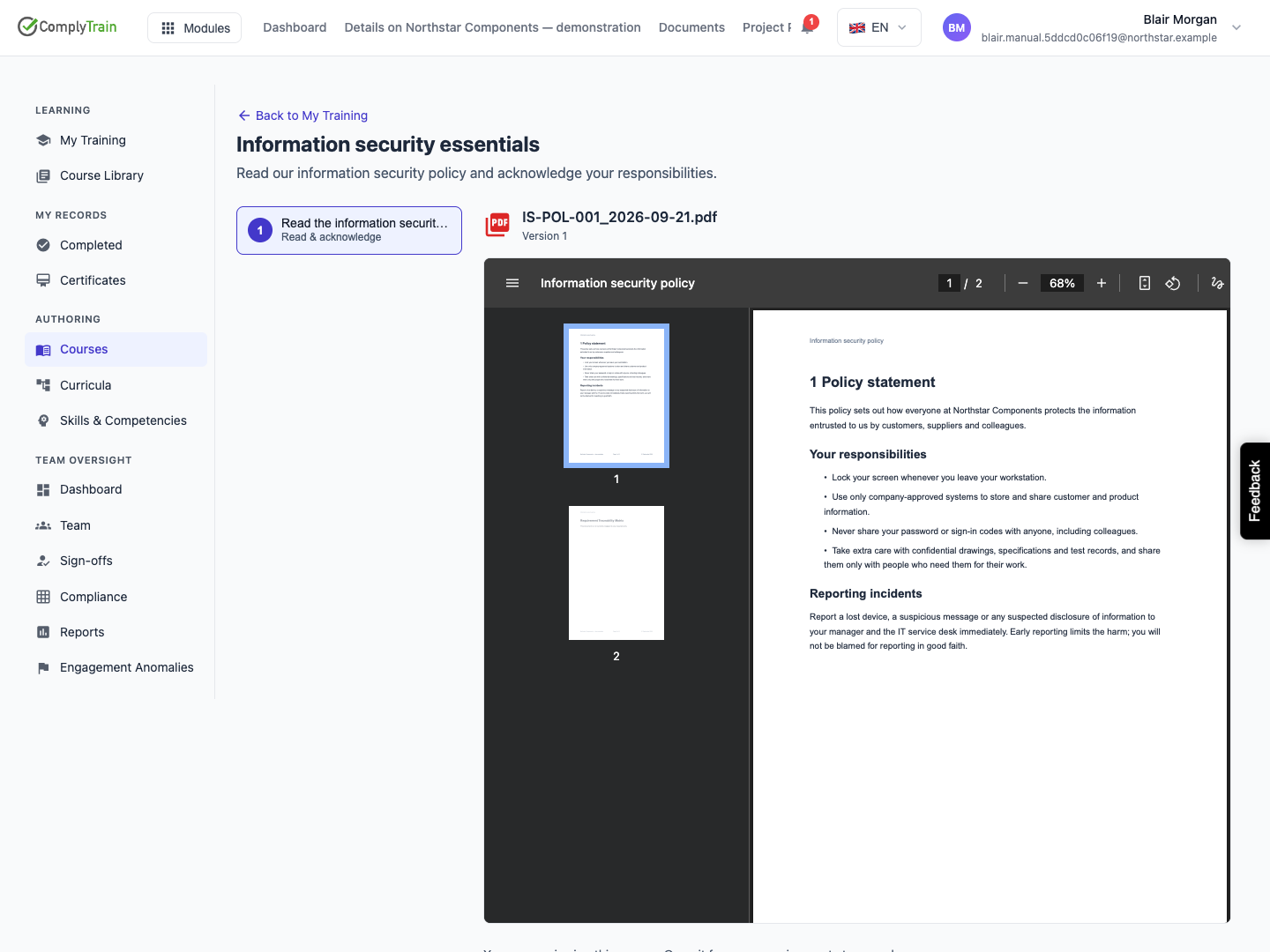
Select Preview as learner and wait for the document to open. Check that the course title and module instructions are clear and that the intended document is presented. The reader names the document by its file name, which starts with the document code (for example IS-POL-001), and shows the version learners will read. Use your browser’s Back button to return to the editor and correct any problems before publishing. The Back to My Training link at the top of the preview opens your own training list, not the course editor.
For a PDF document, inspect its pages in the embedded viewer. Check legibility, page order and the intended document version as part of the learner preview.
Preview mode lets you inspect the course without recording learner progress. I have read and understood is disabled in this mode. To record an actual completion, the learner must open the course from an assignment.
Product location: /training/courses/{id}/edit (fallback: /training/courses). Open the course created in the first step.
Review Before you publish in the editor. This example needs its required reading module and a readable approved document.
Select Publish.
Review the Publish this course? confirmation, then confirm publication.
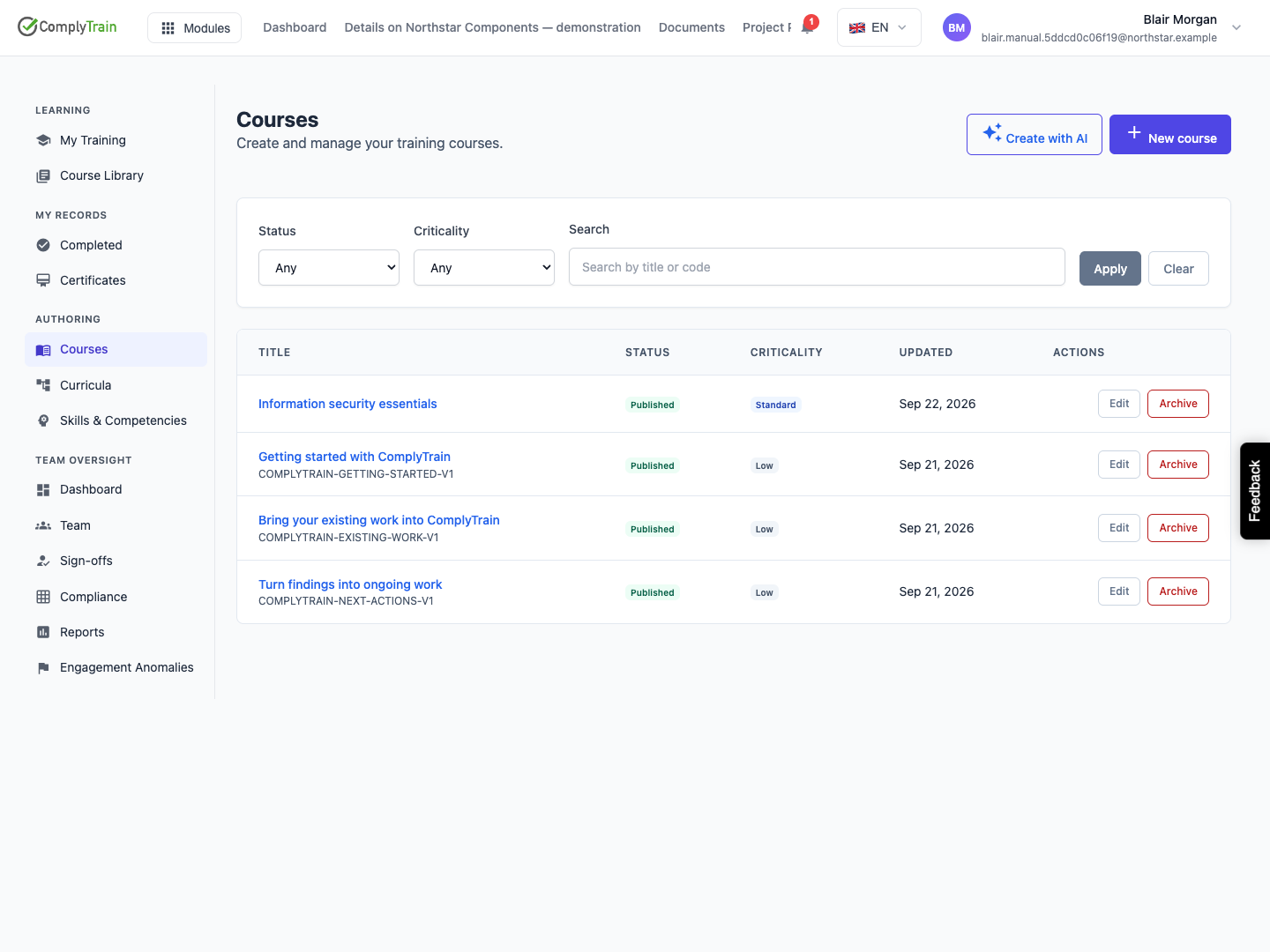
Return to Courses and check that Information security essentials has the Published status.
A published course becomes available for assignment. Publishing alone does not establish that any learner has been assigned or completed it.
Product location: /training/courses. Create or open the intended course.
What you see | What to check |
|---|---|
Course authoring is unavailable | Confirm that your organisation has Training enabled and that you have permission to manage courses. |
No readable documents match your search | Check the title or code, approval and publication status, and whether the document contains readable content. |
The module configuration cannot be saved | Check the module title, selected document, and version selection. |
The course cannot be published | Check that there is at least one required module learners can complete and that the selected document can be read. Read the specific validation message before changing settings. |
The main authoring path has a recorded runtime check. These troubleshooting cases still require their own scenarios before they can be marked verified.
