Design a complete response path from questions and layout to saved records and follow-up actions.
Forms collect structured answers for work such as document reviews, control tests and risk assessments. The surrounding module supplies the template and business context; the form designer defines how the questions are presented and validated.
You can also design and improve this form with AI. For examples spanning several modules, see connected workflows.
Product location: /qms/{standardCode}/forms/{templateId}/edit (fallback: /qms/standards). This is the QMS standard form builder. Other modules expose their own Forms or Authoring entry.
Start from the relevant module's form or authoring entry. For QMS, open the intended standard's Forms and choose Edit Form on the correct template. Check the title, purpose and existing outputs before changing it.
Identify one successful outcome: for example, a completed document-review record with a decision, reviewer and any required corrective follow-up. Agree which information supports that outcome and who supplies it. See QMS form discovery for the catalogue and card actions.
Product location: /qms/{standardCode}/forms/{templateId}/edit (fallback: /qms/standards). This is the QMS standard form builder. Other modules expose their own Forms or Authoring entry.
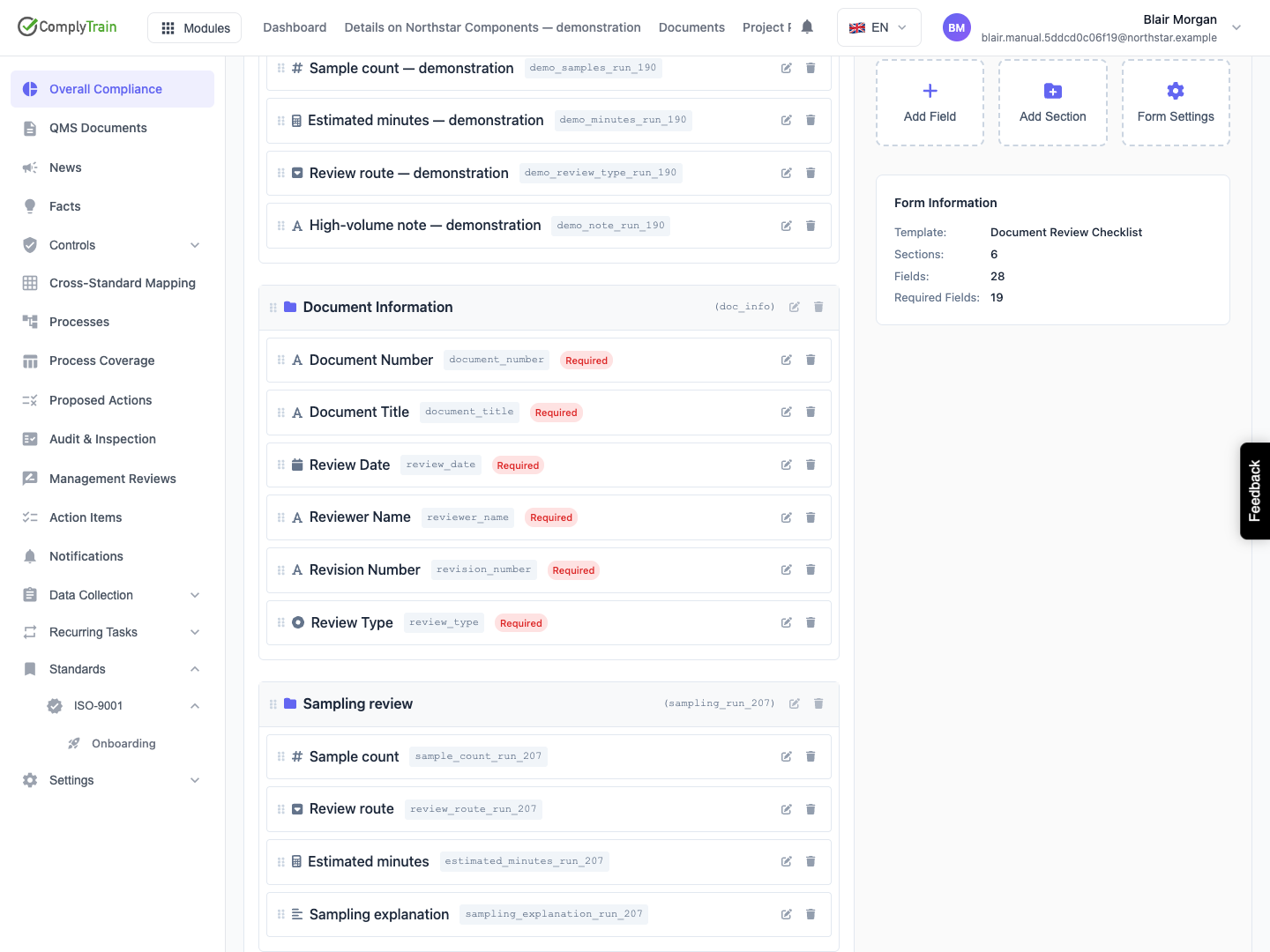
Group the questions into sections representing the work: identification, observations and outcome. Put essential context before the questions depending on it. Keep instructions in section descriptions and field help text.
For several entries of the same kind, such as samples or participants, use a repeating group with its own questions. Use ordinary sections to group different questions. See section design for creating, ordering and deleting sections while retaining their fields.
Product location: /qms/{standardCode}/forms/{templateId}/edit (fallback: /qms/standards). This is the QMS standard form builder. Other modules expose their own Forms or Authoring entry.
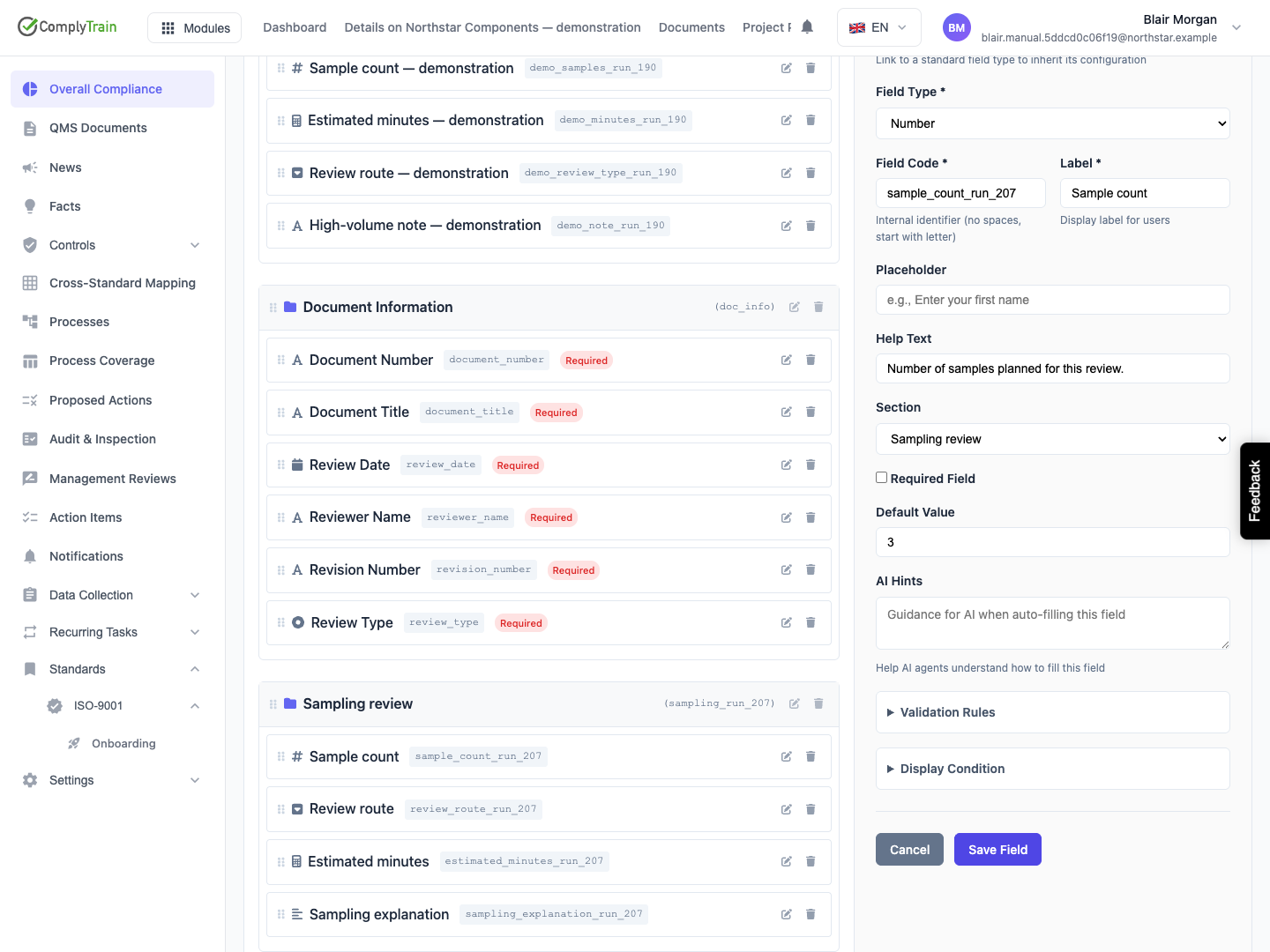
Use Add Field. Choose its type, code, label and section, then its required status and applicable settings. Codes such as review_outcome are used by calculations and output mappings; visible labels can use ordinary sentences.
Use the field-type reference to choose the answer shape. A person selected from an entity source carries a record identifier; a text field containing their name carries text. Pick the shape that the follow-up action expects.
Save each field and check it in the form structure. See field maintenance for defaults, validation, dependencies and deletion.
Product location: /qms/{standardCode}/forms/{templateId}/edit (fallback: /qms/standards). This is the QMS standard form builder. Other modules expose their own Forms or Authoring entry.
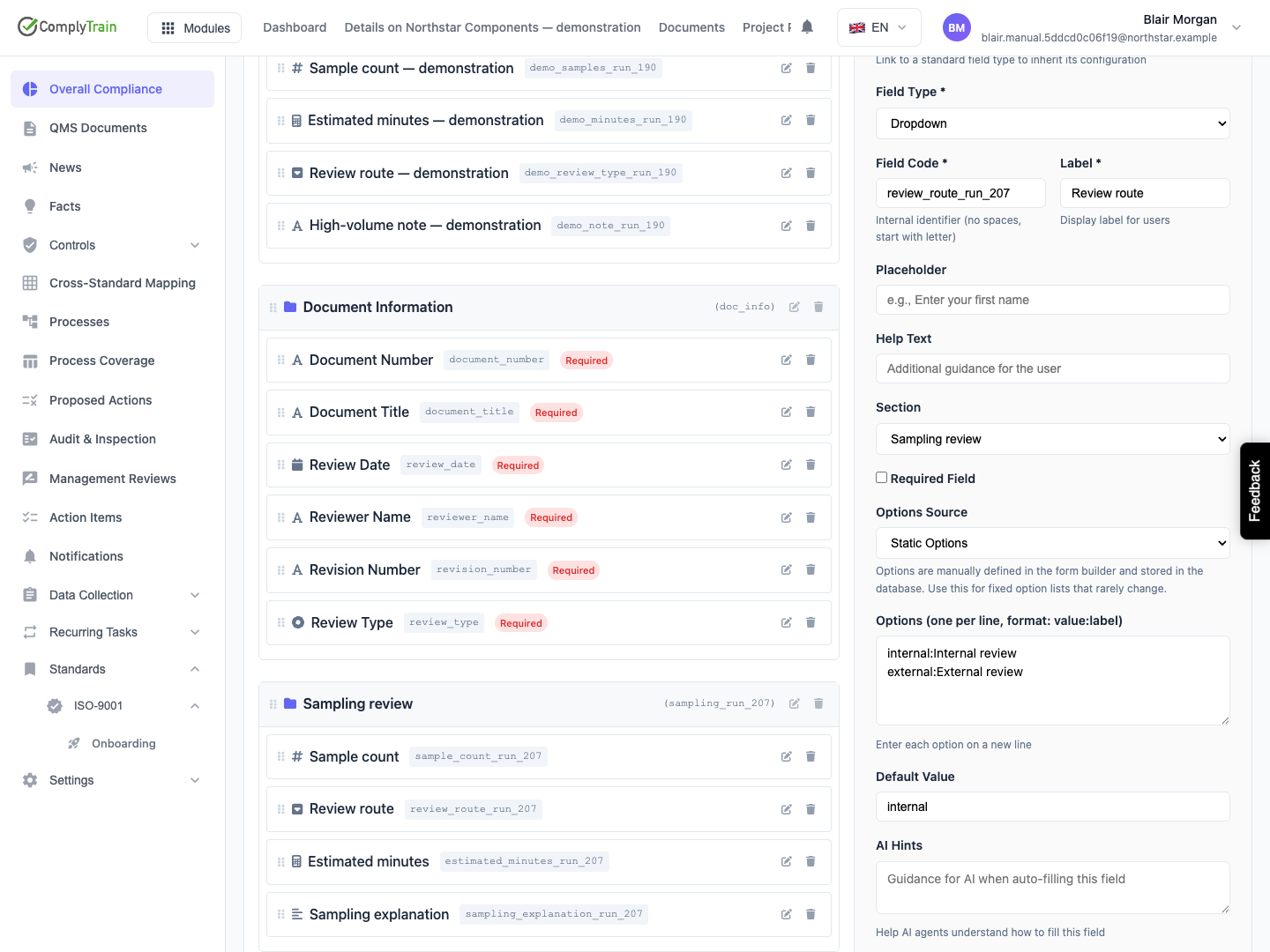
For a fixed list, define stable option values and helpful labels. For maintained records, choose the appropriate named source. Check that selection defaults and output mappings use the saved values.
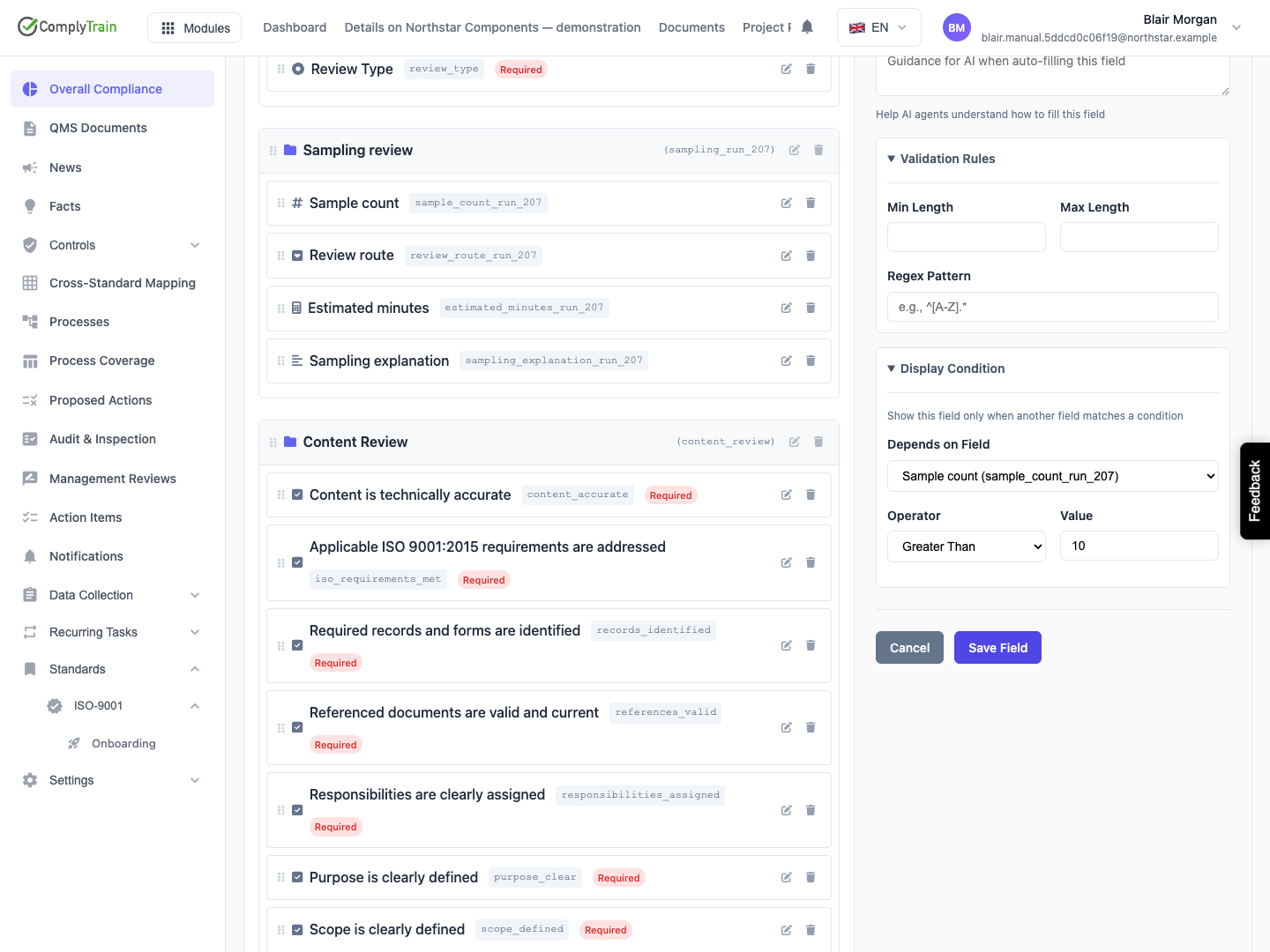
Show follow-up questions only when relevant. For example, ask for an explanation when the review outcome is changes_required. If the respondent later changes that outcome, the explanation is kept for possible further editing and excluded from the submission while hidden.
See options and display conditions for operators, examples and the complete hide-and-show behavior.
Product location: /qms/{standardCode}/forms/{templateId}/edit (fallback: /qms/standards). This is the QMS standard form builder. Other modules expose their own Forms or Authoring entry.
Use calculated fields for derived quantities. Write the unit in the label or help text and validate each input's permitted range. For example, calculate estimated effort from sample count and minutes per sample.
Use the formula reference for arithmetic, conditions, aggregates and repeating entries. Compare results against a small set of manually calculated examples, including zero and the permitted boundaries.
Choose required fields and format checks that support the record's purpose. An informative error should explain the correction, such as the required reference-number format.
Product location: /qms/{standardCode}/forms/{templateId}/edit (fallback: /qms/standards). This is the QMS standard form builder. Other modules expose their own Forms or Authoring entry.
Open Form Settings to configure the submit label and messages, validation timing, column layout, page or wizard presentation, draft availability, progress, and whether the record the form creates must be signed (Record must be signed). Select sequential or free wizard navigation according to how respondents should work through the sections.
Save and inspect the result in Preview. Test long labels, several questions in a section and questions that become hidden. Follow the settings reference for the effect of each control.
Product location: /qms/{standardCode}/forms/{templateId}/edit (fallback: /qms/standards). This is the QMS standard form builder. Other modules expose their own Forms or Authoring entry.
Use Manage Actions when the form should create a record, CAPA, task or another follow-up. Define the rule's conditions and map the required answers to the action's parameters.
If an action depends on approval, put the approval action before it in the same rule and configure the pause. Review form output rules before enabling the sequence.
Check which answers can be empty or hidden. Set a relevant rule condition or an appropriate supported fallback so an action has the information it needs.
Product location: /qms/{standardCode}/forms/{templateId}/edit (fallback: /qms/standards). This is the QMS standard form builder. Other modules expose their own Forms or Authoring entry.
Use Preview to inspect the response path, then an authorised example response to check the saved result. Exercise the matching and non-matching output-rule paths. Confirm the destination record, owner, due date and evidence links rather than relying only on a success message.
Before later changes, inspect affected formulas, conditions and outputs. Reopen saved settings and review how the revised form reads to someone with an existing draft or an earlier submitted response. Keep the form's operational purpose and supporting training aligned.
