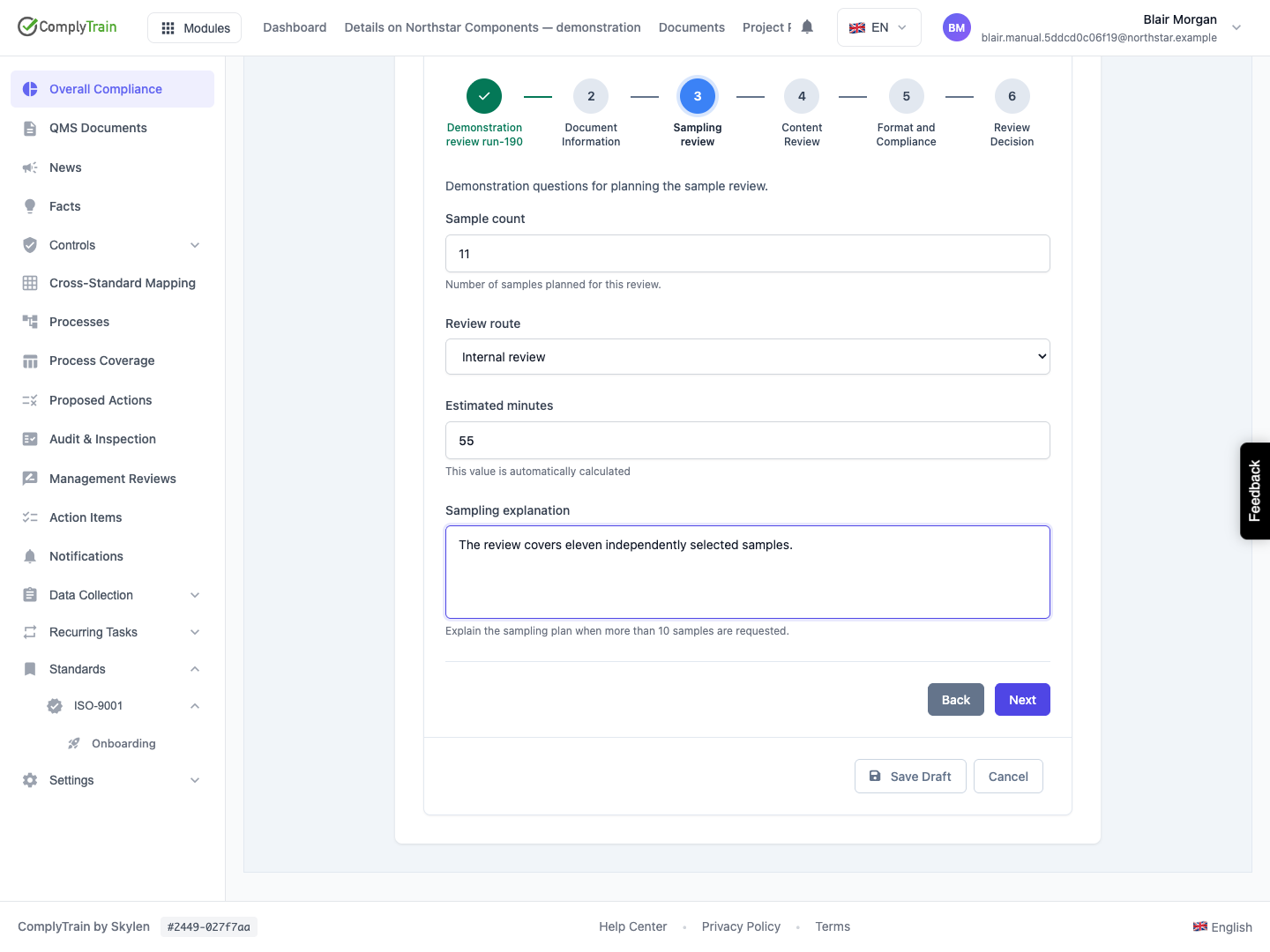
Choose the answer format, configuration and validation appropriate to each question.
A field's type determines how a respondent supplies an answer and how that answer can be used later. Choose the type before configuring defaults, validation and output mappings. The shared QMS builder exposes the types below; provisioned forms can also use additional selection types.
Product location: /qms/{standardCode}/forms/{templateId}/edit (fallback: /qms/standards). Open the intended standard, choose Forms, then Edit Form on the accessible template.
Every question has a stable Field Code, a visible Label and a Field Type. Use Help Text for instructions that remain useful after entry, Placeholder for an example in an empty control and Section to position it in the form.
Required Field requires an applicable visible answer. Default Value supplies an initial answer; it should be meaningful and valid for the chosen type. AI Hints describe the question's meaning for an AI consumer. A Standard Field Type can populate these settings from a reusable definition.
See field design and maintenance for the illustrated editor, saving and dependency checks.
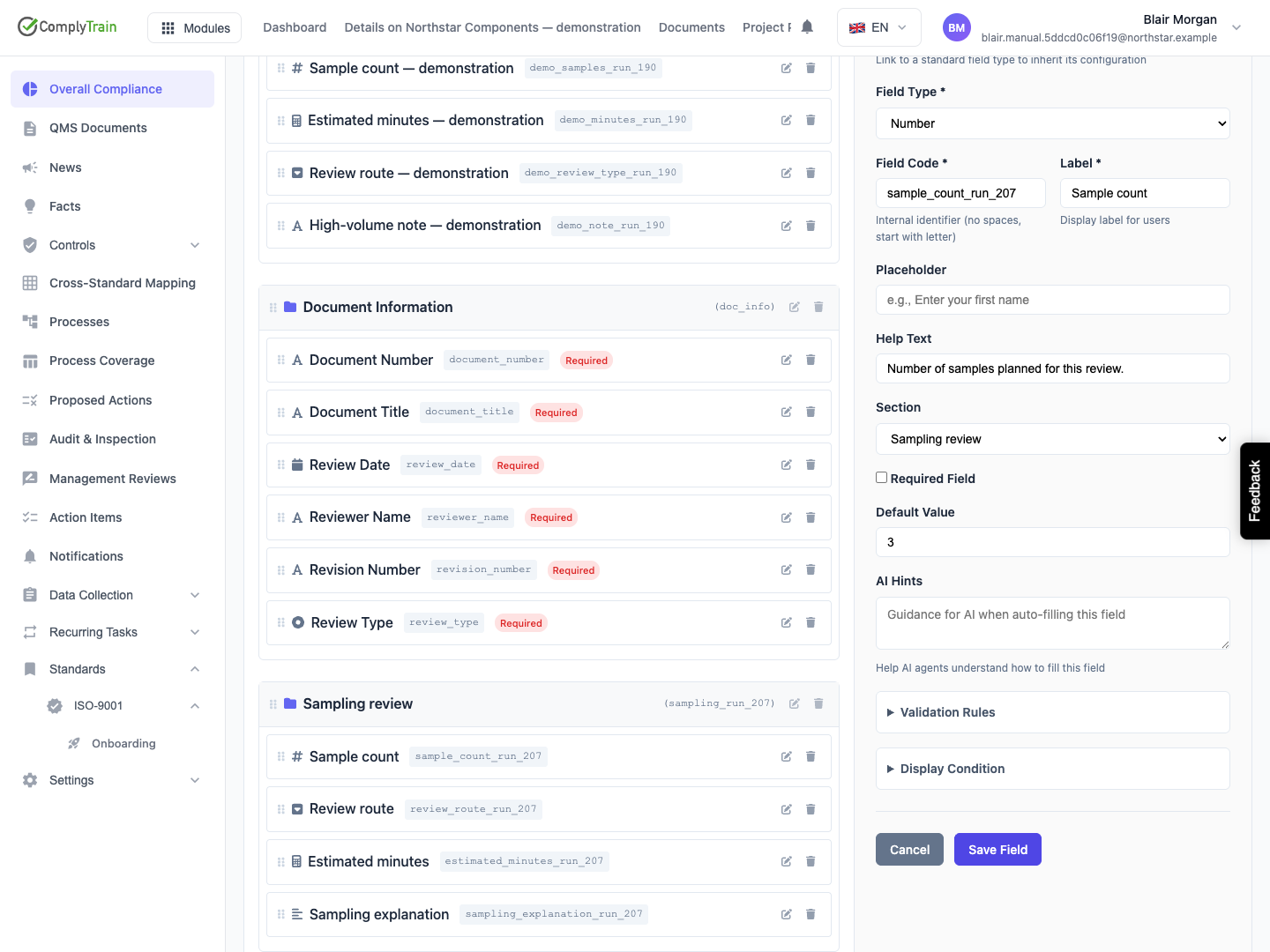
Product location: /qms/{standardCode}/forms/{templateId}/edit (fallback: /qms/standards). Open the intended standard, choose Forms, then Edit Form on the accessible template.
Type | Answer and useful configuration |
|---|---|
Text Input | A short value such as a reference or name. Use length and pattern validation when the value has a defined format. |
Text Area | A longer explanation, observation or reason. Explain the detail needed in Help Text. |
An email address. State whose address is required. | |
Phone | A telephone number. Explain the expected country code or organisational convention where relevant. |
URL | A web address. Explain the source or evidence the link should open. |
For a reference with a required structure, provide a pattern and an understandable error message. Contact-format checks confirm the shape of an answer; the respondent should still verify that the address, number or destination is the intended one.
Product location: /qms/{standardCode}/forms/{templateId}/edit (fallback: /qms/standards). Open the intended standard, choose Forms, then Edit Form on the accessible template.
Type | Answer and useful configuration |
|---|---|
Number | A count or measurement. Set numeric bounds in the same unit as the label and help text, and choose a valid default if appropriate. For a score, set bounds such as 1 and 5 and explain the scale in Help Text. |
Calculated Field | A read-only result derived from a Formula. Configure and validate its input fields and identify the result's unit. |
For numeric bounds, 0, negative values and decimal values each have their ordinary numeric meaning. Check the minimum, maximum and representative interior values. Use the formula reference for calculations and aggregates.
Avoid substituting a Number field for an identifier merely because it contains digits. A reference that must preserve leading zeros is usually text.
Product location: /qms/{standardCode}/forms/{templateId}/edit (fallback: /qms/standards). Open the intended standard, choose Forms, then Edit Form on the accessible template.
Type | Use it to ask for |
|---|---|
Date | A calendar date, such as the date an inspection occurred. |
Date & Time | A date and a time together, such as the time an event began. |
Time | A time of day, such as a scheduled start time. |
Label the event being recorded: “Review completed on” is clearer than “Date”. Follow any timezone or local-time convention stated by the form owner. Review the saved value when the form is used across locations.
Product location: /qms/{standardCode}/forms/{templateId}/edit (fallback: /qms/standards). Open the intended standard, choose Forms, then Edit Form on the accessible template.
Type | Answer |
|---|---|
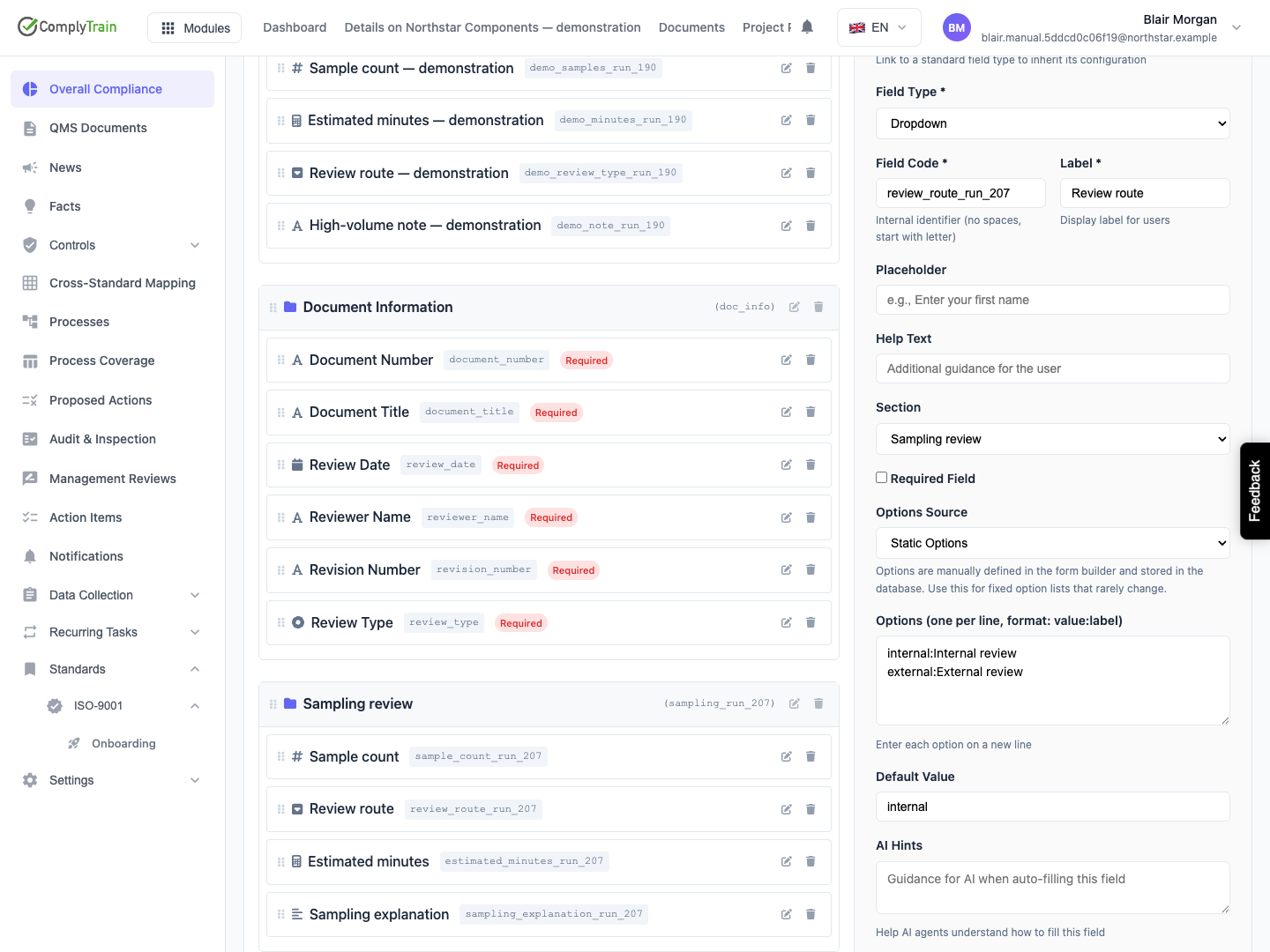
Dropdown | One choice from a list, using its stored value. |
Radio Buttons | One choice from options shown together. |
Select | A single-choice control used by provisioned forms. |
Multi Select | Several choices where the provisioned form uses a multiple-selection type. |
Checkbox | One checked or unchecked answer. |
Yes/No Toggle | A Boolean yes/no answer. |
For a list, choose static options when the values belong to this form. Choose a named source when they come from maintained records. For example, a risk category should follow the configured category list. See option values and sources.
Use explicit wording for Boolean answers so a No answer remains meaningful. Use a multiple-selection field when respondents must choose several options from a list; use separate questions when each item requires its own answer.
Product location: /qms/{standardCode}/forms/{templateId}/edit (fallback: /qms/standards). Open the intended standard, choose Forms, then Edit Form on the accessible template.
Entity Picker (Single) selects one existing record. Entity Picker (Multi) selects several. Configure the entity source to identify the kind of record, such as a tenant user or RMS risk.
Respondents search the available choices and select the intended record. Check that a selected name corresponds to the expected record before mapping it to a task owner, risk or another destination. Review the form using a role with the intended access to those records.
An entity selection retains a record identity. Use a text question instead when the form genuinely asks for an unlinked description or name.
Product location: /qms/{standardCode}/forms/{templateId}/edit (fallback: /qms/standards). Open the intended standard, choose Forms, then Edit Form on the accessible template.
Signing is not a question on the form. When the record a form creates must be signed, select Record must be signed in Form Settings. The record is signed after submission, through its own approval steps, which decide who signs and in what order. Respondents see: “After you submit, the record this form creates has to be signed. You will not be asked to sign here; it happens on the record itself.” See Generate Record for how the action handles such a record.
Use document signing when working with document signatures in the vault. A form response and a signed document are separate records in that process.
Product location: /qms/{standardCode}/forms/{templateId}/edit (fallback: /qms/standards). Open the intended standard, choose Forms, then Edit Form on the accessible template.
A repeating group collects the same set of questions for several entries, such as samples, rooms or people. Its definition identifies the group, its member questions and the permitted number of entries. Singular and plural entry names help respondents understand Add, Remove and count messages.
A minimum entry count determines how many entries are needed. A configured maximum determines when more entries can be added. Each entry's required questions and validation must be satisfied. Some provisioned groups receive their entries from a configured source instead of manual addition.
Use group fields in calculations through the group code and member field code, as described in group calculations. Group membership and ordinary section placement serve different purposes.
Product location: /qms/{standardCode}/forms/{templateId}/edit (fallback: /qms/standards). Open the intended standard, choose Forms, then Edit Form on the accessible template.
Check that each default is valid for its type, options and bounds. Review explicit zero and No values as answers, and use a placeholder when you only want to suggest an example.
A display condition makes a question applicable according to another answer. When an answered question becomes hidden, its answer is retained for later editing but excluded from submission and output rules while hidden. On becoming visible again, the answer is restored for review and validation.
Test a normal answer, an empty required field, an invalid value and any display-condition transitions. Review the saved response and automatic outputs using the actual answer types.