Find, fill in and correct the shared values, such as the company name or the quality manager, that document tokens and AI document generation use across your organisation.
A document property is a named value that documents share, such as your company's legal name, the quality manager or the certification body. Each property has a code, for example company.name, a display name and one value for the whole organisation. Document text refers to the code with a token such as {{ company.name }}, and ComplyTrain shows the current value wherever the token appears.
Keeping the values here correct means every document that uses them is correct too. When a person changes role, you update one value instead of editing every procedure that names them.
Product location: /settings/document-properties. Open Settings, then Document Properties.
Document property values are maintained by organisation Admins in Settings, on the Document Properties page. Everyone else can open the same page read-only, to look up the value a token will print; they don't see the edit and review controls. Values also appear where documents use them, for example in the QMS editor's Properties panel.
Authors can propose a new property from the QMS editor; see document property tokens. Administrators review those proposals on the same page.
Product location: /settings/document-properties. Open Settings, then Document Properties.
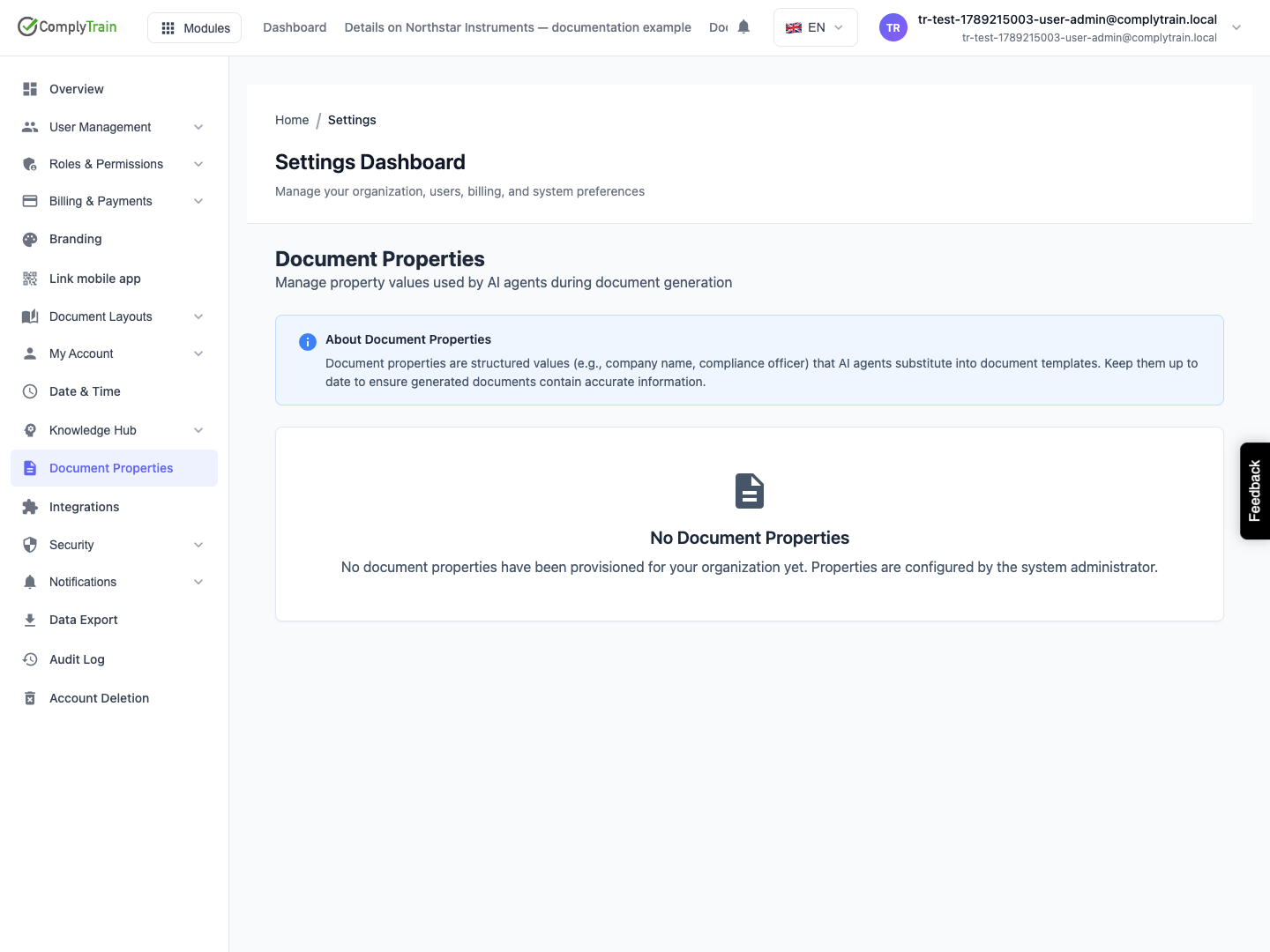
Open Settings, then Document Properties. The page opens with About Document Properties, which explains that properties are structured values that AI agents substitute into document templates.
Properties arrive in two ways:
System properties are added when your organisation adopts a standard, or a risk methodology, whose document templates use them. They carry the System badge.
Custom properties are proposed by authors from the QMS editor and become active once an administrator approves them; see review proposed properties.
Until one of these has happened, the page shows No Document Properties: no properties have been provisioned for your organisation yet. Adopting a standard in QMS is the usual way to fill the list.
Product location: /settings/document-properties. Open Settings, then Document Properties.
The summary at the top counts all of your organisation's properties, whatever filters you apply below it.
Figure | Meaning |
|---|---|
Total Properties | All of your organisation's properties. |
Defined | Properties that have a value. |
Missing (System) | System properties without a value. Shown only when there are some. A document whose text uses one of these properties cannot be approved until the property has a value. |
Not Set (Custom) | Custom properties without a value. |
Start with Missing (System): these are the values your standard's documents rely on.
Product location: /settings/document-properties. Open Settings, then Document Properties.
The list groups properties by category, such as Company, Compliance or Quality. Each heading shows how many properties the group has on the current page, with defined and missing counts. Select a heading to collapse or expand the group.
Each property shows its display name, its code, its scope and, for system properties, the System badge. The description follows below the name, and the value, or Not set, is on the right. Long values are shortened in the list; the full value appears in the editor.
Filter | What it does |
|---|---|
Search by name, code, or value... | Shows properties whose name, code or value contains the text you type. |
All Categories | Limits the list to one category. |
All Scopes | Limits the list to one scope; see the next table. |
Missing values only | Shows only properties without a value. |
Active filters appear as chips under Active filters:. Remove one with its ×, or choose Clear all. The line Showing … of … properties tells you which part of the result you are viewing. The list shows 50 properties at a time; use Previous and Next to move between pages.
Scope | Meaning |
|---|---|
Global | Defined once for use by any standard or template, such as the company name. |
Standard-scoped | Defined for a particular standard. |
Document-scoped | Defined for one document template. |
Legacy | Defined before scopes were introduced. |
The scope describes where the property's definition comes from. Whatever its scope, each property has one value for your organisation.
When an author chooses Edit property on a token in the QMS editor, this page opens with the search already set to that property's code. If exactly one property matches, its editor opens straight away.
Product location: /settings/document-properties. Open Settings, then Document Properties.
Find the property and select its row. The editor opens under it; any other open editor closes.
Check the Source shown under the field.
Enter the correct text in Value. Spaces at the start and end are removed when you save.
Choose Save. Cancel closes the editor without saving.
ComplyTrain confirms Property saved, and the summary and list update. To remove a value, clear Value and save; the property shows Not set again.
Source | Meaning |
|---|---|
Manual | The value was typed in. |
Fact Linked | The value was taken from an organisation fact. |
Knowledge Linked | The value was taken from content in your knowledge base. |
Saving a value here replaces the stored value and keeps the source label. If the property is Fact Linked, correct the organisation fact as well so that both say the same; see organisation facts.
Product location: /settings/document-properties. Open Settings, then Document Properties.
A property that an author proposes from the QMS editor starts as a proposal. It is not active: its token does not resolve and it cannot be chosen for other documents until an administrator has reviewed it on Document Properties.
Find the proposal on Document Properties.
Read its code, display name, category, description, suggested value and the author's reason for proposing it.
Check that no existing property already covers the same information. Two codes for one fact lead to documents that disagree.
Approve the proposal to make the property active, or reject it and give the reason.
An approved property becomes an active custom property with its suggested value, and it appears in the list with the other properties. Tokens that refer to it resolve wherever it has a value. A rejected proposal never becomes active; the author can use an existing property or propose a better one.
Product location: /settings/document-properties. Open Settings, then Document Properties.
If someone else saved the same property after you loaded the page, Version Conflict appears: This property was modified by another user. Refresh the page to load the latest version. Choose Refresh to reload the list, read the value the other person saved, and decide whether your change is still needed before you edit it again.
If saving fails for another reason, Save Failed appears with the reason. The value is not saved; correct the problem and save again.
Product location: /settings/document-properties. Open Settings, then Document Properties.
Place | How the value is used |
|---|---|
QMS document editor | A token in the text shows the property's value. The Properties panel counts resolved and unresolved tokens; see document property tokens. |
QMS approval | A document whose text contains a token without a value fails the No unresolved properties check and cannot be approved; see publishing and approval. |
Exported and published QMS files | The token is replaced by the value at the moment the file is produced. A token without a value is printed as its code in square brackets, such as |
Tender response documents | Tokens in a tender response are replaced by the values when the response document is produced, in the same way as QMS files, so bids carry the same company facts as your controlled documents. |
AI document generation | AI agents that write document content use the values and insert tokens that refer to them. |
Product location: /settings/document-properties. Open Settings, then Document Properties.
A document stores the token, not the value. When you change a value:
Files already downloaded and versions already published to the vault do not change.
The editor, and every export or publication from then on, shows the new value, including for documents that are already approved.
Before changing a value that appears in controlled documents, decide whether those documents need a new version. For example, publish a revision of an approved procedure so that the vault holds a version with the new name.
Product location: /settings/document-properties. Open Settings, then Document Properties.
Jordan Lee takes over as quality manager from Sam Patel, and your procedures name the quality manager through the company.quality_manager property.
Open Settings, then Document Properties, and search for quality_manager.
Select Quality Manager. Its Source is Manual and its value is Sam Patel.
Replace the value with Jordan Lee and choose Save.
Open one of the procedures in the QMS editor and check that the token now shows Jordan Lee.
For each approved procedure that names the quality manager, publish a revision so that the controlled version in the vault carries the new name.
