Find products in the register, add a product in one of three ways, and create, release, withdraw or delete its versions.
A product is the thing your organisation makes or supplies. A version is one configuration of it, such as 1.0, Rev C or Block II. Identifiers, specifications, parts, test results and export determinations all belong to a version, so every product starts with one. This topic follows one example, the Northstar temperature monitor, from the register to its second version.
Product location: /products. Open Products and choose Product register.
Task | Permission |
|---|---|
Open the register and read products | View Products ( |
Add a product, create a version or delete a draft version | Manage Products ( |
Release or withdraw a version | Change Product Lifecycle State ( |
Add or remove identifiers | Manage Product Identifiers ( |
Admins can do all of these. Buttons appear only for people who can use them. A product or version classified above your clearance does not appear for you at all; see classifications and clearances.
Product location: /products. Open Products and choose Product register.
Open Products and choose Product register. The register lists your organisation's products in product-number order, 25 to a page.
Control | What it does |
|---|---|
Search | Finds products whose name, product number or any identifier value contains the text you type, for example a customer part number. Partial words work and upper and lower case are treated alike. Press Enter or choose Apply. |
Profile | All profiles, or only the products that use one profile. The list includes every profile your products use, including profiles that have been retired from the catalogue. |
Status | Active products, obsolete products or both. It shows active products unless you choose otherwise, so choose obsolete to find a product your organisation no longer offers. |
Top-level products only | Hides products that sit under a parent product. |
Apply and Clear | Apply runs the filters. Clear appears once you have set a filter and returns to the starting view. |
Column | What it shows |
|---|---|
Number | The automatic product number, for example PRD-2026-0001. |
Name | The product's name. |
Status | Whether the product is active or obsolete. |
Profile | The product's profile, or a dash when it has none. |
In service | A badge such as "On 3 market(s)" when the product is placed on markets. Otherwise the label of the version in service, or None yet. |
Versions | How many versions the product has. |
Classification | The product's classification level, or a dash. |
Parent | The product it sits under, or a dash. |
Select a row, or move to it and press Enter, to open the product. Previous and Next move between pages. The line "Showing 1–25 of 60" counts only products you are cleared to see.
When nothing matches, the page says No products match those filters; choose Clear. Above the table, Found in your material lists products the assistant found in your documents that are not yet in the register; see discover products.
Product location: /products/new. In the Product register, choose New product.
In the register, choose New product. The New Product page asks How would you like to add this product?
Choose one of the cards.
To change your mind, choose Back on the next step.
Card | Use it when | What happens after the product is created |
|---|---|---|
Upload a document | You have a datasheet, drawing or test report. | The files go into the product's own document vault, are read and indexed, and the assistant drafts specifications from them. |
Fill in manually | You will record everything yourself. | The product page opens. |
Describe to AI | You can describe the product in a few sentences. | Your description is saved on the product, and the assistant drafts specifications from it. |
The two AI cards appear only when your organisation has the specification assistant set up. Without it, the page offers Fill in manually and explains that an administrator can enable the assistant.
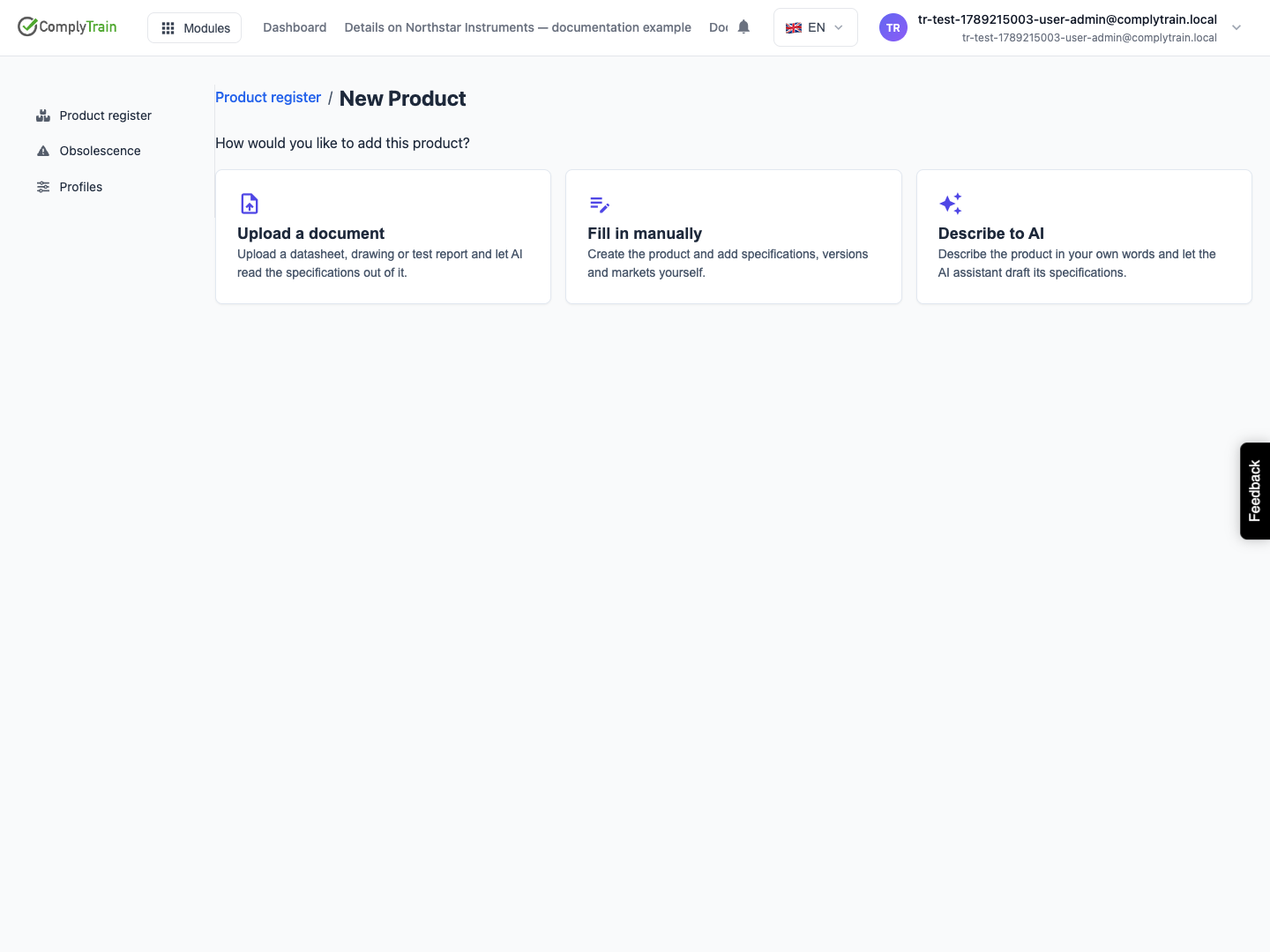
Product location: /products/new. In the Product register, choose New product, then choose one of the cards.
Field | Required | What it does |
|---|---|---|
Name | Yes | The name shown in the register and in every module that refers to the product. Up to 255 characters. You can change it later. |
Profile | Yes | The kind of product. It decides the lifecycle states, identifier schemes and export control regimes. The first profile in the list is preselected. It cannot be changed after the product is created, so read product profiles first. When no profile is available, the wizard says so; an Admin makes a profile available, as described in product profiles. |
First version | No | The label of the first version. The default is 1.0, and a blank field also gives 1.0. Up to 60 characters. |
Describe the product | With Describe to AI | Your own description, in any format. It is kept as the product's description. Up to 10,000 characters. |
Product documents | With Upload a document | At least one file. Drag files onto the area, or click it to browse. PDF, Word, text, Markdown, RTF, PNG and JPEG files are accepted; other files are skipped and the page says so. Remove takes a file off the list. |
Choose Create product, Create and read documents or Create and draft with AI, depending on the card. The button reads Working… while it runs. If something is missing, the page says what, for example "Enter a name for the product." Cancel returns to the register without creating anything.
The product receives the next product number, for example PRD-2026-0014. Numbering restarts at 0001 each year, and a number is never reused. The first version is created at the same time, as a draft in the profile's first lifecycle state.
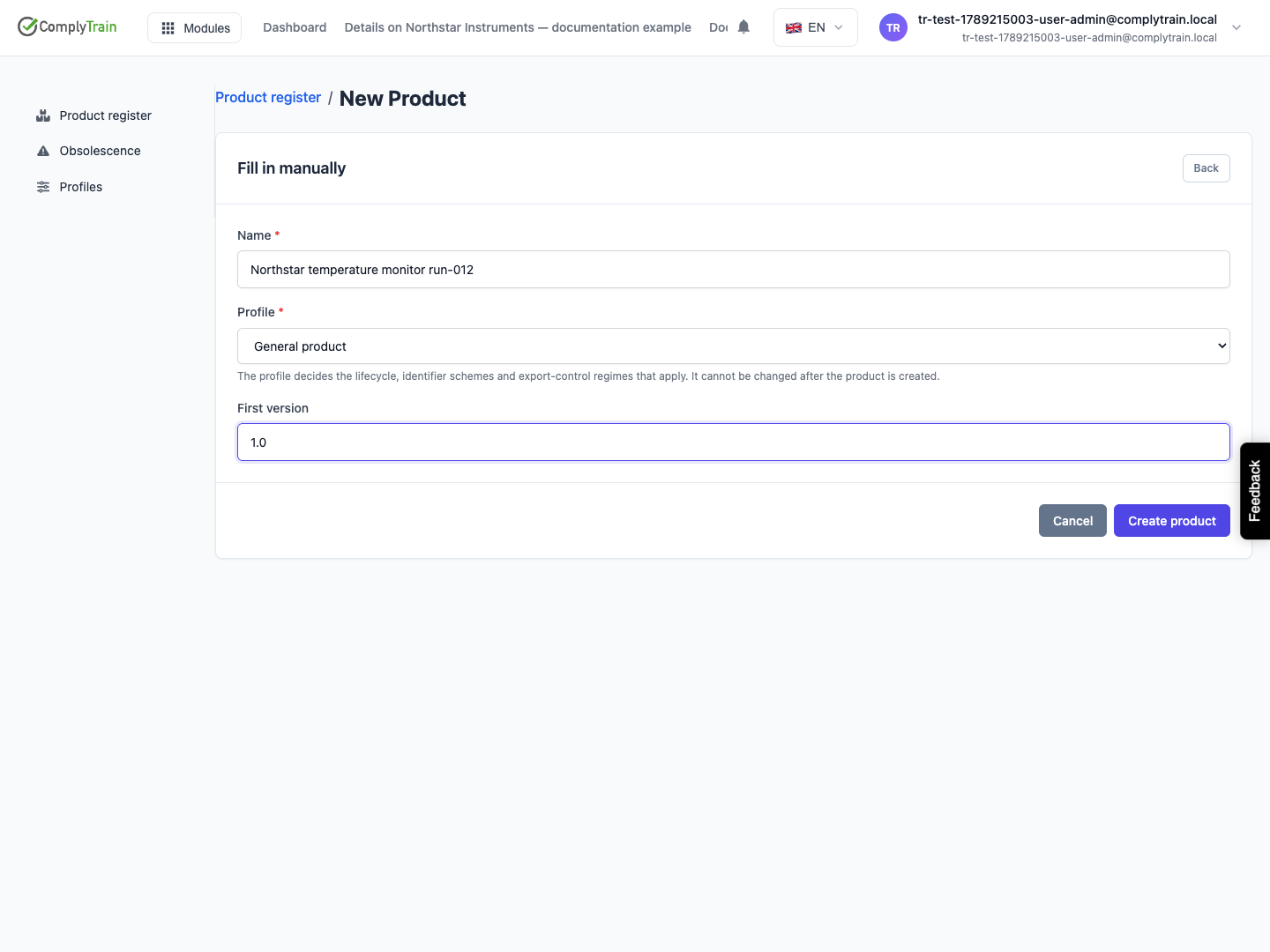
Product location: /products/new. In the Product register, choose New product, then choose Upload a document or Describe to AI.
With Upload a document, after the product is created the wizard shows each stage as it happens:
Preparing this product’s document vault… creates the product's own vault, named after the product number and name.
Uploading your documents… stores each file in that vault.
Reading and indexing your documents… waits while the files are read, for up to five minutes. Large or scanned files take longest.
The product page opens with the Read a specification assistant, which already knows which files you uploaded.
The files are stored only in this product's vault and are not shared with other products. You can open the vault from the product's Connected tab; see connected records. If the upload or the reading does not complete, the wizard tells you that the product was created and takes you to it. The documents finish reading on their own; open the assistant from the Specifications tab once they are ready.
With Describe to AI, the product page opens with the same assistant. It reads your description, drafts the specifications it can infer and asks about anything it could not.
The assistant only proposes. Every value it drafts waits under Specifications read from documents until someone accepts it; see record and review specifications. Using the assistant needs Manage Products.
Product location: /products/{productId}/overview (fallback: /products). Open the product from the Product register.
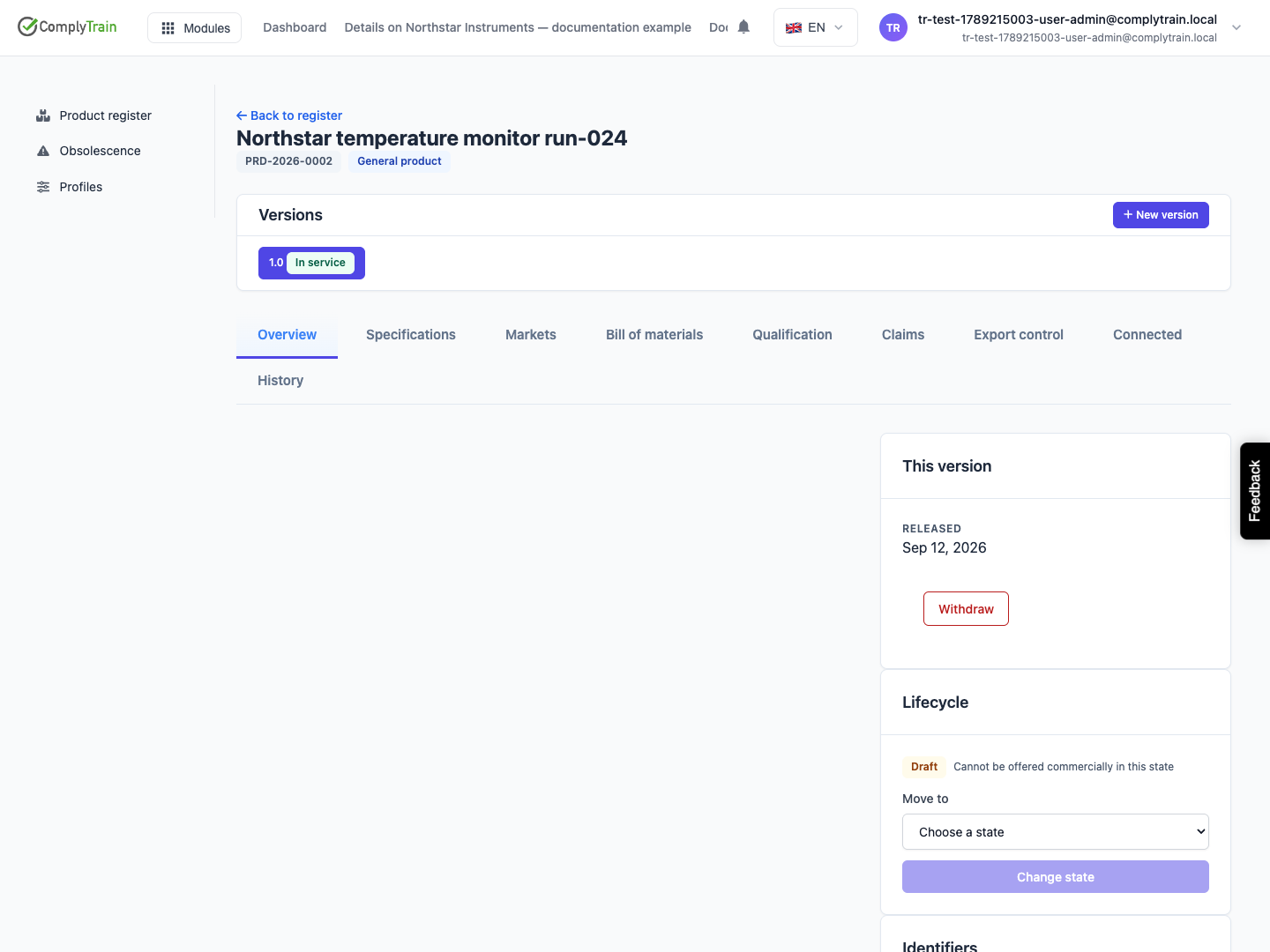
The product page opens on Overview. The header shows the name with badges for the product number, the profile and any classification. Below it, the Versions card lists each version with its status, and New version adds another. The tabs are Overview, Specifications, Markets, Bill of materials, Qualification, Claims, Export control, Connected and History.
A product with nothing recorded yet shows Getting this product on its feet, with the shortcuts Record what it is (Specifications), Say where it is sold (Markets) and Record what qualifies it (Qualification). The card disappears once the selected version has identifiers, the product has markets, or work is waiting for your review.
The page also shows the product's description, status, owner, regulatory contact and parent product. To change them, see maintain a product record.
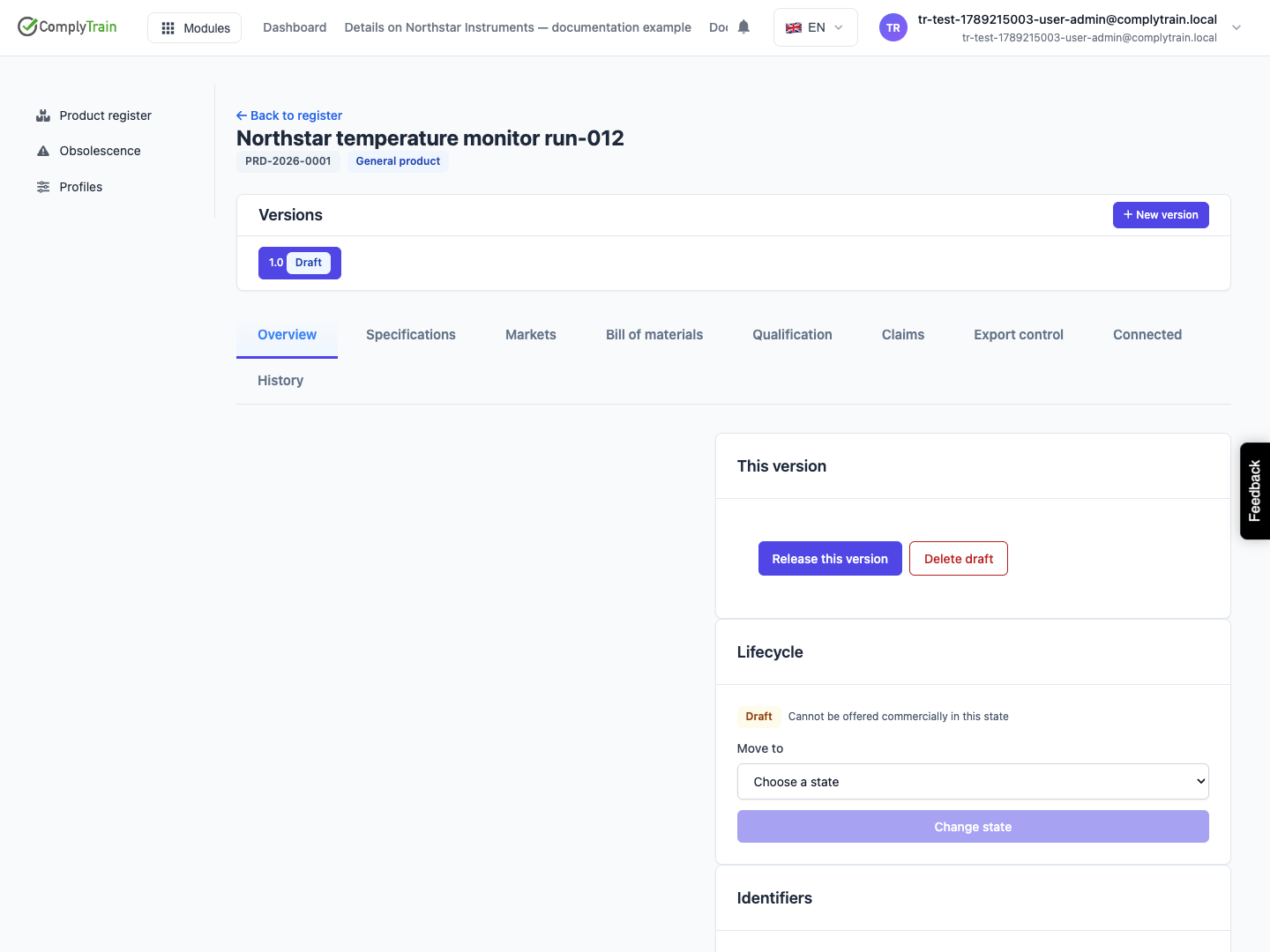
Product location: /products/{productId}/overview (fallback: /products). Open the product from the Product register. Select a version in the Versions card.
Select a version in the Versions card to work on it. The page opens on the version in service, or on the newest version when none is in service. Most tabs show the selected version; Markets and Claims cover the whole product.
Badge | Meaning | What you can do |
|---|---|---|
Draft | Still being defined. Its label, identifiers and parts list can change. | Release it or delete it. |
In service | Released. What it is made of is locked. | Withdraw it. Keep adding specifications, results, claims, markets and export determinations. |
Superseded | A later version was released and took over. It stays readable. | Withdraw it. |
Withdrawn | Taken out of service, with a recorded reason. | Read it. |
When the selected version is not a draft, a lock notice such as "1.0 is locked" explains that its configuration can no longer change and that you create a new version to change it.
The status is separate from the version's lifecycle state, which the profile defines and which decides whether the version can be offered commercially. See move versions through their lifecycle.
Product location: /products/{productId}/overview (fallback: /products). Open the product from the Product register. Select a draft version in the Versions card and find the Identifiers card.
Identifiers, such as a manufacturer part number, belong to a version rather than to the product, because a model number or GTIN can change between configurations. Add them in the Identifiers card on Overview while the version is a draft: choose a Scheme, enter the Value and choose Add. Release locks them.
A new version starts with no identifiers; it can repeat an earlier version's values, such as the same part number. The register's Search finds a product by an identifier on any of its versions. Schemes, formats, uniqueness and the one-value-per-scheme rule are covered in record identifiers and related products.
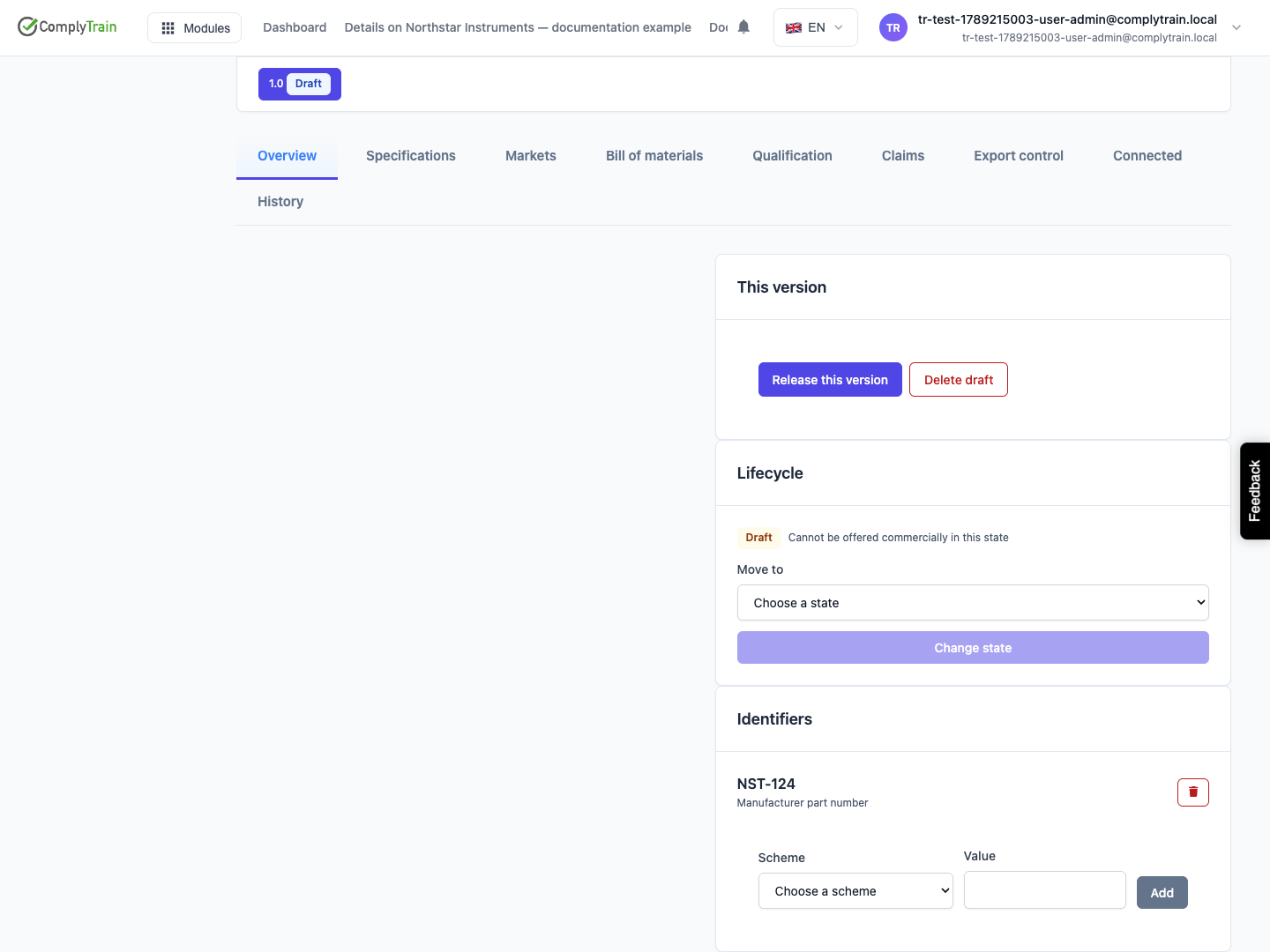
Product location: /products/{productId}/overview (fallback: /products). Open the product from the Product register. Select the draft version in the Versions card.
Releasing records that this configuration is fixed. Units delivered under it stay traceable to exactly what they were built as.
In Versions, select the draft version.
Check its identifiers on Overview and its parts on Bill of materials. They cannot change after release.
Choose Release this version on the This version card.
A confirmation states that the version's label, identifiers and parts list will be frozen. Confirm to release, or cancel.
A released version cannot return to draft. The badge changes to In service and the Released date appears. Release this version is offered only for products with a profile. The release is refused until the version has an identifier for every scheme the profile requires; required schemes are marked with an asterisk on the Profiles page.
Locked at release | Still open after release |
|---|---|
The version label | Specifications |
Identifiers | Test results and qualification |
The bill of materials | Claims |
The record of which version it supersedes | Market placements and authorizations |
Export determinations and lifecycle moves |
What happens to the version that was in service depends on markets:
If the product has no market placements, the earlier version becomes Superseded, and a Supersedes relationship is recorded under Related products on Overview.
If the product has market placements, including planned ones, both versions stay In service, because each market can be on a different version. A market moves to the new version when you place the new version on it, and the earlier version's placement there is withdrawn with a reason that names the new version. To take the earlier version out of service everywhere, withdraw it. See markets and authorizations.
Release does not change the lifecycle state. Under the General product profile, a released version stays in the Draft state, which cannot be offered commercially, until someone moves it; see the General profile example. A draft cannot be moved into a marketable state at all, so release comes first.
Other modules are asked what the release affects. A tender that bids the earlier version, or a course that is re-issued when the product changes, appears as a proposal under What this change affects on Bill of materials; see review what a change affects.
Product location: /products/{productId}/overview (fallback: /products). Open the product from the Product register. Choose New version in the Versions card.
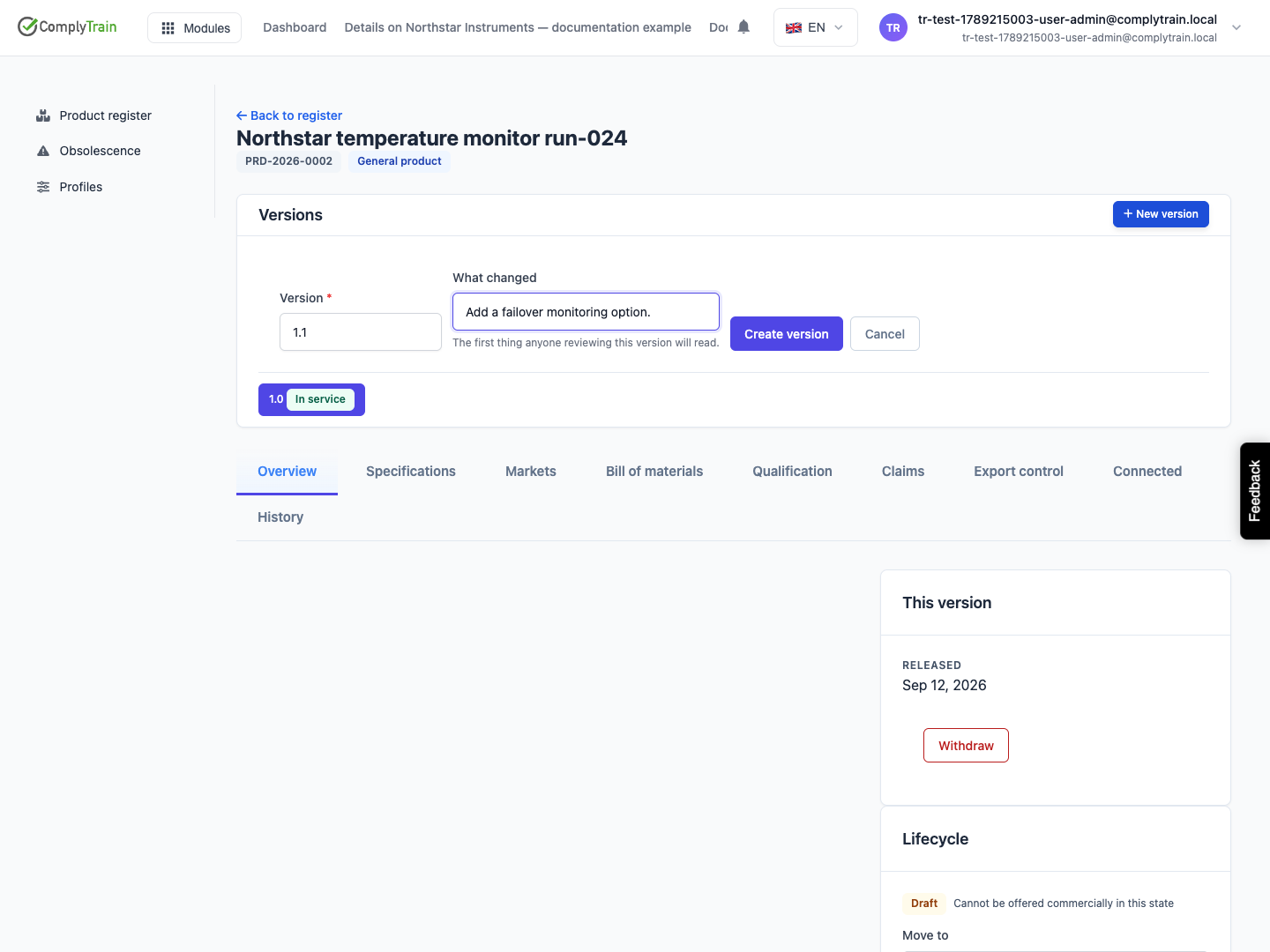
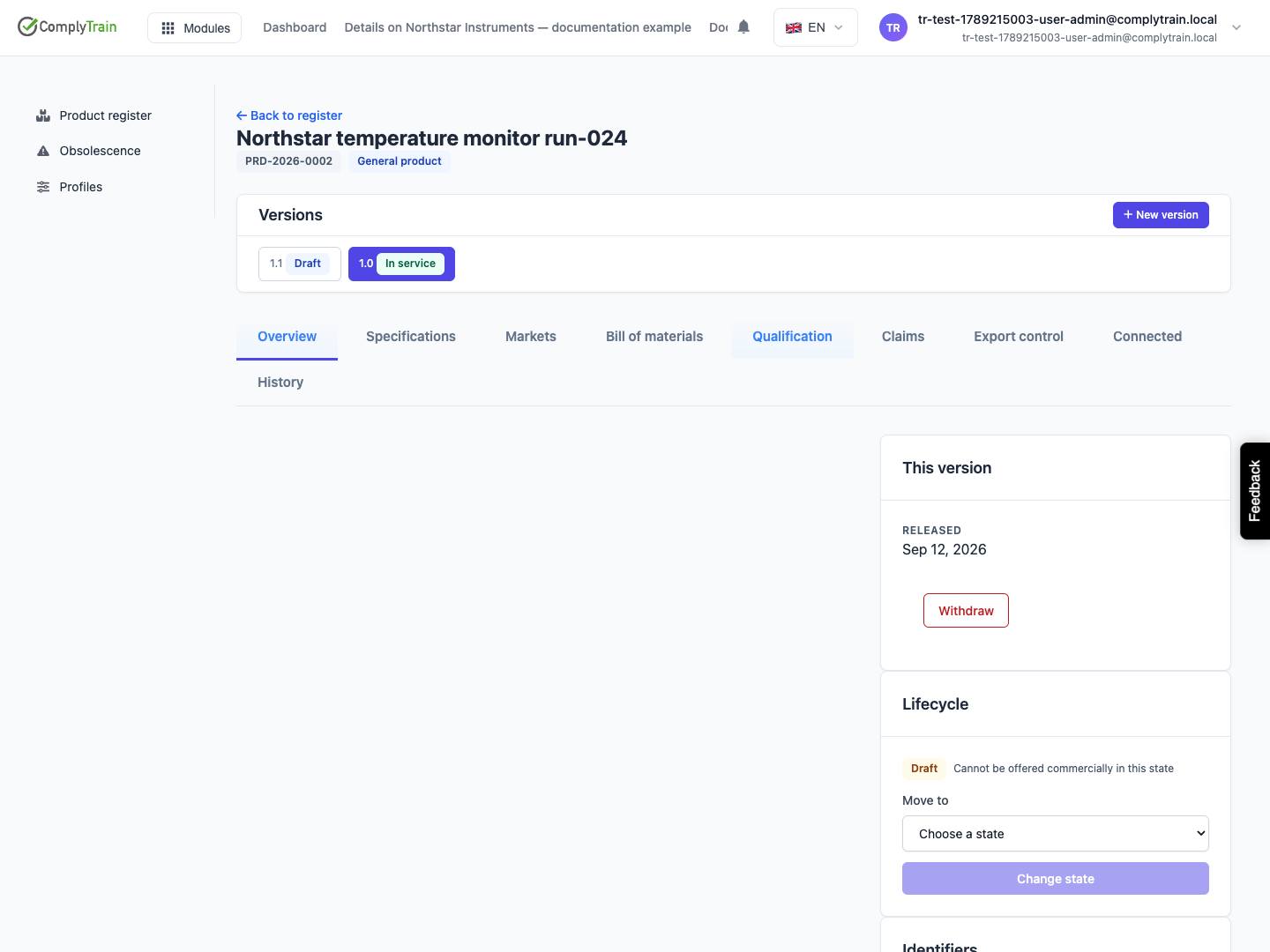
For example, the Northstar monitor's version 1.0 is in service, and engineering adds failover monitoring as version 1.1.
In the Versions card, choose New version.
Complete the fields and choose Create version, or Cancel.
Field | Required | What it does |
|---|---|---|
Version | Yes | The label, for example 1.1, Block II or Rev C. Up to 60 characters. It must be unique within the product; a label already used is refused with a message saying so. |
What changed | No | A short description, for example "Adds failover monitoring". It is the first thing anyone reviewing the version reads, and it appears on the This version card. |
The new version is a draft in the profile's first lifecycle state, and it is selected. It starts empty: identifiers, parts and specifications are not copied from earlier versions, so record what applies to this configuration. The earlier version keeps everything recorded against it.
Product location: /products/{productId}/overview (fallback: /products). Open the product from the Product register. Select the version in the Versions card.
Withdraw a version that is In service or Superseded when it is taken out of service, for example because a safety notice replaces it in the field.
Select the version and choose Withdraw on the This version card.
Enter Why is this being withdrawn? This is required, is kept permanently and is the first thing an auditor asks about. Up to 4,000 characters.
Choose Withdraw version, or Cancel.
The badge changes to Withdrawn and the Reason for withdrawal shows on the This version card. Withdrawing cannot be undone. It does not change the version's market placements, which you withdraw on Markets, or its lifecycle state. Other modules are told, as they are for a release.
Product location: /products/{productId}/overview (fallback: /products). Open the product from the Product register. Select the draft version in the Versions card.
A draft that was created by mistake and never released can be deleted, together with everything recorded only against it.
Select the draft version and choose Delete draft on the This version card.
The dialog Delete this draft version? first lists how many records of each kind will go with it: parts, specifications, test results, planned market placements, draft claims, proposed export determinations and relationships.
Choose Delete, or Cancel.
The version and those records are removed in one step, along with its identifiers and lifecycle history. The version disappears from the Versions card and the page selects another version.
Deletion is refused, with a message saying why, while a tender bids the draft. A version that has been released cannot be deleted; withdraw it instead.
