See what each part of a profile controls and where profiles come from, choose one for a product, give a profile to a product without one, and clone, edit or delete your own profiles.
A profile describes a kind of product: how its hierarchy is named, how its versions move through their lifecycle, which identifiers, tests and export-control regimes apply, and which classification scheme protects it. Every product has one profile, chosen when the product is created. It cannot be changed afterwards.
Anyone with View Products can read the profiles. Giving a profile to a product, cloning a profile and editing or deleting your own need Manage Products.
Product location: /products/profiles. Open Products, then Profiles.
Open Products, then Profiles. Product profiles shows every active profile, and your own inactive profiles marked Inactive, as cards:
On the card | What it shows |
|---|---|
Name and badge | System provided for a profile from the ComplyTrain catalogue. Your profile for one your organisation created, followed by "cloned from" and the code of the profile it was copied from. |
Code | The profile's permanent code, such as |
Description | What kind of product the profile is for. |
Hierarchy levels | The level names, or Single level. |
Export control | The export-control regimes that apply, or Not applicable. |
Lifecycle states | The states a version can be in. Marketable states are green. |
Identifier schemes | The schemes you can record identifiers under, or None. A required scheme is marked with an asterisk. |
Standards | The standards products of this kind are expected to meet. The primary standard is highlighted. |
No profiles available yet means no profile has been made available to your organisation: "Profiles are set up centrally for your industry. Contact your administrator to have one enabled." Profiles could not be loaded. means the page could not reach the list, which is not the same as having none.
Product location: /products/profiles. Open Products, then Profiles.
Part | Where it takes effect | What it controls |
|---|---|---|
Hierarchy levels | Profile card; the product header | The names of the levels products of this kind are arranged in, for example Family, Product and Configuration. A product's level shows as a badge in its header. |
Lifecycle | Profile card; Lifecycle on Overview; History | The states a version can be in, the state every new version starts in, which states are marketable, and which moves are offered. A move can require a reason and a particular permission. A draft cannot move to a marketable state, and only a released version in a marketable state can be bid in Tenders. |
Identifier schemes | Profile card; Identifiers on Overview | Which schemes you can record identifiers under. A scheme can set a format and require each value to belong to one product only; versions of the same product may share a value. A version cannot be released until every required scheme has a value. |
Test regimes | Qualification | The regimes and methods you record results against, whether each regime is required, recommended or optional (shown under Expected), and how long a pass stays valid by default. Without regimes, Record result is unavailable and the tab shows No testing regimes on this profile. |
Export-control regimes | Profile card; Export control | The regimes you record export determinations for. With none, Export control says that no export-control regimes apply to the product. |
Standards | Profile card | The standards products of this kind are expected to meet. |
Authorisation types | Markets, when you add an authorisation | The choices offered in Type. When the profile declares none, you type the authorisation type yourself. |
Classification scheme | Classification badges; clearances | The ladder of levels products of this kind can be classified under, and therefore which clearances apply to them. A profile without a scheme is for products you do not classify. See Classify products and grant clearances. |
A marketable state is a rule of the profile. It does not mean that a particular version is qualified, authorised for a market or cleared for export. Those facts are recorded on their own tabs.
Product location: /products/profiles. Open Products, then Profiles.
System provided profiles come from the ComplyTrain catalogue, which is maintained centrally. Updates to a catalogue profile reach your organisation automatically. A profile withdrawn from the catalogue is no longer offered for new products, and the products that already use it keep working.
The catalogue always includes General product, a starting point for a straightforward catalogue:
Part | General product |
|---|---|
Hierarchy levels | One level, Product |
Lifecycle | Draft (every new version starts here), Released (marketable) and Withdrawn. The moves are Draft to Released, Released to Withdrawn and Draft to Withdrawn. A version must be released before it can move to Released. Both moves to Withdrawn need a reason, and every move needs Change Product Lifecycle State. |
Identifier schemes | Manufacturer part number, Customer part number, and Model or type designation, all recommended and none required |
Test regimes, export control, standards, authorisation types, classification | None |
The catalogue also holds identifier schemes such as GTIN and Serial number format, test regimes such as Electromagnetic compatibility, Environmental and Electrical safety, and classification schemes. A profile decides which of them apply to its products.
Your profile marks a copy your organisation owns. Catalogue updates do not change your copies.
Product location: /products/new. Open Products and choose New product.
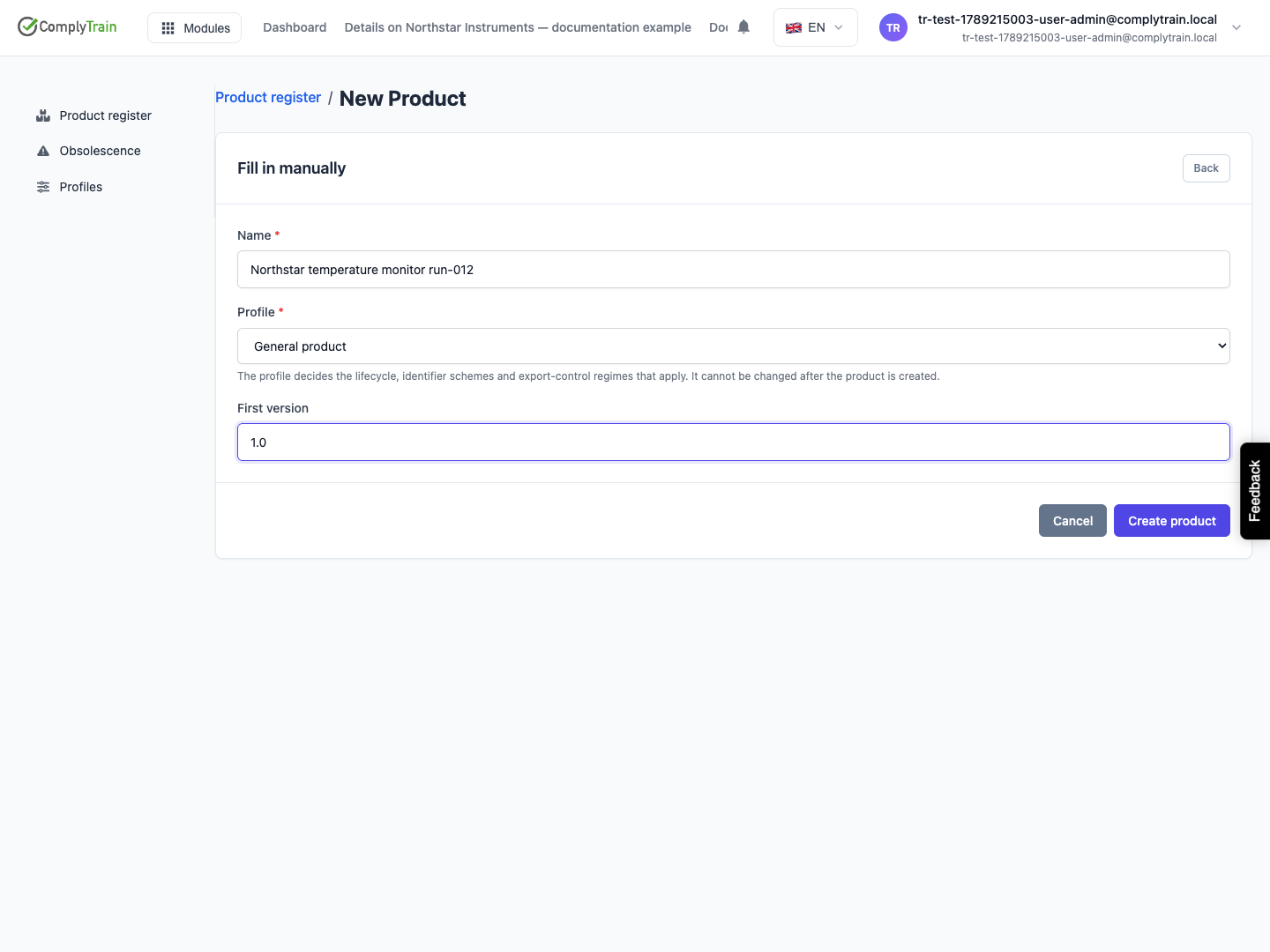
You choose the profile in New Product, and again when you add a product found by the assistant. Only active profiles are offered.
Open Profiles and compare the candidates with the product you are recording: its identifiers, its lifecycle, the tests it must pass and whether export control applies.
In New Product, choose the closest match under Profile. The hint reminds you: "The profile decides the lifecycle, identifier schemes and export-control regimes that apply. It cannot be changed after the product is created."
If no profile fits, stop and ask the person who looks after your product rules before creating the product.
A profile that is merely close causes permanent friction: identifiers you need may be missing, and tests you run may have no method to record against. See Add a product and manage its versions.
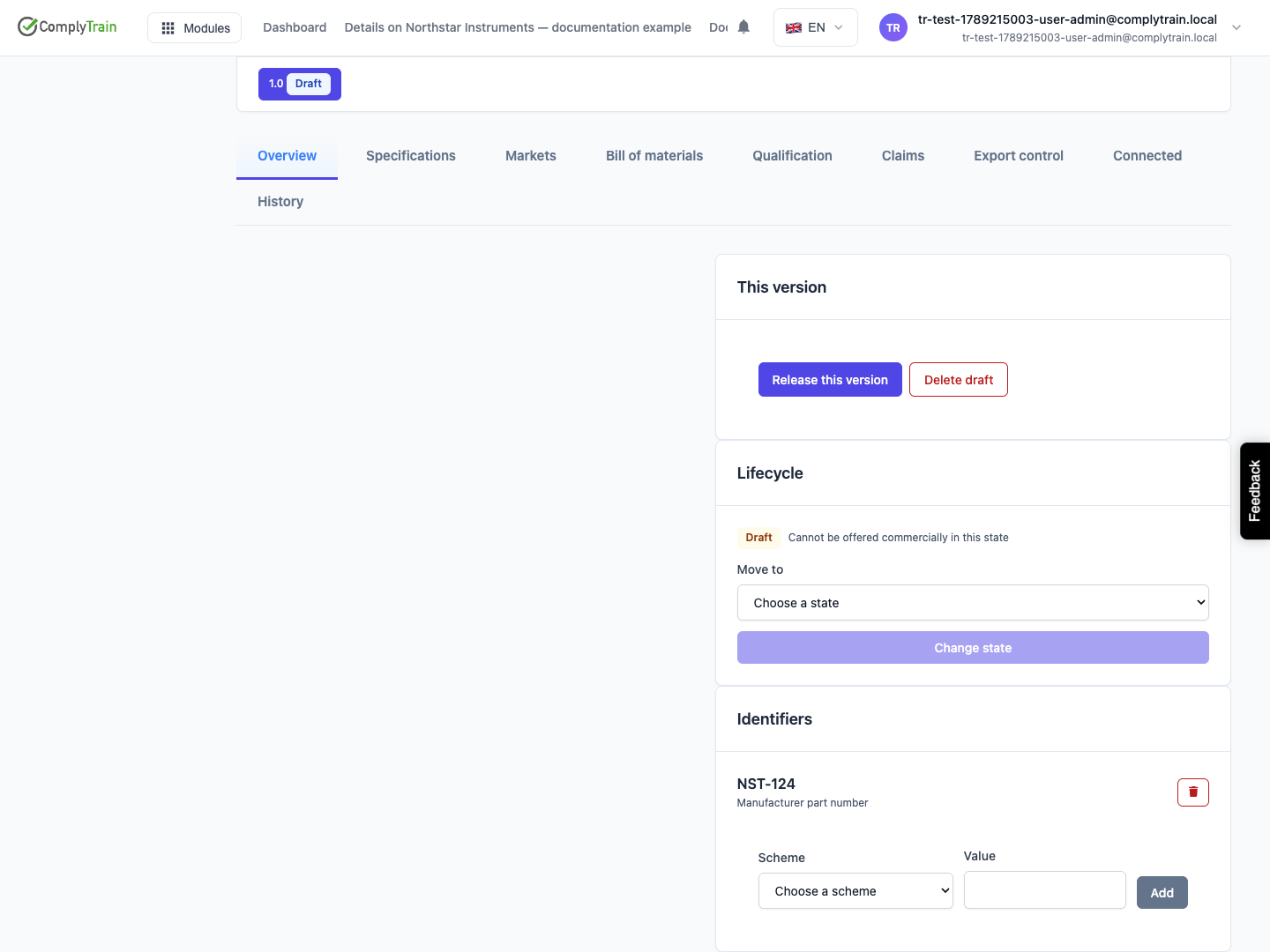
Product location: /products/{productId}/overview (fallback: /products). Open the product in Products; the Lifecycle card is on the Overview tab.
A product created without a profile has no lifecycle and no identifier schemes. Its Lifecycle card on Overview says: "This product has no profile, so its versions have no lifecycle and cannot be released or withdrawn."
Open the product and stay on Overview.
In the Lifecycle card, choose the profile under Product profile.
Read the help text: "Choose carefully: once a profile is attached it decides the lifecycle, identifier schemes and classification scheme for this product, and it cannot be changed afterwards."
Choose Assign profile.
Every version of the product moves into the profile's starting state, so its lifecycle moves become available. The profile's identifier schemes, test regimes and export-control regimes become available at once. Nothing already recorded is lost.
Product location: /products/profiles. Open Products, then Profiles.
Clone a profile to own a copy under your organisation's name and description, and to control whether it is offered for new products. The copy keeps the source's rules exactly: levels, lifecycle, identifier schemes, test regimes, export-control regimes, standards, authorisation types and classification scheme.
On Product profiles, find the profile to copy and choose Clone.
Complete the form and choose Create profile. The button shows Creating… while the copy is made.
The new card appears with Your profile and "cloned from" the source code. It is active at once and offered for new products.
Field | Rules |
|---|---|
Code | Required. Pre-filled with the source code followed by |
Name | Required, up to 200 characters. Pre-filled with the source name followed by "(copy)". |
The copy takes the source's description, which you can change afterwards. Cancel closes the form without creating anything. If the code is already used, the form says so; choose another code.
Cloning does not move existing products onto the copy. A product keeps the profile it was created with.
Product location: /products/profiles. Open Products, then Profiles.
You can change a Your profile card's name, description and whether it is active. Choose to edit the profile on its card, make the change and save it. System provided profiles cannot be edited or deleted; clone one instead.
The rules the profile copied from its source cannot be edited, including its test regimes. To use different regimes or other rules, clone a profile that already has them, or ask ComplyTrain for a profile shaped to your products.
Making your profile inactive stops it being offered for new products and for discovered products. Its card stays on Product profiles, marked Inactive. Products that already use it keep working: their lifecycle, identifiers, tests and export control are unchanged. To offer it again, edit it and make it active.
To remove a profile completely, choose to delete it on its card and confirm. Deleting is refused while any product uses the profile, because a product's profile cannot be changed and the product would be left without one. The message says how many products still use it. Make the profile inactive instead when products depend on it.
Product location: /products/profiles. Open Products, then Profiles.
Your organisation records its industrial sensors under General product, and last year's "Legacy sensor" profile, which you cloned, should no longer be used for new products.
On Product profiles, choose Clone on General product.
Enter the code industrial-sensor and the name "Industrial sensor", and choose Create profile.
Edit the new profile's description to say which products belong under it, for example "Fixed and portable gas sensors sold under our own brand".
Edit "Legacy sensor" and make it inactive. Its card now shows Inactive.
Open New product from the register and check Profile: "Industrial sensor" is offered and "Legacy sensor" is not.
Open a product that uses "Legacy sensor" and check that its Lifecycle card still offers its moves.
New sensor products now carry your own profile name in the register's Profile column and filter.
