Type a version's specifications yourself or have the assistant read them from a document, then accept, reject and correct them with their sources.
A specification is a recorded reading of what a version does, such as a supply voltage of 9 to 36 V or a mass of 1.2 kg. Each one has a name, a value, an optional unit and the source it was read from, so anyone can check it. You can type specifications yourself, or have the assistant read them out of a document and propose them for you to accept.
Product location: /products/{productId}/specifications (fallback: /products). Open the product from the Product register. Select the version in the Versions card.
Task | Permission |
|---|---|
See recorded specifications and proposed readings | View Products ( |
Type a specification, accept or reject a reading, remove a recorded value | Manage Products ( |
Ask the assistant to read a document | Manage Products, and the specification assistant set up for your organisation |
Admins can do all of these. The controls appear only for people who can use them.
Product location: /products/{productId}/specifications (fallback: /products). Open the product from the Product register. Select the version in the Versions card.
Open the product and select the version in the Versions card. Specifications belong to one version, so check the selection before you start.
Choose the Specifications tab.
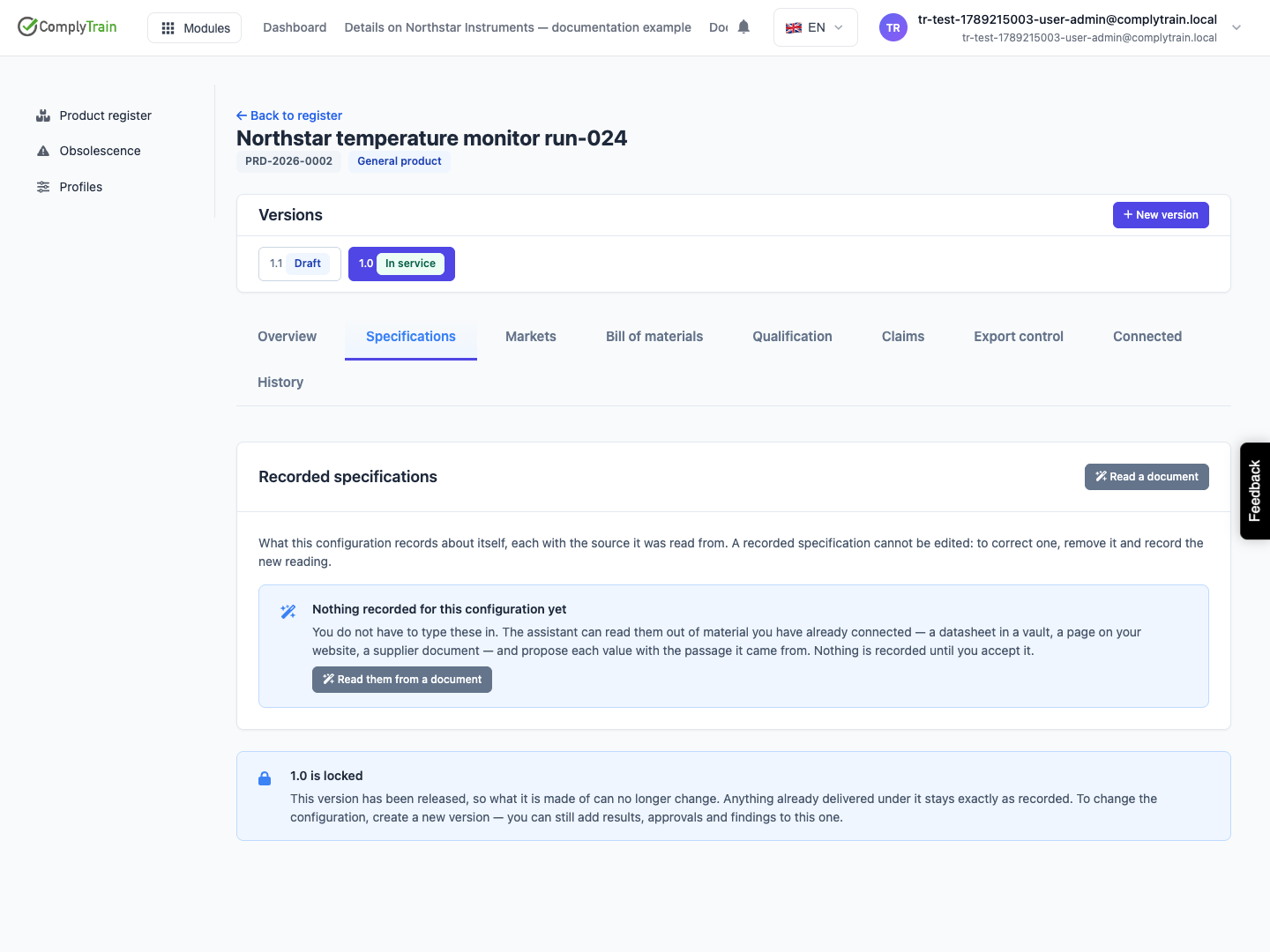
The tab shows Recorded specifications first, with the columns Specification, Value (with its unit) and Read from. These are the values the version records about itself.
Below it, Specifications read from documents appears once the assistant has read something for this version. Those are proposals, not yet part of the version.
With nothing recorded, the panel shows Nothing recorded for this configuration yet and, when the assistant is set up, offers Read them from a document. Readings waiting for review are counted on the Specifications tab and on Overview, where Needs your review offers a button such as "3 proposed specifications".
Product location: /products/{productId}/specifications (fallback: /products). Open the product from the Product register. Select the version in the Versions card.
On Specifications, with the version selected, choose to add a specification.
Fill in the fields.
Save.
Field | What to enter | Rules |
|---|---|---|
Name | What the value is called, in your own words, for example "Supply voltage", "Mass" or "Ingress protection". | Required. Up to 200 characters. A version can hold only one value under each name. |
Value | The value as the source states it, for example | Required. |
Unit | The unit, for example V, kg or mm. | Optional. Up to 30 characters. |
Source | Where the value comes from: the document and its page, section or table, or the person who supplied it. For example "Datasheet NST-124 rev C, page 2, table 1". | Required, because a value nobody can check is worth less than no value. |
The value appears under Recorded specifications with you as the person who recorded it. If the version already has a value under that name, it is refused: remove the existing value first.
Product location: /products/{productId}/specifications (fallback: /products). Open the product from the Product register. Select the version in the Versions card.
On Specifications, choose Read a document, or Read them from a document when nothing is recorded yet.
The Read a specification assistant opens. Its notice says that it proposes values from what it reads and that nothing is recorded until you accept it.
Tell it which document to read and which facts you need. It works from material already connected to ComplyTrain, such as the documents in the product's own vault.
Each value it finds is added to Specifications read from documents with the place it was read from, marked Awaiting review. The panel's badge shows how many are waiting.
A product created with Upload a document or Describe to AI opens with this assistant already running; see add a product and manage its versions. The buttons appear only when your organisation has the assistant set up. More about the assistant's modes is in use the Product Specialist assistant.
Product location: /products/{productId}/specifications (fallback: /products). Open the product from the Product register. Select the version in the Versions card.
For each row, compare Specification, Value read and Read from with the document itself. Check that the reading concerns this version rather than another variant, that the unit is right and that any conditions, such as a temperature, are kept.
Action | What happens |
|---|---|
Accept | The value appears under Recorded specifications straight away, recorded together with the source and your name as the person who accepted it. The row's Status changes to Accepted. |
Reject | The dialog Reject this reading? asks you to confirm; choose Reject. The value is discarded. A record that it was proposed and declined is kept. |
Leave it | The row stays Awaiting review and keeps counting in the badges. Nothing is recorded. |
Accepting is refused when the version already records a value under that name. The message says the name is already recorded for this configuration and asks you to remove the existing value first if the new reading replaces it. Two readings that disagree are a question for a person, so neither is overwritten automatically.
Product location: /products/{productId}/specifications (fallback: /products). Open the product from the Product register. Select the version in the Versions card.
A recorded specification cannot be edited. Otherwise a value changed today could pass for the one a bid quoted last year. To correct one, remove it and record the right value, so both steps stay visible in the product's history.
Under Recorded specifications, choose Remove on the value.
The dialog Remove this specification? explains that removal is how a specification is corrected, and that the version has no value for it until you record a new one. Choose Remove.
Type the correct value, or accept a new reading of it.
Product location: /products/{productId}/specifications (fallback: /products). Open the product from the Product register. Select the version in the Versions card.
Specifications stay open after release. Unlike identifiers and the bill of materials, which lock when a version is released, you can type, accept, reject and remove specifications on a version that is In service, Superseded or Withdrawn. Datasheets often arrive long after a product goes into service, and this lets you record them against the configuration they describe. The lock notice on a released version does not apply to this tab.
Recorded specifications feed other work. The claims assistant proposes claims from recorded specifications, passed tests and approved authorizations; see make and approve product claims. When you correct a value that a claim or a tender answer quoted, review those as well.
Product location: /products/{productId}/specifications (fallback: /products). Open the product from the Product register. Select the version in the Versions card.
Version 1.1 of the Northstar temperature monitor is in service, and its datasheet, rev C, has just arrived.
Select version 1.1, open Specifications and choose Read a document. Ask the assistant to read datasheet rev C for the electrical and mechanical specifications.
It proposes "Supply voltage: 9 to 36 V, page 2, table 1" and "Mass: 1.4 kg, page 3".
Check page 2 and Accept the supply voltage.
Page 3 shows that 1.4 kg is the mass of version 1.0. Reject that reading.
Type the specification yourself: name "Mass", value "1.2", unit "kg", source "Drawing NST-124-110 rev C, title block".
Recorded specifications now shows both values, each with its source.
