Record which version of a product is sold in each market and under which name, move placements through their lifecycle, and keep the regulatory authorizations behind each placement current with expiry reminders.
A market record says that one version of a product is sold in one market, under a particular name. Each market can carry a different version: Germany can be on version 2.0 while Denmark is still on 1.0 because its approval is pending. The authorizations that make a placement lawful, such as a CE certificate or a national approval, are recorded against the placement and raise reminders before they expire.
A product sold in a single market needs no market records at all. Add them when you sell in more than one market, sell under different names, or need to track authorizations per market.
Product location: /products/{productId}/markets (fallback: /products). Open the product in Products, then choose the Markets tab. Select the version first when you add a market.
Action | Who |
|---|---|
See markets and authorizations | Anyone with View Products ( |
Add, place, suspend, withdraw, edit or delete placements | Manage Markets and Authorizations ( |
Add, edit or remove authorizations | Manage Markets and Authorizations ( |
Admins can do all of these. Buttons appear only for people who can use them. Placements and authorizations follow the product's classification, so you see only the records your clearance allows; see clearances.
Product location: /products/{productId}/markets (fallback: /products). Open the product in Products, then choose the Markets tab. Select the version first when you add a market.
Open Products and choose the product in the Product register.
Choose the Markets tab.
The tab covers the whole product, not only the version selected above it, and says so with the badge All versions. The selected version matters only when you add a market: the button reads Add market for followed by the version label, for example Add market for 2.0. To add a market for a different version, select that version first.
On a new product, the Overview tab also offers Say where it is sold under Getting this product on its feet. It opens the Markets tab.
Product location: /products/{productId}/markets (fallback: /products). Open the product in Products, then choose the Markets tab. Select the version first when you add a market.
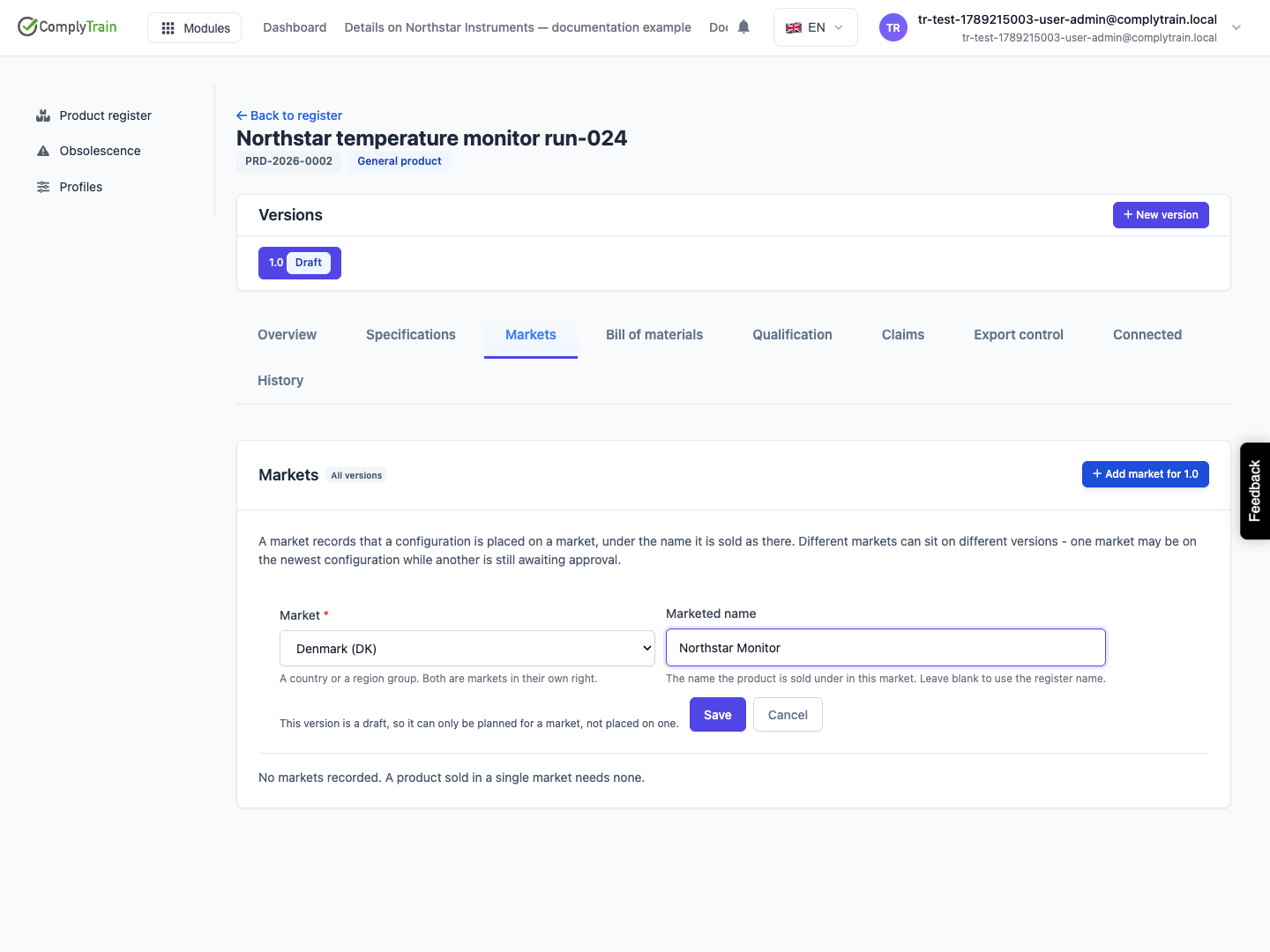
Select the version you want to place, then choose Add market for the version.
Complete the fields below.
Choose Save.
Field | What it does | Rules and defaults |
|---|---|---|
Market | The country or region group the version is sold in. Region groups are listed first, then countries, each as name and code, for example "Denmark (DK)". | Required. A region group such as the EU is a market in its own right; placing a version on it does not place it on each member country. |
Marketed name | The name the product is sold under in this market. | Optional, up to 255 characters. Leave it blank to use the register name. |
Place on the market now | Records the version as on the market today instead of planned. | Off by default. Not offered for a draft version, which shows "This version is a draft, so it can only be planned for a market, not placed on one." |
A new row starts as Planned, or as On the market when you ticked Place on the market now. If you choose Save without a market, the page says "Choose a market first."
Product location: /products/{productId}/markets (fallback: /products). Open the product in Products, then choose the Markets tab. Select the version first when you add a market.
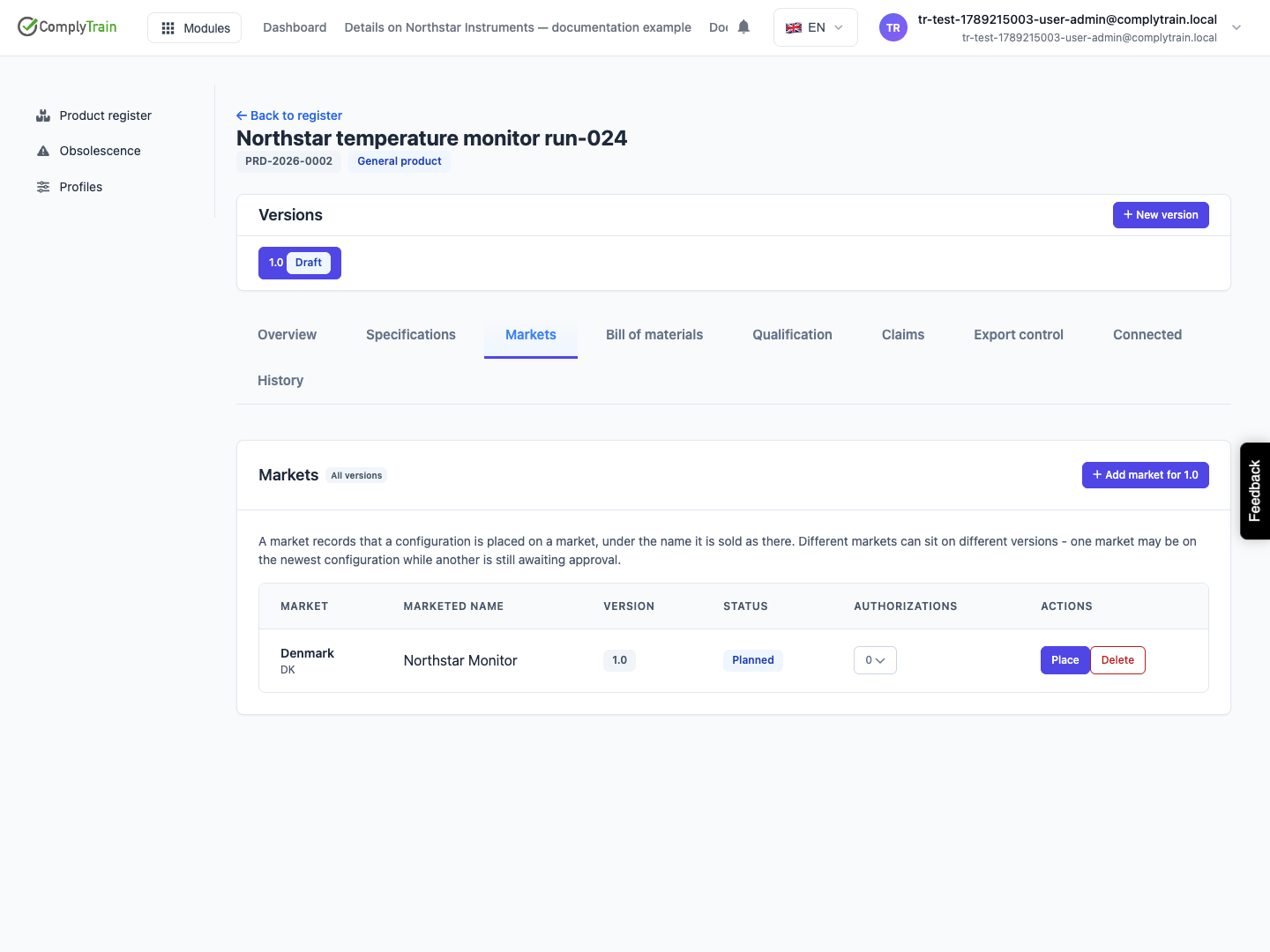
Column | Shows |
|---|---|
Market | The market name, with its code underneath. |
Marketed name | The name used in this market, or "Sold under the register name". |
Version | The version this placement is for. |
Status | Planned, On the market, Suspended or Withdrawn. A withdrawn row also shows the reason. |
Authorizations | The number of authorizations. Choose it to open them. A red badge such as "1 expired" counts authorizations past their expiry date. |
Actions | The actions the current status allows. |
If any placement that has not been withdrawn carries an expired authorization, a red alert appears above the table: An authorization has expired. It counts the affected placements and asks you to renew the authorization or withdraw the placement.
With no market records, the tab reads "No markets recorded. A product sold in a single market needs none."
Product location: /products/{productId}/markets (fallback: /products). Open the product in Products, then choose the Markets tab. Select the version first when you add a market.
Status | Meaning | Actions offered |
|---|---|---|
Planned | You intend to sell this version here, for example while approval is pending. | Place, Delete |
On the market | The version is being sold here. Only one version of a product can be on the market in a given market at a time. | Suspend, Withdraw |
Suspended | Temporarily off the market, for example during a field action. | Place, Withdraw |
Withdrawn | Permanently off this market. The row is kept as the record of what was sold where and when. | None |
A withdrawn placement cannot be placed again. To return to that market later, add a new market record; re-entering a market is a new event, not an undo.
Product location: /products/{productId}/markets (fallback: /products). Open the product in Products, then choose the Markets tab. Select the version first when you add a market.
Find the Planned or Suspended row for the version.
Choose Place.
The version must have been released; a draft version can only be planned. A planned placement is dated today when you place it; a suspended one keeps its original date.
If another version of the same product is on the market there, it is withdrawn in the same step. Its row changes to Withdrawn with the reason "Superseded on this market by version" followed by the new version label, so the table shows when the market changed hands. The same happens when you add a market with Place on the market now ticked.
Placing and withdrawing are passed on to connected modules. When a version enters a market, Media Monitoring can propose extending a market watch to cover it. When a version leaves a market, organisations linked to the product, such as a notified body or distributor, are flagged as needing to be told. Both appear as proposals under What this change affects on the Bill of materials tab; see change impact.
Product location: /products/{productId}/markets (fallback: /products). Open the product in Products, then choose the Markets tab. Select the version first when you add a market.
To suspend, choose Suspend on a row that is On the market. No reason is needed, and Place returns it to the market.
To withdraw:
Choose Withdraw on a row that is On the market or Suspended.
In Why is the product coming off this market?, record the reason: a recall, a safety finding, a commercial exit or a lapsed authorization. A regulator reads this first.
Choose Withdraw from market.
The reason is required, up to 4,000 characters, and is kept permanently. Without one, the page says "A reason is required to withdraw from a market."
Product location: /products/{productId}/markets (fallback: /products). Open the product in Products, then choose the Markets tab. Select the version first when you add a market.
Edit a placement to correct its marketed name or the date it went on the market. The version and the market cannot be changed; record a new placement instead.
Only a Planned row can be deleted: choose Delete, then confirm Delete this planned placement?. Nothing was ever placed, so no regulatory record is lost. Deleting is refused while the plan still carries authorizations; remove them first. It is also refused when the row is the product's last market record and more than one version is still in service, because outside market records only one version can be current; withdraw or supersede the extra versions first.
Product location: /products/{productId}/markets (fallback: /products). Open the product in Products, then choose the Markets tab. Select the version first when you add a market.
In the Authorizations column, choose the count for the placement. The panel Authorizations for the market opens under the row.
Complete the fields below.
Choose Add authorization.
Field | What it does | Rules |
|---|---|---|
Type | The kind of authorization, for example a CE certificate or FDA clearance. | Required, up to 60 characters. When the product's profile lists authorization types, you choose from that list; otherwise you type the type. |
Conformity route | How conformity was shown, for example "Annex IX" or self-declaration. | Optional, up to 120 characters. |
Certificate number | The certificate or approval reference. | Optional, up to 200 characters. The same type and certificate number cannot be recorded twice on one placement. |
Expires | The date the authorization lapses. | Optional. Setting a date raises a reminder before the authorization lapses. |
Each authorization shows its type, certificate number, conformity route, issuing body and expiry date, with a badge: Active (green), amber when it expires within 30 days, Expired in red once the date has passed, or Suspended or Withdrawn.
Product location: /products/{productId}/markets (fallback: /products). Open the product in Products, then choose the Markets tab. Select the version first when you add a market.
Edit an authorization to record what changes over its life: a renewed expiry date, the issue date, the issuing body (an organisation in the stakeholder register), notes, or a new status. Changing the status to suspended or withdrawn needs a reason, because a lapse and a revocation are very different facts. Editing the expiry date also re-arms its reminder.
Use the bin button (Remove authorization) only for a record entered in error. The confirmation Remove this authorization? reminds you that an authorization that was ever relied on should be withdrawn instead, so its history survives.
Product location: /products/{productId}/markets (fallback: /products). Open the product in Products, then choose the Markets tab. Select the version first when you add a market.
Every morning at 07:00, Products looks for dates that are about to pass and sends an in-app notification:
What expires | Notification type | Reminders start |
|---|---|---|
An active authorization on a placement that is on the market or suspended | Market Authorization Expiring | 90 days before the expiry date |
A passed test result on a draft or released version | Test Qualification Expiring | 180 days before its Valid until date |
An active export licence | Export Licence Expiring | 120 days before it expires |
The reminder goes to the product's regulatory contact, or to its owner when no regulatory contact is recorded. Set both on the product; see maintain a product. A product with neither gets no reminders, so make sure every product that carries an expiry date has one of them.
The notification names the product, the marketed name, the version, the market, the certificate number and the issuing body, and links to the product. It is sent at most once a day for each record, and repeats each morning until the expiry date is moved beyond the reminder period, the authorization is suspended or withdrawn, or the placement is withdrawn. It is high priority within 30 days of expiry and urgent once the date has passed. These types are mandatory: nobody can switch them off in their notification preferences. See your notifications.
Product location: /products/{productId}/markets (fallback: /products). Open the product in Products, then choose the Markets tab. Select the version first when you add a market.
Once a product has any market records, releasing a new version no longer takes the previous version out of service. Each market keeps the version placed on it until you place another one there. This is how one market can stay on 1.0 while another moves to 2.0.
Tenders use these records. When a bid names a version and a market, the Tender's Products tab shows the marketed name recorded for that market, and Propose answers can offer the marketed name and the placement's authorizations as answers to the tender's requirements. See claims for how bids draw on product records.
Product location: /products/{productId}/markets (fallback: /products). Open the product in Products, then choose the Markets tab. Select the version first when you add a market.
Your organisation sells the product as version 1.0 in Germany (DE) and Denmark (DK). Version 2.0 has been released and its CE certificate has arrived for Germany only.
Select version 2.0 and choose Add market for 2.0. Choose Germany (DE) and choose Save. The row is Planned.
Open its Authorizations, enter the Type, Certificate number and Expires date, and choose Add authorization.
Choose Place on the 2.0 row for Germany. The 2.0 row is On the market, and the 1.0 row for Germany changes to Withdrawn, "Superseded on this market by version "2.0"".
Denmark stays on 1.0 until its approval arrives. Ninety days before the German certificate expires, the regulatory contact starts receiving Market Authorization Expiring reminders.
