Record what each configuration is made of, mark parts that are going out of production with the notice behind it, trace where a part is used and plan replacements from the Obsolescence register.
The bill of materials records what one configuration of a product is made of: its parts, how they nest into assemblies, where they come from and how much each one matters. Each version of a product has its own parts list. Once a version is released its parts list is frozen, because it is the record of what delivered units contain.
The same list is where you manage obsolescence. When a manufacturer announces that a part is going out of production, you record the notice, the last-buy window and the replacement plan against the part. That works on released versions too, because a part reaching end of life is news about the world, not a change to the product.
Product location: /products/{productId}/bom (fallback: /products). Open the product in Products, select the Bill of materials tab and choose the version under Versions.
Task | Who can do it |
|---|---|
See the parts list, check a part's reach and open the Obsolescence register | Anyone with View Products ( |
Add, correct and remove parts on a draft version | Manage the Bill of Materials ( |
Record availability, dates and replacement plans on any version, draft or released | Manage Component Obsolescence ( |
An Admin can do all of these. The buttons appear only for people who can use them. The two management permissions are separate on purpose: editing the parts list does not carry the authority to declare a part obsolete, because other people act on that statement. See the permissions table for every Products permission.
A part has no classification of its own. It follows the clearance of its configuration: if you can open a version, you see its whole parts list. The Reach view and the Obsolescence register leave out configurations you are not cleared to see. See clearances.
Product location: /products/{productId}/bom (fallback: /products). Open the product in Products, select the Bill of materials tab and choose the version under Versions.
Open Products and choose the product in the Product register.
Select the Bill of materials tab.
Under Versions, select the version you want. The parts list always belongs to the selected version.
From top to bottom, the tab shows What this change affects when a change to the product is waiting for a decision, the Bill of materials panel, and What these changes affect. The first and last are explained in reviewing what a change affects. The badge on the tab counts the change proposals waiting.
The parts list has these columns:
Column | What it shows |
|---|---|
What it does | The part's function, indented under its assembly. Below it: the quantity and unit, the market a variation is for and the base part it varies from. |
Part number | The manufacturer's part number, or a dash. |
Supplier | The supplier from the Stakeholder register, or the manufacturer when no supplier is recorded. |
Criticality | Safety critical, Critical, Standard or Minor. |
Availability | Available, Not for new designs, Last buy or Obsolete, with No replacement path underneath when nothing is planned. |
Last buy | The last date an order can be placed. Red when the date has passed, amber within 90 days. |
A badge in the header, for example 3 at risk, counts every part that is not Available. It is red when at least one of those parts has no replacement path, otherwise amber. An empty list shows No parts recorded against this configuration yet.
Product location: /products/{productId}/bom (fallback: /products). Open the product in Products, select the Bill of materials tab and choose the version under Versions.
You can add parts only while the version is a draft.
Choose Add a part.
Fill in the fields below.
Choose Save. The part appears in the list; Cancel discards the form.
Field | What to enter | Rules and defaults |
|---|---|---|
What it does | The function in your own words, for example "Main power filter capacitor". The function survives a replacement part; a part number does not. | Required. Up to 200 characters. |
Part number | The manufacturer's number. Obsolescence is traced by this number across all your products. | Optional. Up to 120 characters. |
Supplier | Who you buy the part from, chosen from the Stakeholder register. | Optional. Default No supplier recorded. |
Manufacturer | Who makes the part when that is not the supplier, as free text, for example a name from a datasheet. | Optional. Up to 255 characters. |
Quantity | How many are used. | Optional. Must be greater than zero. |
Unit | The unit of the quantity, for example "pcs" or "m". | Optional. Up to 30 characters. |
Criticality | How much the part matters. | Default Standard. |
Part of | The assembly this part sits inside. | Default Top level. Only parts of this version can be chosen. |
Market | The market code when the part is used only in one market. | Leave blank when the part is used in every market. Up to 32 characters. |
Varies from | The base part this one replaces in that market. | Default Not a market variation. Requires Market. |
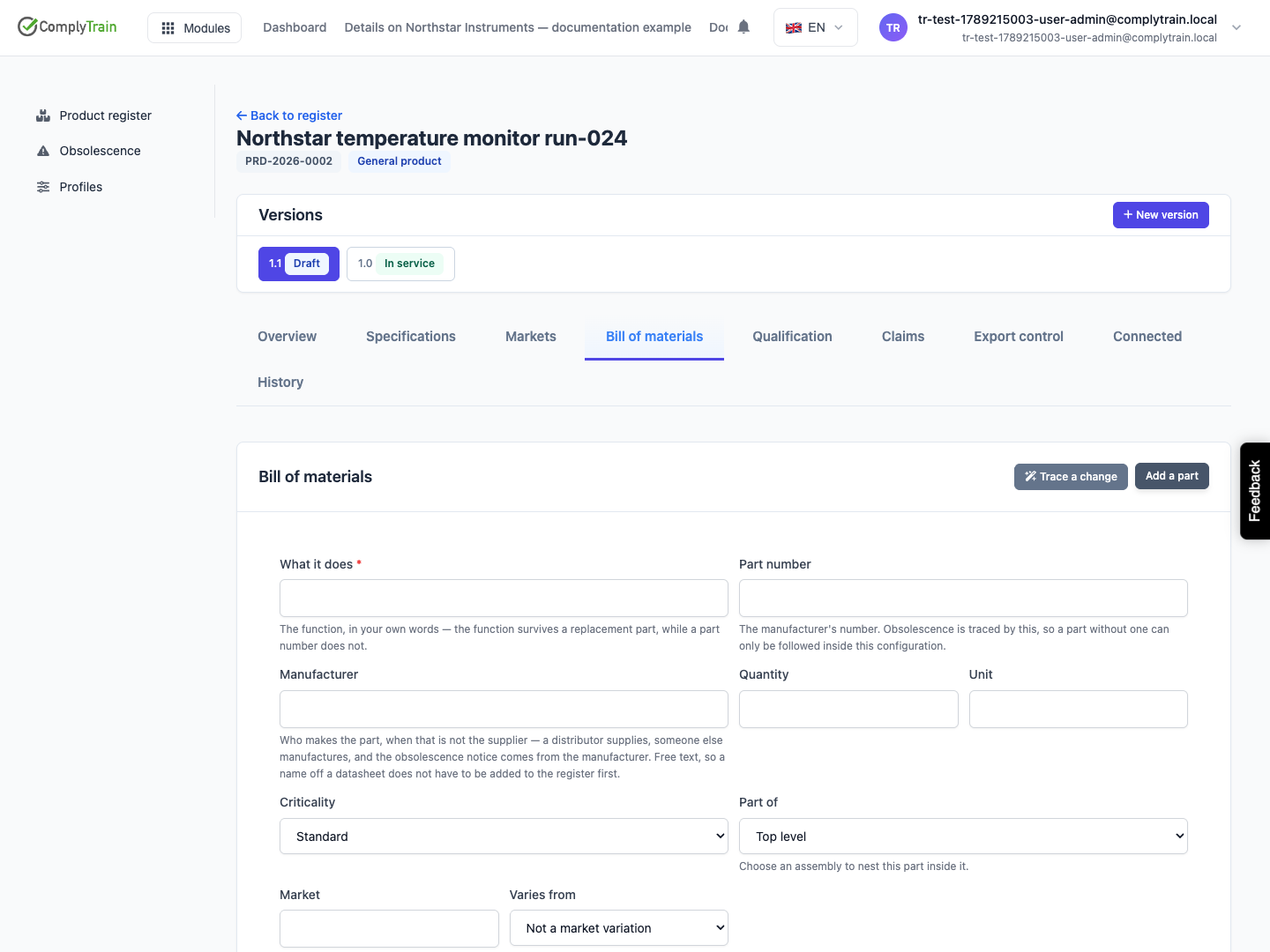
Product location: /products/{productId}/bom (fallback: /products). Open the product in Products, select the Bill of materials tab and choose the version under Versions.
To nest parts, add the assembly first, for example "Power supply unit", then add its parts with Part of set to that assembly. Sub-assemblies can be nested inside assemblies to any depth. The list indents each part under its assembly.
A market variation is a part used instead of another one in a particular market, for example because a national rule forces a different supplier. Add the variation as its own part, enter the Market and choose the base part in Varies from. A variation without a market is refused with A market variation needs a market. Without one it is a duplicate part rather than a variation.
Variations matter when a part goes out of production. If a variation uses a different part number from a different supplier, the Reach view reports that market as unaffected. A variation that buys the same part from the same supplier is affected like the base part.
Product location: /products/{productId}/bom (fallback: /products). Open the product in Products, select the Bill of materials tab and choose the version under Versions.
Supplier lists the organisations in the Stakeholder register. When your register has an entity type called Supplier, the list is limited to organisations of that type; otherwise it lists every organisation. It shows up to 200 organisations in alphabetical order. When the register has none, the help text says No suppliers in the Stakeholder register yet. The field is not shown when your organisation does not use Stakeholders or you cannot reach its register; record the Manufacturer instead. To add an organisation, see registering stakeholders.
Manufacturer is free text and needs no register entry. Record both when a distributor supplies a part someone else makes: the distributor is the supplier, and the end-of-life notice will come from the manufacturer.
A supplier you choose here is used elsewhere:
On the organisation's page in Stakeholders, a table lists every product configuration that depends on it, with Parts, Critical and At risk counts, and a warning when parts it supplies are going out of production.
On the product's Connected tab the supplier appears under Stakeholders, marked as implied by the product record. See connected records.
Product location: /products/{productId}/bom (fallback: /products). Open the product in Products, select the Bill of materials tab and choose the version under Versions.
Criticality | Use it for | Effect |
|---|---|---|
Safety critical | A part whose failure or substitution affects safety. | Counted in the Obsolescence register's safety-critical badge and listed first among parts with the same last-buy date. Counted under Critical on the supplier's Stakeholders page. |
Critical | A part the product cannot work without. | Highlighted in the register and counted under Critical on the supplier's page. |
Standard | Most parts. | The default. |
Minor | Parts that are easy to substitute. | Listed last among parts with the same last-buy date. |
Product location: /products/{productId}/bom (fallback: /products). Open the product in Products, select the Bill of materials tab and choose the version under Versions.
On a draft version, each row has Correct and Remove.
Correct opens the form with the part's values. Change what you need and choose Save correction.
Remove asks Remove this part? and tells you the part will be removed from this configuration's parts list. Choose Delete to confirm.
A part that another row depends on cannot be removed: a part with sub-assemblies under it, a base part with market variations, or a part named as the qualified replacement for another part. Clear those references first.
Product location: /products/{productId}/bom (fallback: /products). Open the product in Products, select the Bill of materials tab and choose the version under Versions.
When a version is released, the panel shows This configuration has been released, so its parts list is frozen. Add a part, Correct and Remove disappear, and the database refuses structural changes as well.
To change what a released configuration is made of, create a new version and edit its parts list. See versions and release. The Obsolescence button stays available on every version.
Product location: /products/{productId}/bom (fallback: /products). Open the product in Products, select the Bill of materials tab and choose the version under Versions.
On the part's row, choose Obsolescence. The editor opens under the row.
Choose the Availability and fill in the dates and reference from the manufacturer's notice.
Record the replacement, if you have one, as described in the next section.
Choose Save.
Field | What it records | Rules |
|---|---|---|
Availability | Available, Not for new designs, Last buy or Obsolete. | Required. |
Notice date | When the notice was issued. | Optional. |
Last buy | The final date an order can be placed. | Cannot be before the notice date. |
Last delivery | The final date deliveries arrive. | Cannot be before the last buy date. |
End of support | When the manufacturer stops supporting the part. | Optional. |
Notice reference | The change notification or bulletin the information came from. | Up to 200 characters. |
Qualified replacement | Another part of this configuration that has been qualified to take over. | Default None qualified yet. |
Replacement plan | What happens instead while no replacement part is qualified. | Free text. |
Obsolete needs evidence: a Notice date, a Last buy date or a Notice reference. Without one, the editor shows Marking a part obsolete needs a notice date, a last buy date, or the reference it came from. and Save stays unavailable.
Setting Availability back to Available clears every date, the reference and the replacement fields when you save.
When a part moves to Not for new designs, Last buy or Obsolete, or from one of those to another, ComplyTrain checks which organisations are linked to the product and sends a task to the product owner saying which of them may need telling. See reviewing what a change affects.
Product location: /products/{productId}/bom (fallback: /products). Open the product in Products, select the Bill of materials tab and choose the version under Versions.
A part that is not Available has a replacement path when it has a Qualified replacement or a Replacement plan. Without either, the row shows No replacement path, the header badge turns red and the panel shows a warning such as 2 parts have no replacement path. Every other column is a date; a date without a plan is what turns into a shortage.
Use Qualified replacement when the alternative is already in this configuration's parts list, for example an approved second-source part.
Use Replacement plan for anything else, for example "Lifetime buy of 4,000 units placed; redesign in Block II".
On a released version you cannot add the replacement part to the frozen list. Record the plan, then add the replacement in the next draft version.
Product location: /products/{productId}/bom (fallback: /products). Open the product in Products, select the Bill of materials tab and choose the version under Versions.
Choose Reach on any row to see where else the part is used. It is available to everyone who can see the product.
ComplyTrain matches the part number, ignoring upper and lower case, across every product and version you are cleared to see, including withdrawn versions that still have units in the field. The view starts with a line such as This part number appears in 3 configurations. and then a table:
Column | What it shows |
|---|---|
Product | The product using the part. |
Configuration | The version, with Withdrawn when it has been withdrawn. |
On sale in | The markets that version is placed on. |
Replacement | Qualified when that configuration has a qualified replacement for the part, otherwise None. |
When markets source the function from a different supplier through a market variation, a panel Some markets are not affected names them.
A part without a part number cannot be traced beyond its own configuration. The view says so and shows only this configuration. Add the part number to follow it across the register.
Product location: /products/obsolescence. Open Obsolescence in the Products navigation.
The register lists every part in every product that is not Available, across all versions you are cleared to see. Open Obsolescence in the Products navigation.
Planning window narrows the list:
Choice | Shows |
|---|---|
Everything | Every part that is not available. This is the default. |
Next 90 days, Next 6 months, Next year | Parts whose last-buy date falls within that window or has already passed, plus every part with no last-buy date. |
Parts with no last-buy date always stay in the list, because they are already past planning. Changing the window reloads the list straight away.
Column | What it shows |
|---|---|
Part | The function and part number. |
Product | The product, as a link to it, and the version. |
Availability | Not for new designs, Last buy or Obsolete. |
Last buy | The date, red when passed and amber within 90 days, or No window given. |
Criticality | The part's criticality. |
Replacement | The qualified replacement, else the replacement plan, else No plan recorded in red. |
The list is sorted by last-buy date, soonest first, then by criticality. Parts without a last-buy date come last. Two badges, for example 4 with no replacement and 1 safety critical, count the rows in the current window.
When nothing is going out of production, the page says so in green. If the list cannot be loaded, the page says We could not load the register. This is not the same as nothing being at risk — try again.
Product location: /products/{productId}/bom (fallback: /products). Open the product in Products, select the Bill of materials tab and choose the version under Versions.
Your supplier forwards a product change notice, PCN-2026-114: the 470 microfarad filter capacitor used in the XR-5 power supply will be discontinued. Orders close on 31 March 2027 and deliveries on 30 June 2027.
Open the XR-5 product, then the Bill of materials tab, and select the released version Block I.
On the "Main power filter capacitor" row, choose Reach. It appears in three configurations: Block I, Block II (draft) and the XR-3 retrofit kit, on sale in DE, FR and US. The panel Some markets are not affected names US, where a market variation uses a different supplier.
Choose Obsolescence. Set Availability to Last buy, Notice date to the notice's date, Last buy to 31 March 2027, Last delivery to 30 June 2027 and Notice reference to PCN-2026-114.
Leave Qualified replacement as None qualified yet and enter the Replacement plan: "Lifetime buy for Block I spares; alternative capacitor to be qualified in Block II."
Choose Save. The row shows Last buy with an amber date once it is within 90 days. The product owner receives a task naming the organisations linked to the product that may need telling.
Repeat the obsolescence record on Block II and the retrofit kit, which carry their own rows for the same part. In the Block II draft, add the alternative capacitor and select it as the Qualified replacement once it passes qualification.
Open Obsolescence in the navigation and choose Next year to confirm all three rows appear with a plan.
