Set the password policy, require MFA, limit session length and concurrent sessions, and review security events for the whole organisation.
These policies decide how everyone in your organisation signs in: how strong passwords must be, whether a second factor is required, how long an idle session lasts and how many sessions one person can keep open. Security Settings is an Admin page. Only an organisation Admin sees it in the navigation and can change the policies. Everyone else meets the policies when they sign in, and Change Password shows them the password rules.
Your own authenticator app and passkeys are set up somewhere else, under My Account. See Secure your sign-in with MFA and passkeys.
Product location: /settings/security. Open Security, then Security Settings, in Settings.
Open Settings, then Security, then Security Settings. The page has four tabs: Password Policy, MFA Settings, Sessions and Security Activity.
Each policy tab works the same way:
The tab loads the saved policy. At the bottom, Last updated shows when it was last changed and by whom.
Change the settings. Save Changes becomes available once something differs from the saved policy.
Select Save Changes to apply the policy, or Reset to reload the saved values and discard your edits.
Each tab is saved separately. Save one tab before you move to the next.
Product location: /settings/security. Open Security, then Security Settings, in Settings.
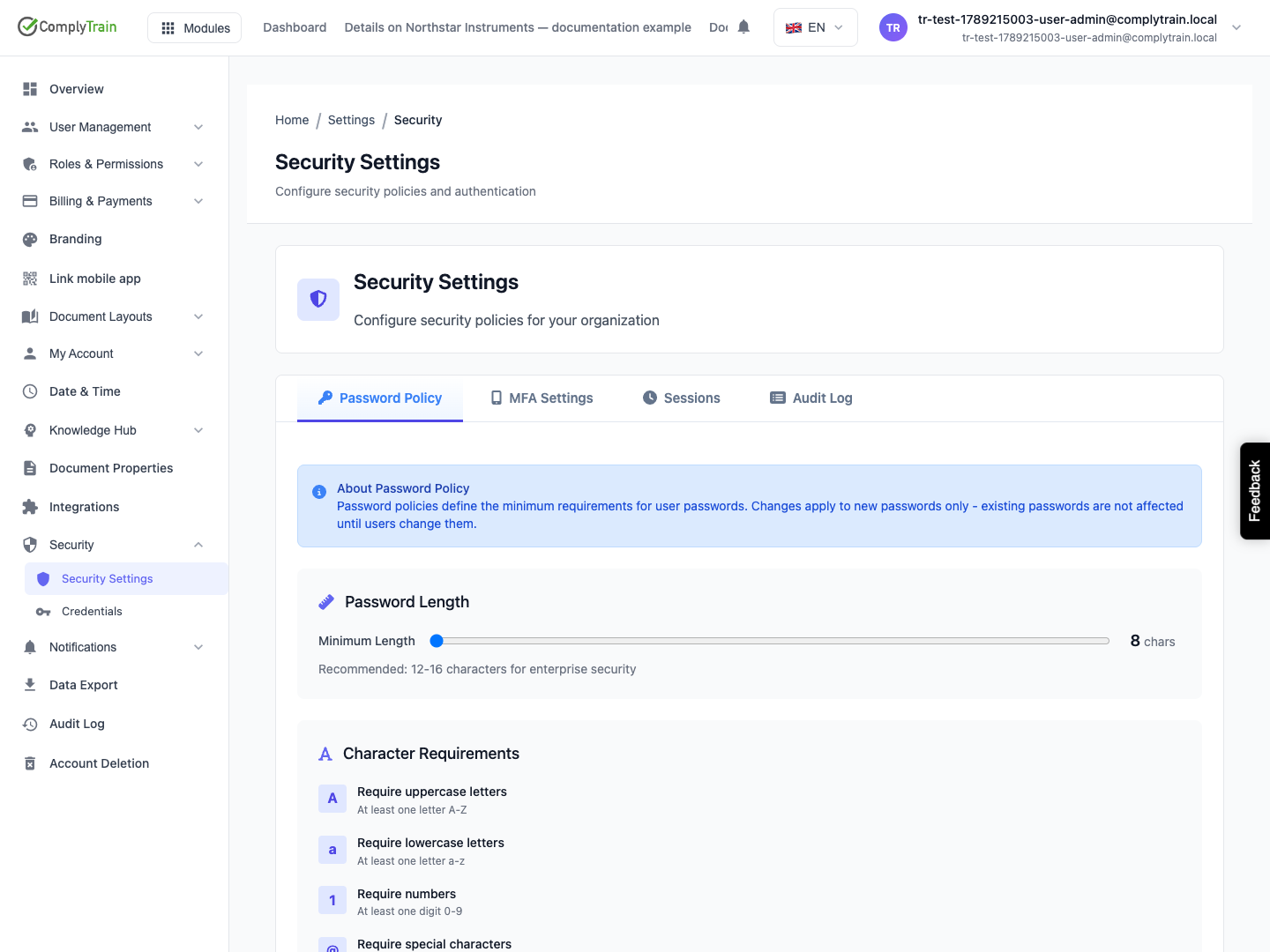
On Password Policy, choose:
Setting | What it requires | Default |
|---|---|---|
Minimum Length | The shortest allowed password. Use the slider to choose from 8 to 32 characters. The page recommends 12 to 16 characters. | 8 |
Require uppercase letters | At least one letter A–Z | On |
Require lowercase letters | At least one letter a–z | On |
Require numbers | At least one digit 0–9 | On |
Require special characters | At least one symbol, such as | On |
Policy Strength rates the combination from Very Weak to Very Strong. The rating is based only on the minimum length and the character requirements.
The policy applies to every password chosen after you save: the password a new user chooses at their first sign-in, a password chosen after a reset, and a password someone changes themselves. Change Password in My Account lists the organisation's current rules and accepts only passwords that meet them. See Update your profile and password.
Existing passwords stay valid. People meet the new rules the next time they change their password. People who sign in through single sign-on use their identity provider's password rules instead; see Set up single sign-on.
Product location: /settings/security. Open Security, then Security Settings, in Settings.
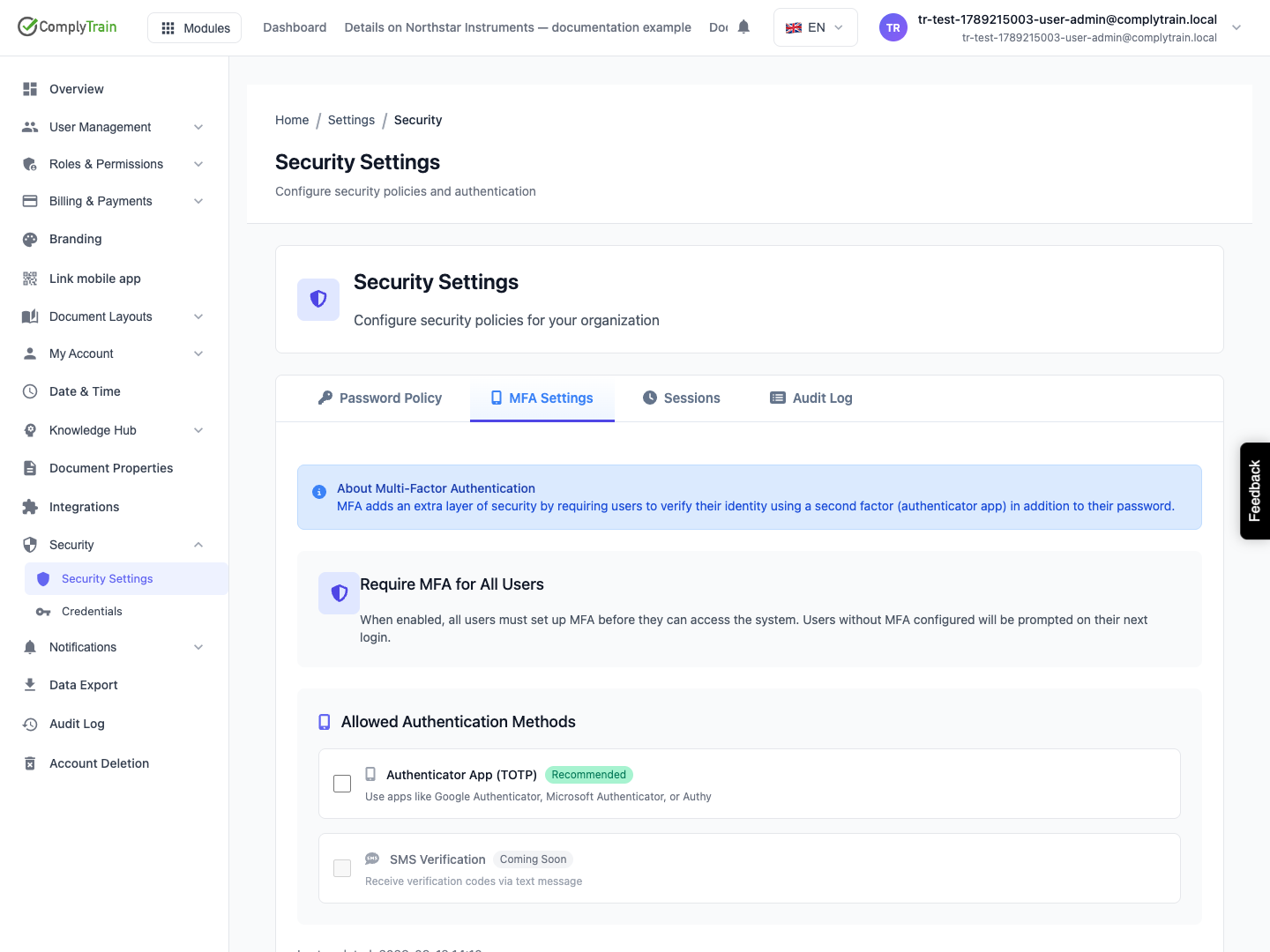
On MFA Settings, switch on Require MFA for All Users to make a second factor mandatory. Under Allowed Authentication Methods, Authenticator App (TOTP) is the method people use, with apps such as Google Authenticator, Microsoft Authenticator or Authy. SMS Verification is marked Coming Soon and cannot be selected.
At least one method must be allowed while MFA is required. When you switch the requirement on, Authenticator App (TOTP) is selected for you.
Set up an authenticator app on your own account before you require MFA. Otherwise ComplyTrain refuses the change, because you would lock yourself out. The message sends you to My Account, then Security, to set it up first.
After you save:
Everyone's Account Security page shows Multi-Factor Authentication Required.
A person who has not set up an authenticator app is asked to set one up the next time they sign in, before they can use anything else. Sessions that are already open are not affected, so tell people before you switch the requirement on.
A person who already uses one continues as before, but cannot turn it off or switch to passwordless sign-in while the requirement is on.
For what each person sees and does, see Secure your sign-in with MFA and passkeys.
MFA is off by default. People can still set up an authenticator app for themselves while the requirement is off.
Product location: /settings/security. Open Security, then Security Settings, in Settings.
On Sessions, set two limits.
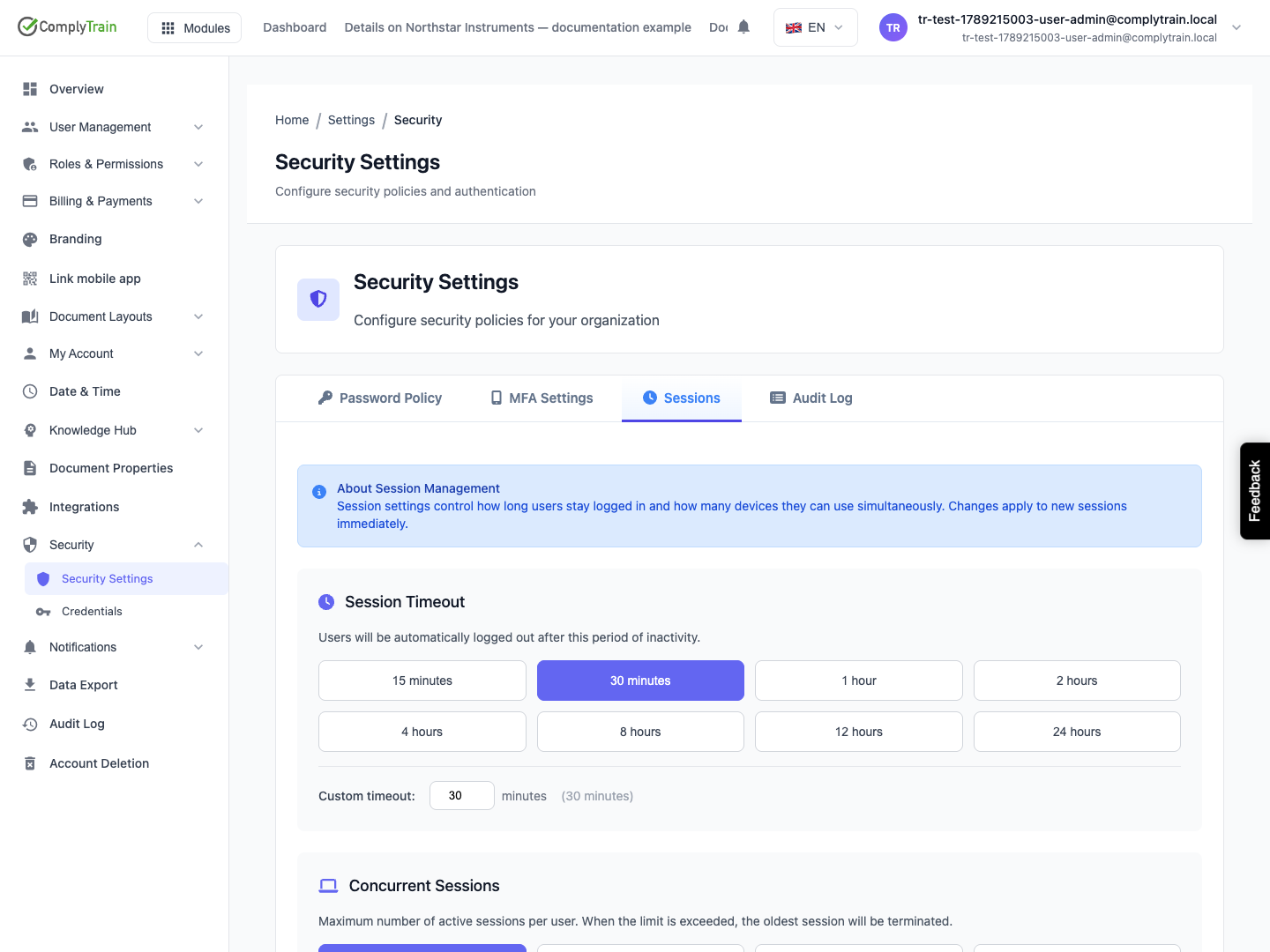
Session Timeout signs people out after a period of inactivity. Choose a preset, from 15 minutes to 24 hours, or type a Custom timeout from 5 to 1,440 minutes. The default is 30 minutes.
Concurrent Sessions caps how many active sessions one person can have at the same time: Unlimited, 1 session, 3 sessions or 5 sessions. The default is Unlimited. When someone signs in beyond the limit, their oldest session ends. For example, with a limit of 1, signing in on a laptop ends the session that was open on a desktop.
Current Configuration summarises both settings in one sentence before you save. The limits apply to sessions from the moment you save.
The page gives three recommendations: keep the timeout short, 15 to 30 minutes, where sensitive data is handled; limit concurrent sessions to discourage shared accounts; and balance security against usability, because very strict settings frustrate people.
Product location: /settings/security. Open Security, then Security Settings, in Settings.
On Security Activity, Admins see the security-related requests made in the organisation, newest first, 25 to a page. The notice Security activity is not the audit trail explains that these entries are kept for troubleshooting and removed after the retention period, and links to the Audit trail.
Column | What it shows |
|---|---|
Time | When the event happened |
User | Who did it |
Event | The type of event and the operation behind it |
Status | Success, Unauthorized, Forbidden, Not Found, Client Error or Server Error |
IP Address | Where the request came from |
Details | View opens any extra details that were recorded |
The log includes sign-ins and sign-outs, password and MFA changes, invitations, user creation, enabling and disabling users, role changes, session events, single sign-on changes, changes to these security policies, and signing credential and passkey changes.
Use From: and To: to limit the dates, and Clear to remove them. Export CSV downloads the events for the chosen dates.
This tab is a security-focused view of API activity. For the tamper-evident record of sign-ins, access and permission changes, and who made them, use the audit trail.
Product location: /settings/security. Open Security, then Security Settings, in Settings.
Your certification auditor expects strong passwords, MFA for everyone and no shared accounts.
Set up an authenticator app on your own account under My Account, then Security.
On Password Policy, set Minimum Length to 12, keep all four character requirements on, and save.
On MFA Settings, switch on Require MFA for All Users and save.
On Sessions, choose 30 minutes and 1 session, and save.
Tell your users what will happen: they must set up an authenticator app at their next sign-in, and new passwords need 12 characters.
A few days later, open Security Activity, choose the dates since the change, and select Export CSV to keep a record of the MFA enrolments and policy changes before the entries are removed at the end of the retention period.
