Find the available and upcoming integrations, hand SharePoint over to Sources, connect a Google Drive folder field by field, and register interest in integrations that are coming.
Integrations lists the services ComplyTrain can connect to, and the ones that are on the way. Everyone can open the page and register interest in an upcoming integration. Google Drive sources belong to the Quality (QMS) module: adding, editing and testing them needs the QMS module and the QMS Manage settings permission. Linking SharePoint has its own requirements, described in Link a SharePoint document library.
Product location: /settings/integrations. Open Integrations in Settings.
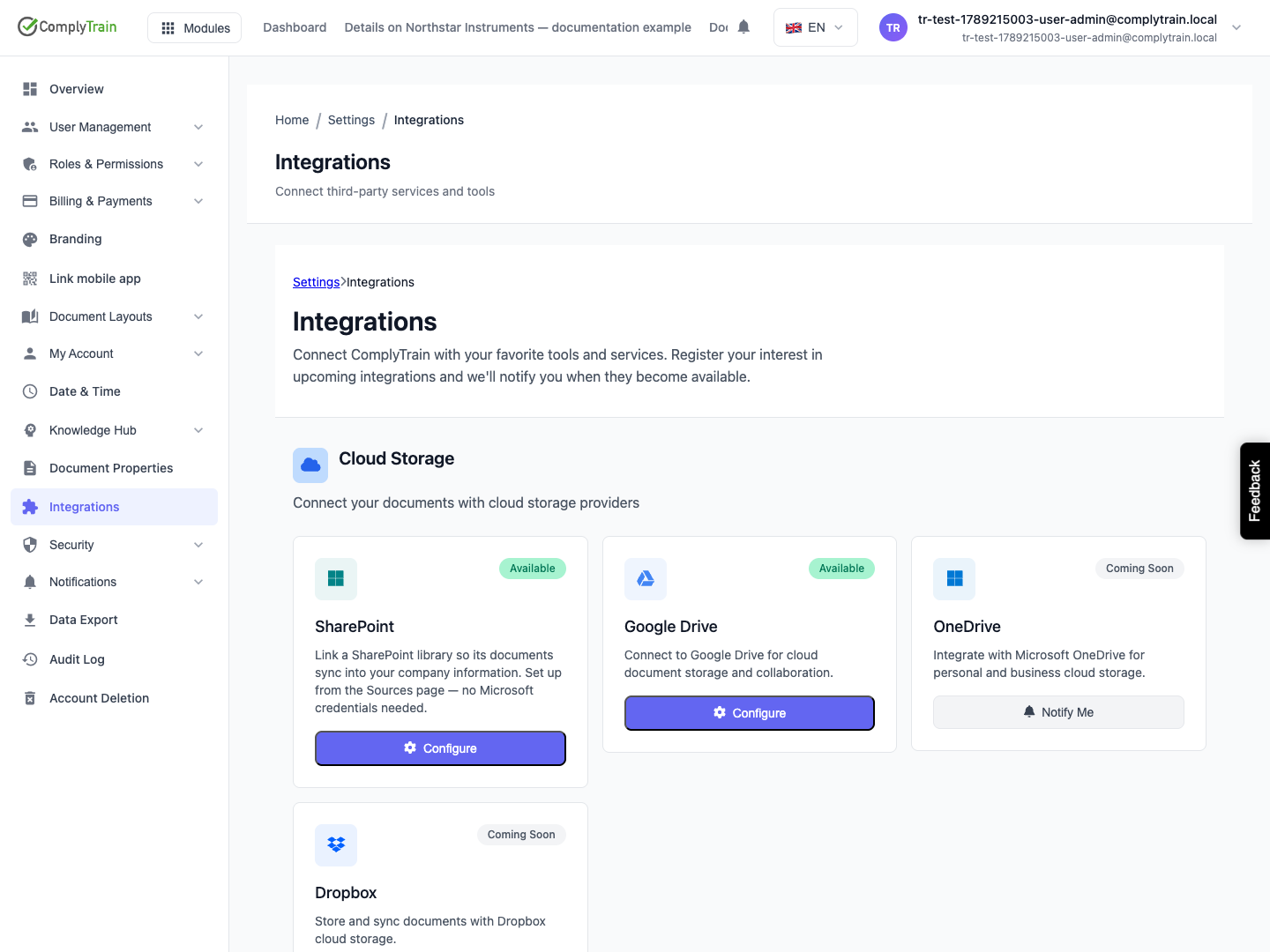
Open Settings, then Integrations. The catalogue is grouped into three categories. Each card shows Available or Coming Soon.
Category | Integration | Status | Action |
|---|---|---|---|
Cloud Storage | SharePoint | Available | Configure opens the organisation's Sources page |
Cloud Storage | Google Drive | Available | Configure opens the Google Drive source form |
Cloud Storage | OneDrive, Dropbox | Coming Soon | Notify Me |
Communication | Slack, Microsoft Teams | Coming Soon | Notify Me |
E-Signature | DocuSign, Adobe Sign | Coming Soon | Notify Me |
Your organisation's Google Drive sources are listed on the same page. Open one to edit or test it.
If you need a service that is not listed, the Need a specific integration? panel asks you to contact support.
Product location: /settings/integrations. Open Integrations in Settings.
Select Notify Me on a Coming Soon card. The button changes to Interested, and a banner confirms how many upcoming integrations you are interested in. ComplyTrain notifies you when the integration becomes available.
Interest is personal: each person registers their own. To withdraw, select Interested again.
Registering interest does not connect anything. Until an integration is available, it has no settings and no data flows.
Product location: /tenant-context/sources. Select Configure on the SharePoint card in Integrations.
Select Configure on the SharePoint card. You are taken to the organisation's Sources page, where a wizard links a SharePoint document library. An administrator approves ComplyTrain once in Microsoft, and then you paste the library's address. You do not need Microsoft credentials in ComplyTrain. Follow Link a SharePoint document library for the steps, and Connect and monitor knowledge sources to follow synchronisation.
Product location: /settings/integrations. Open Integrations in Settings.
A Google Drive source reads one folder through a Google Cloud service account. Before you start:
In Google Cloud Console, create a service account with access to the Google Drive API, and download its key as a JSON file.
In Google Drive, share the folder with the service account's email address. Read access is enough; ComplyTrain only reads.
Open the folder and copy its ID from the address bar: the part after drive.google.com/drive/folders/.
Decide which vault in Documents will hold the synced files, or plan to create one.
Product location: /settings/integrations/google-drive/new. Select Configure on the Google Drive card in Integrations.
On Integrations, select Configure on the Google Drive card. The page Configure Google Drive Integration opens.
Complete the sections described below.
Select Test Connection to check the folder ID and key you entered. Fix anything the result reports.
Select Create Source. Source Created confirms it, and you return to Integrations.
Cancel returns to Integrations without saving.
Field | What it does | Limits |
|---|---|---|
Select Vault | The vault where synced files are stored as documents. | Required |
Vault Name | Name of a new vault for the synced files, if you do not want to use an existing one. | Needed to create a vault |
Description | Description of the new vault. | Optional |
Storage Bucket | Where the new vault's files are stored. Filled in automatically when your organisation has one bucket. | Needed to create a vault |
Under Create New Vault for External Documents, enter a Vault Name, choose a Storage Bucket and select Create Vault. The new vault is created with a workflow for externally sourced documents and is selected in Select Vault.
Field | What it does | Limits |
|---|---|---|
Source Name | How the source is listed, for example "Quality Documents Drive". | Required, 1 to 100 characters |
Description | What the folder holds and who owns it. | Optional, up to 500 characters |
Field | What it does | Default |
|---|---|---|
Google Drive Folder ID | The folder to sync, as copied from its address. | Required |
Include subfolders | Also syncs every folder inside it, at any depth. | On |
Field | What it does | Limits |
|---|---|---|
Service Account JSON | The service account's key. Paste the contents of the JSON file, or use Or upload JSON file. | Required for a new source. Must be valid JSON. |
The key is stored securely when you save the source and is never shown again. Treat your copy of the file like a password: anyone who has it can read every folder shared with the service account.
Sync Frequency sets how often ComplyTrain checks the folder for changes automatically: Hourly, Daily or Weekly. The default is Daily. With Manual only, the source has no automatic schedule.
Field | What it does |
|---|---|
Include Patterns | Only files whose names match at least one pattern are synced. Leave it empty to include every file. |
Exclude Patterns | Files whose names match any of these are never synced. Exclusions win over inclusions. |
Select Add include pattern or Add exclude pattern to add a row, and the cross next to a row to remove it. In a pattern, * matches any characters and ? matches one character. Matching ignores upper and lower case. For example, *.pdf matches every PDF, and ~* matches temporary files that start with a tilde.
Product location: /settings/integrations/google-drive/{id} (fallback: /settings/integrations). Open the Google Drive source from Integrations.
Open the source from Integrations. The page Edit Google Drive Integration shows the saved settings.
Select Test Connection. ComplyTrain signs in as the service account and checks that the folder exists, is a folder and is shared with the account. The result shows Connection Successful, or Connection Failed with the reason, for example that the folder was not found or cannot be accessed.
Change any field. Service Account JSON is empty when you edit, with the hint Leave empty to keep existing credentials. Only fill if you want to update them. Leave it empty to keep the saved key, or paste or upload a new key to replace it.
Select Update Source to save. Source Updated confirms it.
A new schedule or new filters apply from the next sync. Documents already synced stay in the vault.
Product location: /settings/integrations. Open Integrations in Settings.
On each sync, ComplyTrain lists the folder, applies your filters and compares the result with what it synced before:
New files are added to the target vault as documents, and changed files are updated.
Google Docs, Sheets and Slides are stored as PDF, and Google Drawings as PNG. Shortcuts, forms, maps and sites are skipped.
Files that have disappeared from the folder are recorded as deleted in the source's sync records.
The vault's knowledge base is asked to index the new and changed documents, so the assistant can use them, subject to the vault's indexing policy.
People see the synced documents in Documents according to their vault access. See Configure vaults and access grants.
Product location: /settings/integrations. Open Integrations in Settings.
The Slack and Microsoft Teams cards describe a future integration. You can already send ComplyTrain notifications to a Slack or Teams channel with a webhook. See Send notifications to Teams, Slack or other systems.
Product location: /settings/integrations. Open Integrations in Settings.
Your quality team keeps approved procedures in a shared Google Drive folder and wants them in ComplyTrain every night.
IT creates the service account "complytrain-reader", shares the folder "QMS – Approved Procedures" with it, and gives you the JSON key.
In Configure Google Drive Integration, create a vault named "Google Drive Procedures" and select it.
Enter Source Name "Approved procedures (Drive)", paste the folder ID, and keep Include subfolders on.
Upload the JSON key with Or upload JSON file.
Keep Sync Frequency at Daily.
Add the include patterns *.pdf and *.docx, and the exclude pattern ~*.
Select Test Connection, then Create Source.
After the first sync, the procedures appear in the "Google Drive Procedures" vault, and Google Docs appear as PDFs. Keep editing procedures in Google Drive. The nightly sync brings the changes into ComplyTrain.
