Add webhooks that deliver ComplyTrain notifications to a Microsoft Teams or Slack channel or to your own system, choose which events they receive, and test and monitor them.
A webhook sends ComplyTrain notifications to another place: a Microsoft Teams channel, a Slack channel, or your own system, such as an ERP or a ticketing tool. Only an organisation Admin can set up webhooks. Your organisation can have up to 25.
Webhooks carry notifications, which are short messages about events. They do not copy documents or records. To start another system's process from a document workflow step, use a Trigger Webhook action on the workflow instead; see Design document workflows and automate their transitions.
Product location: /settings/webhooks. Open Notifications, then Webhooks, in Settings.
Get the address that will receive the messages:
Microsoft Teams: in the channel, create an incoming webhook and copy its address.
Slack: create an incoming webhook for the channel and copy its address. It starts with https://hooks.slack.com/services/.
Your own system: ask its owner for an endpoint that accepts JSON by HTTP POST, and for the credentials it expects.
The address must start with https:// and must be reachable from the internet. ComplyTrain refuses internal and private network addresses. Each address can be used by only one webhook.
Product location: /settings/webhooks. Open Notifications, then Webhooks, in Settings.
Open Settings, then Notifications, then Webhooks. The page summarises how many webhooks you have and how many are enabled.
Select Add Webhook.
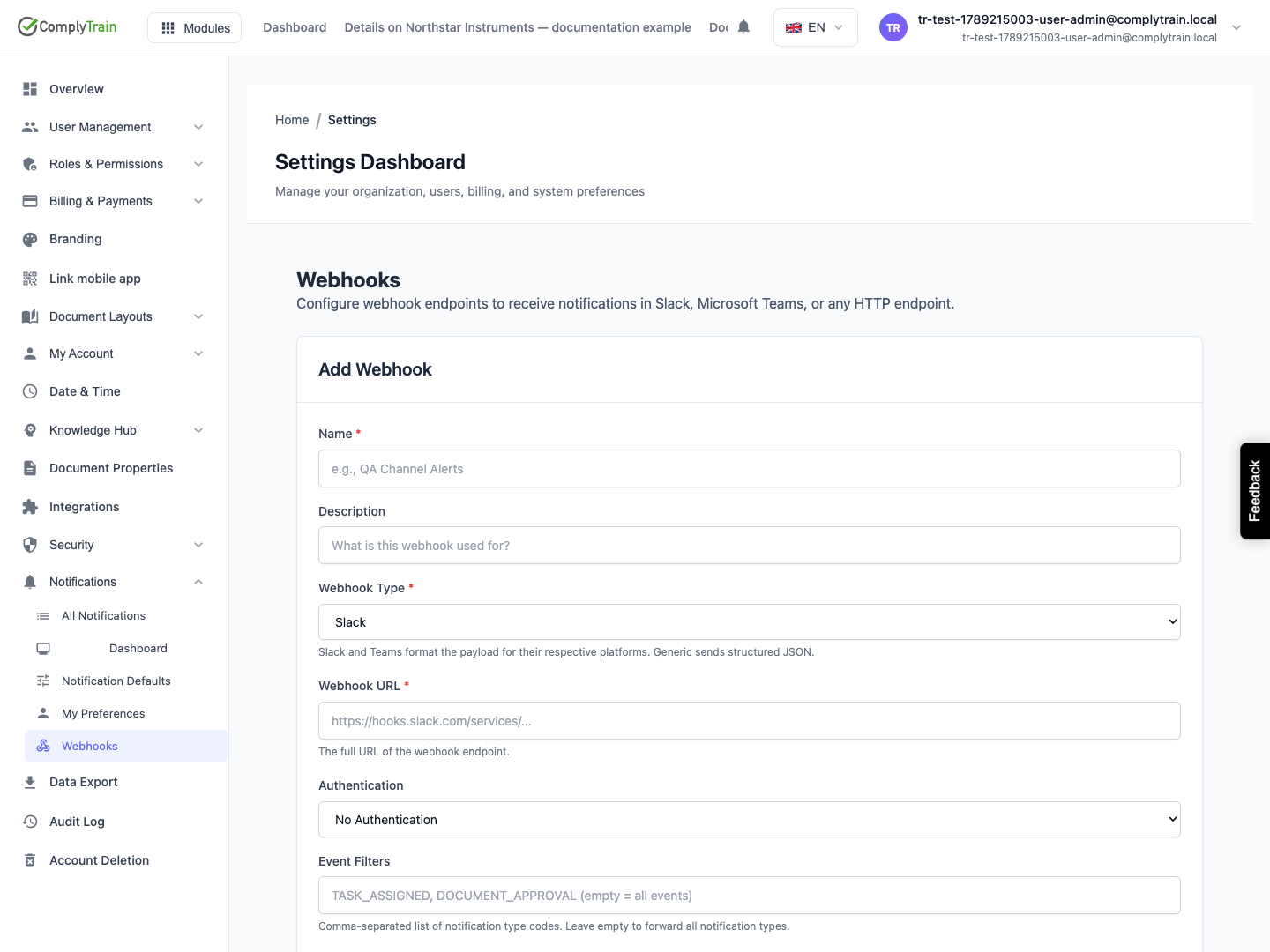
Fill in the fields described below.
Select Test Connection to send a test message to the address. The result appears at the top of the page.
Select Save. Webhook Created confirms it.
The new webhook appears as a card. From then on, every notification in your organisation that matches its Event Filters is also sent to its address, in the format of its Webhook Type. Each delivery appears on the Notification Dashboard and in the card's figures.
Product location: /settings/webhooks. Open Notifications, then Webhooks, in Settings.
Field | What to enter | Limits and default |
|---|---|---|
Name | A name that says where messages go, such as "QA Channel Alerts". | Required. Up to 100 characters. |
Description | What the webhook is for and who owns the receiving end. | Optional. Up to 500 characters. |
Webhook Type | Slack, Microsoft Teams or Generic HTTP. Slack and Teams receive a message formatted for their channels. Generic HTTP receives structured JSON. | Required. Default Slack. |
Webhook URL | The full address of the receiving endpoint. | Required. Up to 2,000 characters. Must start with |
Authentication | How ComplyTrain proves itself to the endpoint. See the next section. | Default No Authentication. |
Event Filters | The notification type codes this webhook receives, separated by commas, for example | Optional. Each code up to 50 characters. Empty means all notification types. |
Enabled | Whether the webhook sends messages. Clear it to pause the webhook without deleting it. | Default on. |
Product location: /settings/webhooks. Open Notifications, then Webhooks, in Settings.
Teams and Slack incoming webhooks need no authentication, because the address itself is the secret. For your own system, choose what the endpoint expects:
Authentication | Fields | What each request carries |
|---|---|---|
No Authentication | None | No credentials |
Bearer Token | Bearer Token | The header |
Basic Auth | Username, Password | The header |
Custom Header | Header Name, Header Value | Your own header, for example |
Tokens, passwords and header values are stored with the webhook and never shown again. When you edit a webhook, the credential fields are empty and show Leave blank to keep existing. Leave them empty to keep the saved credentials, or type new ones to replace them.
Product location: /settings/webhooks. Open Notifications, then Webhooks, in Settings.
Each notification has a type code. Put codes in Event Filters to limit a webhook to those types. Leave the field empty to receive every type. Codes must match exactly, including upper and lower case. Separate several codes with commas; spaces around them are ignored.
These are the most useful codes:
Code | Sent when |
|---|---|
| A CAPA is created and assigned to an owner |
| A CAPA moves to a new workflow step |
| A CAPA's severity is raised automatically because it passed its time thresholds |
| A QMS action item is escalated to a reviewer |
| A new audit is scheduled |
| Continuous monitoring finds records breaching a control monitor between audits |
| A process review is coming due, or is overdue |
| A QMS recurring task is assigned, or becomes overdue |
| A document workflow asks someone to approve or review a document, or reports a state change |
| A document workflow reports that a document was approved or rejected |
| A risk is assigned to an owner |
| A risk's inherent or residual score crosses into a different risk level |
| A risk's review date passes without a completed review |
| A mitigating action is assigned |
| Assigned training is approaching its due date |
| A manager is told that a team member's training is overdue |
| A training certification is approaching expiry |
| A new user is invited to the organisation |
Notifications are addressed to people, so one event that notifies three people produces three notifications. A webhook receives each of them. Filter narrowly for busy channels.
To see which types your organisation produces most, open the Notification Log on the Notification Dashboard. See Set organisation notification defaults and templates.
Product location: /settings/webhooks. Open Notifications, then Webhooks, in Settings.
ComplyTrain sends each message as an HTTP POST with a JSON body, the header Content-Type: application/json and the user agent ComplyTrain-Webhook/1.0. It waits up to 30 seconds for a reply. Any 2xx status counts as delivered. Redirects are not followed, so give the final address.
Slack receives a message with the notification's title as a heading and its message below. For a priority other than normal, a line shows Priority and Type. When the notification links to a record, a button opens it; the button is red for urgent notifications.
Microsoft Teams receives a card with the title, a line such as "Priority: high | Type: CAPA_ESCALATED", and the message. The card's colour shows the priority: red for urgent, orange for high, blue for normal and teal for low. A View Details button, or the notification's own link label, opens the record in ComplyTrain.
Generic HTTP receives this structure:
{
  "event": "notification",
  "type": "CAPA_ESCALATED",
  "timestamp": "2026-09-18T07:42:10.512Z",
  "tenant": { "domain": "northwind" },
  "notification": {
    "id": "5b0f3c7e-2d1a-4c55-9a4e-8f2d6b1c0a93",
    "title": "CAPA escalated: CAPA-2026-014",
    "message": "CAPA-2026-014 has been escalated to High severity after exceeding its time threshold.",
    "priority": "high",
    "actionUrl": "https://…",
    "actionLabel": "View Details",
    "metadata": { "eventType": "CAPA_ESCALATED", "title": "…", "message": "…", "priority": "high" }
  }
}
type is the notification type code, and tenant.domain is your organisation's ComplyTrain subdomain. Use type to route the message, notification.id to recognise a message you have already processed, and actionUrl to link back to the record. priority is urgent, high, normal or low.
Product location: /settings/webhooks. Open Notifications, then Webhooks, in Settings.
Test Connection in the form, and Test on a webhook's card, send a sample message titled "ComplyTrain Webhook Test" with the priority normal and the type WEBHOOK_TEST. The result appears at the top of the page, with the time the endpoint took to answer. A failed test shows the reason, such as the HTTP status and the endpoint's reply.
While you edit a webhook, Test Connection uses only what is in the form. To test the saved credentials, use Test on the card.
Each card shows:
Active or Inactive, depending on Enabled.
A warning such as 3 failures when recent deliveries failed in a row.
The address, and the success rate, such as 98% (49/50), once messages have been sent.
The Event filters, if any.
The last error, until a delivery succeeds.
When no webhook accepts a message, ComplyTrain tries again, waiting longer each time, up to five attempts in all. After 10 failed deliveries in a row, the webhook is switched off, and its card shows Inactive. Fix the receiving end, select Test to check it (a successful test clears the failure count), then Edit the webhook, select Enabled and Save.
Webhook deliveries also appear on the Notification Dashboard, under Deliveries with the Webhook channel.
Product location: /settings/webhooks. Open Notifications, then Webhooks, in Settings.
Select Edit on the card, change the fields and select Save. Webhook Updated confirms it. Cancel leaves without saving.
To delete a webhook, select the bin icon on its card and confirm Delete Webhook. This cannot be undone. To stop messages for a while, clear Enabled instead.
Product location: /settings/webhooks. Open Notifications, then Webhooks, in Settings.
Your quality team wants escalations and audit news in its "QA Alerts" Teams channel, without task noise.
In Teams, create an incoming webhook for "QA Alerts" and copy its address.
In ComplyTrain, select Add Webhook and enter:
Name: QA Alerts channel
Webhook Type: Microsoft Teams
Webhook URL: the address from Teams
Authentication: No Authentication
Event Filters: CAPA_ESCALATED, QMS_ACTION_ESCALATED, AUDIT_SCHEDULED, audit_drift_detected, PROCESS_REVIEW_OVERDUE
Select Test Connection and check that the test card appears in the channel.
Select Save.
From now on, when a CAPA passes its time threshold and escalates, a card with the escalation's title and message appears in "QA Alerts", coloured by priority, with a View Details button. Newly scheduled audits and overdue process reviews arrive the same way. Anyone in the channel can read the cards; opening the record still requires signing in to ComplyTrain with the right permissions.
Check the card on Webhooks after the first real event: the success figure counts the deliveries. Because each escalation notifies several people, the channel can receive one card per person notified.
Product location: /settings/webhooks. Open Notifications, then Webhooks, in Settings.
Your IT team wants a service-desk ticket for every overdue item, created automatically.
Ask IT for an HTTPS endpoint that accepts the generic JSON above, and for an API key.
Select Add Webhook and enter:
Name: Service desk – overdue items
Webhook Type: Generic HTTP
Webhook URL: https://servicedesk.northwind.example/api/complytrain
Authentication: Custom Header, with Header Name X-API-Key and the key as Header Value
Event Filters: task_overdue, RISK_OVERDUE, PROCESS_REVIEW_OVERDUE, TRAINING_OVERDUE_ESCALATION
Select Test Connection. Ask IT to confirm the endpoint received a request with the type WEBHOOK_TEST, and to ignore that type when creating tickets.
Select Save.
From then on, each overdue recurring task, risk review, process review or training escalation reaches the endpoint as a generic JSON message. IT can map type to a ticket category, notification.title to the ticket summary, notification.priority to its priority and notification.actionUrl to a link. Because one overdue item can notify several people, ask IT to merge tickets with the same title that arrive close together. An ERP can receive the same messages in the same way, for example to log escalated CAPAs against the production orders they affect.
