Request a full or selective export of documents, users, audit logs and settings, follow it in Export History, and download the file within 7 days.
Data Export produces a downloadable copy of your organisation's data for backup, archiving or data portability. An export is prepared in the background. When it is ready you download it from Export History, and the file stays available for 7 days.
Product location: /settings/data-export. Open Data Export in Settings.
Only organisation Admins can request, follow and download data exports. Data Export does not appear in the Settings navigation for other users. An Admin sees every export requested in the organisation, whoever requested it.
An export can contain personal data about all your users and the full activity record. Store downloaded files with the same care as the live system.
Product location: /settings/data-export. Open Data Export in Settings.
Choose the scope first.
Export Scope | Contents |
|---|---|
Full Export | All organisation data: documents, users, audit logs and settings, delivered as a ZIP file. Use it for a complete backup. |
Selective Export | Only the data types you tick, optionally limited to a date range, in the format you choose. |
A selective export offers these options.
Option | Choices | Default |
|---|---|---|
Include Data Types | Documents: documents and their files in your vaults, with metadata. Users: user profiles, roles and permissions; passwords are never exported. Audit Logs: the organisation's activity records, which can make the export much larger. Settings: organisation configuration such as branding, security settings and notification preferences. | All four ticked. |
Filter by date range | Tick it, then set both From and To. Only data created or modified from the start of the From day to the end of the To day is exported. | Not ticked: no date limit. |
Export Format | ZIP (recommended): one archive bundling the data and the document files. JSON: structured data only, without the files' contents. CSV: tables for spreadsheet analysis, without the files' contents. | ZIP (recommended) |
A date range narrows an export to recent activity. A document last changed before the range is left out, so use Full Export, or a selective export without a date range, when you need a complete copy.
Product location: /settings/data-export. Open Data Export in Settings.
In Settings, open Data Export.
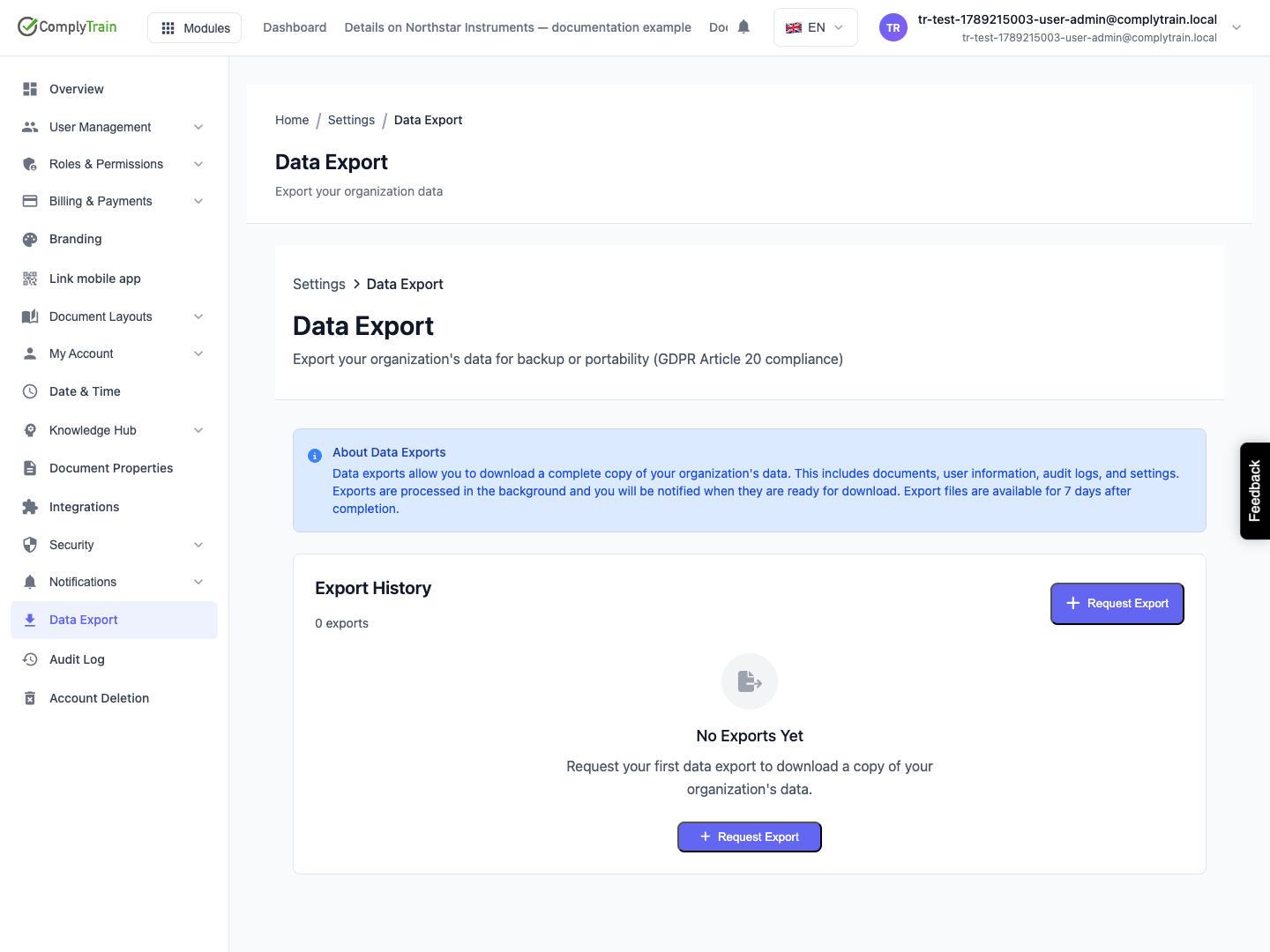
Select Request Export. Before the first export, the button also appears in the middle of the empty history.
In Request Data Export, choose Full Export or Selective Export.
For a selective export, tick the data types, set a date range if needed and choose the Export Format.
Select Create Export. Cancel closes the dialog without creating anything.
Export Requested confirms the request, the dialog closes, and the new export appears at the top of Export History as Queued.
Product location: /settings/data-export. Open Data Export in Settings.
Export History lists the organisation's exports, newest first, with their count. The list refreshes itself every few seconds while an export is queued or processing, so you can leave the page open. When an export completes or fails, the Admin who requested it receives an email and an in-app notification. More than ten exports are split into pages, with Page … of … and arrows to move between them.
Column | What it shows |
|---|---|
Export | Full Export or Selective Export, and the first characters of the export's reference. |
Status | The export's progress (see below). |
Size | The file size once the export is complete. |
Created | When the export was requested, for example "5m ago", "3h ago" or "2d ago". Exports older than a week show the date. |
Expires | The date the file will be removed, once the export is complete. |
Actions | Download for a completed export. For a failed export, an error icon; point to it to read the reason. |
Status | Meaning |
|---|---|
Queued | Waiting to be prepared. |
Processing | Being prepared. A progress bar and percentage show how far it has got. |
Completed | Ready. Download is available until the export expires. |
Failed | The export could not be completed. Read the reason on the error icon, then request a new export. |
Expired | More than 7 days have passed since completion and the file has been removed. Request a new export if you still need the data. |
Product location: /settings/data-export. Open Data Export in Settings.
In Export History, find the Completed export.
Select Download. The file opens or downloads in a new browser tab, depending on your browser settings.
Save it to a controlled location, and open it to check that it contains what you selected.
Each completed export can be downloaded as often as you need until it expires, 7 days after completion. If the download cannot start, Download Failed explains why. An export that has expired cannot be downloaded again.
Downloading a file does not change the data in ComplyTrain. Requesting and downloading exports is recorded in the organisation's API activity.
Product location: /settings/data-export. Open Data Export in Settings.
Your ISO 9001 surveillance audit is in March, and your quality procedure requires an offline archive of each year's records before the audit.
In early January, open Data Export and select Request Export.
Choose Selective Export. Keep Documents, Users, Audit Logs and Settings ticked.
Tick Filter by date range and enter From 1 January 2026 and To 31 December 2026.
Keep ZIP (recommended) and select Create Export.
When the export shows Completed, select Download. Store the file in your archive as "ComplyTrain records 2026.zip", and record the date and your name in the archive log.
Download within 7 days of completion, before the export expires. The archive holds only data created or changed in 2026, so keep the previous years' archives alongside it, or take a Full Export if the auditor needs everything in one file. For the evidence you show the auditor during the audit itself, use QMS export packages, which are built for that purpose.
