Read what Tenders, Training, Stakeholders, Requirements and Media Monitoring hold about a configuration, use the product's document vault, and link organisations, courses, requirements and market watches to the product.
The Connected tab of a product brings together everything the rest of ComplyTrain holds about it. It has three parts:
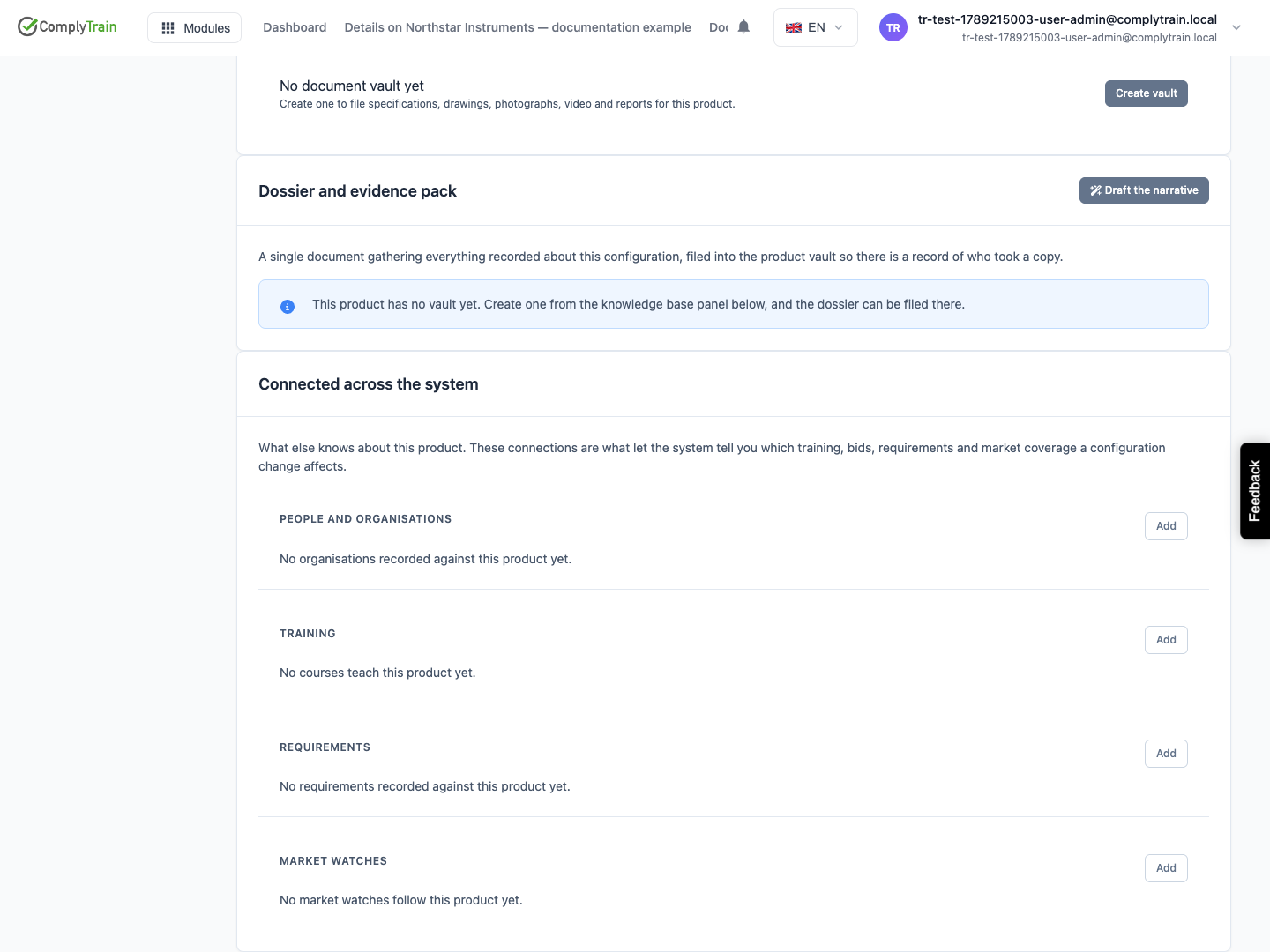
Everything about this product, a combined view of what other modules hold about the selected version, followed by the product's document vault;
Dossier and evidence pack, described in producing a dossier;
Connected across the system, where you record which organisations, training courses, requirements and market watches concern the product.
The links you record here are what let ComplyTrain work out which training, bids, requirements and market coverage a change affects. See reviewing what a change affects. Relationships between products, such as accessories and successors, are recorded on the Overview tab; see identifiers and related products.
Product location: /products/{productId}/connected (fallback: /products). Open the product in Products, select the Connected tab and choose the version under Versions.
Task | Who can do it |
|---|---|
See the combined view, the vault row and the recorded connections | Anyone with View Products ( |
Add and remove connections, change Re-issue on change, and Create vault | Manage Products ( |
Open the vault and its documents | Anyone with access to that vault in Documents |
An Admin can do all of these. Controls appear only for people who can use them.
Each module decides what you see from it. An item appears in the combined view and in the connection lists only if you may see that record in its own module; for example, a tender workspace appears only to people who can see it in Tenders. A module your organisation does not use has no section. Everything on the tab is also limited by product clearance; see clearances.
Product location: /products/{productId}/connected (fallback: /products). Open the product in Products, select the Connected tab and choose the version under Versions.
Open the product, select the Connected tab and choose a version under Versions. Everything about this product shows one section per contributing module, with the number of items. It includes items for the selected version and items that concern the whole product, which are marked applies to all versions.
Each item shows its title, what kind of record it is, a one-line summary and its status. Select the title to open the record in its module.
Module | What it contributes | Summary line |
|---|---|---|
Tenders | Tender workspaces that bid this product. | The version and market bid, the submission deadline, and a warning when the configuration is no longer marketable. |
Training | Courses linked to the product. | The version the course teaches, its criticality, how long it is valid, and whether it is re-issued on a configuration change. |
Stakeholders | Organisations linked to the product, plus organisations the product record already names: suppliers from the bill of materials, laboratories from test results, issuing bodies of authorisations and licence authorities. | The relationship, implied by the product record for the ones you did not link yourself, the contact, the organisation's risk group, and relationship ended when it has ended. |
Requirements | Requirements linked to the product. | The standard, criticality, the exclusion reason when excluded, and the start of the requirement text. |
Media Monitoring | Market watches linked to the product. | The markets and topics followed, whether the watch is disabled, and why it follows the product. |
If a module cannot be reached, a warning names it and says that everything else on the page is up to date. When no module holds anything, the view says No other module contributes to this product yet.
Product location: /products/{productId}/connected (fallback: /products). Open the product in Products, select the Connected tab and choose the version under Versions.
Each product can have its own document vault for specifications, drawings, photographs, video and reports. The vault row sits under the combined view.
With no vault yet, the row says No document vault yet. Choose Create vault to create it. The vault is also created automatically when you add a product by uploading documents.
Once it exists, the row shows the vault's name, for example "Product PRD-2026-0042 — XR-5 radar", and Open vault, which opens it in Documents. Your organisation needs the Documents module for this link.
The vault belongs to the system rather than to a person, so it stays in place when people leave. Documents filed in it are indexed for the product, so the Product Specialist assistant can read them when it proposes specifications or answers questions; see the assistant. The assistant only uses passages you could open yourself: vault access and clearance both apply. Dossiers and evidence packs are filed in this vault.
Who can open the vault is controlled in Documents like any other vault. See vault access.
Product location: /products/{productId}/connected (fallback: /products). Open the product in Products, select the Connected tab and choose the version under Versions.
Connected across the system has four sections: People and organisations, Training, Requirements and Market watches.
Choose Add beside the section.
Fill in the fields described below.
Choose Save, or Cancel to close the form.
To remove a connection, choose Remove on it. ComplyTrain asks Remove this connection? and says the record will no longer be connected to this product; choose Delete to confirm. Removing a connection changes nothing in the other module.
A section whose module is not switched on for your organisation says Not available — the module this connects to is not switched on for your organisation. and has no Add button.
Record the organisations that have a role for this product, such as the notified body that certifies it or the importer for a market.
Field | What to enter | Rules |
|---|---|---|
Organisation | The organisation, chosen from the Stakeholder register. | Required. The list shows up to 200 organisations. |
Relationship | Supplier, Distributor, Notified body, Regulator, Customer, Maintenance partner, Importer, Authorised representative or Other. | Default Distributor. An organisation can hold each relationship once per product. |
Contact | The contact person's name. | Optional. Up to 255 characters. |
Contact email | The contact person's email address. | Optional. Up to 320 characters. |
Applies to | The whole product, or one version. | Default The whole product. |
Valid from | The date the relationship starts. | Optional. |
Valid until | The date the relationship ends, for example when a distribution agreement expires. | Optional. Cannot be before the start date. |
Once the end date has passed, the link shows relationship ended and stays on the product as a record of who held the role.
When the product changes, ComplyTrain names the linked organisations in a task to the product owner so they can be told; a notified body or regulator makes it an Act now task. Only relationships that have not ended are included. An organisation must be in the Stakeholder register first; see registering stakeholders.
Record the courses that teach people to build, operate or maintain the product.
Field | What to enter | Rules |
|---|---|---|
Course | Search for the course and choose it. | Required. A course can be linked once per scope. |
Applies to | The whole product, or the version the course teaches. | Default The whole product. |
A new link is Re-issued on change. When a version it covers is released, withdrawn or made obsolete, Training proposes re-issuing the course to the people who hold it. Choose Stop re-issuing on a course that does not need it, for example a general safety induction, and Re-issue on change to turn it back on. The link then shows Not re-issued on change.
Pick the version the course actually teaches. Linking a course to the whole product when a new version changed the controls turns a training record into a false assurance.
Record the requirements the product is held to, and the ones that deliberately do not apply.
Field | What to enter | Rules |
|---|---|---|
Requirement | Search for the requirement and choose it. | Required. |
Applies | Applies or Excluded. | Default Applies. |
Why it does not apply | The justification for the exclusion. | Required when Excluded. |
Scope | The whole product, or one version when the requirement concerns only that configuration. | Default the whole product. A requirement can be linked once per scope. |
When a version is released or withdrawn, linked requirements that apply to the whole product or to that version, and have critical or major criticality, are proposed for re-assessment. Recording an exclusion with its reason matters: an unrecorded exclusion and a requirement nobody considered look the same from outside, and only one of them can be defended.
Record the Media Monitoring watches that should follow the product.
Field | What to enter | Rules |
|---|---|---|
Watch | Search for the watch and choose it. | Required. A watch can follow a product once. |
Why | Why the watch follows this product. | Optional. |
When the product is placed on a market that none of its watches covers, Media Monitoring proposes extending a watch to that market. A watch without a name is listed as Unnamed watch. To create a watch, see creating a market watch.
Product location: /products/{productId}/connected (fallback: /products). Open the product in Products, select the Connected tab and choose the version under Versions.
Your company sells the CardioSense patch in the EU and the UK.
On the Connected tab, under People and organisations, choose Add, choose your notified body from Organisation, set Relationship to Notified body, enter the certification contact and choose Save.
Add your UK importer with Relationship set to Importer and Applies to set to the version sold in the UK.
Under Training, link "Applying the CardioSense patch" to version 2.0, which it teaches, and leave it Re-issued on change.
Under Requirements, link the clauses of your quality standard that apply, and link the sterilisation clause as Excluded with the reason "Supplied non-sterile; sterilised by the user."
Under Market watches, link your EU medical device regulation watch.
When version 2.1 is released, re-issuing the course comes up for a decision on the Bill of materials tab, and the product owner receives an Act now task to tell the notified body. Everything about this product shows the whole picture for each version.
