Choose key-document creation or remaining-section drafting, check eligibility and allowance, and review the actual outcome.
Product location: /qms/{standardCode}/documents (fallback: /qms/standards)
Open Quality (QMS) → Standards → your standard → Documents. Check the standard code in the breadcrumb and subtitle. The URL uses the standard's code, such as ISO-9001, rather than its internal ID.
The two AI actions apply to the current standard. They are not shown on the general QMS Documents page, which collects documents across standards. View documents is required to read job status; Manage documents is required to start either action. Button visibility does not establish permission to submit it.
Action | Use it when | Scope |
|---|---|---|
Kick-start key documents | You want the foundational documents designated by the standard's templates. | Creates missing key-document instances, then drafts empty sections in existing and newly created key documents. |
Complete all remaining | The standard already has documents with empty sections. | Drafts eligible empty sections across existing documents, whether they are key documents or not. It does not create the missing template instances. |
New Document | You want to choose and create a particular document. | Opens the individual document creation workflow. |
The screenshots show both bulk actions returning no eligible work in a standard with no authored QMS documents. Those responses and the unchanged document list were checked after reload. The processing rules below describe how each action selects and drafts its work.
Product location: /qms/{standardCode}/documents (fallback: /qms/standards)
Key-document creation requires templates explicitly marked as key / first documents. Being a Manual, a required document type or a template with a familiar name does not substitute for that marker.
For a missing key document, the template must belong to the selected standard, be active and published, contain structured content, and not be a record template. Selection uses the latest active published version of the template code. An existing nondeleted document linked to that template prevents creation of another instance for the same template.
Creation copies the template's document identity and section structure. If its document code is already in use, the creation helper selects the next available numeric suffix. It does not rename an existing document to resolve the collision.
Before requesting drafts, review the organisation facts, the section purpose and template guidance, and the section's active requirement mappings. The generation service can use active organisation facts and approved sections elsewhere that map to the same requirement. It does not infer that two different requirement codes are equivalent simply because their wording looks similar.
The AI is instructed to use [To be provided: …] for missing specifics. Its output still needs factual and requirement review. An empty or unavailable fact source can leave more placeholders. The document workflow also needs the platform's configured inference model and background workers; contact the administrator if those prerequisites are unavailable.
Product location: /qms/{standardCode}/documents (fallback: /qms/standards)
The documents worked with chip shows consumption against the organisation's allowance. The illustrated 250 included documents are this fixture's value, not a universal plan limit.
Starting AI work can consume an allowance slot for a document not previously worked with. Already engaged documents are not counted as newly engaged merely because you run another drafting operation. Existing eligible documents are marked at queue time; newly created key documents are marked when the worker creates them. A request is not free simply because its content still needs review.
If an allowance confirmation appears, read its document estimate, remaining allowance and any paid-overflow amount before proceeding. Cancel leaves the operation unsubmitted. The estimate covers the documents the action would work with for the first time, including the key documents a kick-start would create; the server determines the eligible set when it receives the request.
The server checks capacity for the whole eligible batch before it creates a job. If the batch does not fit the applicable allowance, the request is refused and nothing is drafted; it does not fill as many documents as it can. Resolve the allowance before retrying.
Product location: /qms/{standardCode}/documents (fallback: /qms/standards). Choose Kick-start key documents and review any allowance confirmation.
Choose Kick-start key documents once, then respond to any allowance confirmation. During an active job, the button is disabled and can display Drafted done/total documents….
The worker first attempts to create missing designated key documents, then processes the standard's key-document instances. Existing nonempty sections are excluded from the initial drafting selection. A pending or running kickoff request for the same standard is reused rather than enqueuing another kickoff of that kind.
When the standard has no eligible key work, the page displays This standard has no key documents yet. An admin marks templates as "key / first documents". In the illustrated response, no job ID was issued, a separate status read found no job, and the document list stayed empty after reload.
This information message does not mean the standard is implemented or its documents are complete. Ask the template administrator to check the key marker and template availability, or create an appropriate document individually. Repeatedly pressing the same button does not supply the missing configuration.
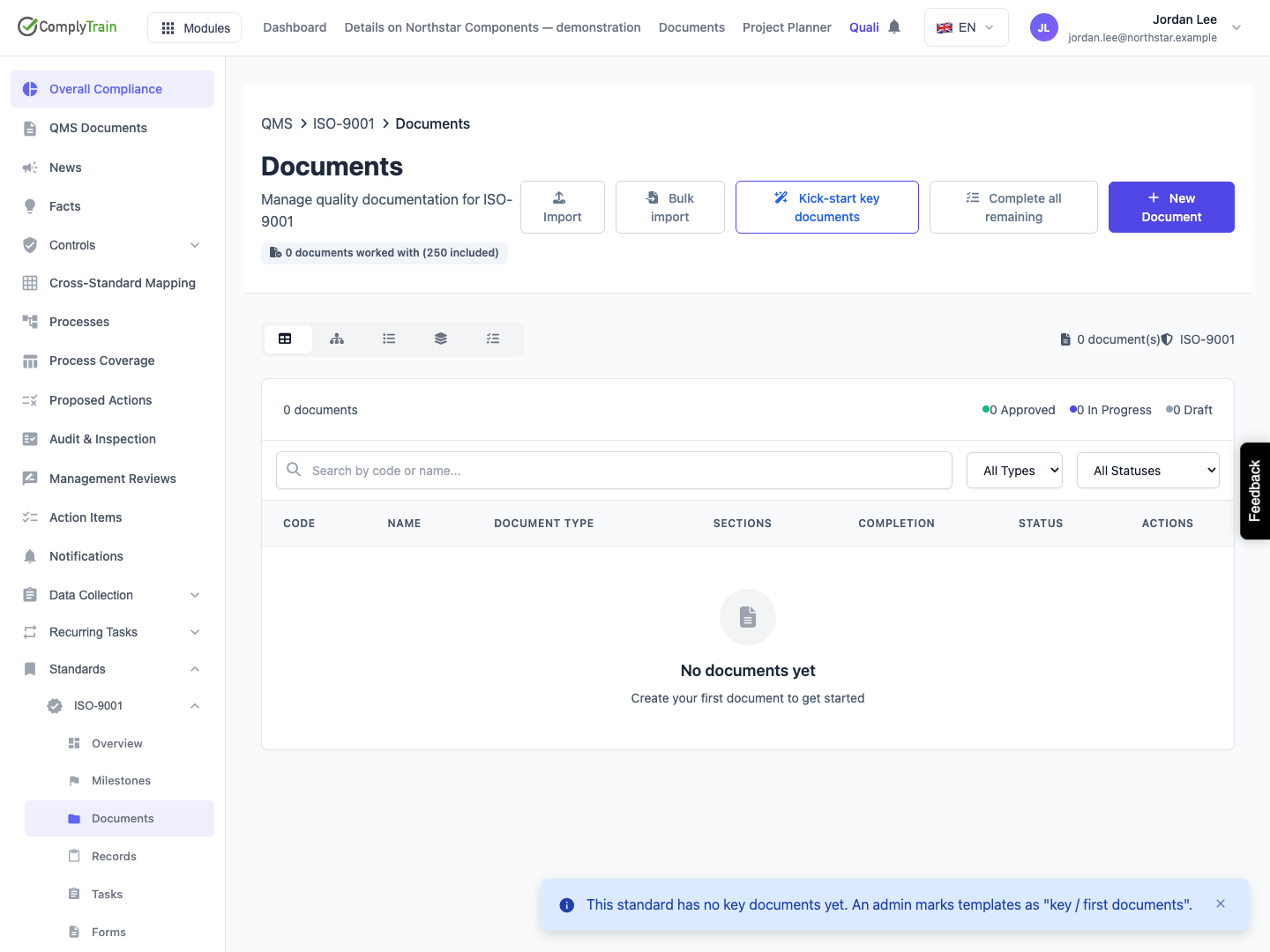
Product location: /qms/{standardCode}/documents (fallback: /qms/standards). Choose Complete all remaining and review any allowance confirmation.
Choose Complete all remaining when documents already exist and you want to draft their remaining empty sections. Respond to any allowance confirmation and watch the progress on that button.
The selection covers nondeleted documents of the selected standard with at least one section whose saved content is empty or whitespace-only. Approved documents that are also locked are excluded. It can include documents other than the key set; the visible table's search, type filter or collapsed groups do not restrict the server's standard-wide selection.
The document wizard walkthrough shows a newly created manual whose detail counts template boilerplate as 32/34 sections with content while the saved-content list reports 0/34. Bulk selection checks saved section content, so it can target sections that a detail indicator considers readable from the template.
A nonempty placeholder, short draft, template-like text saved as content or outdated paragraph is still content. This operation does not establish that it is adequate or replace it simply because a reviewer considers it unfinished. Documents with no sections have no empty section to draft. Use the document editor to inspect those cases.
If no eligible document remains, the page displays No documents have empty sections — nothing to draft. The screenshot shows this exact message while the standard has zero documents. No job was created and the document list remained empty. The message therefore cannot establish that required documents exist, that all requirements are addressed, or that anything is approved.
Product location: /qms/{standardCode}/documents (fallback: /qms/standards)
The counter measures documents processed. It does not count approved documents, satisfied requirements or successfully drafted sections. A document can be processed while some or all of its sections fail to draft.
The page checks status about every three seconds and stops after roughly ten minutes of polling. If it says the operation is taking longer than expected, the background job may still finish. Reload the same standard's Documents page later. Pending or running work resumes status checks; completed work can restore its latest result summary.
Leaving the page stops its polling, not necessarily the background work. There is no Cancel job control on this screen. Reloading the page restores the latest outcome of each action, including a job that failed and the message explaining why.
The page presents the latest kickoff and latest complete-remaining result separately. It is not a complete historical job register. Avoid starting both actions concurrently. Each action deduplicates its own active jobs, but they are separate operations. Text you save while a job runs is kept: a section that is no longer empty when the draft is ready is left as you saved it.
Product location: /qms/{standardCode}/documents (fallback: /qms/standards)
After completion, open the affected documents. Check their sections, names, code, requirement mappings and actual saved content. Generated sections enter the Generated state for review; bulk drafting does not approve or lock the documents.
The kickoff summary can list documents whose generated drafts contain placeholders needing input. Fill those gaps with verified organisation information and review the rest of the text as well. The complete-remaining summary gives a processed-document count without a comparable detailed placeholder list.
A green completion panel is a summary of processing, not proof that every attempt succeeded. The job records individual drafting failures, and a kick-start can continue after a template-creation failure. Compare the actual documents and section contents with what you expected, and involve support if the summary and the documents do not agree.
Outcome | Next step |
|---|---|
No key documents message | Check the standard's designated template set and published/active eligibility, or create a document individually. |
Nothing to draft on an empty standard | Create the required documents first. This action only fills existing eligible sections. |
Nothing to draft with incomplete-looking text | Open the section: nonempty text and placeholders are not selected as empty. Review and edit deliberately. |
Request rejected for access or allowance | Resolve the permission or capacity issue before retrying. A visible button or estimated count does not override server checks. |
Progress times out | Return to the same standard later and inspect status and content before starting another operation. |
Job completes but expected text or documents are missing | Inspect the affected sections and template set; a processed count can include failed or skipped work. Provide the standard and document names to support. |
Generated text contains unknown facts or placeholders | Supply verified information and perform the normal document review and approval workflow. |
For approval, revisions and export, continue with controlled documents and editing and review. These are separate actions and checks; neither bulk button establishes compliance by itself.
