Choose a template or blank document, configure every field, review the result and confirm the saved structure.
Product location: /qms/general/documents. Choose New Document for the general three-step wizard. For the standard four-step wizard, open that standard’s Documents page first.
Open the relevant standard's Documents page and choose New Document. You need Manage documents to create a document and View documents to read the template catalog. Confirm the standard before choosing a template.
The standard entry point has four steps: Document Type → Template → Configure → Review. Use Next and Back to move between them. The numbered indicators show progress; they are not a saved-draft record.
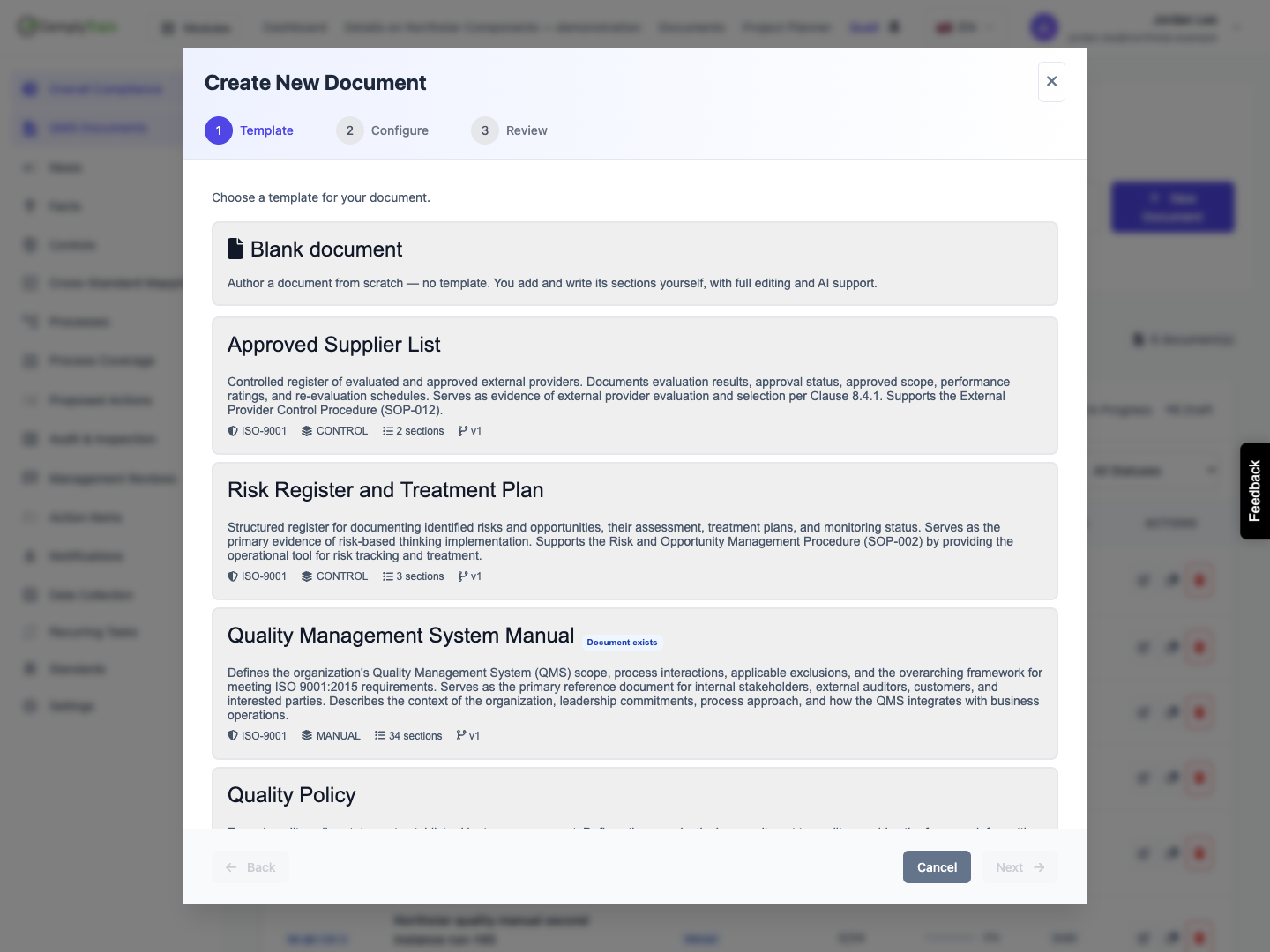
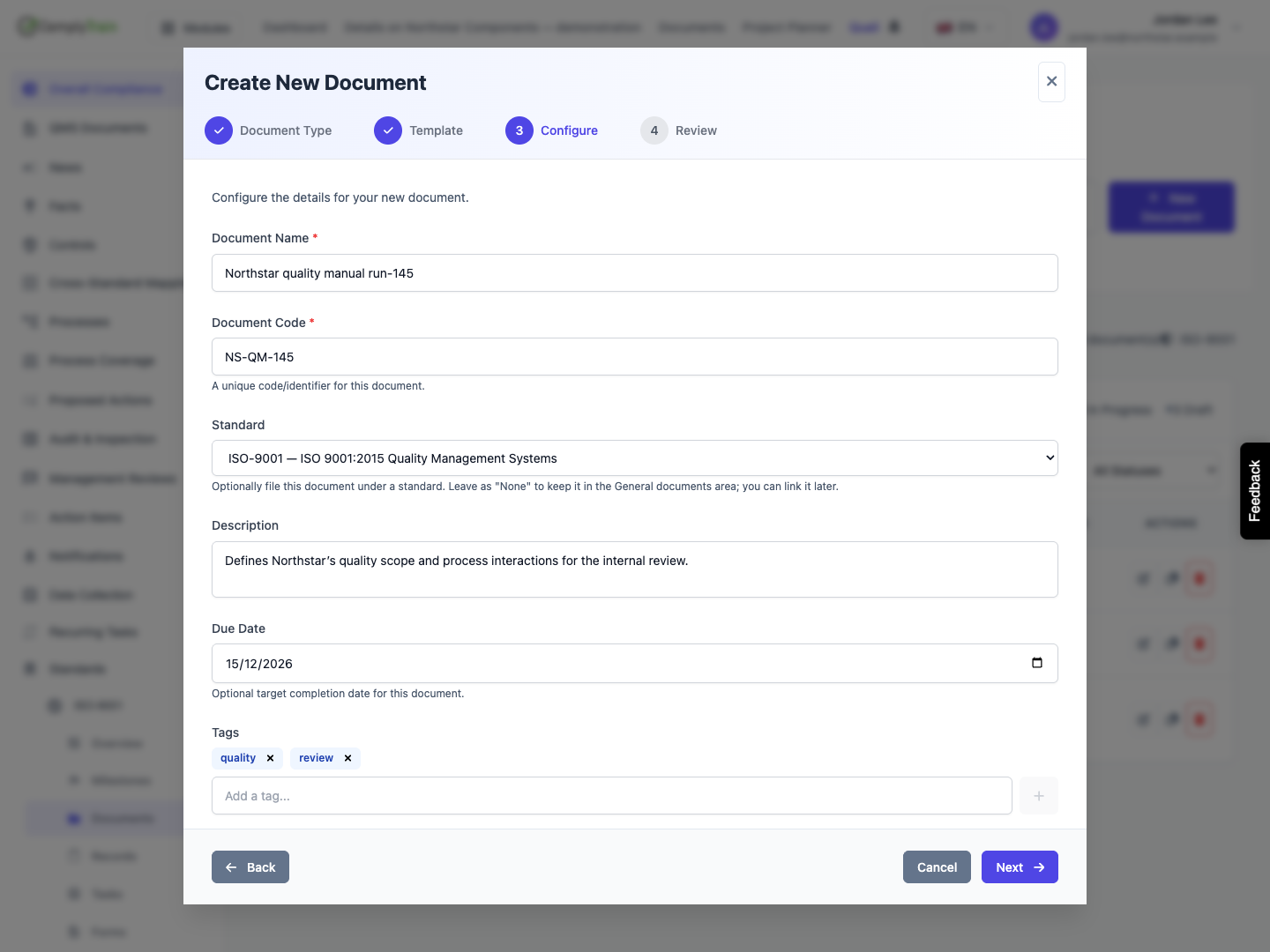
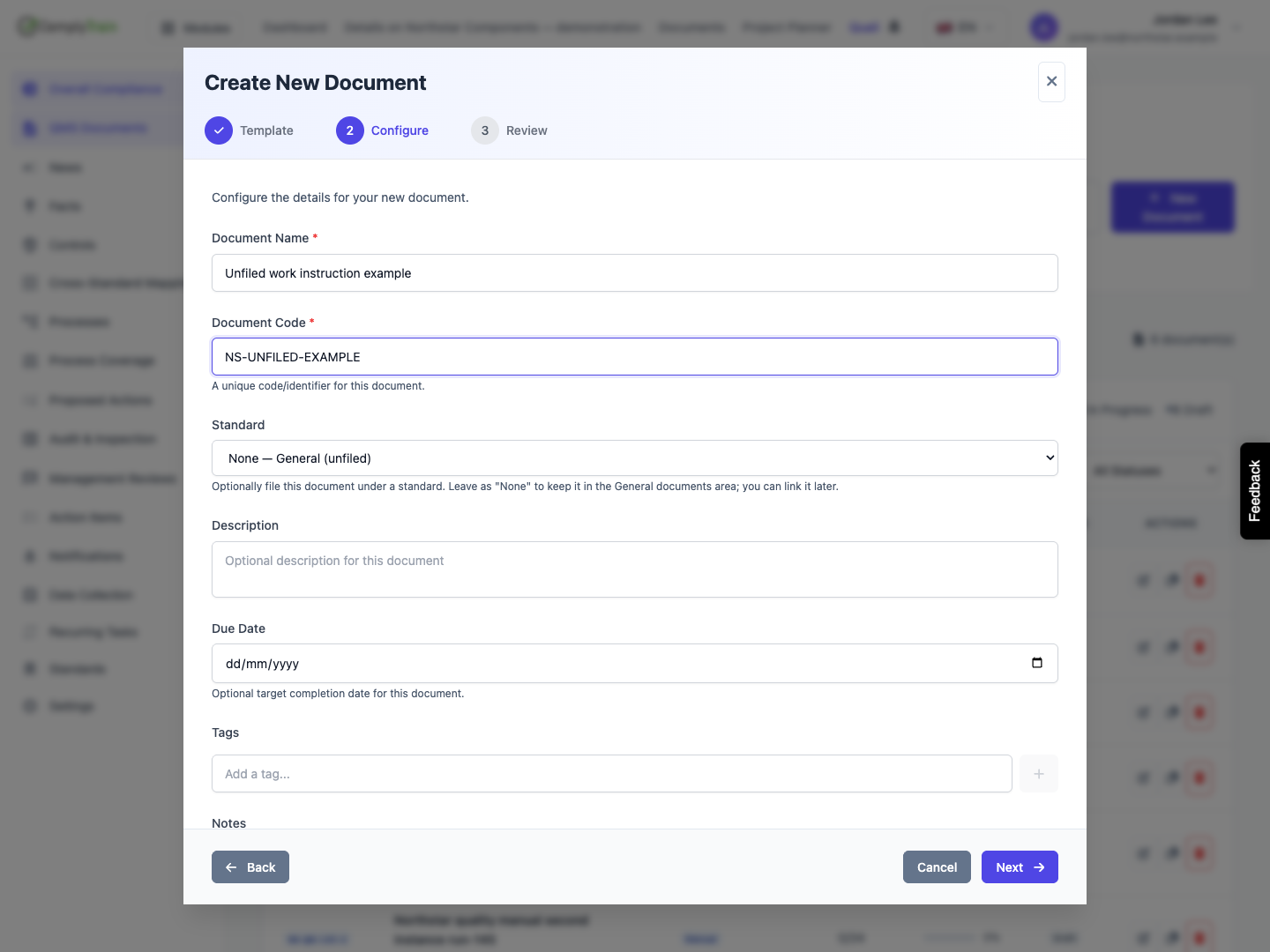
The general QMS Documents library has three steps: Template → Configure → Review. It skips the standard-specific type choice and offers available templates across standards, plus a blank document. Its Standard selector initially reads None — General (unfiled). General is the cross-standard library; selecting None leaves the new document without a standard association.
The screenshots exercise the four-step standard path and inspect the general path. Three documents from the illustrated successful run remain available for review: two instances of the manual template and a blank SOP. Earlier synthetic drafts are also visible in the library. The general unfiled form was cancelled rather than saved.
Product location: /qms/{standardCode}/documents (fallback: /qms/standards). Choose New Document.
On a standard's Document Type step, select the type that describes the document you intend to author. Next stays disabled until you select one. Scroll within the wizard to see every tile; the footer stays available.
The illustrated ISO 9001 standard offers ten types. Parent and child types such as Manual, SOP and Work Instruction appear as separate choices, so you do not need to expand a parent to find them. The configuration is specific to this standard's provisioned type list.
The tile's document and template counts use the document-type count rules. They are not the same as the authored QMS document list or this wizard's eligible template set. In the screenshots, Manual still shows zero vault documents while template-derived QMS drafts already exist.
The type step filters templates by their type-name text, ignoring case. Renaming a type can therefore affect what the next step offers. If no types are offered, check the standard's setup and your access. When a list cannot be loaded, the wizard reports the failure instead of showing an empty step, so an empty tile area means the standard really has no configured types.
Product location: /qms/{standardCode}/documents (fallback: /qms/standards). Choose New Document.
Select a template to reuse its section structure, or Blank document to build the structure yourself. Then choose Next. No document has been created yet.
Template cards show their name, description, category, section count and version. In General, they can also show the associated standard. The eligible catalog uses active, published, structured templates, excludes record templates, and selects the latest active published version of each template code. Forms and step-by-step templates have their own authoring workflows; a type tile's template count can include items this document wizard does not offer.
The illustrated Quality Management System Manual has 34 sections. Choosing it fills the document name and code from the template, and both remain editable. Check them on the Configure step, especially after going Back and choosing a different template.
A Document exists badge does not disable the card. The same template can create another independent document. See the template-reuse example below before treating the wizard as an edit or revision action.
For SOP, this fixture has no eligible template, but Blank document is still available. A blank document starts with zero sections; choosing a type alone does not create a standard section outline, a form schema or an approved procedure.
Product location: /qms/{standardCode}/documents (fallback: /qms/standards). Choose New Document.
Field | Required and default behavior | Guidance |
|---|---|---|
Document Name | Required. Initially filled from a selected template; empty for a new blank path. | Enter the document's own readable name. Whitespace-only input blocks Next. Use no more than 200 characters. |
Document Code | Required in this wizard. Initially filled from a selected template. | Use a stable identifier of no more than 100 characters. Check the actual saved code; template-derived collisions receive a numeric suffix. |
Standard | Optional. Defaults to the standard from which you opened the wizard; General defaults to None. | Select an enabled standard, or None — General (unfiled). This choice applies to both template-derived and blank documents. |
Name and code are trimmed before submission. The inputs do not display the server's length limits as a counter; the blank-document operation explicitly validates those lengths. This walkthrough checks the required name/code behavior, not every maximum-length or invalid-input response.
Choosing another standard changes the intended filing association; it does not rewrite the selected template's content or prove that its requirements fit the new standard. The walkthrough retains ISO 9001. Changing to another standard or saving an unfiled variant still needs its own applicable review.
A blank document submitted from the standard path also records the selected type name. Template-derived documents inherit their type and category from the template. The general blank path has no type tile and does not collect a separate type/category field at creation.
Product location: /qms/{standardCode}/documents (fallback: /qms/standards). Choose New Document.
Field | How to use it |
|---|---|
Description | Optional explanation of this document's purpose, stored with the document and shown on its detail page. |
Due Date | Optional target completion date. The date picker follows the browser's date display; Review shows the selected date as a date value. Saving it here does not itself create a recurring task. |
Tags | Type a tag and press Enter or choose the plus button. Remove an added tag with its small × before saving. |
Notes | Optional context or instructions for the work, stored as metadata rather than a document section. |
Tags are trimmed and exact duplicates are ignored. Case differences are not normalized, so establish a consistent spelling convention. Entering text into the tag input without adding it does not put that tag into the saved tag list.
The walkthrough stores a description, target date 2026-12-15, tags quality and review, and an authoring note. A third temporary tag is removed before creation. Separate saved-record checks confirm that all intended metadata persisted.
After creation, the detail page shows the description you entered beneath the document title. A template-derived document falls back to the template's description when you leave the field empty.
Product location: /qms/{standardCode}/documents (fallback: /qms/standards). Choose New Document.
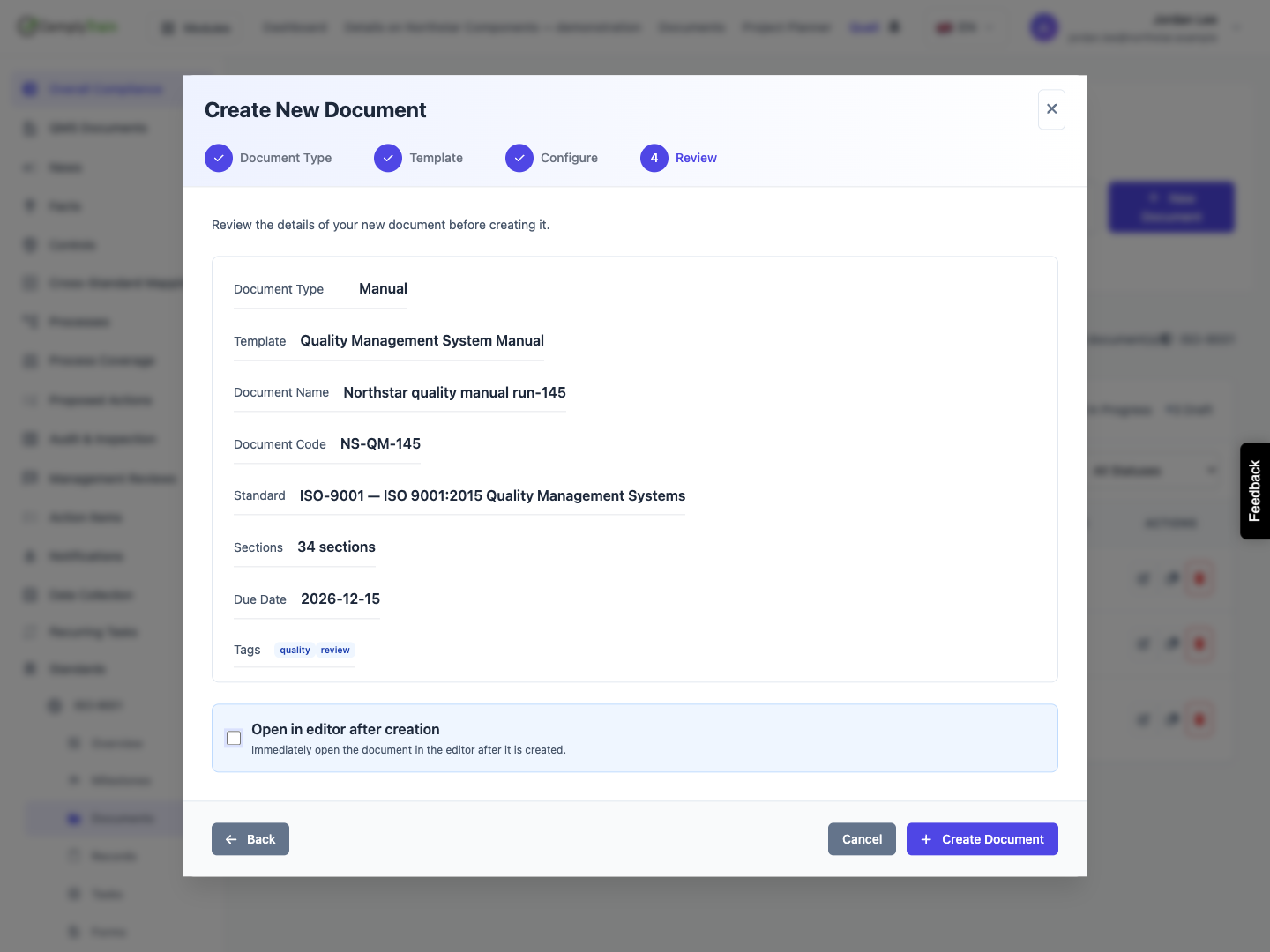
Choose Next to reach Review. Check the document type, chosen template or blank path, name, code, standard, section count for a template, due date and tags. Description and Notes are not repeated in this summary; use Back to check them before creating the document.
Open in editor after creation is initially selected. Leave it selected to continue into authoring, or clear it to open the document detail first. This choice changes the destination, not whether a document is created. The illustrated saves clear the checkbox so the saved draft can be inspected separately.
Choose Create Document once. The button shows a submitting state and is disabled while the request runs. A successful request closes the wizard and opens the created record. The parent page uses its current standard/general route context for that navigation; if you changed the filing standard, check the saved record's actual standard rather than inferring it only from the URL segment.
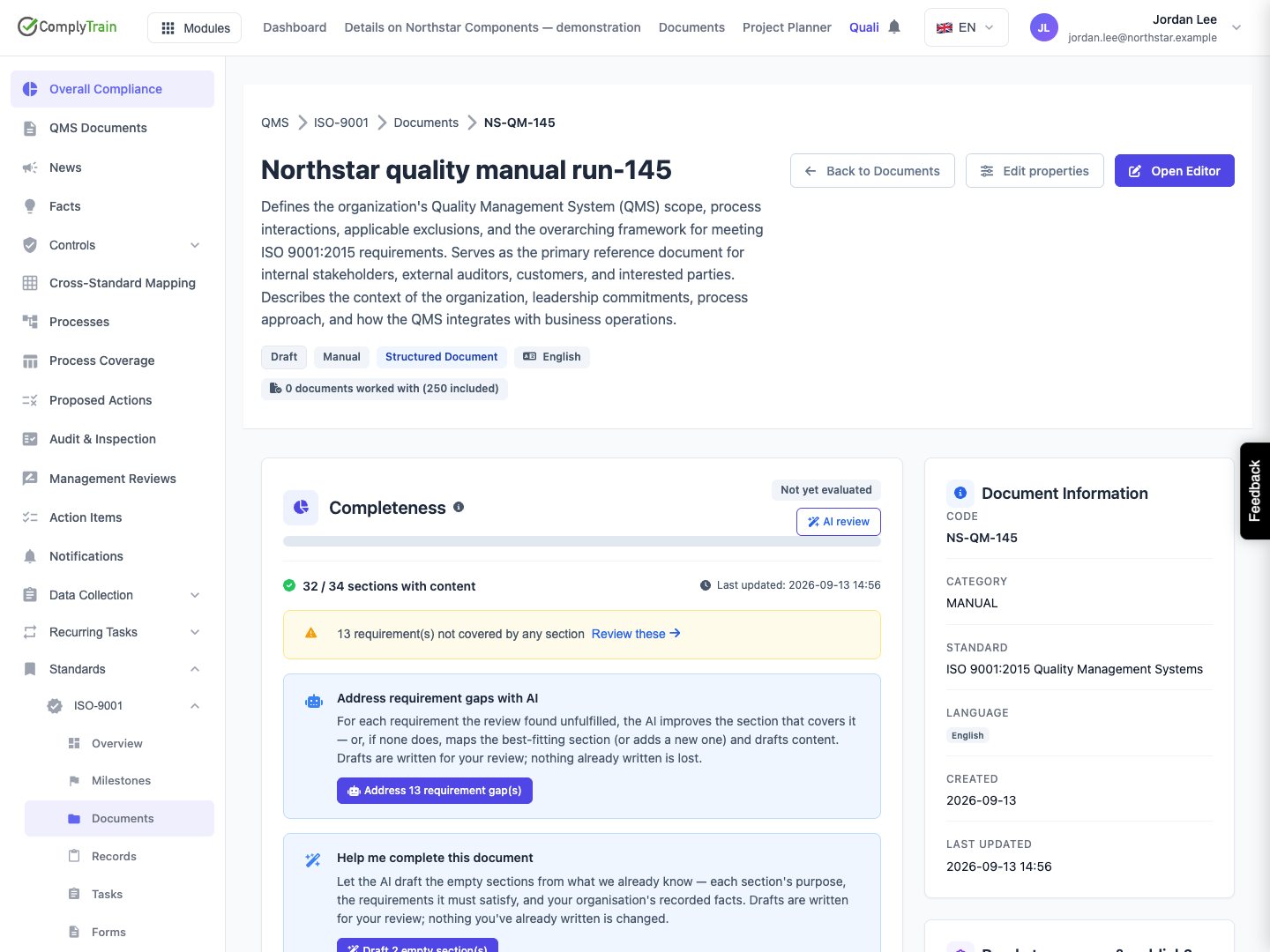
The walkthrough's first saved manual has its chosen name and code, ISO 9001 association and 34 seeded sections. The name remains after reload. It is still Draft and has not been approved, published or locked by this operation.
Product location: /qms/{standardCode}/documents (fallback: /qms/standards). Choose New Document.
To make another document from the same template, start New Document again and select the card marked Document exists. Give the new document its own purpose and identity. This creates another record; it does not revise the first one.
In the illustrated check, both requests deliberately use NS-QM-145. The second creation receives NS-QM-145-2, a new document ID and 34 sections. The original remains NS-QM-145. Both records link to the same template. The suffix is assigned during creation and is not previewed as a reservation in the wizard.
A Document exists badge tells you that the template already backs a document; it does not prevent another one. Follow the organisation's intended document structure and use the normal revision workflow when changing an existing controlled document.
A blank document's code is made unique in the same way. Choose the code you intend to use, then check the saved code on the created document.
Product location: /qms/{standardCode}/documents/{documentId} (fallback: /qms/standards). Read the document identity, section count and actual section content.
A template supplies structure and may supply readable boilerplate. Creation does not establish that the organisation has authored or approved the content.
The illustrated manual detail says 32 / 34 sections with content immediately after creation, while the library shows 0 / 34 and zero percent. The two indicators answer different questions: the detail page counts a section as having content when the editor has something to show, including the template's boilerplate, while the library counts only content that has been saved into the document. Independent record checks confirm 34 sections with no authored or generated content and no document engagement charge from these detail-only creation checks.
Do not tell a user that 32 sections were authored or AI-generated because the detail shows that number. Open and review the sections themselves. The bulk AI generation selection checks saved empty content, so its eligible section set can also differ from a detail indicator that counts template boilerplate.
The blank SOP has no template and 0 / 0 sections with content. Add Section and Add First Section lead into structure creation. A zero denominator is not a finished procedure. Use the blank-document section guide to add roots and children and choose content types. Continue with document editing and review to create the content, requirement mappings and review evidence the document needs.
Product location: /qms/{standardCode}/documents (fallback: /qms/standards). Choose New Document.
Before submitting, Cancel, the close × or the backdrop closes the wizard and resets its local selections and fields. There is no autosaved wizard draft to resume. Back changes steps while the wizard remains open; it does not save a document.
The walkthrough fills a complete review form and cancels it. No create request is sent, the set of saved document IDs stays unchanged, and the cancelled document name is absent from the saved list. A second cancellation leaves the inspected general unfiled form unsaved as well.
If creation reports an error, the wizard keeps your entries and shows the message with the step you were on. Correct what it reports and choose Create Document again, or use Back to change an earlier step. If connectivity failed during submission, check the library for the intended name and code before retrying, because template creation performs several operations. Closing the wizard resets the unsaved form.
Problem | Next check |
|---|---|
Next is disabled | Select a type, select a template or blank option, and provide nonblank name and code at the relevant steps. |
Template count is nonzero but no card is offered | Counts and eligibility have different scopes. Check type-name matching and active/published/structured template availability. |
A template already has a document | Decide whether you want a new independent document or a revision. The badge permits another instance. |
New code has a suffix | Inspect the saved code; creation resolved a code that was already in use rather than overwriting that document. |
The description under the title is the template's | The document's own Description was left empty when it was created. |
Content counts disagree | The detail page includes the template boilerplate the editor displays; the library counts saved content only. Review the actual sections. |
No sections in a new blank document | Add the structure and content explicitly; selecting a document type did not seed sections. |
A cancelled form is gone | Reopen New Document and enter it again. Cancellation intentionally discards the unsaved wizard state. |
This walkthrough verifies the two template-derived saves, numeric suffix, blank SOP save, metadata persistence, required fields, exact section counts, cancellation and general-entry defaults. It does not verify denied roles, maximum-length errors, saved cross-standard/unfiled variants, concurrent creation, editor-opening allowance handling or the full approval lifecycle.
