Create and maintain document sections, choose content types, organise children, edit properties and review deletion and requirement coverage.
Product location: /qms/{standardCode}/documents/{documentId} (fallback: /qms/standards). Select Sections; hover over a section row to reveal its actions.
Create a blank document with the QMS document wizard, then open its detail page and select Sections. Check the document title and code before making changes. You need View documents to read it and Manage documents to change its structure. For an approved, locked document, start a controlled revision.
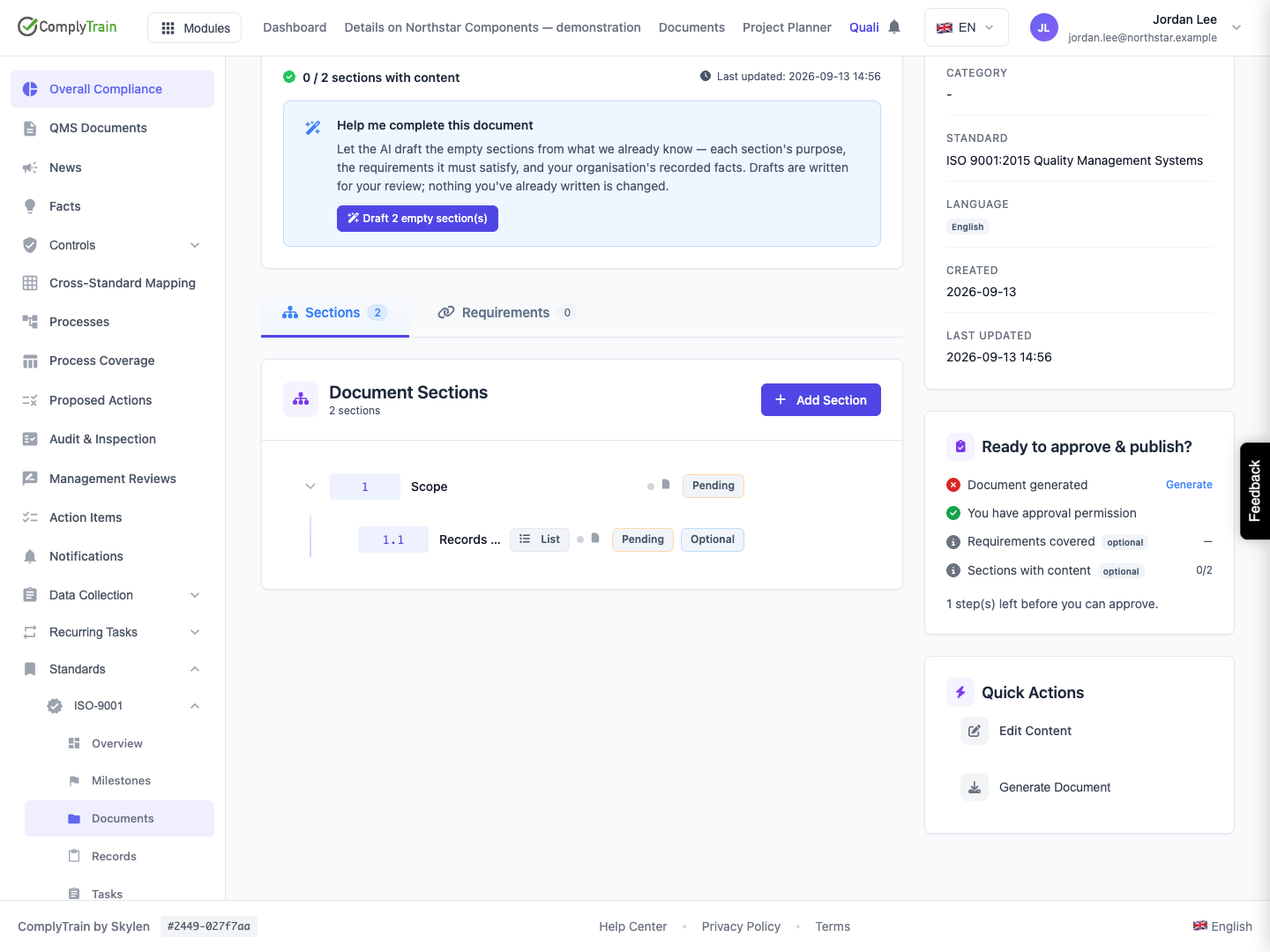
An empty document offers Add First Section. Once sections exist, use Add Section to add another root. Expand a parent with its chevron to see its children. Select a section's name to read it; hover over its row to reveal Add child section, Edit section properties, Delete section and Edit content in editor. Diagram sections have their own editing action.
These actions build the structure of the document you opened. A document created from a template can also need its own additional sections; work from that document's Sections tab to change its structure. Reusable template authoring is a separate activity.
Product location: /qms/{standardCode}/documents/{documentId} (fallback: /qms/standards). Use the section-specific URL when its document-section ID is known; otherwise select the section in the document tree.
Use the section-specific Product location with the document's standard code, document ID and document-section ID. The section ID identifies the saved section record; it is different from its displayed code, heading and template identifier. Resolve the relative address within your organisation's ComplyTrain site.
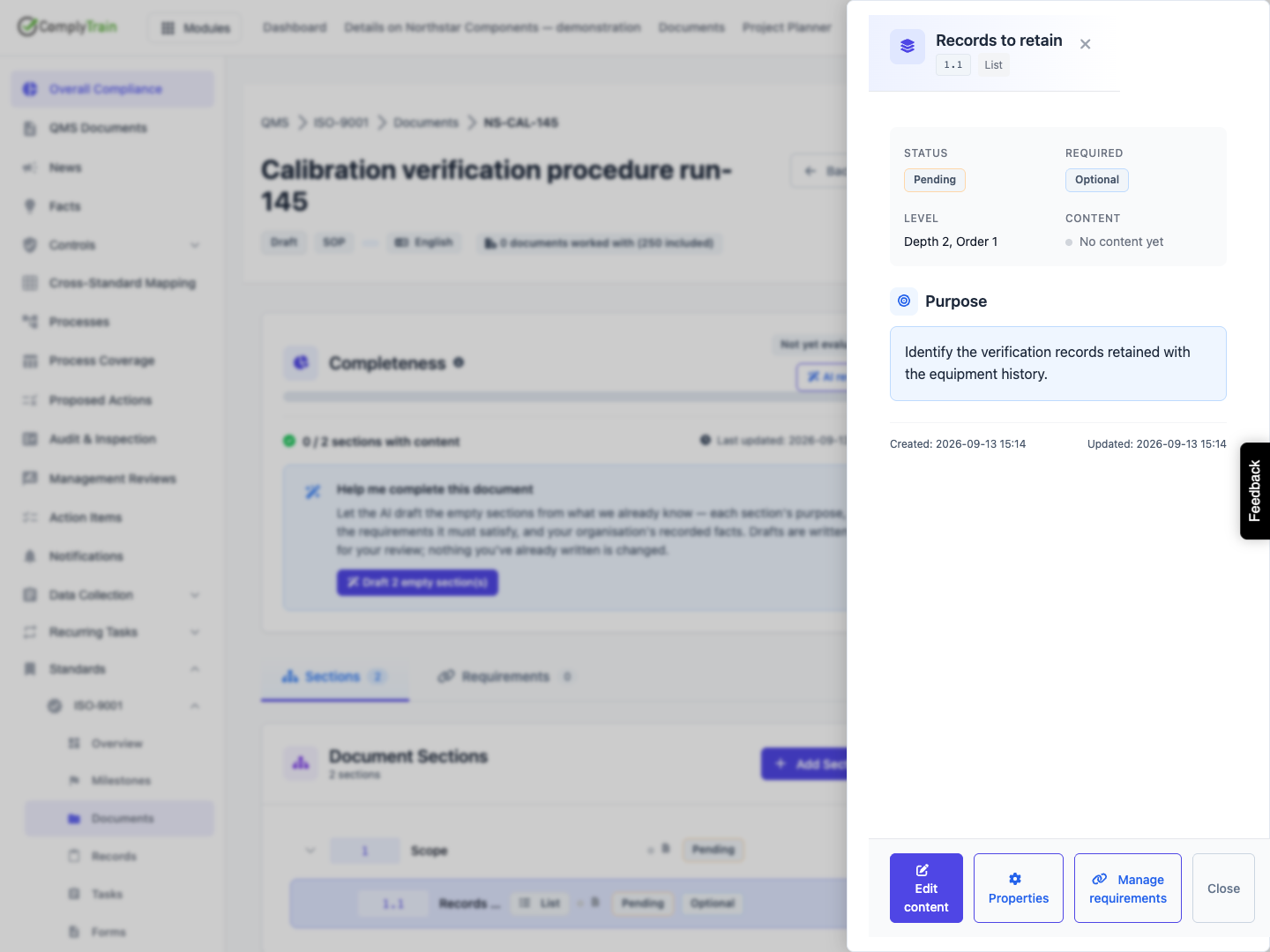
The link selects Sections and opens the section in view mode. Check its name, purpose, type, Required or Optional flag and content before choosing an editing action. Edit content, Properties and Manage requirements lead to different tasks.
If you do not have the identifiers, open the document library and select the document, then the section. If an older link no longer identifies an available section, find the current section in the document tree. Access still depends on the signed-in user's permissions.
Product location: /qms/{standardCode}/documents/{documentId} (fallback: /qms/standards). Select Sections, then Add First Section or Add Section.
Choose Add First Section or Add Section.
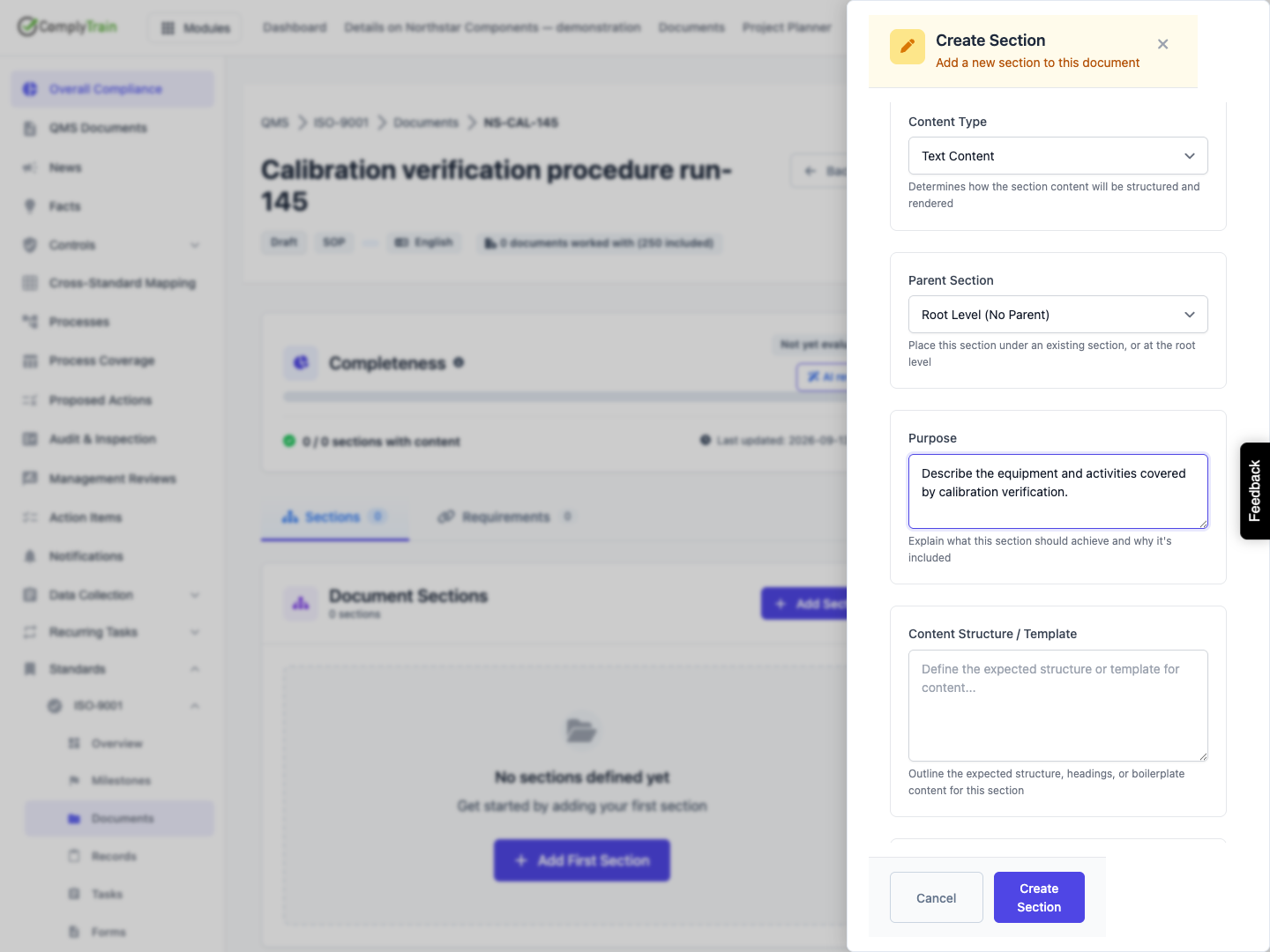
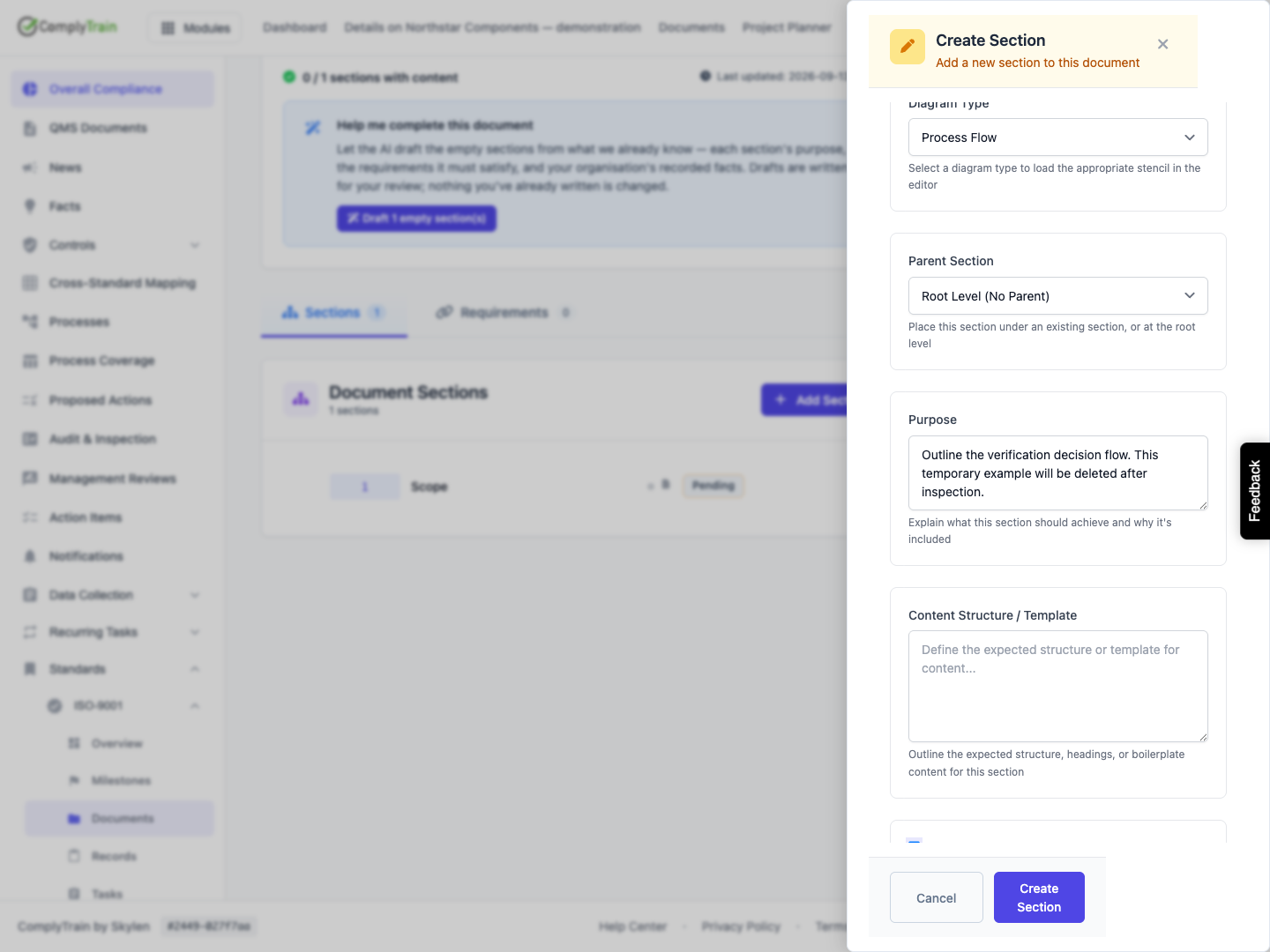
Enter a unique Section Code and a clear Section Name. For example, use 1 and Scope.
Leave Parent Section at Root Level (No Parent).
Choose the content type and complete the guidance fields below. Scroll within the panel to reach the lower fields.
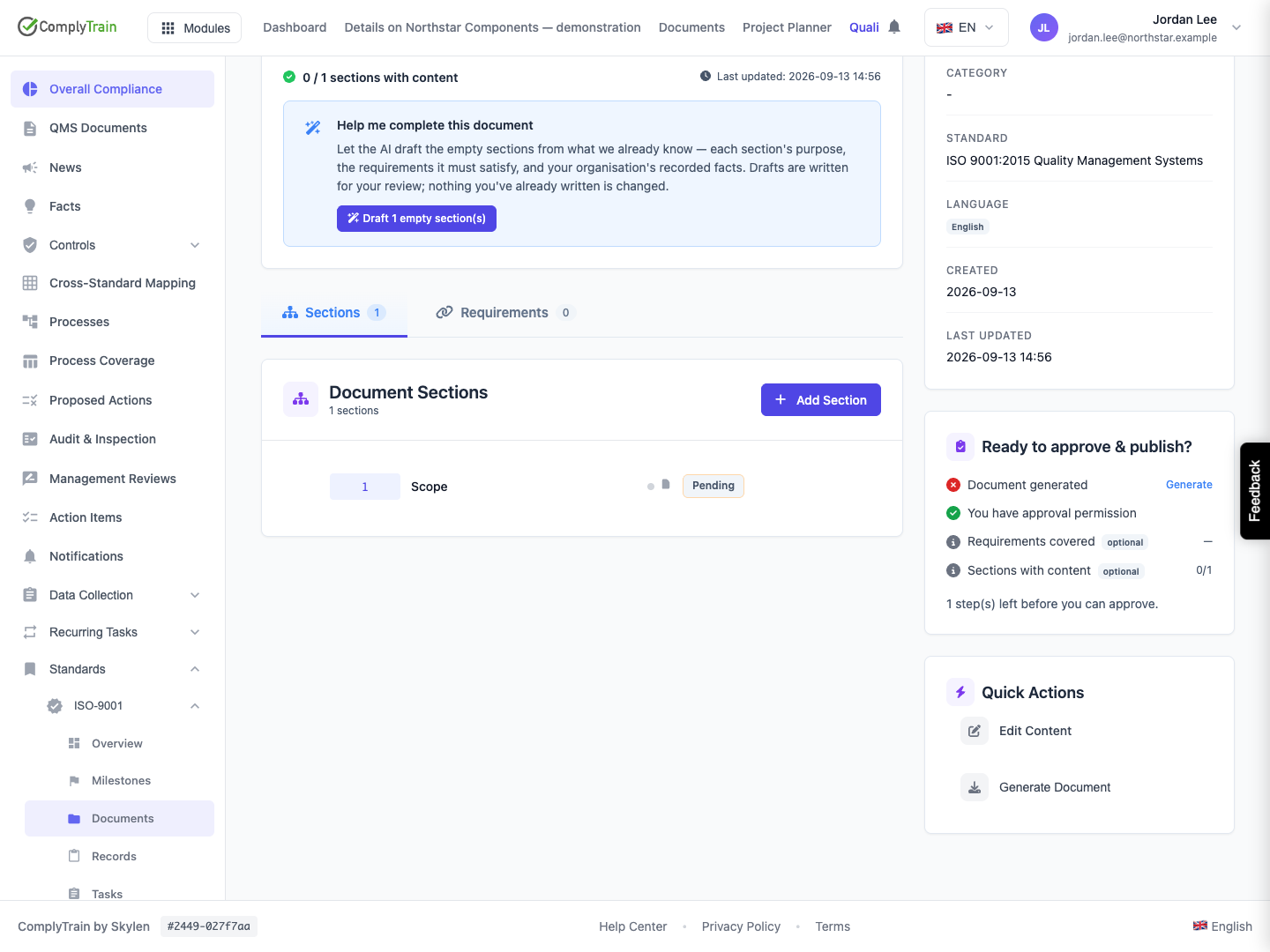
Choose Create Section. Wait for the save to finish, then check the new row and open it to confirm the saved details.
Field | What to enter | Example |
|---|---|---|
Section Code | A required, unique code within this document. Follow a consistent numbering or naming convention. |
|
Section Name | The required heading readers will recognise. |
|
Content Type | The format that suits the information you will author. | Text Content for a scope statement. |
Parent Section | Root Level for a top-level section, or the intended existing parent for a child. | Scope as the parent of Records to retain. |
Purpose | Why the section exists and what it must explain. | Describe which equipment and activities are covered. |
Content Structure / Template | Expected headings, fields or boilerplate for the author. | Equipment identifier; verification date; result; reviewer. |
Optional Section | Whether the section is optional in this document's structure. | An additional supporting example. |
A new section can have saved properties and still be Pending with no authored content. Complete its text or diagram in the appropriate editor.
Product location: /qms/{standardCode}/documents/{documentId} (fallback: /qms/standards). Choose Add Section and set Content Type. Diagram exposes Diagram Type.
Content Type | Use it for |
|---|---|
Text Content | Narrative such as scope, responsibilities and explanations. |
Table / Matrix | Information compared by row and column, such as responsibility assignments. |
List | Items with no required sequence, such as records to retain. |
Numbered List | Steps whose order matters, such as a verification procedure. |
Diagram | A visual explanation, such as a process flow or organisation chart. |
Diagram exposes Diagram Type: General Diagram, Process Flow, Org Chart, Risk Matrix, Network, Data Flow and Other / Blank Canvas. Choose the category that fits the intended visual, then create the section and open the diagram editor to draw and save it.
Choose the content type for the material you intend to maintain. Selecting a type, a diagram category or an Optional flag creates structure; authoring and reviewing the content are subsequent steps.
Product location: /qms/{standardCode}/documents/{documentId} (fallback: /qms/standards). Select Sections, then use Add child section on the intended parent row.
Find the intended parent and choose Add child section on its row.
Check Parent Section and the suggested code. Under 1 — Scope, a child might be 1.1 — Records to retain.
Enter the child's name, content type, purpose and structure, then choose Create Section.
Expand the parent and confirm that the saved child appears beneath it. Open the child to check its properties.
You can also select the parent in the Create Section form. Use Root Level when the new section should be a sibling of the existing roots. Choose the relationship deliberately: a dotted code helps readers understand numbering, while Parent Section determines where the section belongs.
Keep the tree understandable. Use children to group related material under a meaningful heading, rather than making an unnecessarily deep outline. Review the codes together after adding several sections so references such as “see section 1.1” point to the intended content.
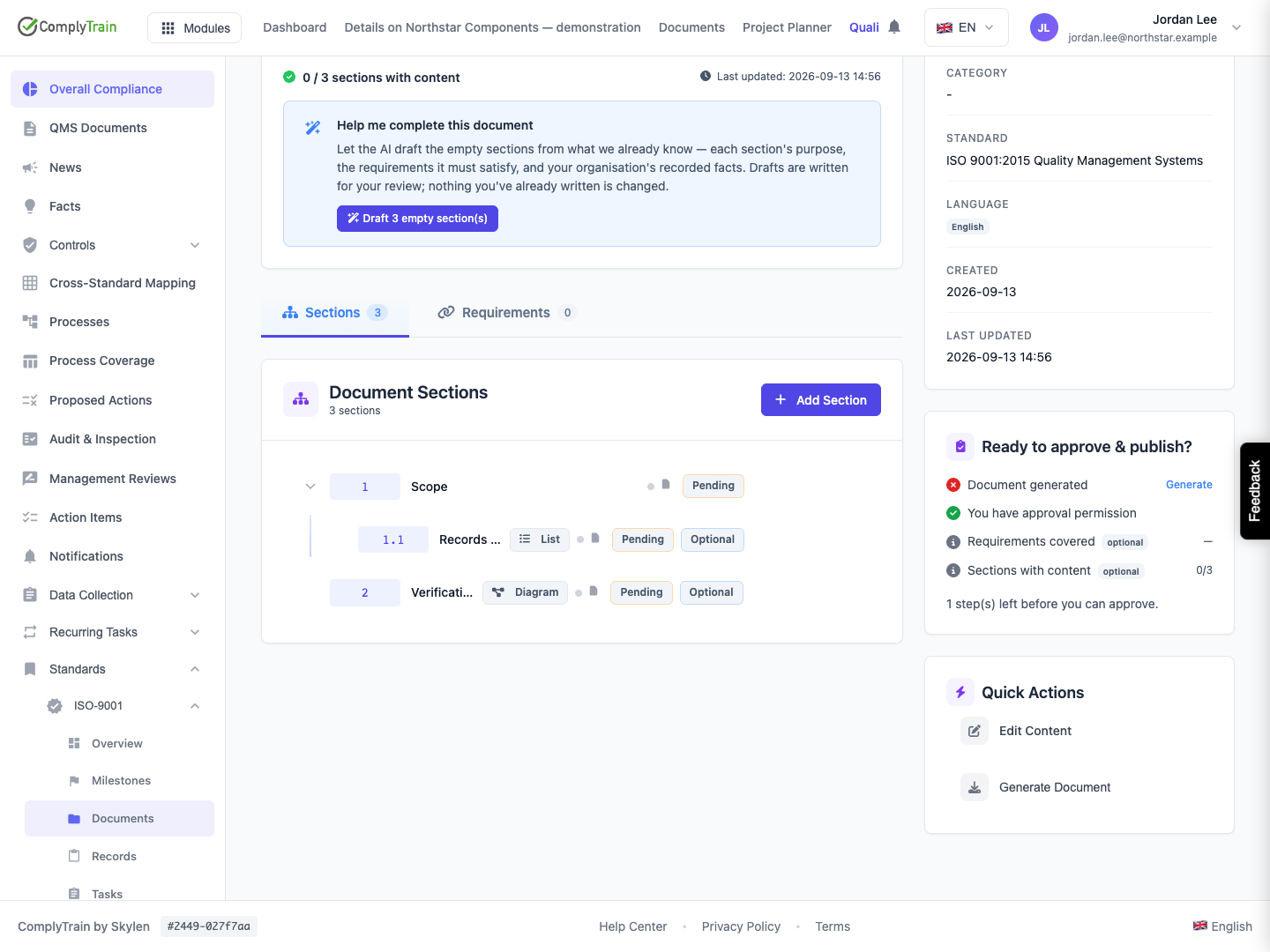
Product location: /qms/{standardCode}/documents/{documentId} (fallback: /qms/standards). Inspect the section and its content indicator; enter actual content through Edit content in editor.
For a Records to retain section, the Purpose could explain why a record is needed. Content Structure / Template could list equipment identifier, verification date, reference instrument, result and reviewer. The authored content then explains the actual recording and retention procedure.
Save the guidance fields and reopen Properties to check them. Use the reader to inspect the section's purpose and template guidance; use Edit content in editor to write the actual text. When updating guidance, check whether existing content also needs a corresponding revision.
The Optional Section flag describes the document structure. Decide applicable standard requirements through the document's requirement mappings and review process. A filled-in purpose or outline does not establish requirement coverage or completed work.
Continue with editing and saving content, or use the standard generation workflow when you want assistance drafting empty sections. Review generated wording before accepting it.
Product location: /qms/{standardCode}/documents/{documentId} (fallback: /qms/standards). Read field validation, check existing codes, and correct or cancel the form.
Read the validation shown beside the field or after a save attempt. Fill in the required code and name, keep entries within the limits displayed by the form, and check the existing tree if a code is already in use.
For example, if 1 already identifies Scope, give a new Responsibilities section its intended unused code. Changing only the name does not resolve a duplicate code. Keep the proposed code consistent with the rest of the document, then submit again and check the saved row. Choose Cancel to abandon the unsaved form.
Product location: /qms/{standardCode}/documents/{documentId} (fallback: /qms/standards). Choose Edit section properties, save the intended changes, then reopen to check them.
Select Edit section properties on the section row. Confirm the section identity, change the fields you intend to update and choose Save Changes. Reopen the section to check its code, name, content type, purpose, structure and Optional setting.
To remove optional guidance, clear the Purpose or Content Structure / Template field and save. For a diagram that should use the general category, select General Diagram. Check the result after reopening. Choose Cancel when you want to keep the previously saved properties.
Property changes and content edits serve different purposes. Renaming a section changes its heading; update any written references to the old name where appropriate. Changing its purpose or structure calls for a review of the authored content. Before changing an established text section to a diagram, review the existing material and decide how it should be represented in the new format.
Product location: /qms/{standardCode}/documents/{documentId} (fallback: /qms/standards). Use Delete section on the intended row and review the confirmation.
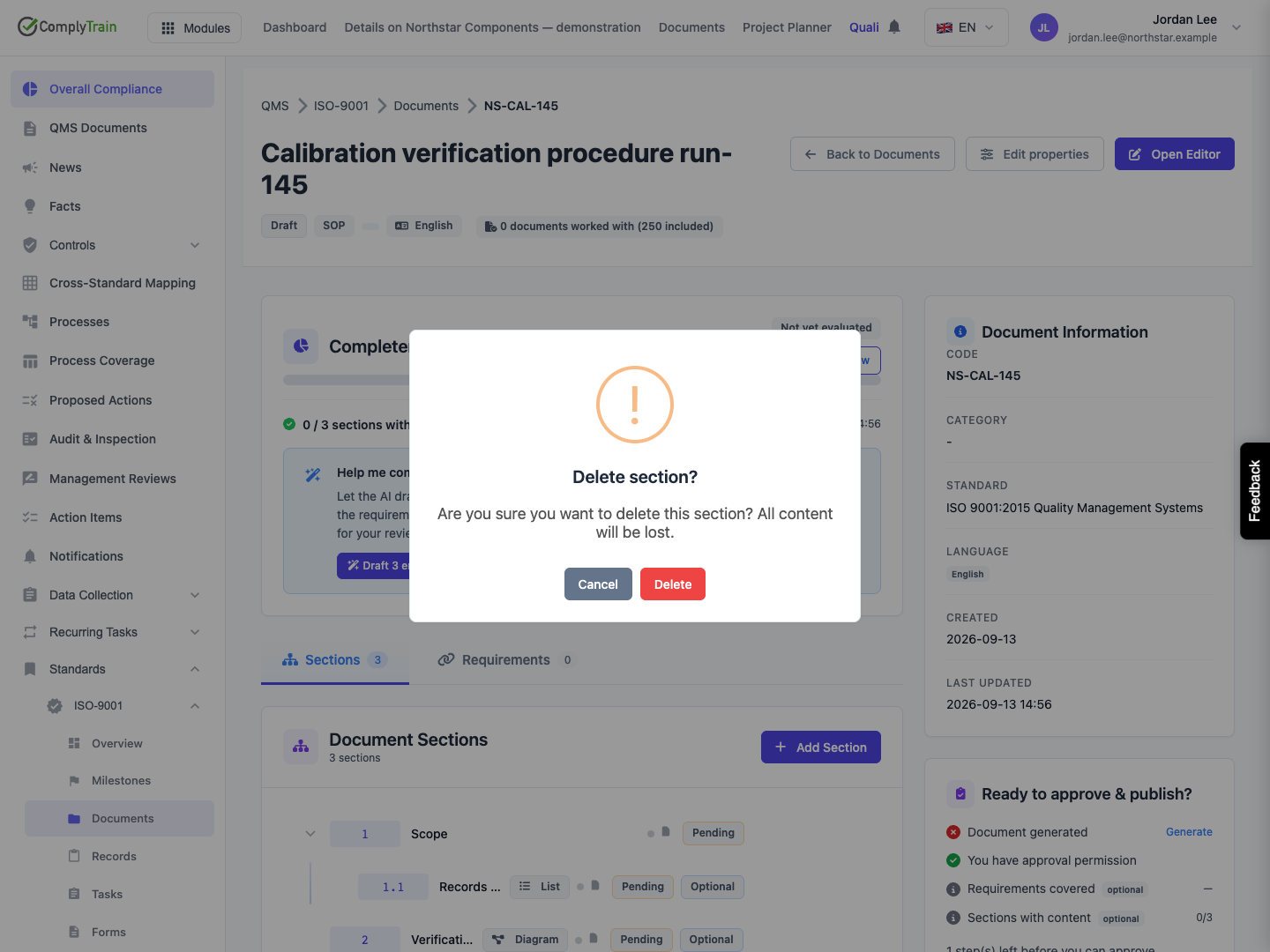
Open the section and inspect its content before deleting it. Review children and requirement mappings as well as the heading. Choose Delete section on the intended row, read the confirmation, then choose Cancel to keep it or Delete to remove it.
Deleting a local section removes its content. Direct children are retained under the deleted section's parent, or at root level when the deleted section was a root; their codes remain unchanged. Check the resulting tree and update references or numbering where needed.
If deletion would leave requirements without coverage, review the additional affected-requirements confirmation. Cancel to retain the section while arranging alternative coverage, or confirm only when that removal is intended. Afterwards, inspect the Requirements tab as well as the section tree.
For example, deleting an unused, empty Verification flow section should leave Scope and Records to retain in place. Check the saved document after the operation, including any children that moved and any affected requirement links.
Product location: /qms/{standardCode}/documents/{documentId} (fallback: /qms/standards). Reload the document detail and review Sections and the content count.
Review the section tree from top to bottom: names and codes, hierarchy, content types and Optional settings. Open sections whose purpose or structure changed, and check the actual content separately. Confirm that saved changes remain after reopening the document.
An organised tree is the starting point for a usable document. Author the missing content, review its accuracy and requirement coverage, then follow document review and approval. Use the content count to find unfinished sections, alongside the review and approval status.