Mark a section ready, approve or reopen it, and use comments, replies and resolution without confusing them with document approval.
Section review records whether a part of a QMS document is ready or accepted. Comments let authors and reviewers ask questions, explain changes and keep the discussion with the relevant section. Complete the document's approval and publication workflow when the whole document is ready.
Product location: /qms/{standardCode}/documents/{documentId}/editor (fallback: /qms/standards). Select the section, confirm its name and wait for Saved before review.
Open the document editor and select the section in Document Outline, or click inside its content. Confirm the section's status in the formatting toolbar. When Review Comments is open, also check the section code and name above the discussion.
Save your edits and wait for Saved before requesting review. Use editing and saving to resolve a save conflict before continuing.
Changing a section's review state requires document-management access. Viewing, adding and resolving discussion requires document-view access. Use the author and reviewer responsibilities assigned by your organisation; a section's review state and the document's approval workflow serve different purposes.
Product location: /qms/{standardCode}/documents/{documentId}/editor (fallback: /qms/standards). Select the section and choose Mark for Review in the formatting toolbar.
Choose Mark for Review in the formatting toolbar. The selected section changes to Ready for Review.
Before requesting review, check the wording, references and supporting information. Explain any specific point that needs the reviewer's attention in a Question or Review comment.
Each section has its own state. A section can be Ready for Review while the document remains Draft. The content-completion indicator describes how much content is present; the reviewer still assesses whether that content is suitable.
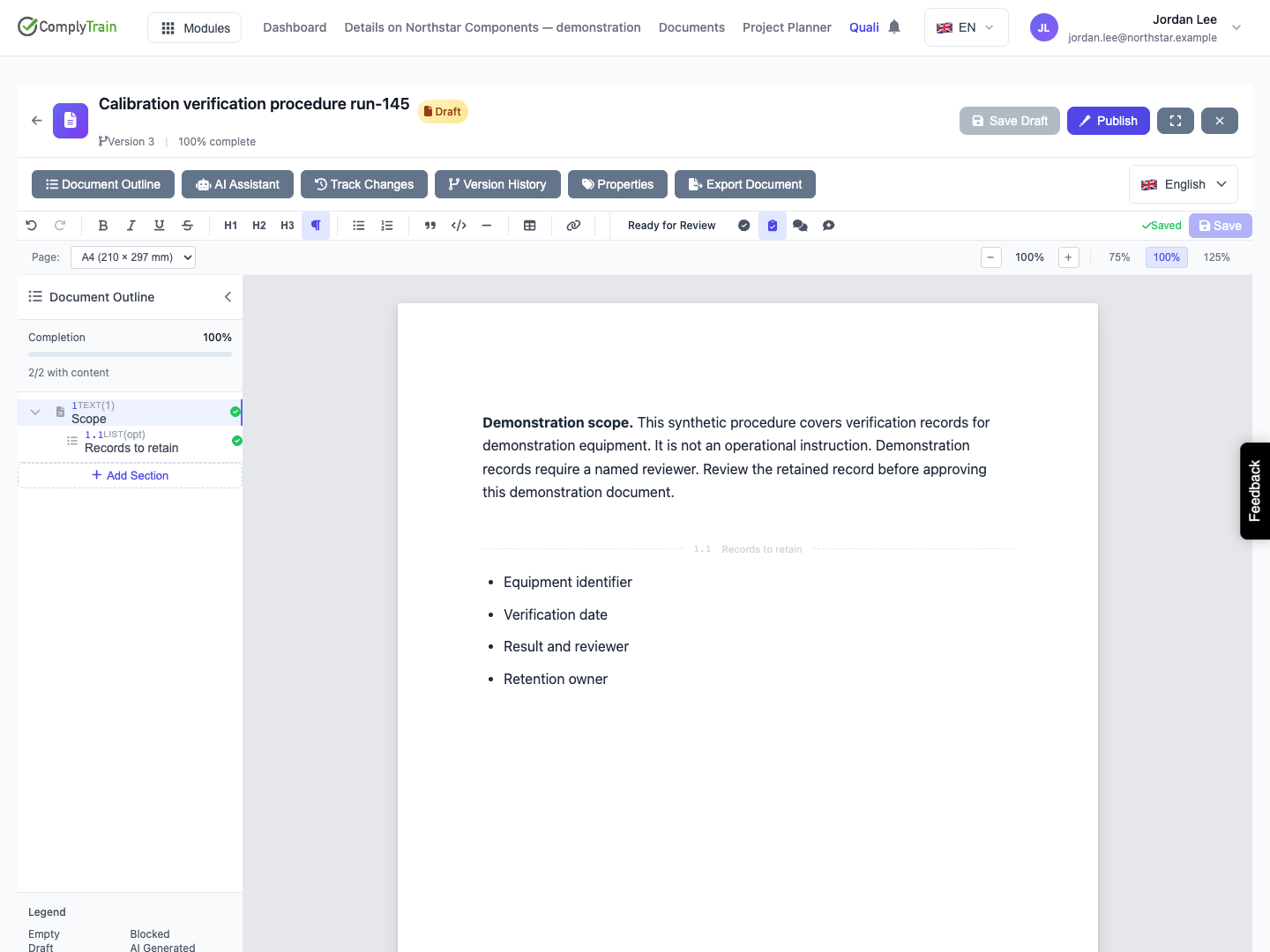
Product location: /qms/{standardCode}/documents/{documentId}/editor (fallback: /qms/standards). Choose Approve Section or Revoke Approval for the selected section; check the document header separately.
Read the saved section and its outstanding discussion. Choose Approve Section when it is acceptable. The toolbar shows Approved, and the action becomes Revoke Approval.
Choose Revoke Approval when the section needs further review. Its state returns to Ready for Review and its text is retained. Make and save any required changes, then review them again before approving.
Use document approval and revision for the whole document's controlled approval, publication and lock. To change an approved and locked document, start its authorised revision workflow first.
Section status and content history are separate records. Version History records changed content snapshots. Reviewing unchanged wording can leave the same content snapshot in place while the section's review state changes.
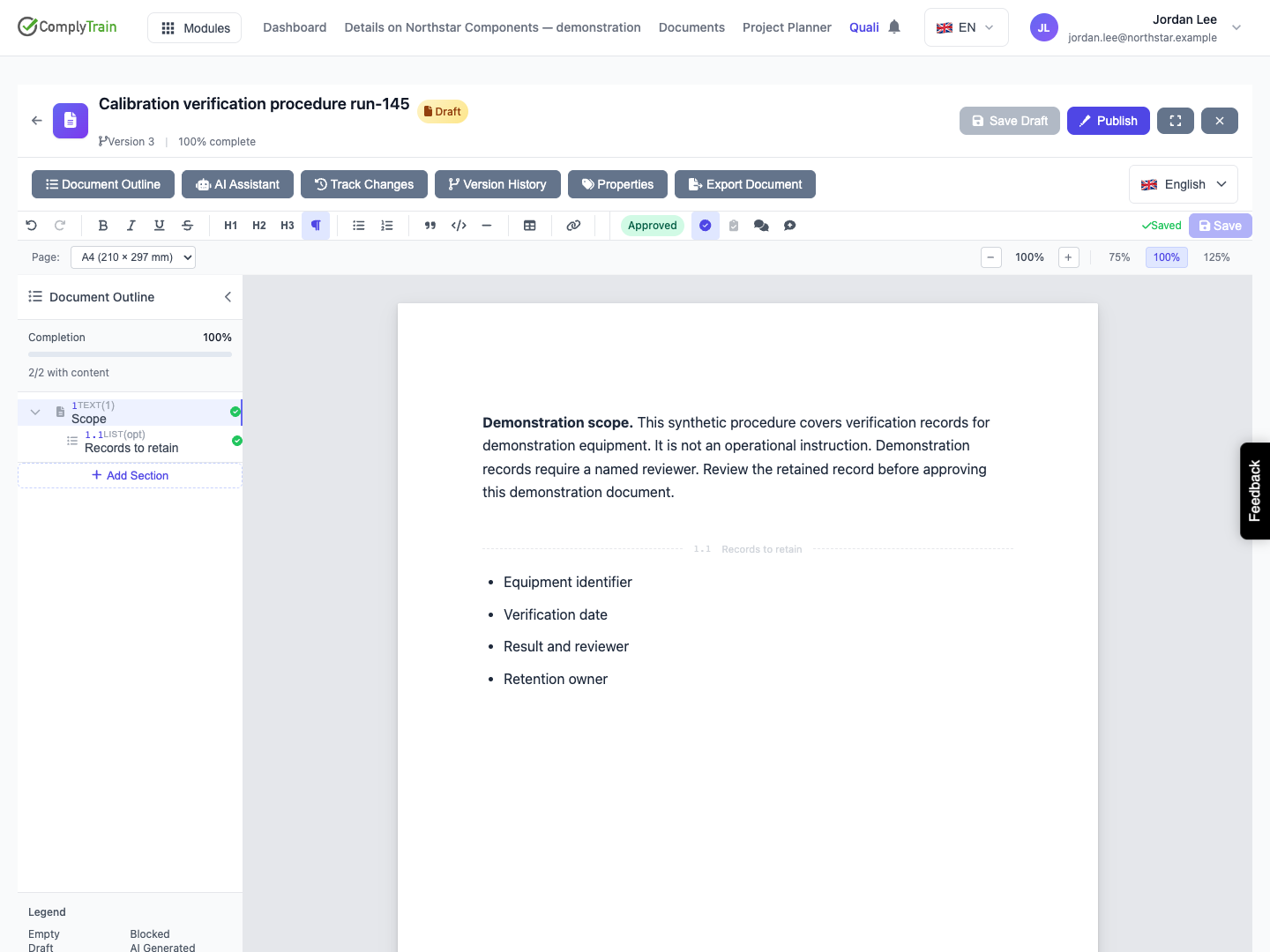
Product location: /qms/{standardCode}/documents/{documentId}/editor (fallback: /qms/standards). Open Toggle Comments, check the section, enter text, choose its type and Add.
Choose Toggle Comments or Add Comment in the formatting toolbar to open Review Comments. Check the section heading before writing.
Enter the feedback in Write a comment….
Choose its type.
Select Add.
Check the saved text, author and time in the discussion.
Type | When to use it |
|---|---|
Review | Record a review observation or explain the outcome of checking the section. |
Suggestion | Propose a change for the author to consider. |
Question | Ask for clarification or information needed to complete the review. |
Use clear, specific wording. For example: “Which role checks the retained calibration record before document approval?” Identify the passage or requirement in your comment so that another reader can follow the discussion later.
Comments require a selected section and nonblank text, with up to 10,000 characters. The type returns to Review after a successful Add. A suggestion comment records feedback; apply any agreed document edit through the editor and save it separately.
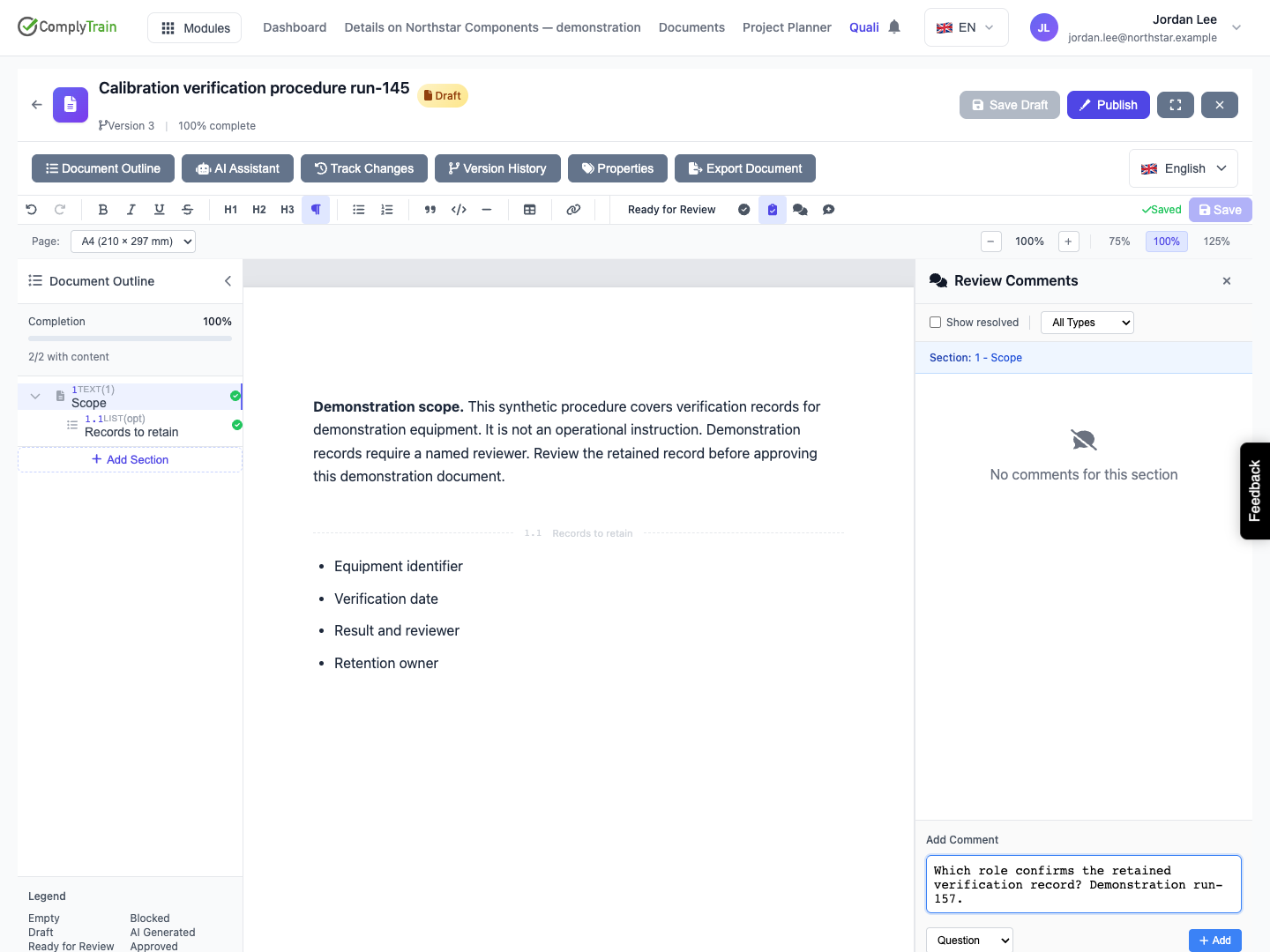
Product location: /qms/{standardCode}/documents/{documentId}/editor (fallback: /qms/standards). Choose Reply on the root discussion and submit or cancel the reply.
Choose Reply on the discussion, enter your response and choose Reply in the reply form. Cancel closes that form without posting. Each saved reply appears beneath the original comment with its author and time.
Keep related replies together. Explain what changed, where the reviewer can find it, or why another approach was chosen. For example: “The assigned reviewer checks the record; the final sentence now identifies that role.” Save the document edit before reporting that it is complete.
Replying keeps the conversation going. Resolve the discussion after checking that the feedback has been addressed. Use the separate section-review action when the section itself is ready for approval.
Product location: /qms/{standardCode}/documents/{documentId}/editor (fallback: /qms/standards). Use Mark as resolved, Show resolved and Reopen on the root discussion.
Read the original feedback and its replies, check any resulting saved content, and select Mark as resolved on the discussion.
Resolution applies to the whole discussion, including its replies. The resolved thread is retained for reference and no longer counts as outstanding feedback. Other discussions in the section keep their own state.
Enable Show resolved to read closed discussions. Select Reopen when more work is needed, then add the follow-up explanation. Check that the reopened discussion is available in the active view again.
For example, a question can receive two replies before the author makes the agreed change. Resolving that discussion closes the question and both replies together. The saved conversation remains available through Show resolved, while the section's other unanswered questions remain outstanding.
The comments total and the outstanding-feedback count describe different things: resolving feedback retains its conversation history. Use the discussion's resolved state and the active view when deciding what still needs attention.
If another person changes the discussion at the same time, refresh and inspect the latest reply and resolution state before applying your decision again.
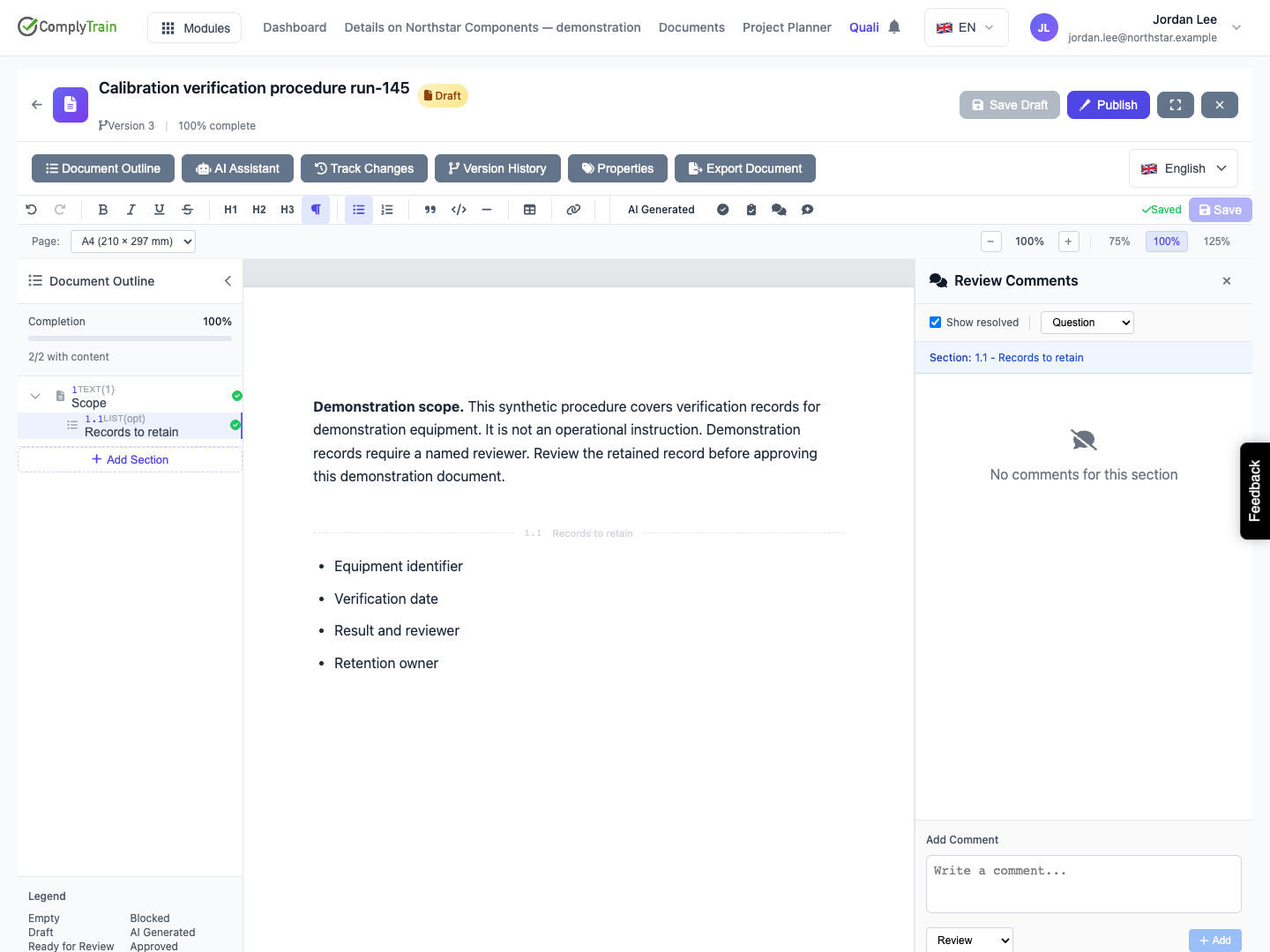
Product location: /qms/{standardCode}/documents/{documentId}/editor (fallback: /qms/standards). Choose the type/resolution filters or select another section in Document Outline.
Use All Types, Review, Suggestion, Question or AI Feedback to find discussions by type. AI Feedback identifies feedback supplied through an AI workflow; the ordinary comment form provides the three human comment types listed above.
A discussion stays with its original type, and its replies stay underneath it. A Question thread therefore remains together in the Question view, even when a reply records a review response.
Combine the type filter with Show resolved to inspect past feedback. If a discussion seems missing, check the selected section and clear the filters.
Selecting another section loads that section's discussion. Check the new heading before adding feedback; the type and resolution filters remain available as you move between sections.
Product location: /qms/{standardCode}/documents/{documentId}/editor (fallback: /qms/standards). Choose Delete on your unwanted root comment, then confirm or cancel.
For an unwanted comment you authored, choose Delete, read the confirmation and confirm Delete. Cancel keeps the comment.
Use deletion for an entry made in error, such as an accidental duplicate note. Resolve substantive feedback when it has been addressed so that the discussion remains available as review context. Add a reply when you need to correct or clarify an earlier statement.
After deleting an entry, check the remaining discussion. Comment ownership controls who can delete a human comment; document access and reviewer responsibility are configured separately.
Product location: /qms/{standardCode}/documents/{documentId}/editor (fallback: /qms/standards). Reload, select the same section and reopen Review Comments to check persistence.
Open the editor again, select the same section and open Review Comments. Check the saved wording, replies and resolution state. Confirm the section and document states separately.
Situation | What to do |
|---|---|
A discussion is not visible | Check the section heading, type filter and Show resolved. |
Add or Reply fails | Read the error, keep the retained input, resolve the access or connection problem and retry. |
The result of posting is uncertain | Reload the discussion and check for your saved entry before submitting it again. |
Comments cannot load | Use the displayed error and retry the load. Check your access and connection if it continues to fail. |
Resolution conflicts with another change | Refresh, read the latest feedback and resolve or reopen the current discussion as appropriate. |
Use the section's product location when asking another reviewer to investigate. Include the section name and the relevant discussion so that they can find the same context.
