Read and compare saved revisions, then restore the wording you need while retaining the intervening history.
Version History keeps saved content snapshots for the selected QMS document section. Use it to inspect earlier wording, compare changes and restore a saved version. The document's approval records, published file versions and diagram history have their own workflows.
Product location: /qms/{standardCode}/documents/{documentId}/editor (fallback: /qms/standards). Select the section and open Version History; confirm its section name.
Open the document editor, select the section in Document Outline or click inside its content, then choose Version History. Confirm the section name at the top of the panel.
Selecting another section loads that section's history. No revisions yet identifies a section with no saved content snapshots. Save authored content when you want it retained as a revision.
Viewing history requires document-view access. Restoring content requires document-management access and an editable document. Start the authorised document revision workflow before changing a document that is approved and locked.
Product location: /qms/{standardCode}/documents/{documentId}/editor (fallback: /qms/standards). Inspect the revision number, source, date, author and content size.
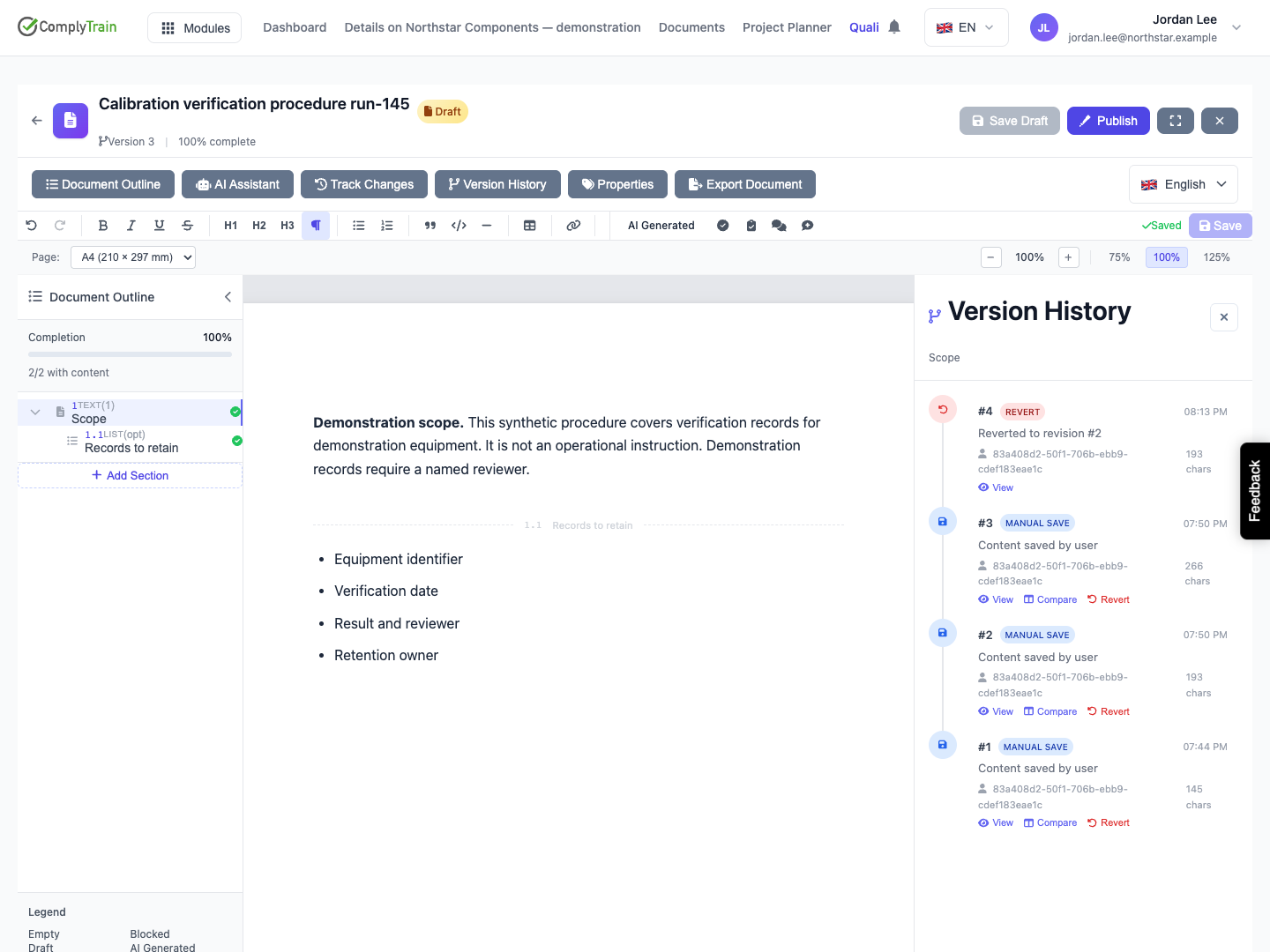
Read the timeline from the newest saved revision towards the older entries. The newest revision is marked Current. Each entry identifies the section revision, source, author, time, description and content size.
Item | Meaning |
|---|---|
Revision number, such as #3 | Position in this section's saved content history. |
Manual Save | A snapshot recorded when section content is saved. |
State Change | A snapshot associated with a section-state change when the content differs. |
AI Suggestion | A snapshot associated with accepting an AI suggestion. |
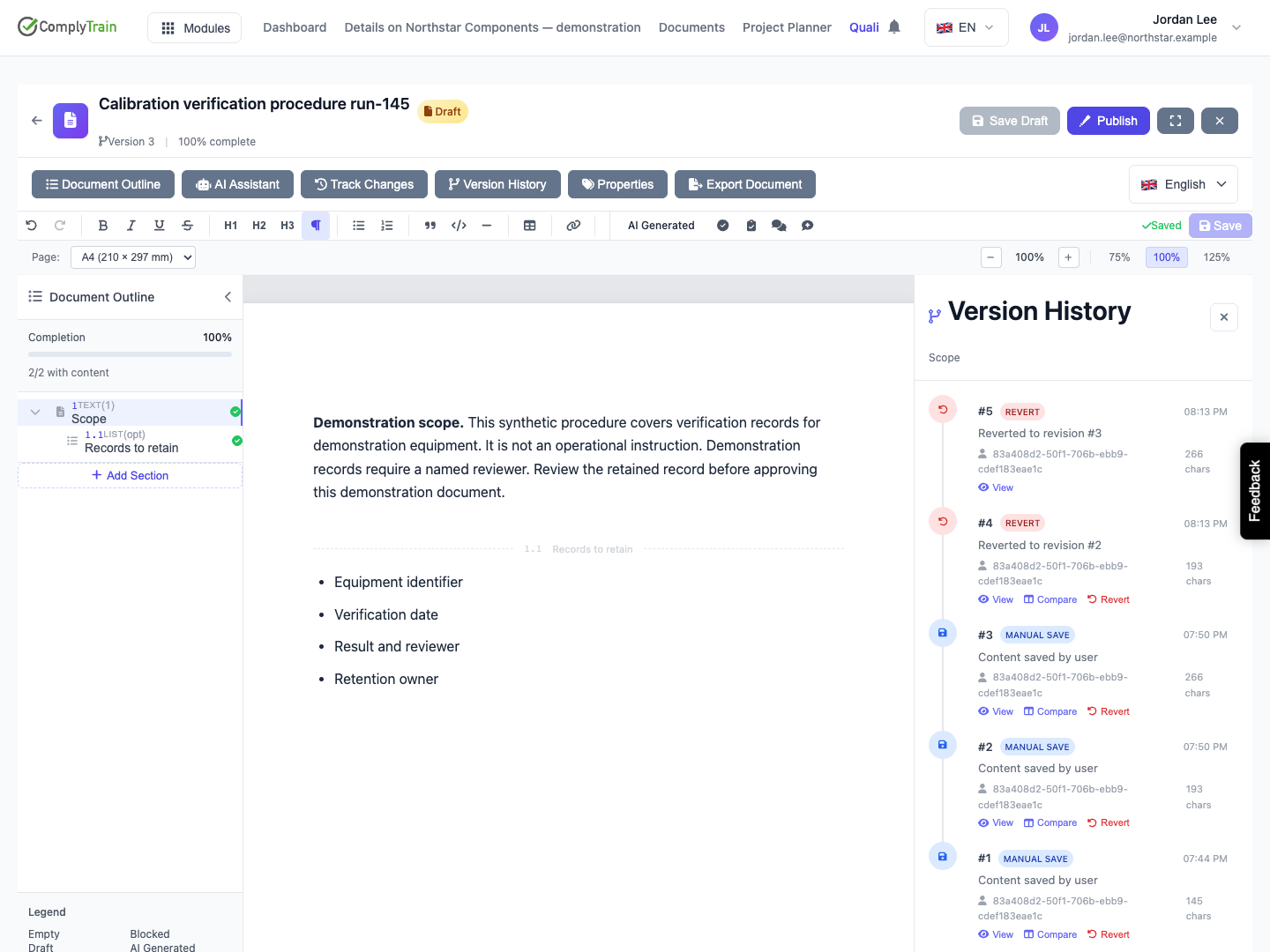
Revert | A snapshot recorded when earlier wording is restored. |
Content size | Length of the saved text, useful for distinguishing revisions. |
History keeps distinct content snapshots. Saving identical wording or reviewing unchanged content can leave the latest snapshot in place. Use the appropriate activity or approval record when you need to examine those separate events.
Showing N of M revisions tells you how much of the history is loaded; use Load More to reach older revisions. Check the revision number, date and description before selecting one, especially when several saves were made close together. Revisions you have selected for comparison stay selected while you use Load More.
Product location: /qms/{standardCode}/documents/{documentId}/editor (fallback: /qms/standards). Choose View on the intended revision and read its saved text.
Choose View on a revision. Check its number, source, author, time and description, then read the saved content in its view, marked Read-only. Inspect relevant formatting, lists and references as well as the wording.
Use Close to return to the timeline. Viewing history leaves the current section unchanged. Revert to This Version starts a separate restoration confirmation when you want to make that saved wording current.
Product location: /qms/{standardCode}/documents/{documentId}/editor (fallback: /qms/standards). Select the section, open Version History and choose Compare with previous, or Select to compare on two revisions and then Compare selected; check the Older and Newer revisions.
Choose Compare with previous on a revision to compare it with the one before it. To compare any two loaded revisions, choose Select to compare on each, then Compare selected; Clear selection starts again. The comparison always places the earlier revision first: check the Older and Newer revision numbers, authors and dates before interpreting the result.
The comparison identifies added and removed lines and shows the corresponding counts. If the two revisions are identical, the comparison says so. Read the changed passages together with nearby unchanged wording. A replacement can appear as a removed line and an added line; line counts describe textual changes, not their importance.
For example, compare a revision stating “retain the calibration record” with one adding the responsible reviewer and retention period. Check that the new wording is present, the earlier wording is accounted for, and the surrounding requirement still makes sense.
Compare nonadjacent revisions when you need the combined effect of several edits. Use View to inspect either complete saved version. The comparison is a review aid; continue through the separate approval workflow when the content is acceptable.
Product location: /qms/{standardCode}/documents/{documentId}/editor (fallback: /qms/standards). Inspect the target revision, choose Revert and confirm or cancel after saving local work.
Save or discard your current edits before restoring an earlier revision. If the editor still has unsaved edits, the confirmation warns you and its Revert button stays unavailable, because restoring replaces only the saved content. Your current saved wording is already kept as a revision, so you can return to it later.
Inspect the intended revision with View and compare it with the later wording when useful.
Choose Revert or Revert to This Version for that revision. The newest revision, marked Current, does not offer it.
In Revert Section Content, check the revision number and date, and confirm the section name at the top of the history panel.
Choose Cancel to keep the current content, or Revert to restore the selected wording.
Restoration applies to the selected section. Existing saved revisions remain in history, and restoring different wording records a new Revert snapshot. The other sections retain their current content.
Product location: /qms/{standardCode}/documents/{documentId}/editor (fallback: /qms/standards). Reload to verify the restored text; View and restore a later snapshot if needed.
Inspect the restored section, open the document again and check its saved wording and latest history entry. The restored content becomes current while the intervening saved revisions remain available.
Review the restored wording in the context of the current document. Check references and dependent sections, address any resulting review comments and complete the necessary section review. Restoring an earlier passage preserves the document's separate approval and publication requirements.
If you need the newer wording back, open history, inspect the desired later snapshot and restore it through the same confirmation. That creates another restoration in the history instead of erasing the first one.
For example, restoring revision 2 after revision 3 creates a new Revert entry containing revision 2's wording. Revision 3 remains available. Restoring it again records the recovery while retaining the earlier restoration.
Product location: /qms/{standardCode}/documents/{documentId}/editor (fallback: /qms/standards). Check current text and history, then address the displayed access, lock, allowance or version problem.
Situation | What to do |
|---|---|
History cannot load | Use Retry, then check access and the document/section identity if the error persists. |
A revision or comparison cannot load | Return to the timeline and retry the selection. Inspect the content successfully before using it for a decision. |
Another user changed the section | Preserve your work, reload the current section and review its newest content before restoring. |
The document is approved and locked | Use the authorised document revision workflow first. |
A document-usage check stops the operation | Review the allowance and intended work with your administrator. |
Revert reports a problem | Check current content and history before repeating the action so that you continue from the actual saved result. |
See save conflict recovery for coordinating concurrent edits, and section review for reviewing the resulting content and discussion.
