Save the document, select its rendering layout and output options, download a file, and distinguish export from controlled publication.
Use Export Document to obtain a rendered copy of the saved QMS content. A download does not publish a version to the vault, approve the document or lock its editor. Choose the destination deliberately, because the same dialog also offers controlled publication.
Product location: /qms/{standardCode}/documents/{documentId}/editor (fallback: /qms/standards). Save the document and confirm Saved before opening Export Document.
Open the document editor, finish the intended changes, choose Save or Save Draft, and wait for Saved. Export reads persisted content. Opening the plain Export Document dialog does not itself wait for all unsaved edits to be saved. See editing and saving for save status and conflict recovery.
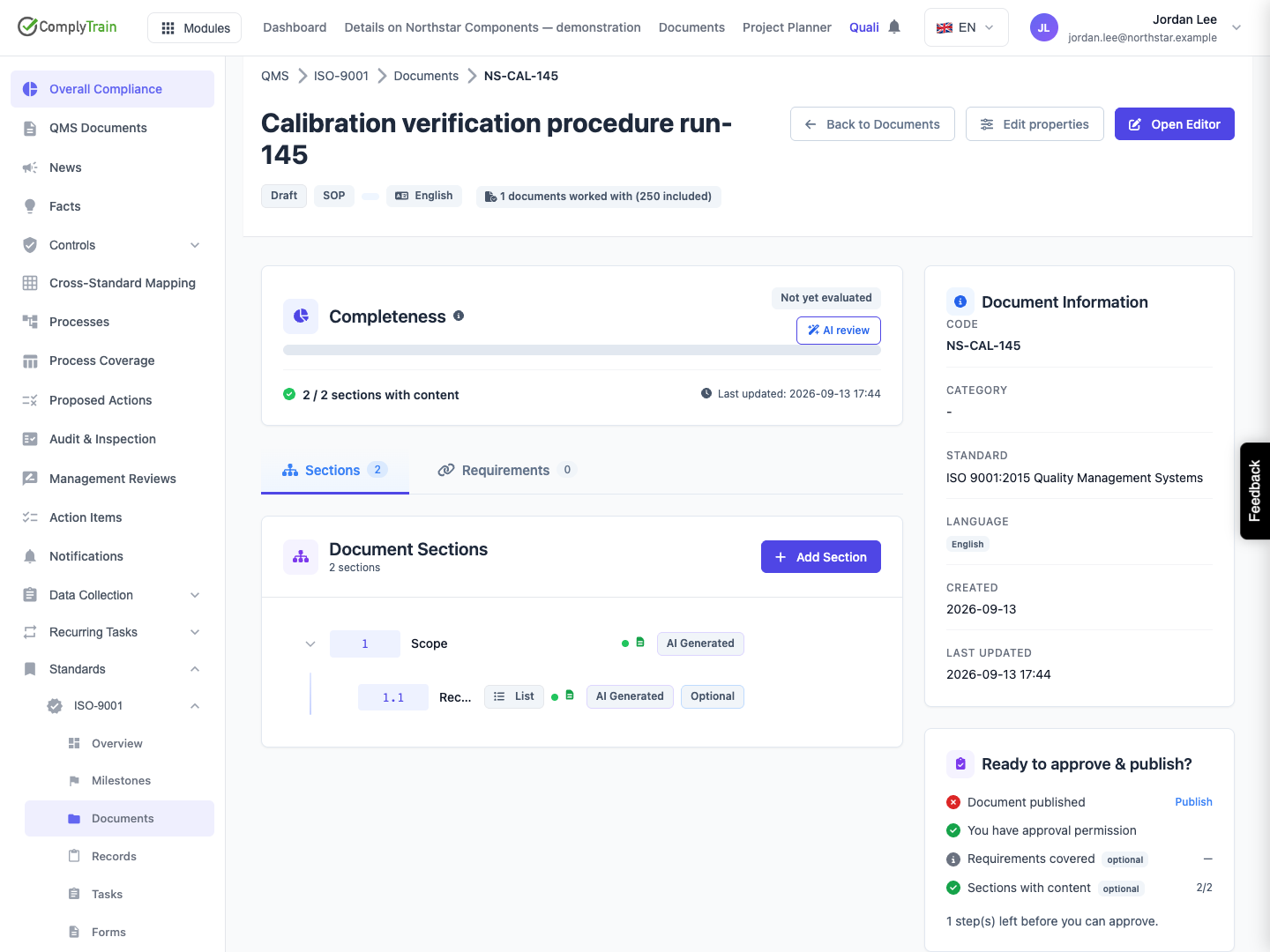
Confirm the document name, code, standard and language. Review every relevant section, placeholders and properties. A successful export is not a content-quality assessment. In the illustrated example, both sections contain text, but the document remains Draft and still needs publication before it can be approved.
Downloading requires the QMS manage_documents permission. Document-work allowance rules also apply. A document already counted as worked with does not consume another distinct-document slot on each export; the demonstration document's count remains unchanged.
Product location: /qms/{standardCode}/documents/{documentId}/editor (fallback: /qms/standards). Choose Export Document and select Download.
Choose Export Document in the editor toolbar. Select Download under Destination, then verify the output format and rendering layout before submitting.
The dialog initially offers PDF and Download. Choices can persist while the editor remains open, and the header Publish action opens this same dialog with Publish to Vault selected. Always read the selected destination and final button label; do not infer the action from the dialog title alone.
Choose Cancel or the close control before starting an operation to return to the editor. Closing the dialog after submitting a request is not an undo operation; check the saved result before trying again.
Product location: /qms/{standardCode}/documents/{documentId}/editor (fallback: /qms/standards). Choose Rendering layout in Export Document. Manage layouts opens /settings/document-layouts.
Rendering layout starts on Automatic: the file uses the layout assigned to the document's type, or the organisation's default layout when the type has none. To use a different layout for this one file, choose it in the list; the default is marked · default. Layouts and their document types are set up in document layouts.
Choose Manage layouts to open the layout settings when you need to change the design. The cover, contents, headers, footers and watermark all come from the layout; the export dialog has no separate switches for them.
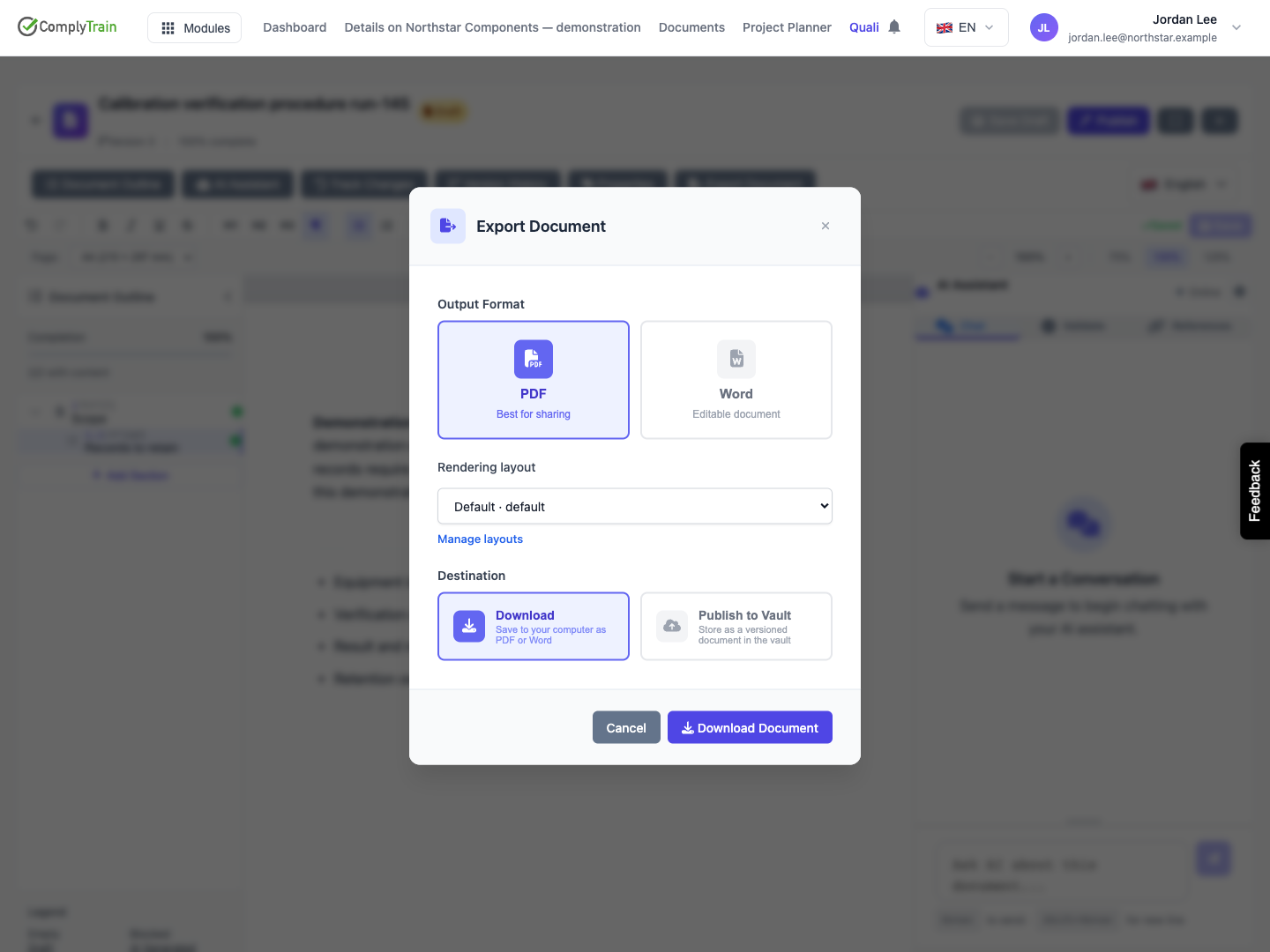
Product location: /qms/{standardCode}/documents/{documentId}/editor (fallback: /qms/standards). Choose PDF, Download and Download Document, then inspect the downloaded file.
Select PDF and Download.
Confirm the rendering layout.
Choose Download Document and wait for your browser's download.
Open the downloaded file and inspect every page before distributing it.
The demonstration PDF contains the saved Scope and Records to retain sections, followed by a Requirement Traceability Matrix appendix. Since that document has no mapped requirements, the appendix says so. It does not invent requirement coverage. Headers, footers and page numbers appear in the selected layout.
Check the actual wording, section order, lists, diagrams, property values, page breaks and traceability information for your document before distributing it. Keep the original file if you need an unchanged copy; editing or regenerating it can produce different bytes.
If the browser shows no download, check its download list and whether the dialog displays an error. Do not interpret a dismissed dialog as proof that you have retained the file.
Product location: /qms/{standardCode}/documents/{documentId}/editor (fallback: /qms/standards). Choose Word and inspect the optional review exports before downloading.
Select Word to request an editable DOCX file. The dialog exposes two options, both initially unchecked:
Option | Exported information |
|---|---|
Include review comments as Word comments | Unresolved section review comments as native Word comments |
Include suggestions as tracked changes | Pending AI suggestions as Word insertions and deletions |
These options apply to the downloaded Word file. A Suggestion-type human comment is not the same as a pending AI edit. See section review and comments for the distinction.
Select Word and Download, and tick the review options you need.
Confirm the rendering layout.
Choose Download Document and wait for your browser's download.
Open the file in your Word application and inspect both the document body and its review pane.
With Include review comments as Word comments, each unresolved review comment appears as a Word comment anchored to its section. With Include suggestions as tracked changes, each pending AI suggestion appears as a tracked insertion or deletion that you can accept or reject in Word. Without either option, the file contains the saved content only. Do not assume that edits or review decisions made in an exported file update the QMS source automatically.
Product location: /qms/{standardCode}/documents/{documentId}/editor (fallback: /qms/standards). Check the selected destination; header Publish selects Publish to Vault.
Download produces a local file. Publish to Vault creates or updates a versioned vault document. Publication can also approve and lock the QMS document when the person publishing has approval permission and all readiness checks pass.
Follow publication, approval and revision for the controlled lifecycle. The header Publish action preselects Publish to Vault and shows Publish Notes. Check the full configuration before submitting. The illustrated configuration is cancelled; the notes do not create a version merely by being entered.
The Word review options apply to downloaded Word files.
Product location: /qms/{standardCode}/documents/{documentId} (fallback: /qms/standards). Reload the document and confirm its actual status and readiness after export.
Return to the document detail page after downloading and inspect its status. The example remains Draft with the same readiness result after export attempts. Exporting a PDF does not satisfy its remaining publication step.
For an error, retain the document location, selected format and layout, options, approximate time and visible message. Reopen the document to confirm that saved content is still available. Try a different format only if it meets your purpose; do not repeatedly submit an operation without checking its result.
Ask an administrator to check access or allowance problems, and report persistent rendering failures with the configuration that reproduces them.
