Resolve approval readiness, publish a vault version, distinguish approval from publication, and reopen a controlled document without discarding its previous approval.
Controlled publication stores a rendered version in the document vault. Approval records the approved version and its requirement coverage, then locks the QMS document against editing. Publish to Vault can perform both actions together when the publisher has approval permission and all approval checks pass.
Product location: /qms/{standardCode}/documents/{documentId} (fallback: /qms/standards). Confirm the document standard and access; an administrator maintains its configured vault.
The document must belong to a standard with a configured document vault and a usable vault document type. Publication reports an error when it cannot find the required destination or type. Ask an administrator to check the standard and vault configuration rather than repeatedly publishing.
QMS manage_documents is required for publication. approve_documents is required for approval and for Revise, which unlocks an approved document. A person who can publish is not necessarily an approver. If the publisher lacks approval permission, a successful vault publication remains editable and must be routed to an authorised approver.
The document-work allowance applies to publishing. It counts distinct documents worked with, rather than treating every new version of an already engaged document as another distinct-document slot.
Product location: /qms/{standardCode}/documents/{documentId} (fallback: /qms/standards). Inspect Ready to approve & publish and address required conditions.
Open the document detail page and inspect Ready to approve & publish?. The required checks identify unfinished work. Optional indicators describe quality or coverage and should not be confused with the approval gates.
Required condition | What to check or do |
|---|---|
Authored content reaches the configured minimum | Complete the document's sections. The default threshold is 100%; untouched seeded template boilerplate does not count as authored content. |
Document is in an approvable state | Generated or Reviewed content can proceed to approval. A hand-authored Draft can show Document published with a Publish action even when all its sections contain text. |
No unfilled placeholders | Replace the remaining [To be provided: …] markers with the actual information. Use Fix placeholders when offered. |
No pending AI suggestions | Review and accept or reject the outstanding AI edits in the editor. |
No unresolved properties | Set the remaining {{property}} values through Open properties, or remove tokens that should not be in the document. |
Required approver training is current | Complete the training required by the document's template when this condition applies. The check concerns the person approving. |
You have approval permission | Have the appropriate QMS role or ask an authorised approver to complete the action. |
The page can combine content completeness and document state into the Document generated/published check. Placeholder, suggestion, property and training rows appear when applicable. If the checklist fails to load, its absence does not mean that the document is ready.
Requirements covered and Sections with content are shown as optional indicators. The underlying minimum-content check still applies. An AI completeness score, section review badge and document lifecycle status describe different things. A document can have all sections populated while its AI completeness assessment remains Not yet evaluated.
Unresolved human review comments and individual section approval badges are not separate approval gates. Resolve substantive review work according to your organisation's procedure; the software's readiness result does not replace that review.
Product location: /qms/{standardCode}/documents/{documentId}/editor (fallback: /qms/standards). Save, choose Publish, select format and layout, and enter publication notes.
Finish reviewing the content, save it, and verify Saved before proceeding. Open the editor and choose the header Publish, or choose Export Document and explicitly select Publish to Vault.
Select PDF or Word and the rendering layout. Enter useful Publish Notes so readers can understand the purpose of the version. Notes are optional. Inspect the destination and final Publish to Vault button before submitting. Cancel before submission leaves the publication unstarted.
For an already published document, the dialog can offer Major Version. Choose it according to your organisation's versioning policy; ordinary publication otherwise requests a minor version. The first vault document starts at version 1.0. A version label is separate from the QMS record's update counter and a section's content-history revision number.
The Word review-comment and tracked-change options apply to downloaded Word files. See file exports for those options.
Product location: /qms/{standardCode}/documents/{documentId}/editor (fallback: /qms/standards). Submit Publish to Vault once, read the result, then reload the document to confirm its status.
Choose Publish to Vault once and wait for the result. This saves an artifact to the vault configured for the standard; it does not publish the document to the public internet.
Result | Meaning and next action |
|---|---|
Published, approved and locked | The vault version was saved and all approval conditions passed for the publisher. Reload the document and confirm Approved & locked. |
Published but still editable | The vault version was saved, but approval did not complete. Read Not yet approved and its remaining conditions, address them or route the document to an approver. |
The dialog keeps a remaining-condition list open so that you can read it. A success message containing a version number alone is not sufficient evidence of approval. Check the actual document status after reload. In the illustrated first publication, vault version 1.0 is created and the document reloads as Approved & locked. The page's Generation History counter shows 5; that is the QMS record version, not vault version 5.
If a request fails after work has started, inspect the document and its vault versions before retrying. Publication and approval have multiple stages; a failure message should not be treated as proof that no artifact was created.
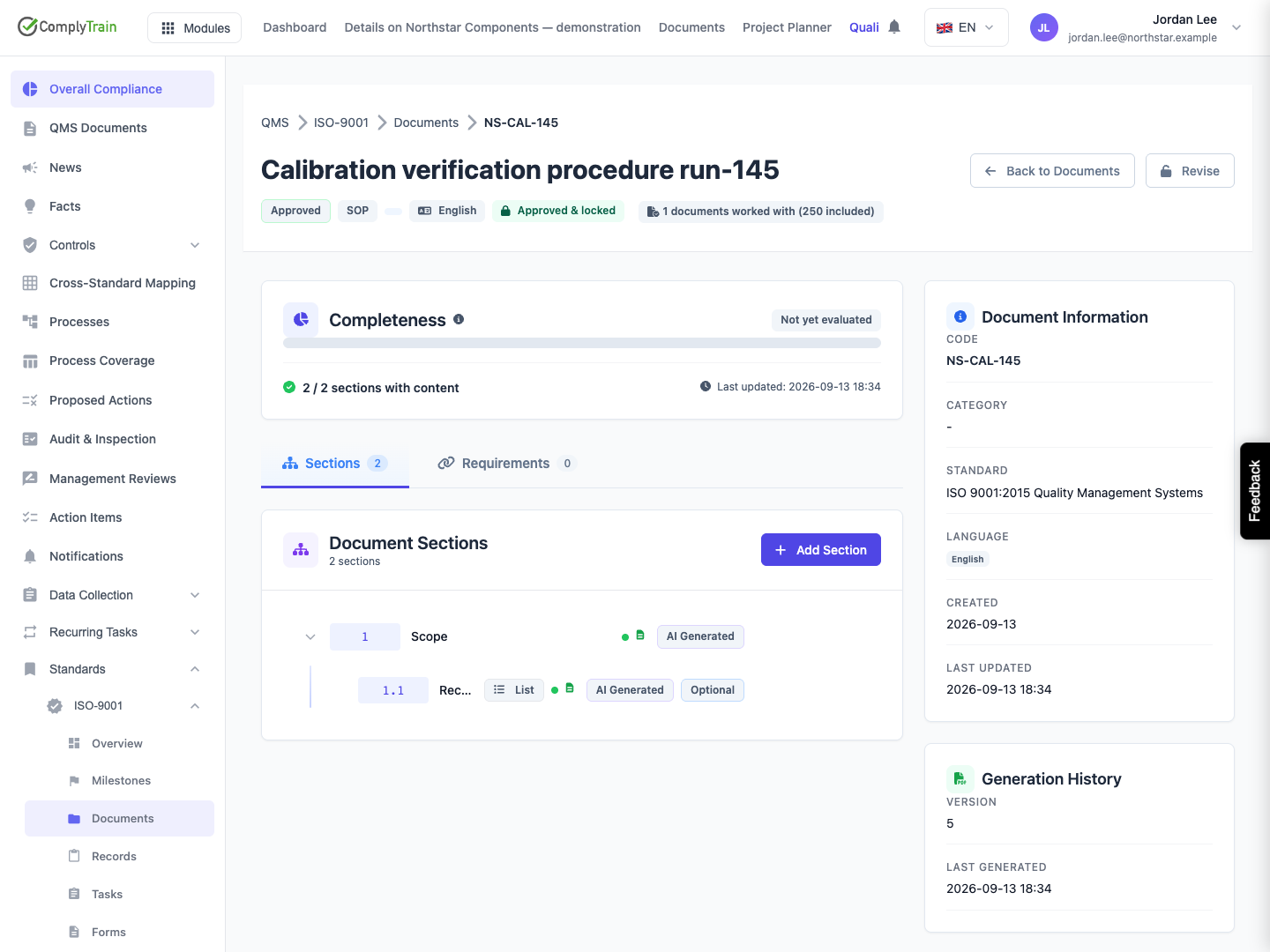
Product location: /qms/{standardCode}/documents/{documentId} (fallback: /qms/standards). When ready, choose Approve or Approve & publish, then confirm Approve & lock.
When the document detail page reports that the required checks have passed, use Approve in the header or Approve & publish in the readiness panel. Read Approve and lock this document?, then choose Approve & lock or Cancel.
This action renders and publishes a controlled version, records its requirement snapshot and locks the document. It is not merely a toggle on a previously exported local file. The detail-page action publishes a PDF with the layout assigned to the document's type. To choose Word or a specific layout, publish from the editor's Publish to Vault instead.
The service rechecks readiness, permission, current state and any applicable approver training. A previously visible button cannot guarantee that conditions are still satisfied. If another person has changed or approved the document, reload and inspect the latest state before acting again.
Product location: /qms/{standardCode}/documents/{documentId} (fallback: /qms/standards). Check Approved & locked and the retained controlled version.
Approval pins the approved vault version, records the approver and time, and freezes the version's requirement coverage and section content. The requirement snapshot represents what that version covered at approval time. Later mapping or text changes should not be interpreted as changes to the older approved snapshot.
The approved document shows Approved & locked, and its editing controls are withdrawn until it is revised. Section approval, ordinary saving, local export and a vault version created without completed approval do not establish this locked state.
An approval record is not, by itself, a claim about a separately signed PDF, cryptographic signature, external certification or legal acceptance. Use the preserved version and the organisation's actual approval procedure when explaining what was approved.
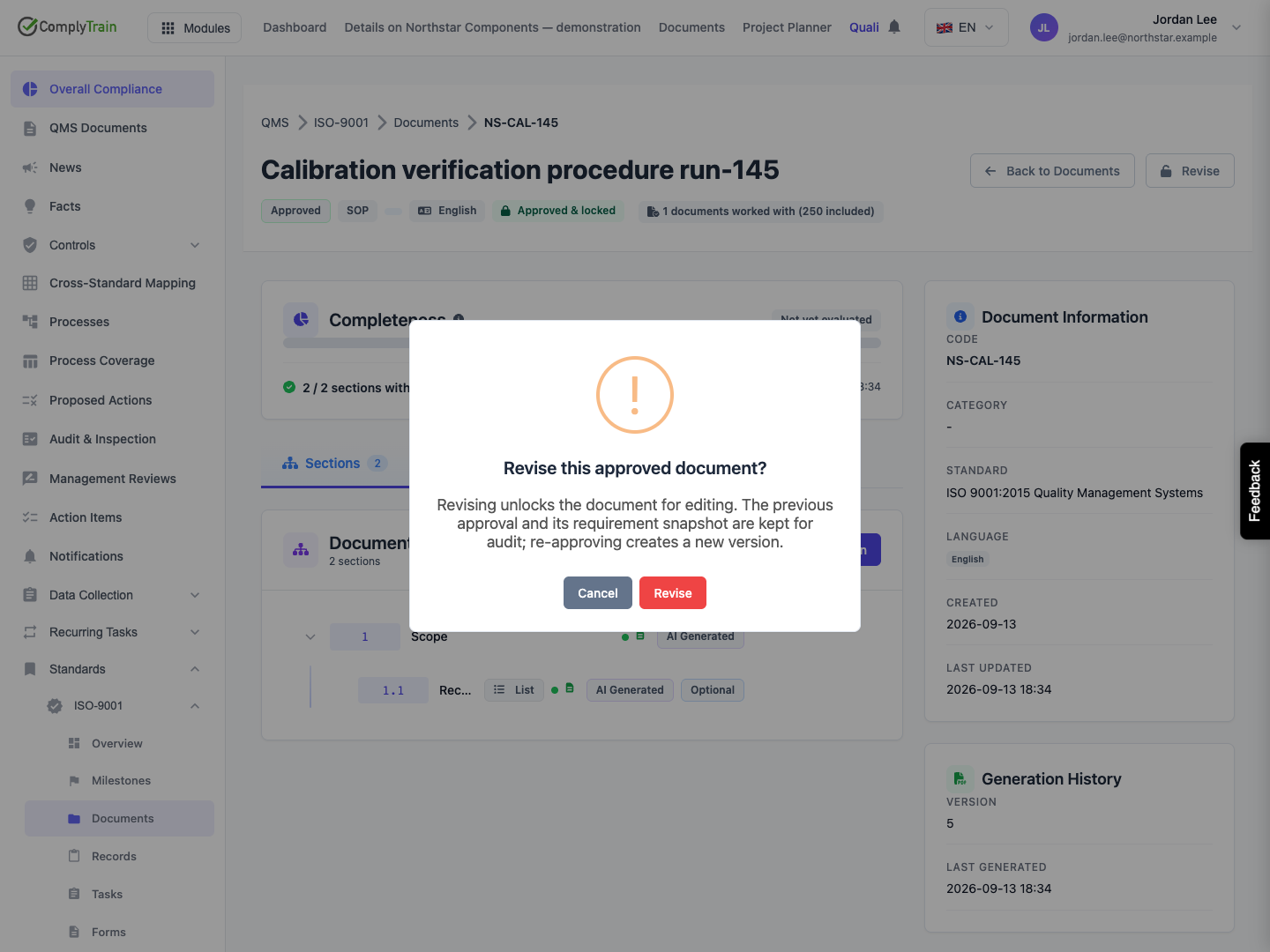
Product location: /qms/{standardCode}/documents/{documentId} (fallback: /qms/standards). Choose Revise and confirm or cancel; reload to check the resulting state.
An authorised approver opens the locked document and chooses Revise. The confirmation explains that editing will reopen and the previous approval and requirement snapshot will be retained.
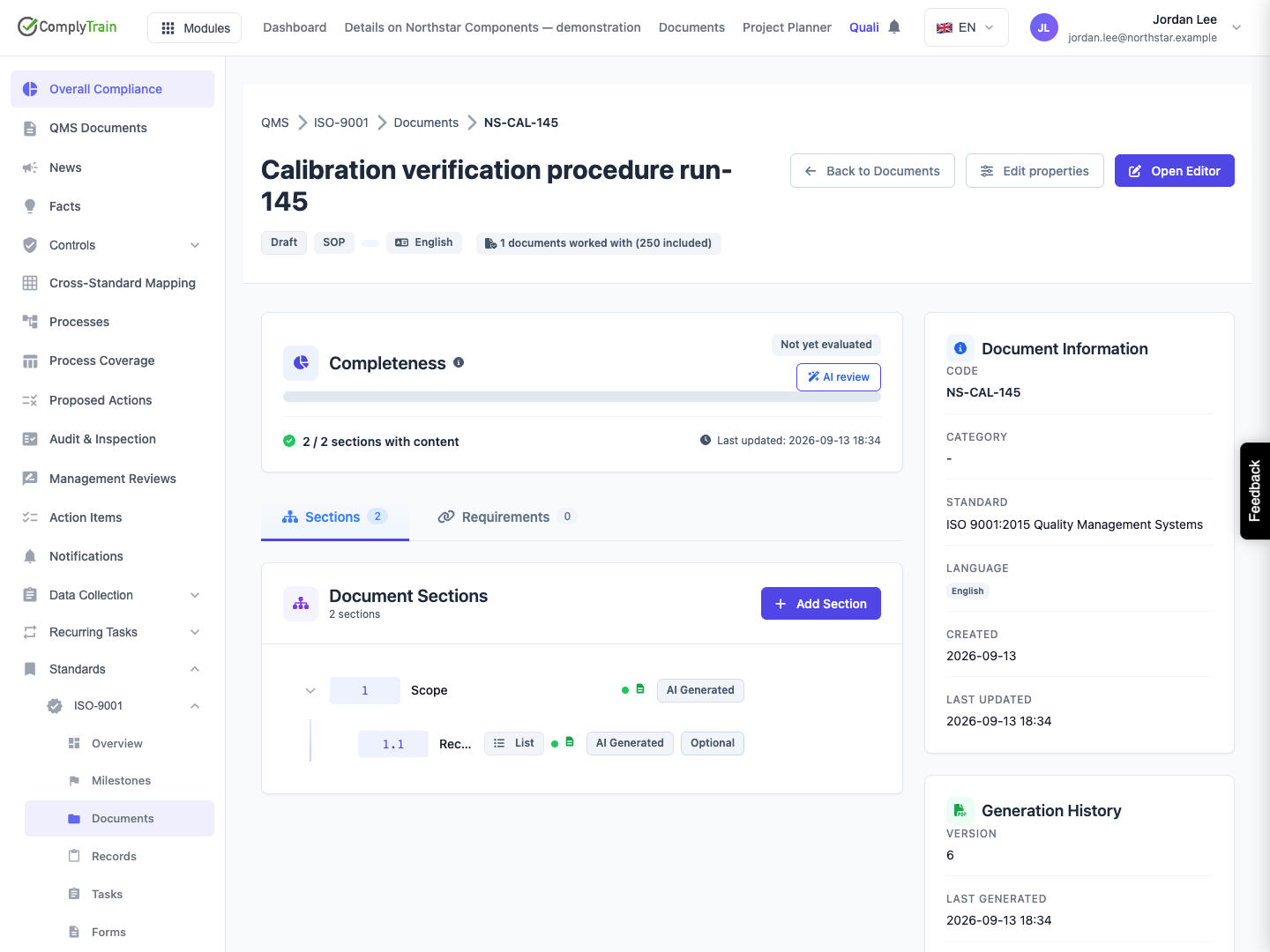
Choose Cancel to leave the document approved and locked. Choose Revise to return it to Draft, then reload and confirm that Open Editor is available again.
Revision does not delete the existing vault document or its earlier approved version. Make and save the changes in the reopened document, repeat the necessary review, and publish or approve again to create a new controlled version and snapshot. Reopening alone does not approve the new working draft.
Revise operates on the whole approved document. Version History → Revert operates on a section's saved text and is not a substitute for unlocking a controlled document. See section version history for inspecting and restoring wording.
Product location: /qms/{standardCode}/documents/{documentId} (fallback: /qms/standards). Read the current state and readiness, then address the specific error before retrying.
For shared values and token resolution, follow document property tokens.
For missing content, placeholders, properties or AI suggestions, return to the named editor task, save the correction and reload readiness. For missing approval permission or required training, use the appropriate approver or complete the requirement rather than repeatedly publishing unchanged content.
If a document is already approved and locked, inspect the approved version and use Revise only when a new revision is intended. If another person has revised it meanwhile, reload; revision is valid only for an approved, locked document.
For vault configuration or rendering failures, retain the document location, format, layout, visible message and time, and ask an administrator to investigate. Confirm the actual QMS state and vault versions before retrying. Retain important wording before refreshing an editor with unsaved work.
