Find shared properties, insert references, set missing values and verify resolution before document approval.
A property token inserts a shared value into document text. For example, a token for a review owner can display the current named owner while the document stores the property's code. The property definition, its value and each occurrence in a document are separate records to understand.
Use a property when the text should follow a maintained shared value. Use ordinary text when the wording should stand on its own. The editor's Properties panel manages these references; Edit properties on the document detail page changes document identity and metadata instead.
Product location: /qms/{standardCode}/documents/{documentId}/editor (fallback: /qms/standards). Choose Properties and select the intended section and insertion point.
Open an editable QMS document and choose Properties in the editor toolbar. Select the intended section and place the cursor where the value belongs. The property panel opens beside the document; its category headings expand and collapse the list.
Each entry identifies a property by its display name and code, with its current value where one is set and a Draft or Archived badge when it is not active. Read the code and intended purpose before choosing an entry. Two properties with similar names can represent different responsibilities or organisational scopes.
For example, a person's name and a role title serve different purposes. “Reviewed by Jordan Lee” calls for a named reviewer, while “The Quality Manager reviews the record” usually calls for a role. Read the whole sentence before inserting a shared value.
Product location: /qms/{standardCode}/documents/{documentId}/editor (fallback: /qms/standards). Search for the intended property or use Used, Resolved and Unresolved filters.
Enter part of a display name, property code or value in Search properties.... Clear the search with its close control. Search for an existing concept before proposing a new code; approved_by, for example, can locate Approved By even when no value has been assigned yet.
Search covers the whole catalogue. The list shows Showing N of M properties; choose Load more to see further entries.
The summary controls describe occurrences in the current document:
Control | Meaning |
|---|---|
Used | Number of property-token occurrences. |
Resolved | Occurrences with an available, nonblank shared value. |
Unresolved | Occurrences that still need an available value. |
A property used twice contributes two occurrences and can display a 2× indicator. The counts do not describe the number of distinct property definitions. Search and usage filters combine; choose the active summary filter again to clear it.
Click a used property's name or code to navigate to an occurrence. Repeated clicks cycle through its occurrences. The plus control inserts another occurrence. After changing content or a shared value, refresh the panel and review the affected sentences together with the counts.
Product location: /qms/{standardCode}/documents/{documentId}/editor (fallback: /qms/standards). Place the cursor and choose Insert property token beside the intended property.
Select the intended section and place the cursor in its text.
Find the property and confirm its code and value.
Choose its Insert property token plus control.
Check the sentence, insertion point, spaces and punctuation.
Save the content and confirm Saved before leaving the editor.
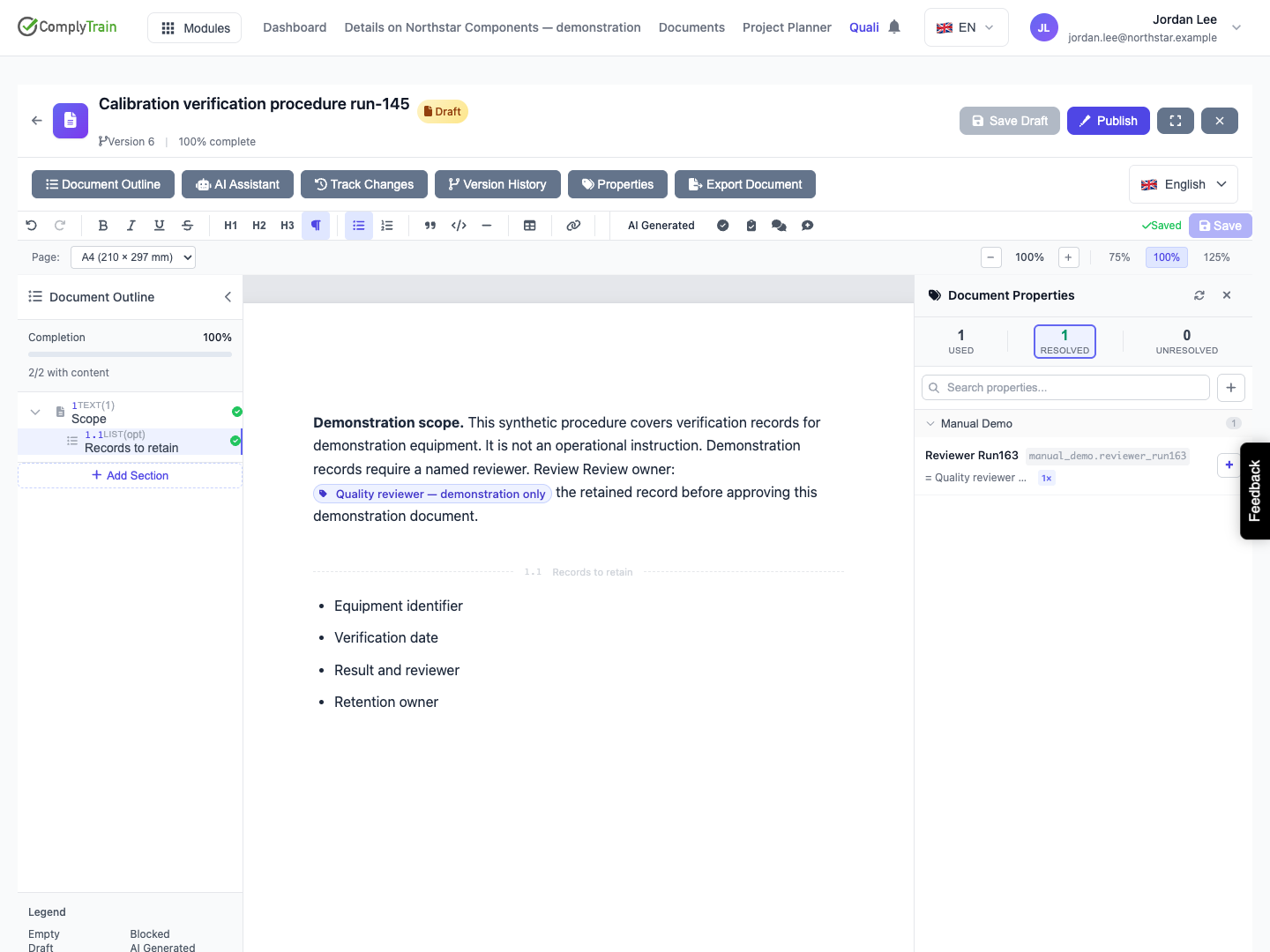
A resolved token displays its value as an inline item. An unresolved one displays a reference such as {{ company.review_owner }}. The saved reference remains a property code even when the editor shows its value.
Reopen the section to confirm the saved placement. Inserting a property does not assign its value or approve the document. Use the document's revision workflow before editing approved, locked content; see editing and saving.
Product location: /qms/{standardCode}/documents/{documentId}/editor (fallback: /qms/standards). Open New Property, review existing matches and complete the proposal; check its saved state after Create & Insert.
Search for the concept first. If a suitable property already exists, use it rather than creating a second code for the same purpose. Otherwise, the plus control beside the search field opens New Property.
Field | What to enter |
|---|---|
Code (dot-notation) | A stable identifier, such as |
Display Name | A clear name that other authors will recognise. |
Category | Required. The grouping where authors should find it. |
Description | What the property represents, its scope and when to use it. |
Why is this property needed? | Required. What the property is for and why no existing property fits. |
Suggested Value | A proposed initial value, if known. This remains part of the proposal until accepted. |
When existing properties look similar, the form lists them. Choose Use this one to insert an active property instead, or Continue with a new proposal. Cancel discards the unsubmitted form. Create & Insert saves the proposal as a draft with everything you entered, then inserts its reference. The panel confirms CODE was saved as a draft awaiting approval. Its token renders once the proposal is approved. Check the document sentence as well.
A new custom property starts as Draft. A reviewer approves or rejects it under Pending proposals in Settings → Document Properties: approving makes it active, and rejecting archives it with the reviewer's reason. Until then the token does not render a value. Saving or reopening the containing document does not approve the proposal. Keep track of the code when following up with the administrator.
If the proposal cannot be saved, the form keeps your input and says why. CODE is already proposed and awaiting approval means you should wait for that review or choose another code. CODE already exists as an active property offers Use this one to insert the existing property. After an interrupted save, confirm whether a proposal was saved before trying again. After approval, refresh the property and check its active value; after rejection, review the decision and choose the appropriate existing property or revised proposal.
Product location: /qms/{standardCode}/documents/{documentId}/editor (fallback: /qms/standards). Open Properties and read the groups of referenced codes that are missing, drafts, archived, without a value or not yet checked.
An unresolved token needs investigation at the property level. Check the exact code and its status before changing the document.
The panel checks every code the document uses against the whole catalogue and lists the codes that will not render in separate groups:
Panel message | Next step |
|---|---|
N referenced properties have no value set | Set the correct shared value, or ask the person responsible for it. |
N referenced properties are drafts awaiting approval and will not render yet | Follow up on that proposal and its code. Do not create a duplicate. |
N referenced properties are archived and will not render | Review why it was withdrawn and choose an appropriate active property. |
N referenced properties do not exist in the catalogue | Check spelling and existing equivalents before creating one; Create Missing Properties is offered only here. |
N references could not be checked against the catalogue, or have not been checked | Resolve the loading problem and choose Check again before treating the code as missing. |
Create Missing Properties acts only on the codes confirmed missing from the catalogue; existing definitions, pending proposals and rejected or archived codes are never recreated. Creating a definition does not establish its correct value. Review the identified codes and the result: a created/failed summary can contain partial results, so check the remaining items before retrying.
For imported or generated text, inspect unresolved references in context. A code that looks plausible can still describe the wrong concept. Do not assign an arbitrary value simply to clear a readiness indicator.
Product location: /qms/{standardCode}/documents/{documentId}/editor (fallback: /qms/standards). Hover the token and choose Edit property to open its filtered Settings page.
Hover over a token to inspect its code, Value and Source. Not set means it has no resolved value. The source can be manual entry, a linked fact or linked knowledge.
Choose Edit property to open Settings → Document Properties in another tab, filtered to that code. When a single record is selected, its value editor can open directly. Confirm the exact code and scope before editing.
This changes the shared record, potentially affecting other documents that resolve the same property. For a fact-linked or knowledge-linked value, review the originating source and its currency. A value's presence is separate from whether it is correct for this document.
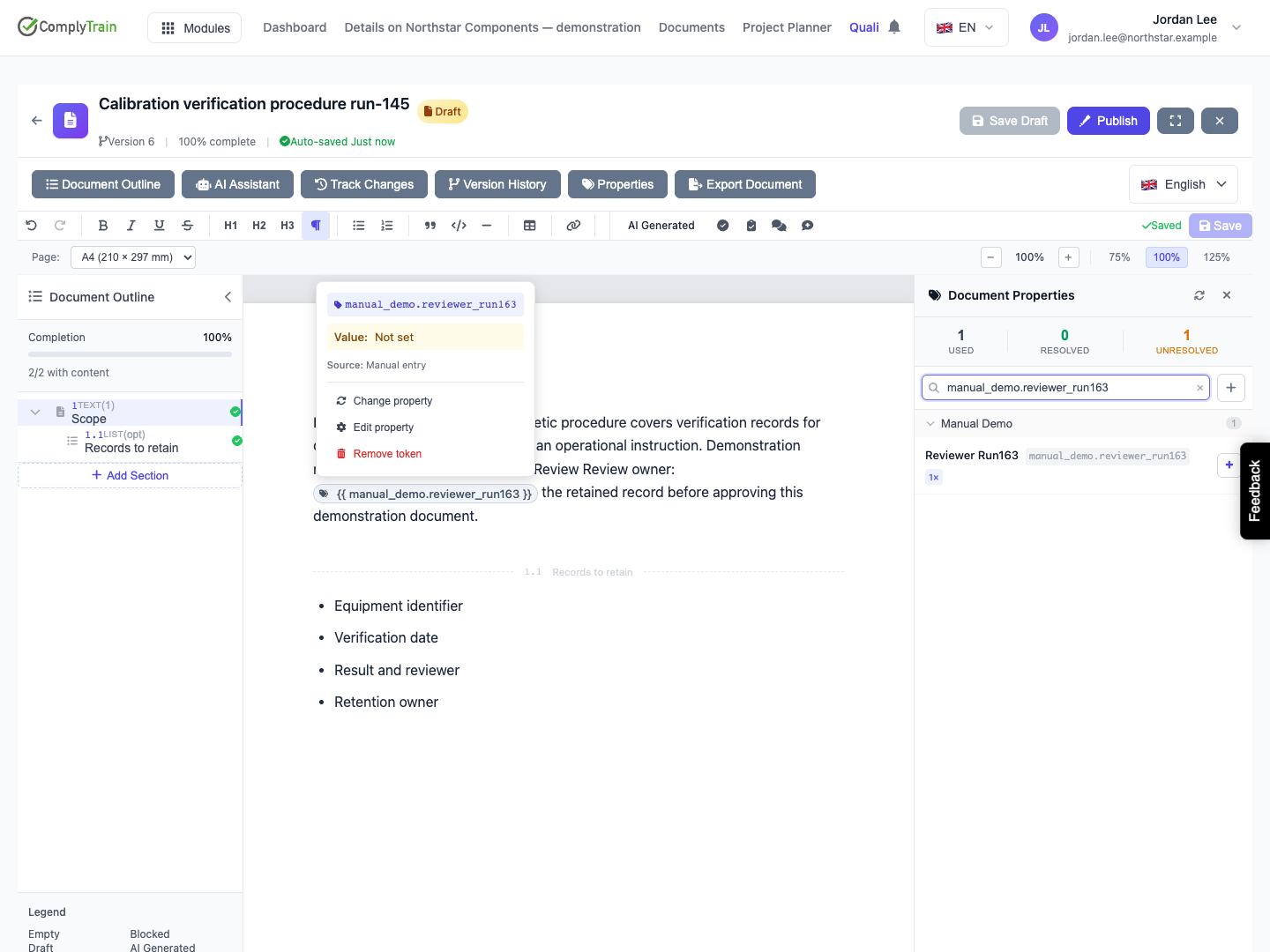
Product location: /settings/document-properties. Search the exact property code, edit Value and Save; then reopen the QMS editor to check resolution.
In Settings, locate the intended property and review its current source and scope.
Enter the correct Value and choose Save. Cancel abandons the current value edit.
Confirm the saved value. An empty value clears it; outer whitespace is trimmed.
Return to the document and reopen Properties to refresh inline values, or reload after saving local content.
Read every affected sentence and review the Resolved/Unresolved counts.
If someone changed the property while you were editing, load and assess the latest value before retrying. Coordinate changes to shared responsibilities or organisation details with their owner.
In the example, Quality reviewer — demonstration only is the saved value of the review-owner reference. The token displays that value after reload while the document remains Draft. Resolution supplies text; document review and approval remain separate steps.
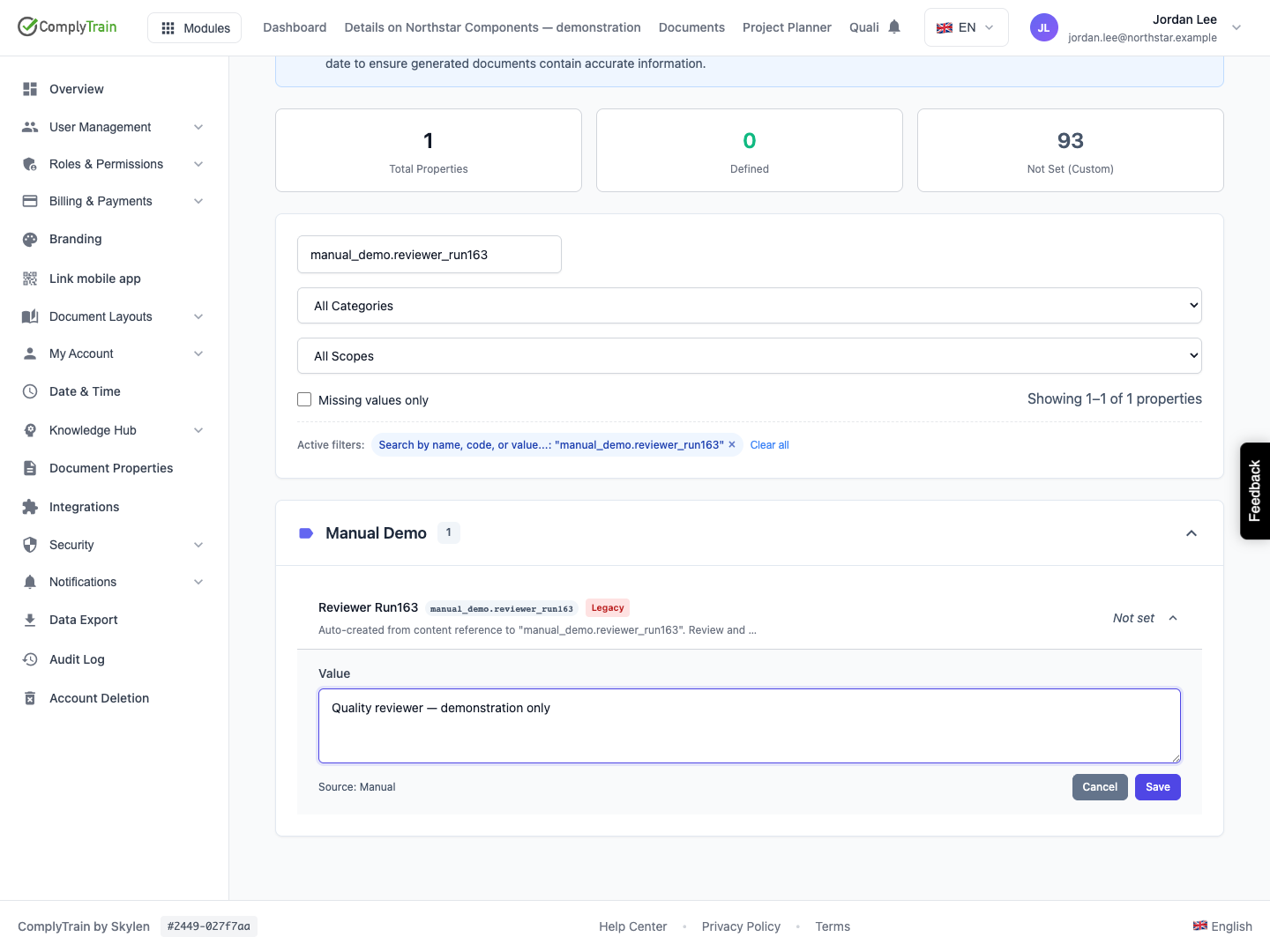
Product location: /qms/{standardCode}/documents/{documentId}/editor (fallback: /qms/standards). Hover the token, choose the intended action and check its scope before saving.
Open the tooltip on the exact occurrence you want to change. The actions apply to that occurrence only. When the document cannot be edited, the tooltip offers Edit property alone. These actions have different effects:
Action | Effect |
|---|---|
Edit property | Open the shared record in Settings; other references can use its changed value. |
Change property | Choose a different property for this occurrence. The replacement stays a dynamic reference. |
Replace with value | Replace this resolved occurrence with ordinary text containing its current value. Later shared-value changes do not update that text. |
Remove token | Delete this occurrence from the document without deleting its shared property. |
For Change property, the panel shows Select a property to replace followed by the token's code, and each entry's insert control becomes Replace with followed by that entry's code. Choose the new property and read the revised sentence, or close the banner to cancel. If that occurrence is deleted or undone meanwhile, the panel reports The selected token is no longer in the document, so nothing was changed. Open the tooltip of the intended token and choose Change property again. For Replace with value, confirm that fixed wording is appropriate before discarding the dynamic reference.
When the same code appears several times, act on the intended occurrence and check that the others still contain their original references. For example, changing the review-owner token in a records section should leave its occurrence in the approval section unchanged. Save and reopen to confirm the result.
Product location: /qms/{standardCode}/documents/{documentId} (fallback: /qms/standards). Reload Ready to approve & publish and address remaining unresolved property conditions.
Return to the document detail page and refresh Ready to approve & publish?. Resolve each outstanding property using the right value or an appropriate reference. Also check content, review, training and the other conditions shown by the document's readiness checklist.
Inspect an exported document when preparing material for review: confirm the expected values, sentence wording and any repeated references in the actual output. Do not assume an existing approved artifact was regenerated merely because a shared value changed. Follow publication, approval and revision and document exports for those outcomes.
For a catalogue load error, use Retry or Refresh properties after checking access and the connection. For a failed save, preserve the intended text or value and compare the persisted state before retrying. A missing value, unavailable source and pending proposal need different action; use the code and record status to identify which one applies.
