Choose the right section, give a bounded request and verify the resulting proposal before accepting it.
Use AI Assistant to discuss a document or request specific changes to its sections. A reply, a pending change, saved content and whole-document approval are different outcomes. Check which outcome the request produced before continuing.
Product location: /qms/{standardCode}/documents/{documentId}/editor (fallback: /qms/standards). Open AI Assistant; click within the intended section and check Context.
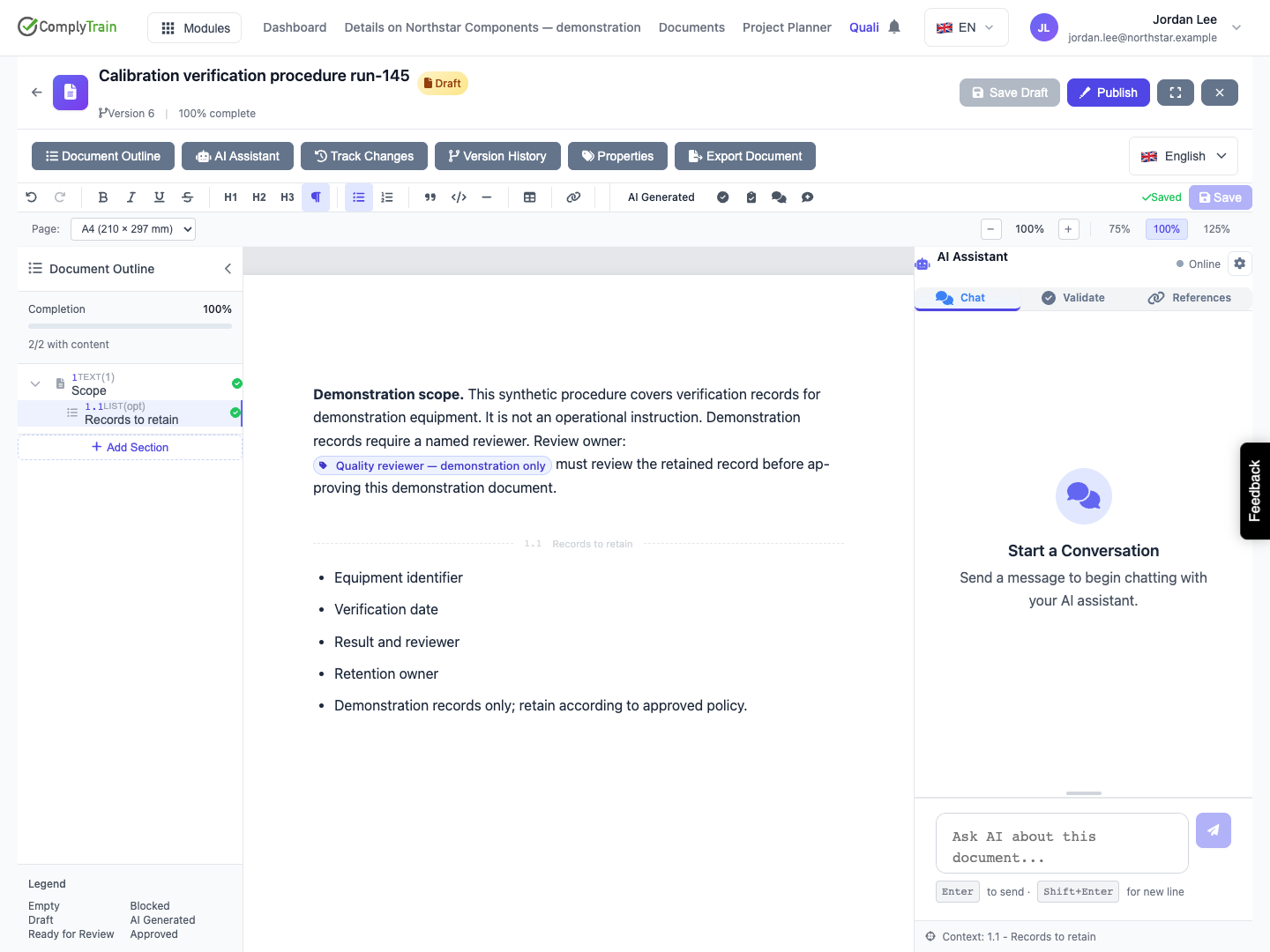
Open the standard's document, choose Open editor, and open AI Assistant. Select the intended section in Document Outline, then click inside that section's content. Check the Context line at the bottom of the assistant immediately before sending.
Name the section code and title in your request. Review the affected section when the proposal returns.
The Online label is not evidence that a request has finished successfully. Wait for the response and inspect any displayed error.
Product location: /qms/{standardCode}/documents/{documentId}/editor (fallback: /qms/standards). Name the section and specify the requested change and content to preserve.
State the intended change, the section it belongs to and what must remain. For example:
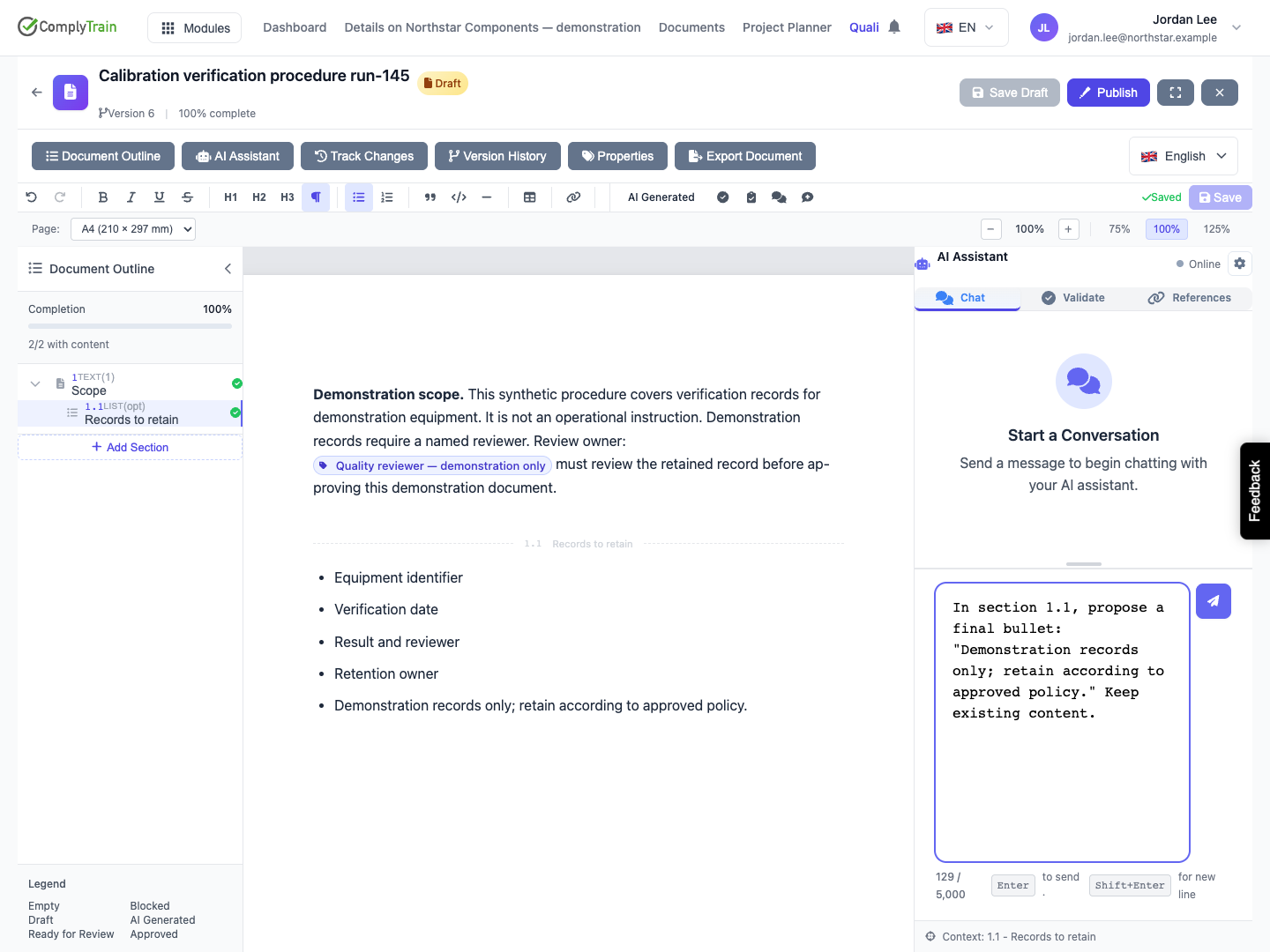
In section 1.1 Records to retain, propose one final bullet: “Demonstration records only; retain according to approved policy.” Keep the existing four bullets and Scope unchanged. Propose the edit for review; do not publish or approve.
For a shared value, name the property code and ask the assistant to preserve the token. Keep demonstration qualifications, units, limits, responsibilities and references that matter to the task. Ask the assistant to identify missing facts rather than inventing them.
The assistant receives live editor context, which can include unsaved text and the current selection. Save your intended baseline first so you can compare and recover it later. Selecting a passage provides context; it does not guarantee that only those characters will change.
Product location: /qms/{standardCode}/documents/{documentId}/editor (fallback: /qms/standards). Use Enter to send, Shift+Enter for a new line, and wait for completion.
Press Enter or the send button. Use Shift+Enter for a new line. Drag the divider above the input upward to see a longer request; this changes the input area, not the document.
The input is disabled while the response streams. Stay in the editor until the turn finishes, then read the response and inspect Track Changes. Navigating away can interrupt the visible conversation while server work has already created a proposal. Check existing proposals before repeating a request.
Product location: /qms/{standardCode}/documents/{documentId}/editor (fallback: /qms/standards). Use starter actions only when shown and review the resulting request.
An empty Chat panel can offer these shortcuts when automatic prompt suggestions are available and enabled:
Action | Request it starts |
|---|---|
Compliance check | Review the selected section against relevant standards and regulations. |
Update references | Review and suggest updates to references in the section. |
Suggest improvements | Improve clarity and effectiveness. |
Grammar and style | Review grammar, spelling and style. |
These shortcuts send a chat request using the current section and selected-text context. They do not automatically approve the result. Update references is a request for assistance; References → Scan reads already recorded document relationships. See validation and reference checks for that separate workflow.
Product location: /qms/{standardCode}/documents/{documentId}/editor (fallback: /qms/standards). Open Track Changes and compare stored proposals with saved section content.
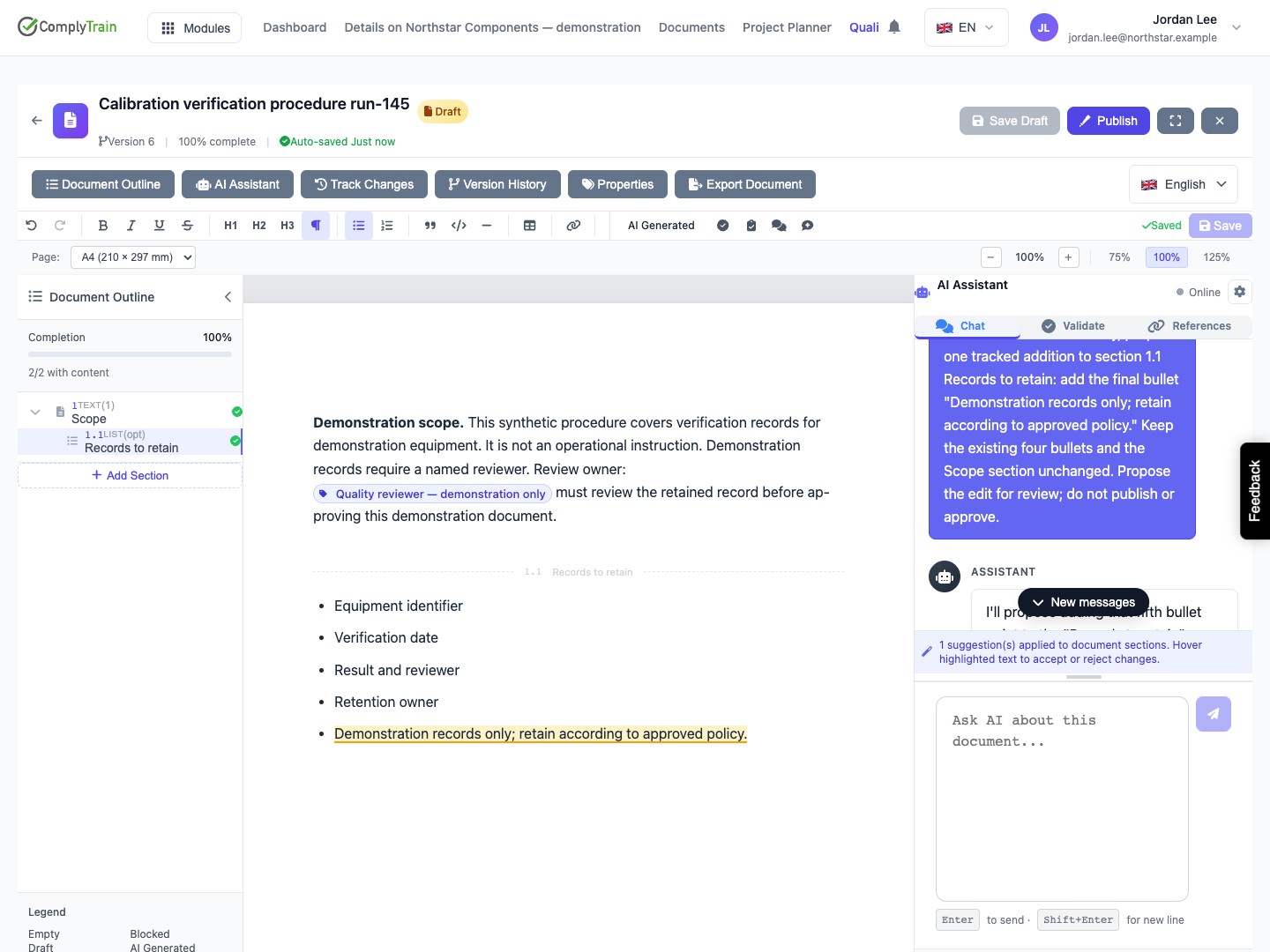
Open Track Changes, inspect every affected section and compare the proposed content. Confirm that the assistant preserved material outside the request. A response that says it proposed a change must be checked against the actual pending rows.
Pending proposals are kept for review separately from saved document content. Accepting a proposal applies its edit; rejecting it leaves that edit unapplied. Use My Changes to find the AI proposals you requested, including rows labelled AI Assistant.
Use review AI changes to accept or reject the record and then reload to verify the actual text. Check Ready to approve & publish separately: pending suggestions are an approval condition, and clearing that condition does not approve the document.
Product location: /qms/{standardCode}/documents/{documentId}/editor (fallback: /qms/standards). Inspect current proposals and saved content before retrying an interrupted request.
If a request fails, stops mid-response or loses its visible conversation, check Track Changes and reload the document before sending it again. Keep the request and the affected section name when reporting a problem.
If the proposal targets the wrong section, changes unrelated content or invents a fact, reject the proposal. Refine the request with the correct section, supporting facts and intended scope before asking for another proposal.
The first AI work on a document can engage that document against the tenant's document allowance. An interrupted response does not necessarily undo that engagement. If a plan-limit message appears, resolve the allowance with the tenant administrator before retrying. Repeatedly sending the same request is not a recovery method.
