Find proposals, compare changes, record individual decisions and verify saved content after review.
Use Track Changes to review AI proposals and retain their decisions. A pending proposal does not change the saved document content: its edit is applied only when you accept it. Check both the review status and the resulting saved document. Neither the Saved indicator nor an Accepted row replaces whole-document approval.
Product location: /qms/{standardCode}/documents/{documentId}/editor (fallback: /qms/standards). Open Track Changes.
From the document editor, choose Track Changes. Each row identifies a section, a change type, proposed content, an author label, time and status. Changes can be additions, deletions or modifications; text, table and diagram changes may use different previews.
Viewing document suggestions requires the QMS View documents permission. Reviewing them requires Manage documents. Whole-document approval is a separate permission and workflow. If a decision fails, refresh the register before acting again; another reviewer may already have handled it.
Status | Meaning and next action |
|---|---|
Pending | The proposed edit awaits a decision and has not changed saved content. Inspect the comparison before Accept or Reject. |
Accepted | The proposed edit has been applied. Check the saved section to confirm the intended result. |
Rejected | The proposed edit was declined and does not change saved content. Its decision remains available in history. |
Superseded | The proposal is no longer pending. Inspect current content and newer proposals before considering recovery. |
Rows label AI-authored changes AI Assistant. The human requester is distinct from the AI author: each row also shows who asked for it, as requested by you or requested by followed by the person's name. Requesting an AI proposal makes it part of your My Changes view.
Product location: /qms/{standardCode}/documents/{documentId}/editor (fallback: /qms/standards). Choose All, Pending or My Changes to inspect the proposals to review.
All shows the loaded review history. Pending shows proposals awaiting a decision. My Changes includes AI proposals you requested, even when their author label is AI Assistant; other people's proposals are under All. A proposal with no recorded requester appears under All and Pending only. Choose the view that matches the work you intend to review.
Product location: /qms/{standardCode}/documents/{documentId}/editor (fallback: /qms/standards). Open Track Changes, choose the intended filter and review the visible pending proposals before a bulk decision.
Set the filter first, then inspect the proposals it shows. Accept all shown and Reject all shown act only on the pending proposals the current filter shows. The number on each button, and the line N pending in this view, is exactly how many proposals the decision covers. Hidden proposals and already decided records are left unchanged. If the filter shows no pending proposals, the bulk buttons are hidden and the panel reports how many pending proposals the filter is hiding.
Use a bulk decision only when the same decision is appropriate for every pending proposal in that view. Otherwise, review the rows individually. Afterward, inspect the resulting content and return to All or Pending to find any work outside the filter that still needs review. The Pending tab badge always counts every pending proposal in the document.
Product location: /qms/{standardCode}/documents/{documentId}/editor (fallback: /qms/standards). Open a change row to compare its previous and proposed content.
Click a row to open its comparison. A modification with previous content shows Previous Version and New Version side by side. Other changes can show a single proposed-content pane. Markdown markers and property codes may appear literally in this comparison; also inspect the rendered document.
Check responsibilities, numerical limits, mandatory language, retained qualifiers, references and shared property tokens. Confirm the proposed scope is appropriate: a paragraph correction should not silently remove the rest of a section.
Cancel, the close control or clicking outside the comparison closes it without a decision. Pending comparisons also offer Accept and Reject. Historical comparisons are read-only.
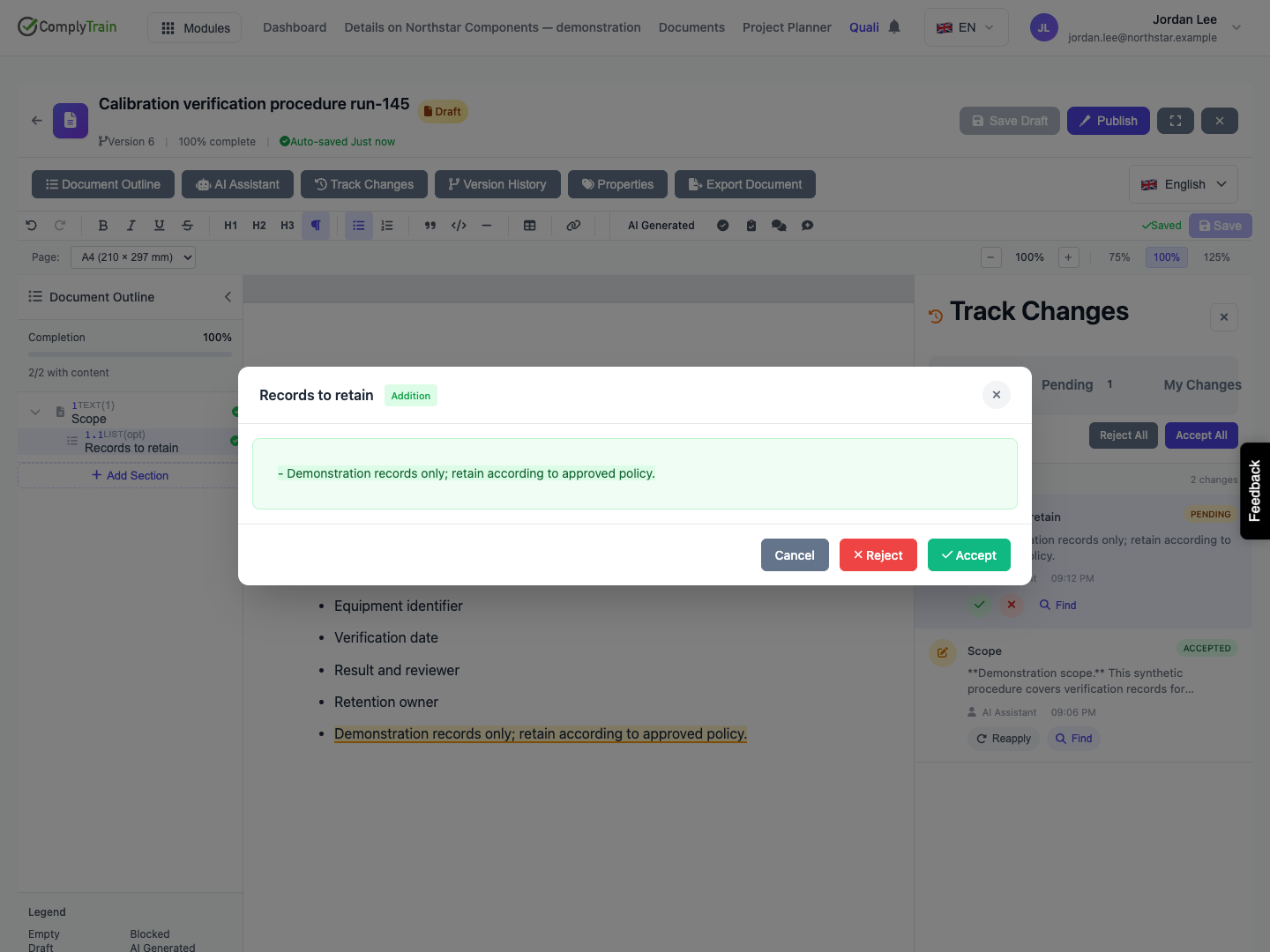
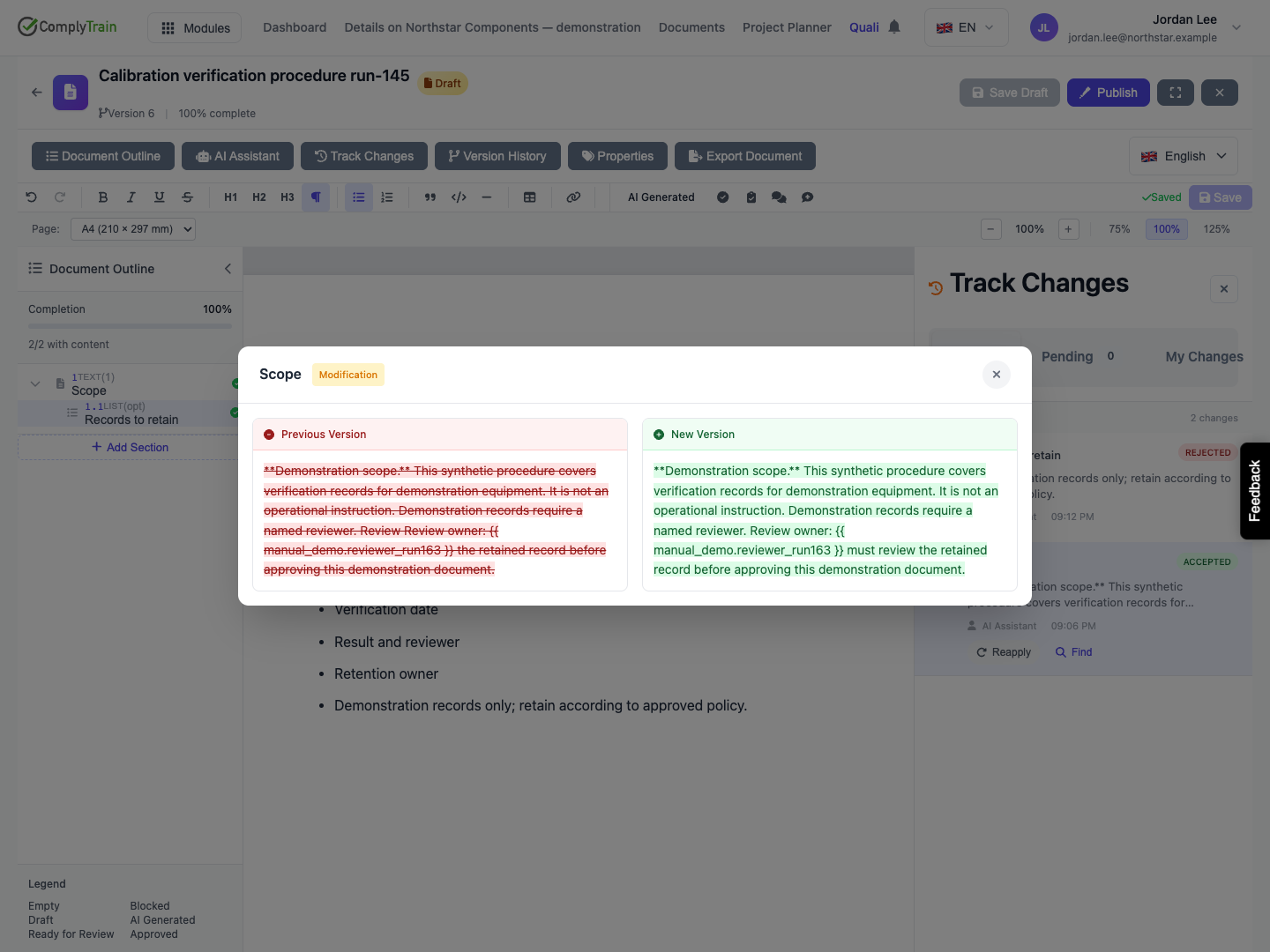
Product location: /qms/{standardCode}/documents/{documentId}/editor (fallback: /qms/standards). Choose Find on the relevant change row.
Use the row's Find action to return to the change in the document. If an inline suggestion mark is present, the editor scrolls to and briefly highlights it. If the mark is absent, it falls back to the affected section. Finding content does not accept it.
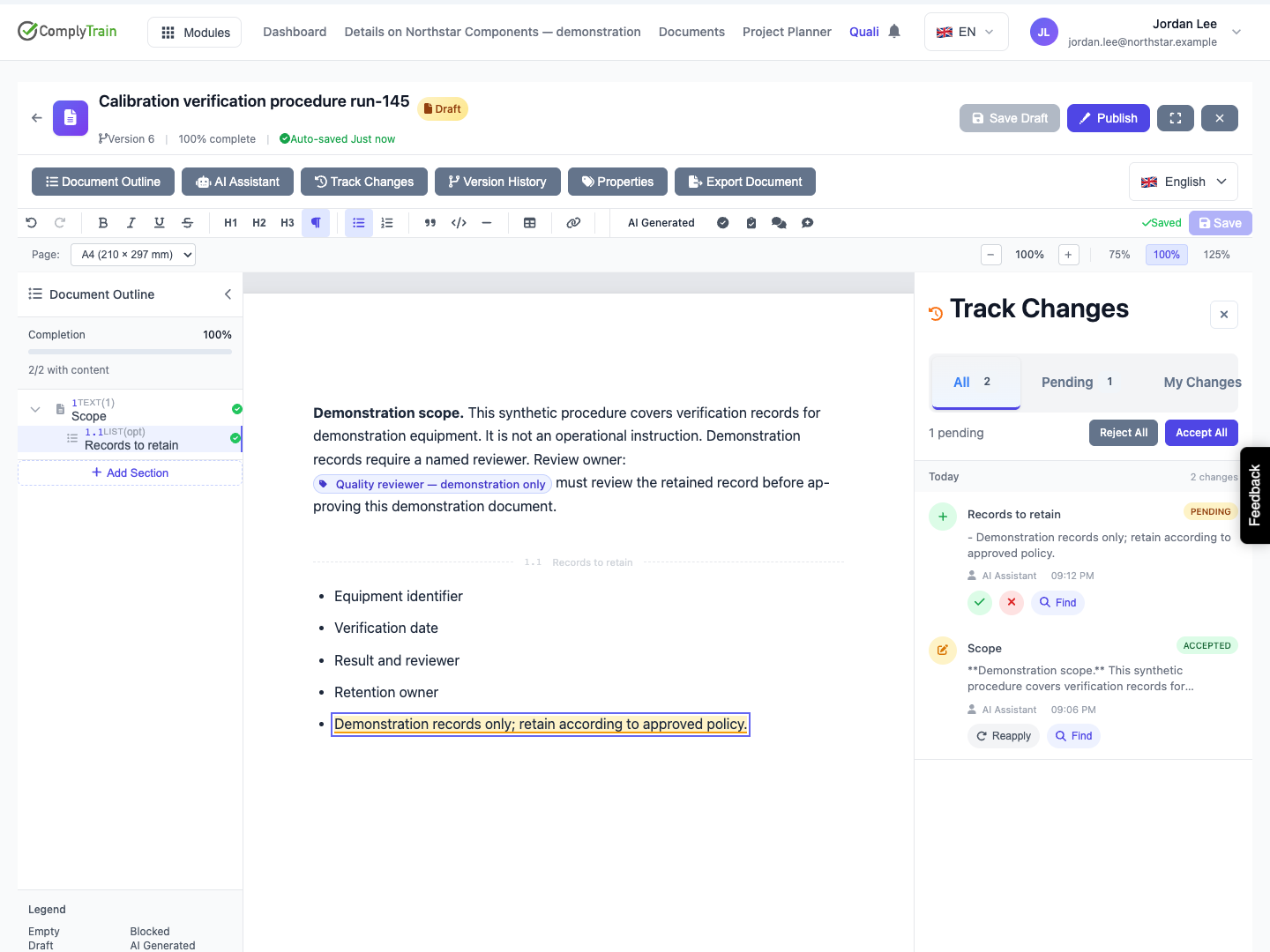
Product location: /qms/{standardCode}/documents/{documentId}/editor (fallback: /qms/standards). Accept a pending change, wait, reload and check its saved result.
Choose Accept for the intended pending proposal, then wait for the operation and saving to settle. Reload the editor and check that the record is Accepted, the intended wording is present, and neighboring content and property tokens remain correct.
The walkthrough's real Scope correction retained its shared property token. Its accepted decision and corrected saved text survived reload. The whole document remained Draft. That decision cleared the pending-suggestion approval condition for the document, without satisfying every other condition or publishing a new version.
If the row says Accepted but text is missing or incorrectly placed, inspect section history and current content before trying recovery. A successful review response alone does not prove the result landed correctly.
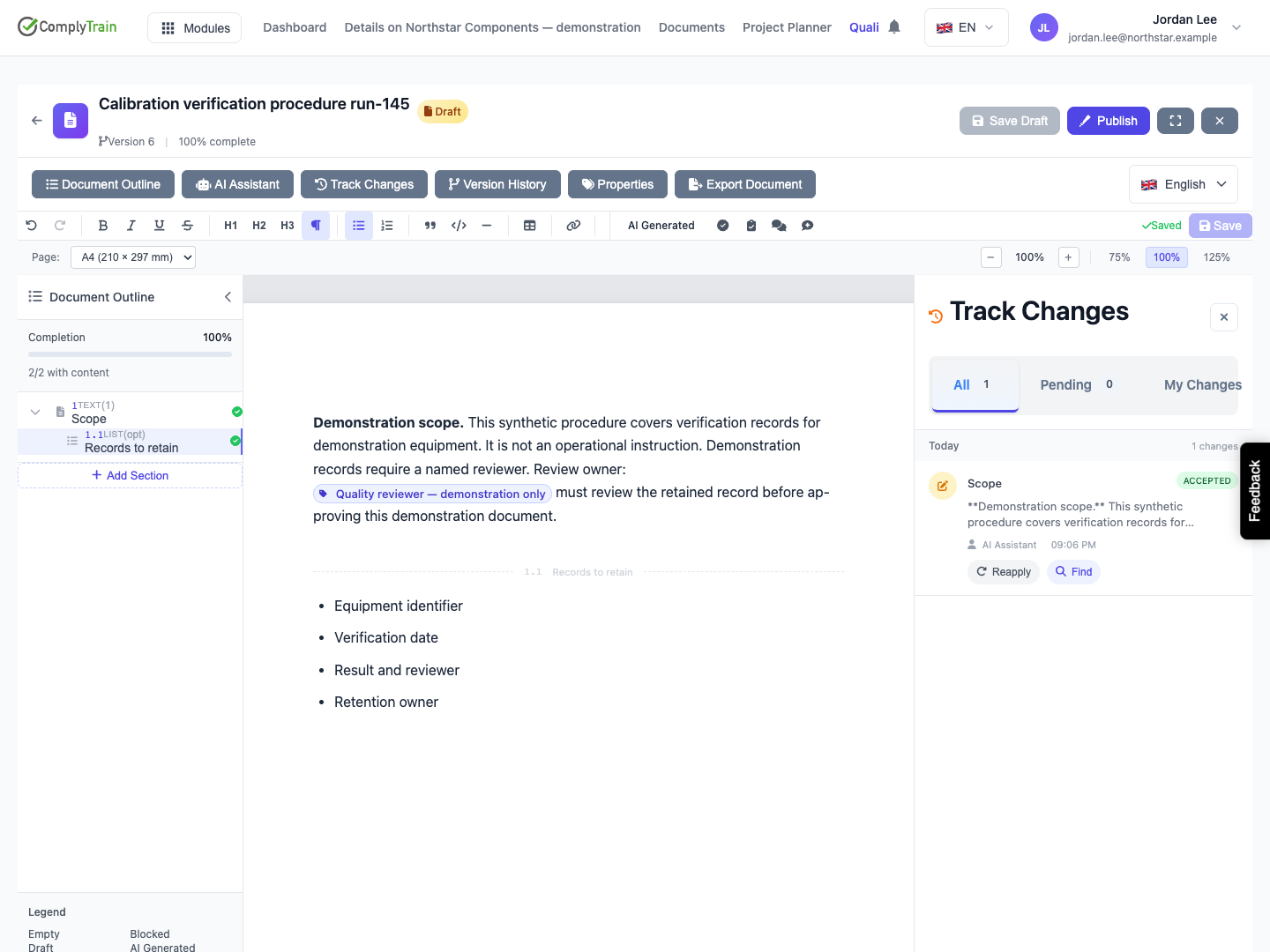
Product location: /qms/{standardCode}/documents/{documentId}/editor (fallback: /qms/standards). Reject the intended proposal and reload to inspect both status and saved text.
Choose Reject for the intended pending row. The proposal becomes Rejected without applying its edit to saved content. Reload the editor, confirm the decision and inspect the saved section.
Return to All to inspect the rejected decision history. If the change is still needed in a different form, make a new request with the corrected scope or supporting facts.
Product location: /qms/{standardCode}/documents/{documentId}/editor (fallback: /qms/standards). Open Track Changes, find the decided change in the All view and choose Reset to pending.
Find the existing change in the All view and choose Reset to pending. The same change returns to Pending, ready for a fresh review decision. No new proposal is created.
For an accepted change, Reset to pending also undoes the edit that acceptance applied. If the accepted text has since been changed in the section, the reset is refused with a message asking you to edit the section instead, and nothing changes. For a rejected or superseded change, the proposal becomes available for review again. The earlier decisions remain listed under History in the change's comparison.
Inspect the comparison and saved content after the reset. Accept the pending change to apply its proposed edit again, or reject it to leave that edit unapplied. Resetting a change is not acceptance or whole-document approval.
Product location: /qms/{standardCode}/documents/{documentId} (fallback: /qms/standards). Open Ready to approve & publish and inspect the pending-suggestion condition.
Leave the editor only after verifying the intended saved content. Open the document's Ready to approve & publish checks and address any remaining pending suggestions, placeholders, property values or other conditions.
A zero Pending count means no stored pending review records were found for this check. Review the document's content and follow publish, approve and revise for the separate document lifecycle.
