Run section quality checks, interpret findings and inspect outgoing references without confusing these checks with approval.
The document editor's AI Assistant contains two separate checking tools: Validate checks saved section content against quality criteria; References lists recorded outgoing document relationships. Neither action publishes or approves a document.
Product location: /qms/{standardCode}/documents/{documentId}/editor (fallback: /qms/standards). Save changes, then open AI Assistant.
Save your intended changes and resolve save errors first. Validation reads saved content, while an AI chat can use live editor text. If those differ, a finding may describe an older version from the one you are looking at.
Open AI Assistant → Validate for quality checks or AI Assistant → References for recorded relationships. Both checks require permission to view the document.
Product location: /qms/{standardCode}/documents/{documentId}/editor (fallback: /qms/standards). Choose Validate and Run Validation.
Choose Run Validation and wait until the running state ends. The check processes the document's sections and reports section-specific results. Running it again replaces the current displayed results.
This is a keyword-based quality check, despite its placement inside the AI panel. It does not call an AI model to assess whether the organisation meets a standard. Criteria are inferred from section codes and names. An unfamiliar section may use general criteria instead of the category you intended.
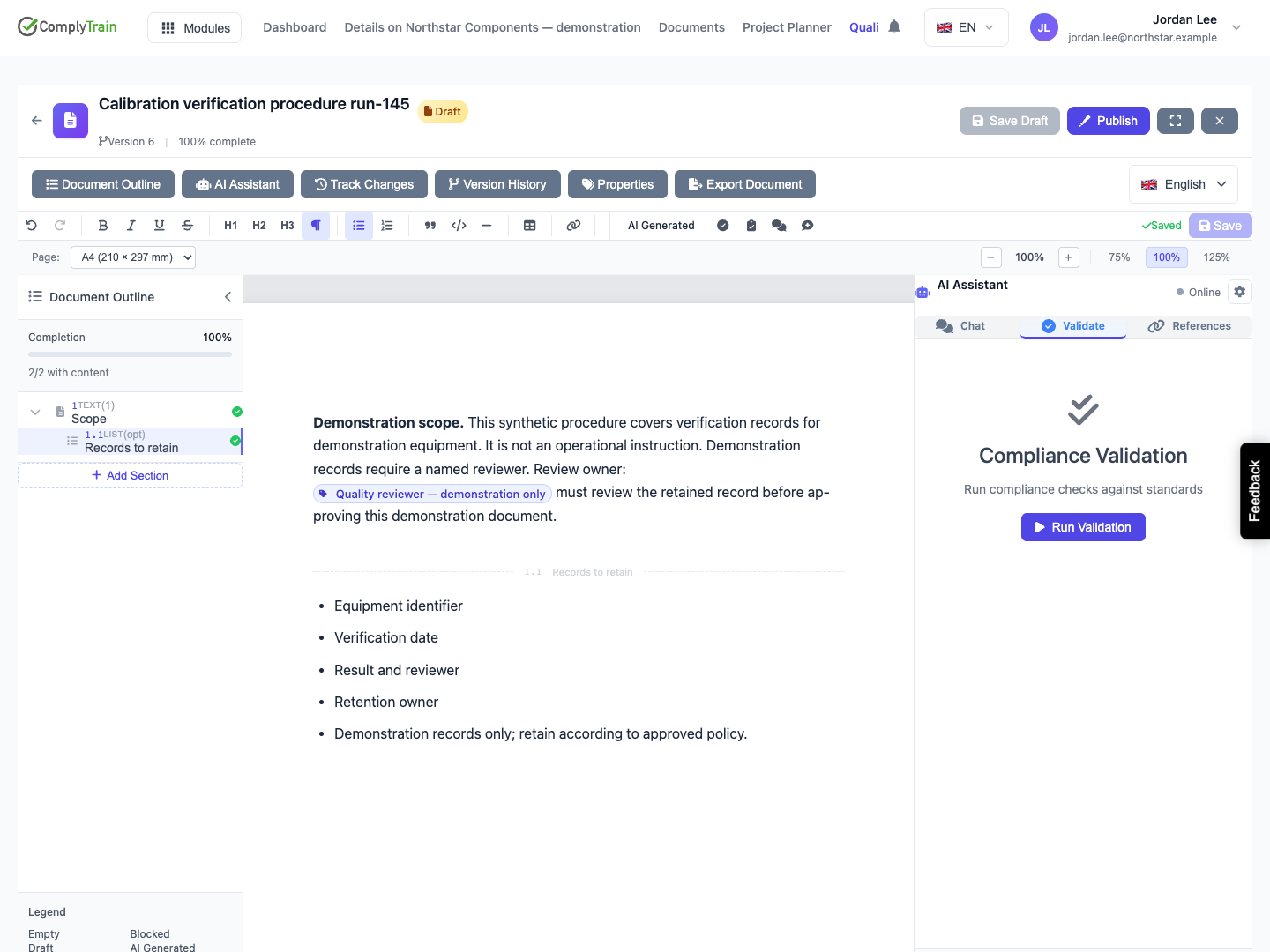
Product location: /qms/{standardCode}/documents/{documentId}/editor (fallback: /qms/standards). Read each section result and its suggested fixes.
Result | How to use it |
|---|---|
Pass | The saved content satisfied this check's criteria. Still review accuracy and suitability. |
Warning | Content is partial, an optional section is empty, or the evaluator could not assess it. Read the explanation. |
Fail | Required content is missing or the quality criteria were not met. Address the specific findings. |
Validation Failed | The request did not complete. Resolve the access or service problem and retry; do not treat it as an assessment result. |
A nonempty diagram can pass the diagram-presence check without its logic being evaluated. Empty optional sections produce warnings; empty required sections fail. A document with no sections can return no result cards. An empty result list is not a certificate of completeness.
The demonstration document shows 100% content completion in its header while both sections fail this quality check at 0%. These measurements answer different questions: whether sections contain content and whether that content matches quality criteria.
Read the specific missing criteria or recommendations beneath a result. The displayed score or successful result belongs to this quality check, not to document approval or an external audit decision.
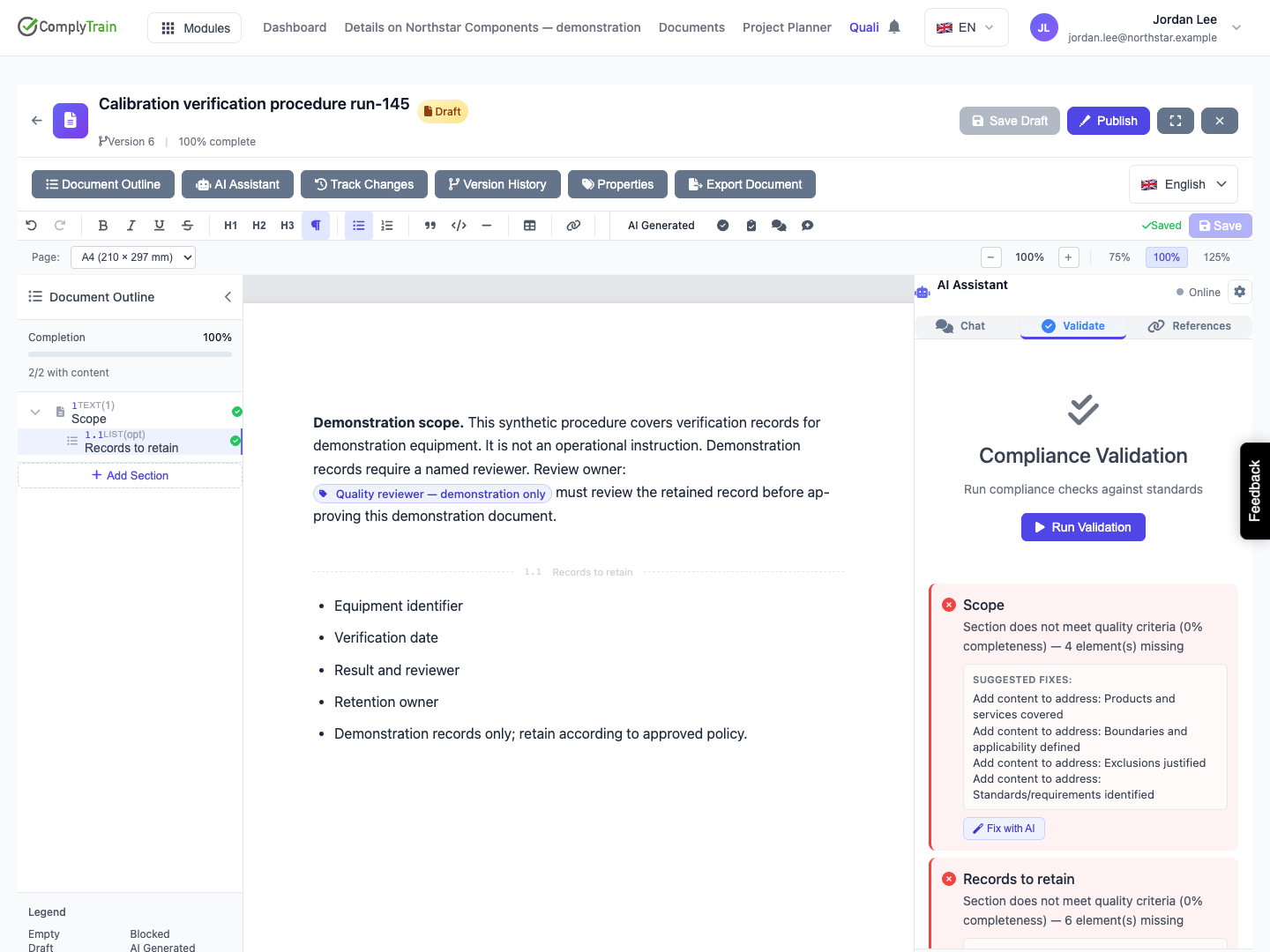
Product location: /qms/{standardCode}/documents/{documentId}/editor (fallback: /qms/standards). Choose Fix with AI only for the finding you intend to address, then review its proposal.
When a warning or failure identifies a section, Fix with AI opens Chat and sends the section title, finding and suggested fixes as a request for an inline proposal. The assistant targets that section; its response still needs review.
Make sure saved and live content match before using this action. Inspect the actual changed section, accept or reject proposals in Track Changes, verify saved content, then run validation again. Starting the AI request does not mark the finding resolved.
Product location: /qms/{standardCode}/documents/{documentId}/editor (fallback: /qms/standards). Choose References and Scan for References.
Open References and choose Scan for References. The scan reads relationships already recorded for the document's linked vault record. It does not crawl arbitrary prose, discover every URL, or create missing relationships.
A document without a linked vault record has no recorded references for this scan. A linked document may also legitimately have none. Read Scan complete as a completed query with its displayed result, not as proof that every necessary reference exists.
Product location: /qms/{standardCode}/documents/{documentId}/editor (fallback: /qms/standards). Inspect recorded targets or the empty result, then use Scan again after relationship changes.
When references exist, the panel lists each target document's title with its relationship type: requires, references, supersedes, related or obsoletes. The list is read-only; it does not add, change or remove relationships.
Use the document vault to inspect or manage the actual relationships. Return and choose Scan again after changes. For the demonstrated document, the scan completed with no recorded references.
If a scan fails, the panel shows an error instead of a result; retry once the problem is resolved. Scan complete appears only after a scan that succeeded.
