Inspect diagram history, compare any two saved drawings and restore an earlier version.
Use diagram history to inspect earlier drawings, compare changes and restore a selected version. Each diagram section has its own timeline. Choose the section first so that the version you inspect belongs to the drawing you intend to change.
Product location: /qms/{standardCode}/documents/{documentId}/editor (fallback: /qms/standards). Select the diagram and use Version History between Templates and Compare.
Open the QMS document editor and select the diagram in Document Outline.
Choose the Version History button between Templates and Compare.
Check that Diagram Version History shows the intended section name.
Close an unused AI panel if you need more space for the timeline and preview.
The earlier Version History button opens general section revisions. Use the diagram-specific timeline for drawings. When you switch to another section, check its name before inspecting or restoring a record.
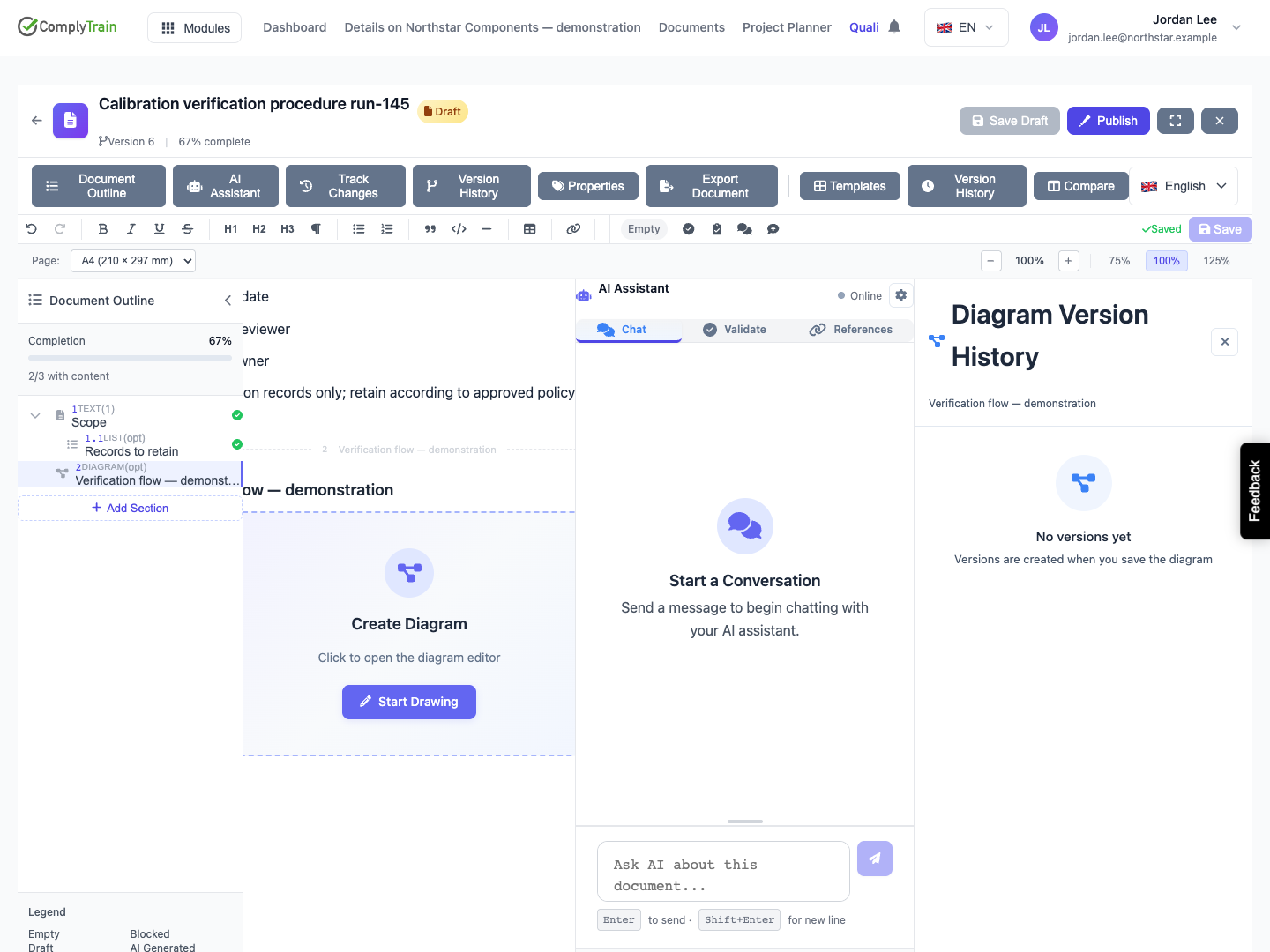
Product location: /qms/{standardCode}/documents/{documentId}/editor (fallback: /qms/standards). Select the diagram and open its Version History.
A new, untouched diagram shows No versions yet. Each saved change to the drawing adds a version. While the drawing is open, each automatic save that changes it adds a version described as Auto-saved. Save & Close adds a version described as Saved, with a preview of the drawing. If Save & Close keeps the same drawing as the newest automatic save, that version receives the preview and no duplicate is added.
Use Save & Close to finish an editing session and keep a drawing with its document preview. Autosave supports work while the drawing is open; Cancel discards that session's changes, including autosaved changes. The history keeps the automatic saves from a cancelled session. When the drawing had earlier content, a newer Auto-saved version records the return to that drawing. See diagram editing for the two actions.
A diagram version number belongs to that section's drawing history. Keep it separate from the whole document's version and from a published file's version in the vault.
Product location: /qms/{standardCode}/documents/{documentId}/editor (fallback: /qms/standards). Open diagram Version History; select Preview or Load More.
The timeline lists newer versions first. Use the available information together when identifying a record.
Information | How to use it |
|---|---|
Version number | Identify the specific diagram snapshot. |
Current | Marks the newest version in the timeline. |
Change description | Understand the recorded reason or description of the change. |
Author | Identify who recorded that version. |
Date and time | Place the change in the editing sequence. |
Thumbnail | Recognise the drawing before opening a larger view. |
Versions saved with Save & Close show a thumbnail and Preview; automatic saves have neither. Choose a thumbnail or Preview to inspect the stored drawing at a larger size. Check labels, connections and the overall layout. Close the preview to return to the timeline. Previewing an older record leaves the current document unchanged.
Use Load More to reach earlier history. Identify the version by its number, date and content rather than its position in the list, especially when other authors are working on the document.
Product location: /qms/{standardCode}/documents/{documentId}/editor (fallback: /qms/standards). Choose Compare; select the baseline under Left (older) and the comparison version under Right (newer), then use Side by side or Overlay.
Select the diagram and choose Compare.
Choose the baseline version under Left (older) and the version you want to examine under Right (newer). Compare Diagram Versions first reads the complete history and then selects the two newest versions, with the newest on the right.
Choose other versions when necessary; the comparison can cover nonadjacent changes as well as the latest edit.
In Side by side, compare the two stored previews. The summary counts what was added, removed and modified. Changes lists each shape and connector that differs and what changed about it: its label, position or size, style, endpoints or container.
Choose Overlay to see both versions drawn together with the changes highlighted. The legend distinguishes Added, Removed, Modified and Unchanged elements, and the Previous position or route of a moved element.
When both sides draw the same diagram, the comparison says No differences: both versions draw the same diagram. A version saved automatically has no stored preview; its side shows No SVG preview available, and Overlay still shows the changes.
Compare at least two saved versions. A new drawing with fewer versions has no pair to compare yet. To assess several edits together, select a version from before the work began and compare it with the final version.
For a procedure change, check meaning as well as appearance. Moving a connector can change which activity follows a decision; changing a role label can transfer responsibility. Close the comparison when you have finished inspecting it. Comparison alone leaves the document unchanged.
Product location: /qms/{standardCode}/documents/{documentId}/editor (fallback: /qms/standards). Open diagram Version History, inspect the target and choose Restore.
Finish the current drawing session before restoring: use Save & Close to keep it, or Cancel to discard it. You need Manage documents and an editable document to restore content. If the document is locked after approval, start the required revision first.
Open the diagram's Version History and locate the version you want.
Inspect its Preview and metadata. Confirm the section, version number and drawing content.
Choose Restore for the selected older version, or Restore to This Version in its preview.
Review the target in the confirmation. Choose Cancel to leave the current drawing unchanged, or confirm Restore to apply the selected drawing.
Wait for completion, then check the document preview and reopen the drawing.
Restoring an earlier drawing makes it the saved current drawing and records the restoration while preserving earlier history. If you restore version 2 after version 5, the new version is described as Restored from version 2, and the history retains the intervening work, including versions 3, 4 and 5.
Product location: /qms/{standardCode}/documents/{documentId}/editor (fallback: /qms/standards). Choose Compare, inspect the right-hand version and choose Restore Selected Version.
The comparison's Restore Selected Version action refers to the right-hand version and is offered only when that version is not the current one. Select and inspect that version before using the action. The left-hand version is the comparison baseline.
Use this action when the right-hand drawing is the one you want to make current. Complete the restoration, then inspect the saved document preview and reopened drawing. If you only want to compare the versions, close the comparison.
Restoration changes document content. Continue the required document review and approval process after checking the result.
Product location: /qms/{standardCode}/documents/{documentId}/editor (fallback: /qms/standards). Inspect the diagram preview, reopen the drawing and review Version History.
Check the preview in the document, then reopen the drawing and inspect its editable shapes and labels. The two should show the same restored content. Reload the document when confirming an important restoration and review the newest history entry.
For example, if you restore a flow from before a branch was added, verify that the branch and its connector are absent from both the editable drawing and the document preview. Check any surrounding written instructions that described the removed branch.
Review the actual exported file before distribution. Use document export and publication and revision to complete those separate steps.
Product location: /qms/{standardCode}/documents/{documentId}/editor (fallback: /qms/standards). Select the diagram; open Version History or Compare and follow the displayed message.
You need View documents to inspect history. Editing and restoration require Manage documents, together with the document's normal editing state. A reader can inspect permitted records without restoring them.
If history cannot load, choose Retry. Reopen the comparison after resolving a connection problem. If restoration fails, read the message and check the saved current drawing before retrying; coordinate with another author if the section changed while you were reviewing it.
Use general section history for text-section snapshots. Use the document's publication and vault records for distributed files. Checking the correct timeline keeps the drawing's editing history connected to the right document without confusing these records.
