Prepare a source, choose a translation tier, follow background progress and hand the completed edition to its reviewer.
Create Translation produces a separate language edition from the original document's saved content. Translation runs in the background. Review the completed edition before approving it for use.
Product location: /qms/{standardCode}/documents/{documentId}/editor (fallback: /qms/standards). Open the intended source or translated document as described below; use its document language menu.
Open the original document and confirm its title and Document language.
Complete the source wording, headings, figures and references needed for this edition.
Save the source and check its saved content.
Open the language menu to check whether the desired language already has a linked translation.
Confirm who will review the translation and which source version they should use.
The translation job starts from saved source content. Finish unsaved typing before starting it. For each target language, start from the original source; Translation of takes you there from an existing translation.
Use a role with Manage documents for translation maintenance. For a controlled source, approve the source first and approve its translations afterwards. A translation is published only for the source edition it was approved against, and that edition must be the approved one.
Product location: /qms/{standardCode}/documents/{documentId}/editor (fallback: /qms/standards). Open the intended source or translated document as described below; use its document language menu.
Review the whole source outline. Include meaningful text in the sections that need translation and leave deliberately empty sections identifiable. Saved authored content and populated template content provide the starting material.
Check terminology, responsibilities, quantities, units, document references and property values before translation. A correct source makes review more useful. For diagrams, confirm that labels, connectors and the saved preview express the intended process. For property tokens, identify which values come from the shared catalogue so the reviewer can check them in context.
Product location: /qms/{standardCode}/documents/{documentId}/editor (fallback: /qms/standards). Open the intended source or translated document as described below; use its document language menu.
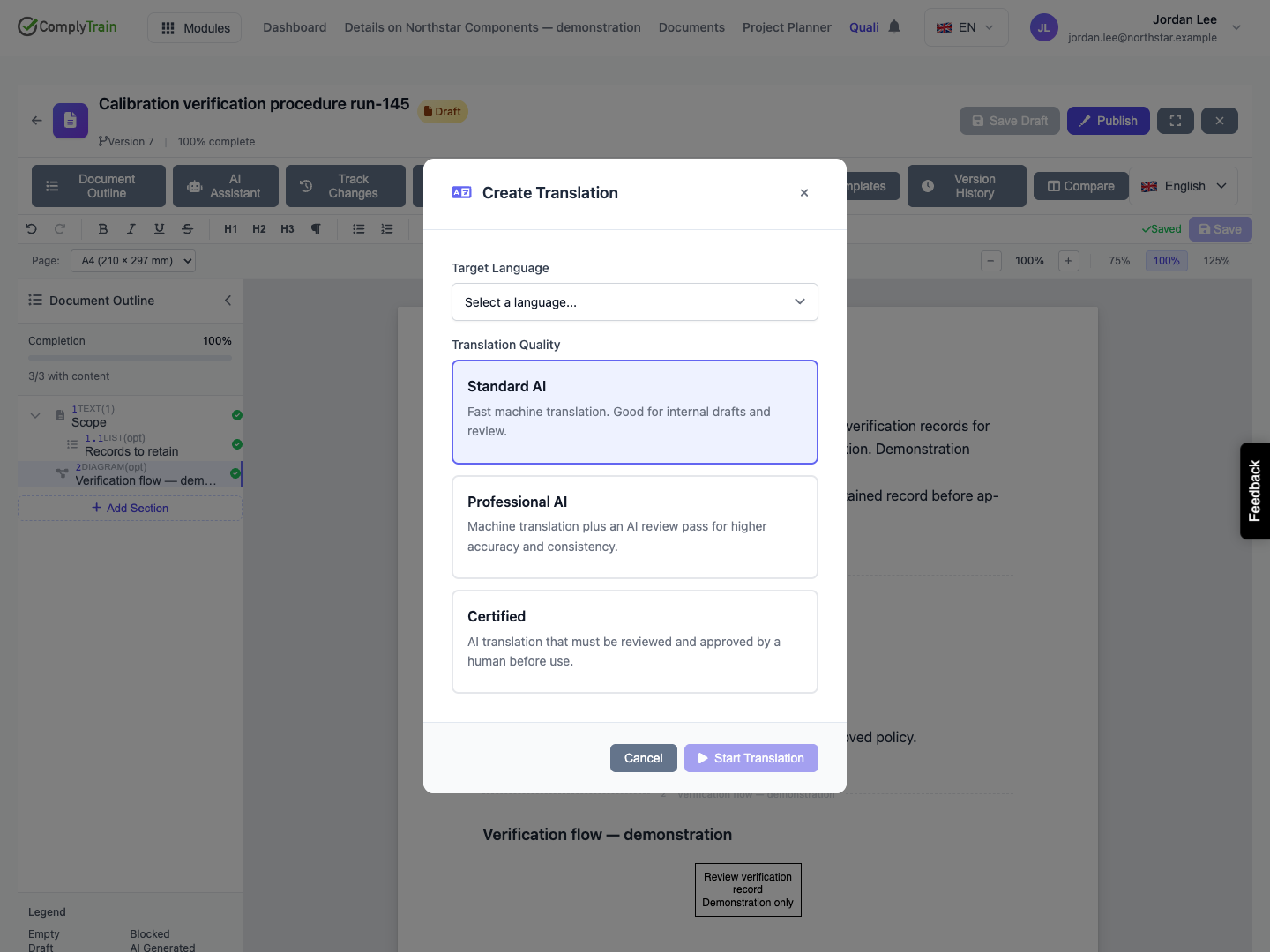
Open the document language menu and select Create translation.
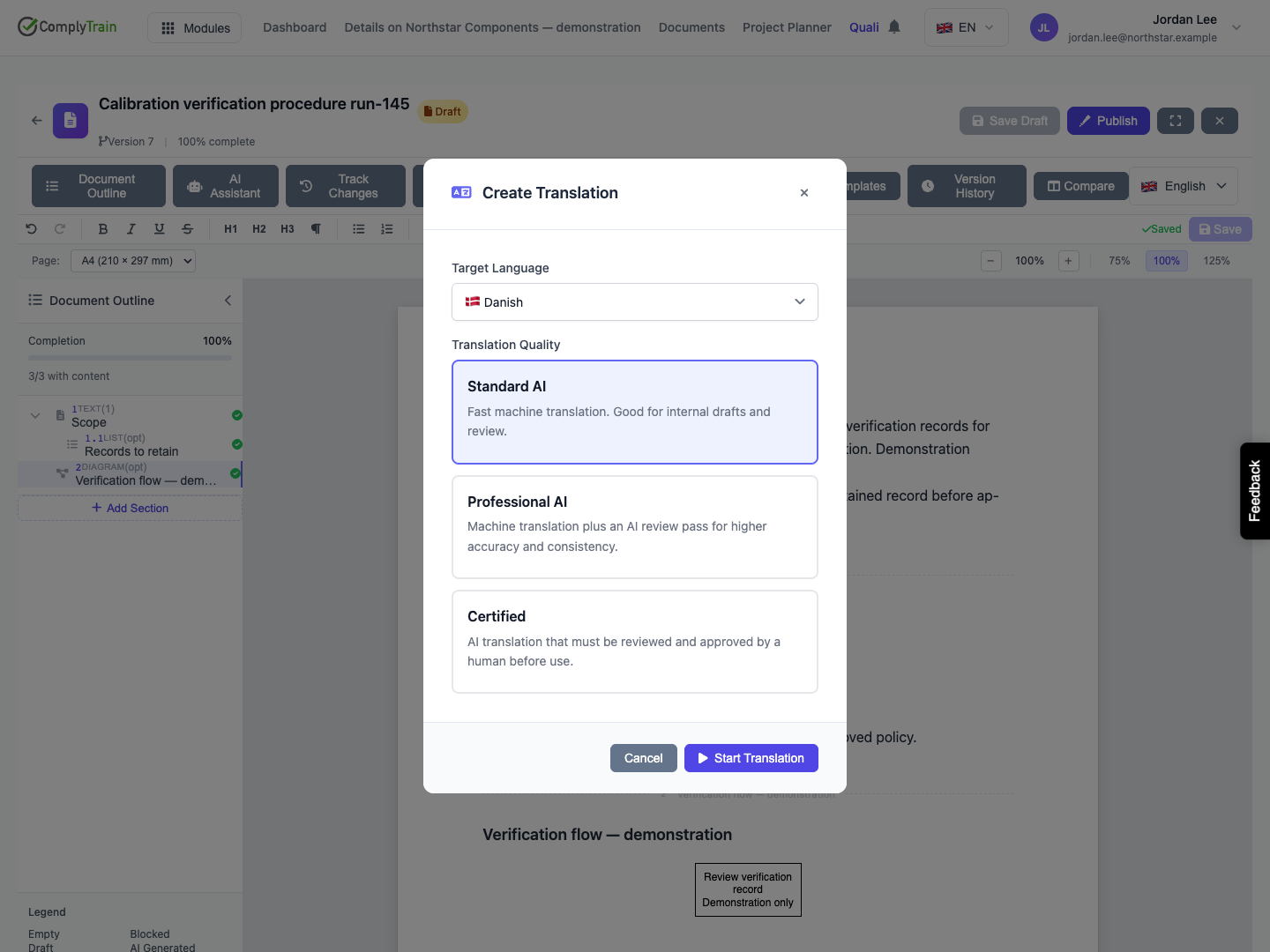
Choose Target Language from the available languages.
Select the appropriate Translation Quality.
Check both choices before starting.
Choice | Intended use and review |
|---|---|
Standard AI | Creates an AI translation as a starting point for your review. This is the default selection. |
Professional AI | Adds an AI review pass to improve translation accuracy and consistency. Follow it with your organization's review of the complete result. |
Certified | Creates an AI translation that requires human review and approval before use. Arrange that review as part of the workflow. |
The available target choices reflect the source language and existing linked editions. Open an existing language edition from the source menu when continuing work on it.
Before starting, Cancel or the close control dismisses the form. Choose Start Translation once you have selected the language and tier you intend to use.
Product location: /qms/{standardCode}/documents/{documentId}/editor (fallback: /qms/standards). Open the intended source or translated document as described below; use its document language menu.
Choose Start Translation and wait for the request to be accepted. ComplyTrain creates the translated document, its section structure and the link to the source. The translation has a separate identity and a name based on the source, with a language suffix such as (da).
Translating Document shows the target language and Translating X / N sections. The count refers to the sections scheduled for translation. Use it to follow processing progress; perform the content review after processing completes.
The document's structure, headings and content give the reviewer corresponding places to compare. The original source remains available for that comparison.
Product location: /qms/{standardCode}/documents/{documentId}/editor (fallback: /qms/standards). Open the source document language menu and follow the existing Professional AI translation and its review state.
Professional AI includes an additional AI review after the base translation. Translation complete; AI review pending means the translated content is saved and the additional review is still awaiting completion.
If the review cannot be completed, the translation is kept. The source's language row shows AI review failed, and the progress window shows AI review could not be completed. Choose Retry on the row, or Retry translation in the window, to run the review again for the sections whose review did not finish. Submit for review and Approve are not offered until the review has finished. Follow that review through to completion before handing the complete Professional AI result to its human reviewer.
The AI review checks the translation and can propose corrections to wording or terminology. After it completes, review the saved result through the normal translation review and approval workflow.
Product location: /qms/{standardCode}/documents/{documentId}/editor (fallback: /qms/standards). Open the intended source or translated document as described below; use its document language menu.
Choose Close (keep running) to leave the progress window while the background work continues. Reopen the source's language menu to see the language row and its progress. You can return to the source later and inspect the stored job state there. If the language menu cannot refresh the list, it shows the last known state with Reload.
Wait for processing to finish before editing the translation or submitting it for review. This gives you a complete result to assess and avoids competing with the translation work.
When the progress dialog reaches completion, use its view action to open the result, or choose Done and open the language row from the source menu.
Product location: /qms/{standardCode}/documents/{documentId}/editor (fallback: /qms/standards). Open the intended source or translated document as described below; use its document language menu.
Open the completed translation from the source menu or completion dialog.
Check the document title, target language and separate URL.
Compare the outline, section headings, text and lists against the source.
Check terminology, quantities, dates, responsibilities and references.
Inspect property values, diagram labels and their displayed previews, and create any missing diagram preview as described in translation review.
Save any reviewed corrections and continue to translation review and approval.
Use Translation of to return to the original. Keep the source version used for review identifiable, particularly if source authors are preparing another revision at the same time.
Product location: /qms/{standardCode}/documents/{documentId}/editor (fallback: /qms/standards). Open the intended source or translated document as described below; use its document language menu.
A connection problem does not stop the translation, which continues on the server. While the progress window is open, a brief problem shows Connection problem while checking progress. Still trying. and the window keeps watching. If progress still cannot be read, Progress could not be retrieved appears. Choose Resume watching, or Close (keep running) and check the language menu later.
If translation fails, sections already translated are kept. Choose Retry translation in the window, or Retry on the Translation failed row in the source's language menu, to translate only the failed sections of the same translation. If the request to start a translation was not accepted, choose Try again to return to your selections. If a translation for that language had already been accepted, the window shows its progress instead of creating another. Successful processing is the point to begin the full translation review.
For persistent trouble, provide the source and translation URLs, target language, selected tier and displayed message to the administrator. Keep any review work identifiable so the next person can continue from the saved document.
Product location: /qms/{standardCode}/documents/{documentId}/editor (fallback: /qms/standards). Open the intended source or translated document as described below; use its document language menu.
Provide the source URL, translation URL, language, quality tier and the source edition to be reviewed. Include agreed terminology and any document-specific checks, such as mandatory wording, units or figure labels.
The reviewer checks the complete meaning and presentation, resolves findings, and advances the translation through Submit for review and Approve as appropriate. For Certified, ensure the required human review takes place before the edition is used. Follow Review translations and manage source changes for approval and publication checks.
