Assign real people and record the steps performed against an approved snapshot.
Product location: /qms/processes/{processId} (fallback: /qms/processes). Choose Start run for the approved process.
Use a process run to record one occurrence of an approved procedure: for example, reviewing engineering change EC-042. The process describes how work should happen; the run records who performed this particular occurrence and what evidence they supplied.
Open QMS → Processes and select the process.
Check Definition state for an approved revision. Ask the process owner to finish definition approval if none exists.
Open Runs and select Start a run.
Enter an optional title identifying the case, batch or review, then confirm creation.
Your role needs permission to execute processes. Creating a run gives it a run number and freezes the approved map into that run. Subsequent map edits, reapproval or archiving do not rewrite that snapshot. Creating the record and starting its work are separate actions: first confirm its cast.
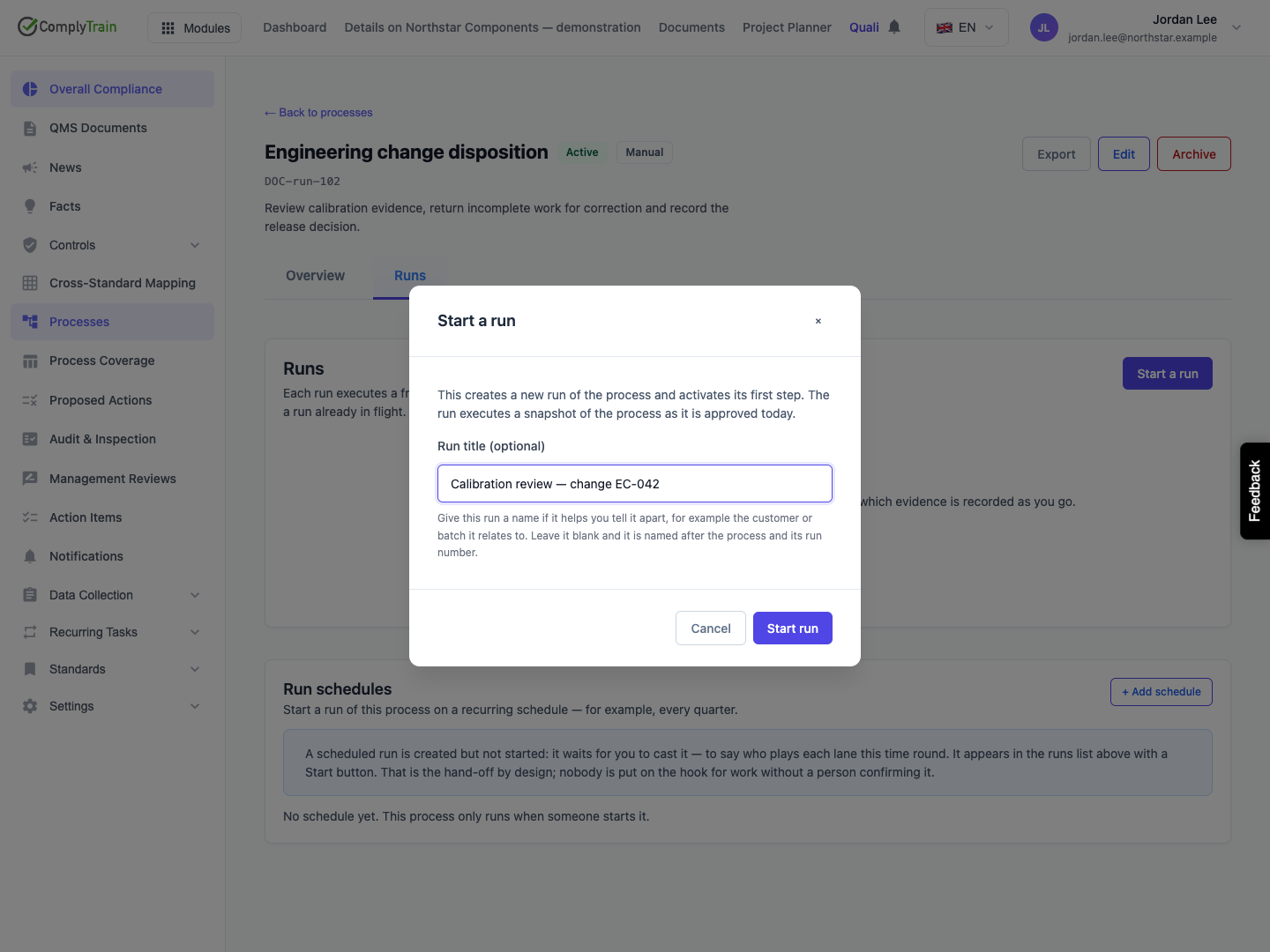
Product location: /qms/processes/{processId} (fallback: /qms/processes). Choose Start run and assign the lanes in the dialog.
The cast assigns real people to the responsibilities in the map for this occurrence. Review every lane that contains steps.
Inspect the people proposed from the lane's bound roles and named users.
Select at least one member and exactly one Primary for each lane with steps. Newly activated steps in that lane are assigned to its primary by default.
If a lane is unbound or a role has no members, use its person picker to add an available participant. A descriptive role such as “Engineering reviewer” does not by itself assign anyone.
Check that the confirmation action is enabled, then start the run.
The example selects Jordan Lee as the Engineering primary. The run moves from Not started to In progress, and its start step becomes active. If you close the casting dialog, the already-created run may remain Not started. Reopen it from the process's run list instead of creating a duplicate.
Use Re-cast for future work when staffing changes during an in-progress run. Recasting does not change the recorded assignee of an already active or completed visit. An authorised owner can change the assignee of a live step from that step's panel; this is a different action from changing the cast.
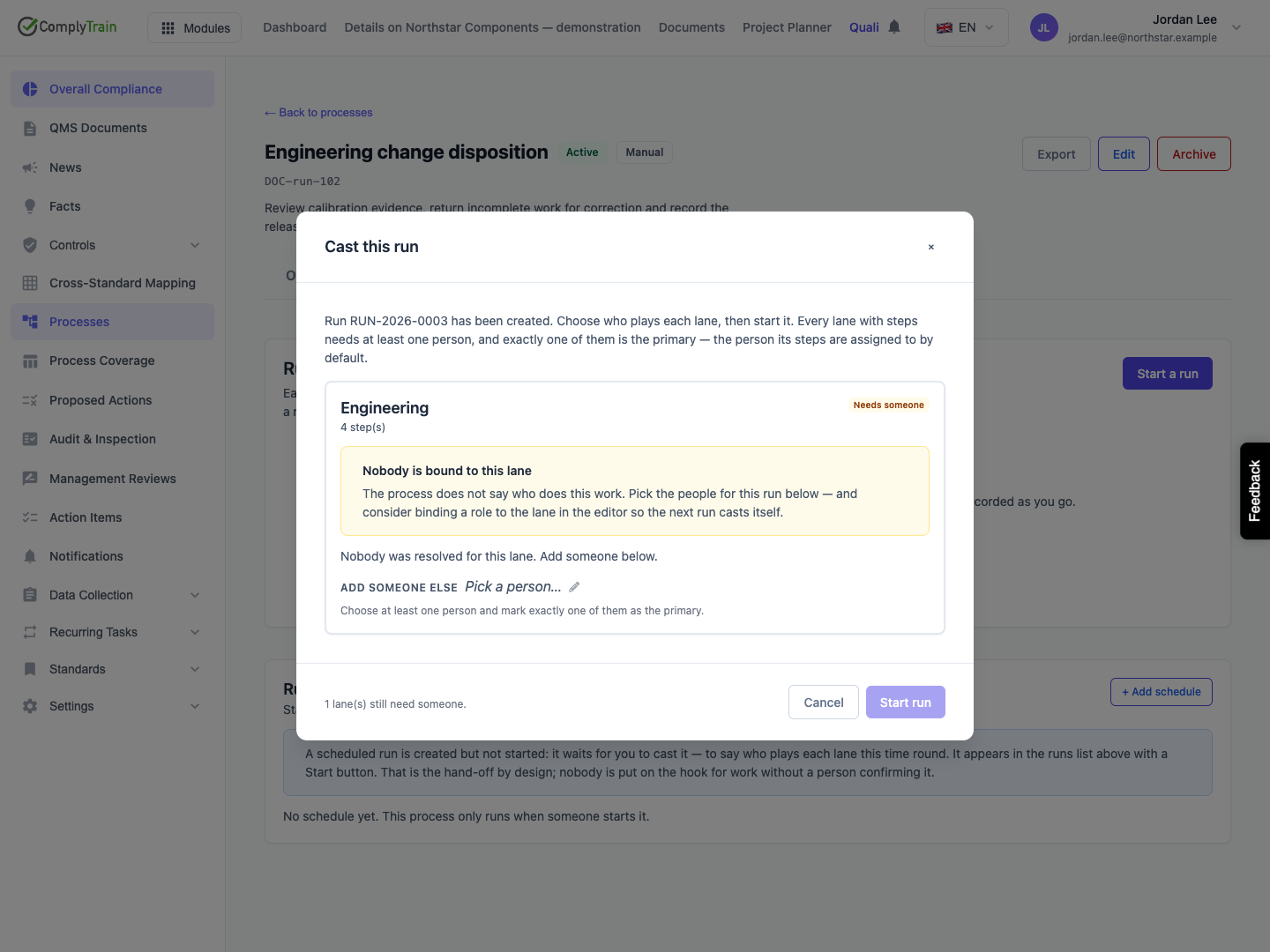
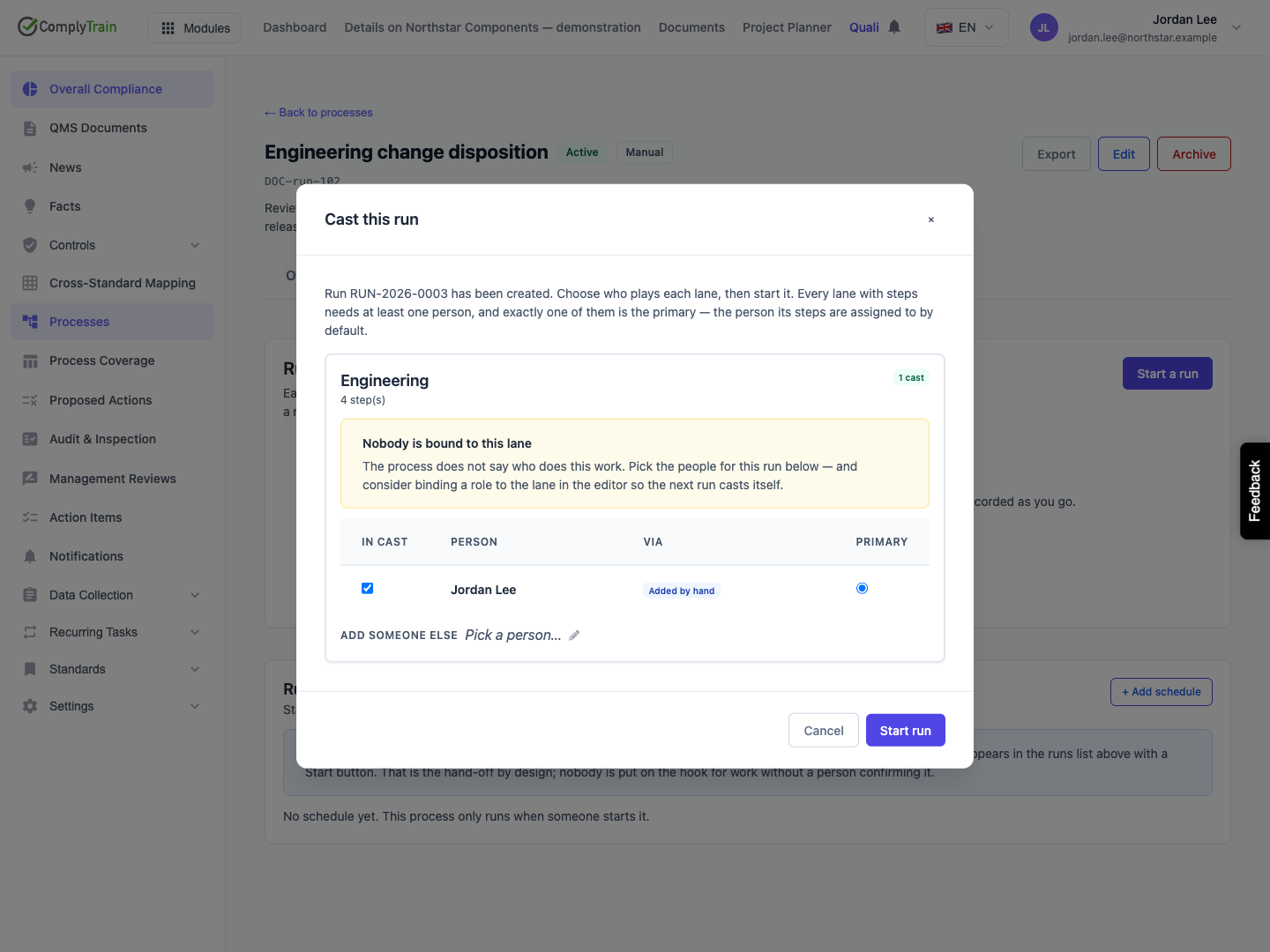
Product location: /qms/runs/{runId} (fallback: /qms/processes). Select the intended run and step; step selection does not have a separate URL.
Select a node in the Run map. Its panel shows the instructions, current status, assignee, due-date control and completion requirements. A step that has not been reached cannot be completed. A Waiting step may be waiting for other incoming paths; see decisions and rework.
Work through the active steps, including the start and end steps where they require manual completion. The run owner, assigned participant or an authorised process manager can act on a step. Merely appearing in the cast does not give every participant authority to complete every other person's assigned work.
When a due date is present, use it to prioritise the work. A configured step deadline is calculated from activation, and a rework pass gets its own clock. A deadline does not advance the process. If the date control is blank, do not infer a deadline from the process description; have the owner check the step's assignment and due date.
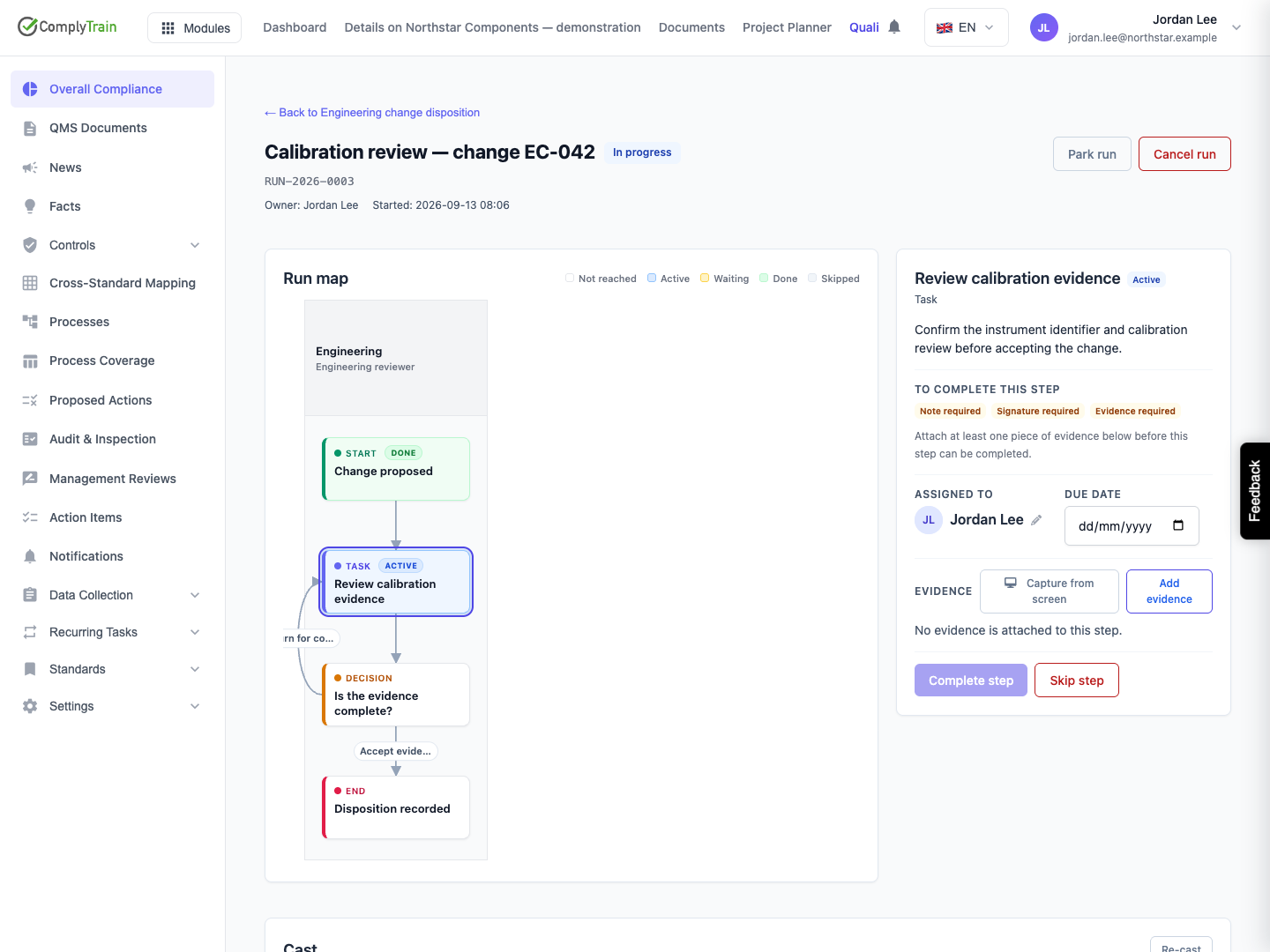
Product location: /qms/runs/{runId} (fallback: /qms/processes). Select the intended run and step; step selection does not have a separate URL.
If Evidence required is shown, attach at least one appropriate evidence item before opening Complete step.
Select Add evidence.
Choose the evidence type and enter a descriptive title.
Supply the note, URL, document or form-submission reference requested by that type.
Save, then confirm the item appears in the step's evidence list.
Evidence choice | What to provide |
|---|---|
Note | The observation or check performed. An evidence note is separate from the completion note requested later. |
External link | The address of the supporting information. Check that intended reviewers can access it. |
Document | The supporting document selected in the picker. |
Form submission | The completed form submission supporting this work. |
Capture from screen | A captured image, followed by its title and save action. The capture is stored as a document associated with the visit. |
Evidence belongs to this visit of the step. If a decision sends work back for correction, provide evidence for the new pass; the earlier pass remains intact. Review mistakes before completing the step: evidence on a closed visit cannot be removed through the normal evidence action. Removal from a live visit is also subject to the item's author, run owner or process-management permissions.
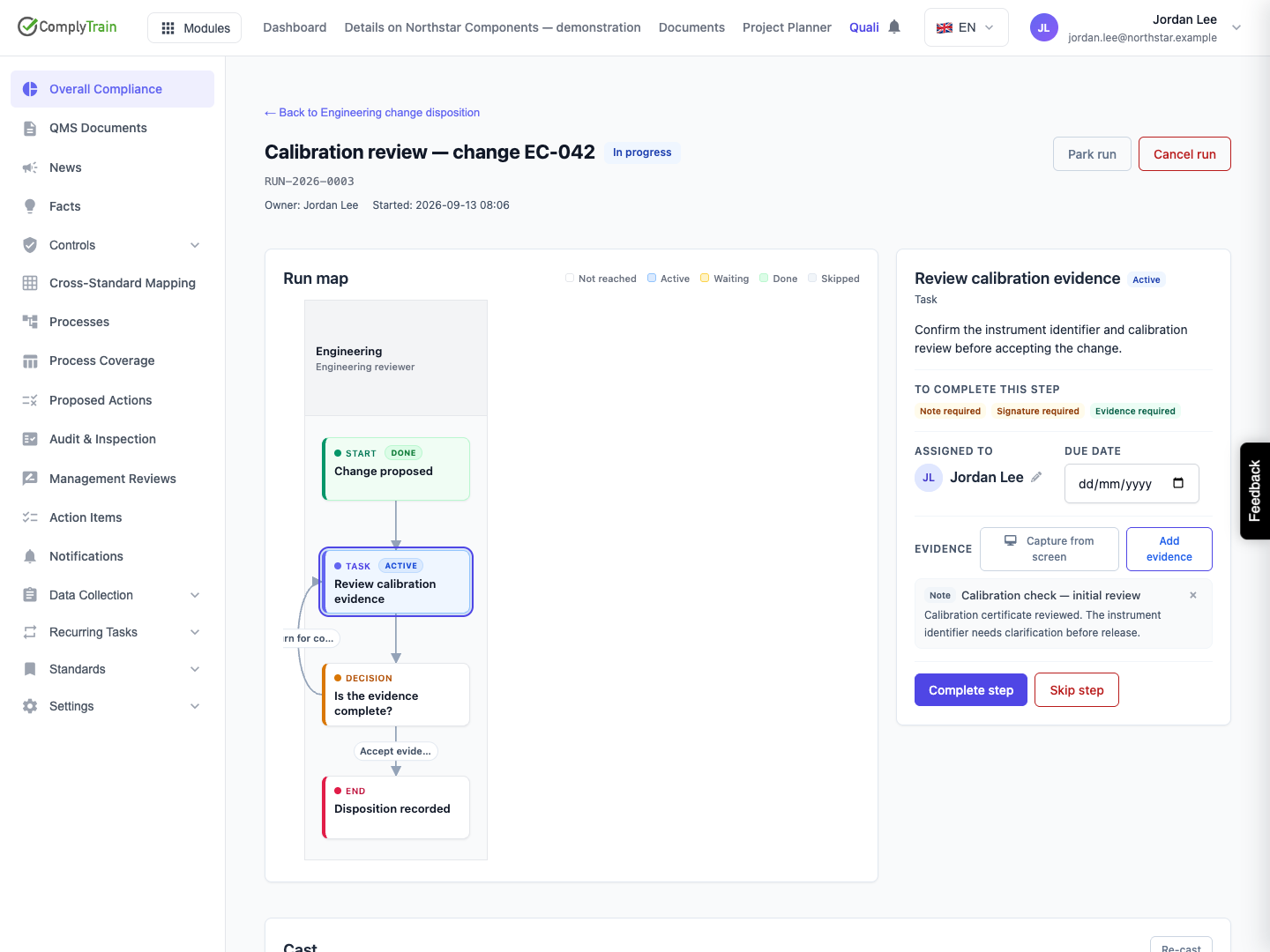
Product location: /qms/runs/{runId} (fallback: /qms/processes). Select the intended run and step; step selection does not have a separate URL.
Select Complete step after reviewing its evidence. Enter the completion note if required. If Signature is required, type your name as the dialog requests; the step records the signature text, time and originating IP address. This step signature is separate from the optional signature workflow for the completed run's controlled copy.
For a decision, select the outgoing path that reflects the actual result. The confirmation stays disabled while a required note, signature or decision choice is missing. After confirming, inspect the next active step rather than assuming the whole run has finished.
A step bound to work in another module can complete when the matching work finishes during the run. A completed item from before the run does not automatically establish that this occurrence was performed. Note and signature gates still need the participant's input; a decision still needs its chosen path. See completion configuration.
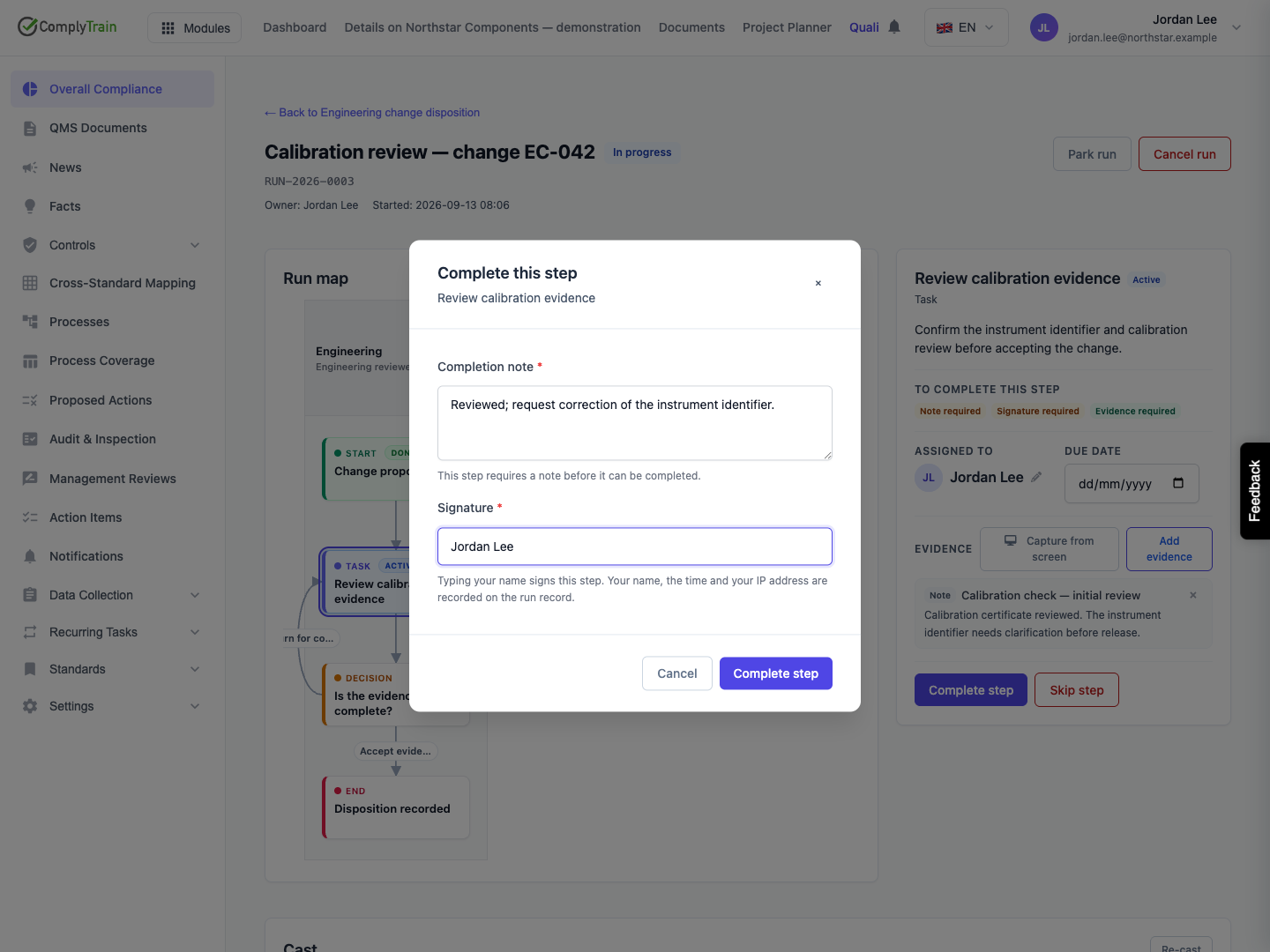
Product location: /qms/runs/{runId} (fallback: /qms/processes). Select the intended run and step; step selection does not have a separate URL.
The run owner or an authorised process manager can use Park run to pause work. Enter a reason that explains the dependency, such as waiting for a corrected certificate. The parked banner preserves that reason. Step completion pauses until Resume returns the run to In progress.
Use Cancel run only when this occurrence should end without completion. It requires a reason and closes remaining live visits as skipped. Cancellation is permanent; create a new run if the work must be performed later. A completed run cannot be cancelled to rewrite its record.
Skip step is a process-management override requiring a reason. It records skipped work rather than performed work. Skipping a decision selects no outgoing branch, so it can prevent that path from progressing. Ask the process owner to assess the routing before using the override.
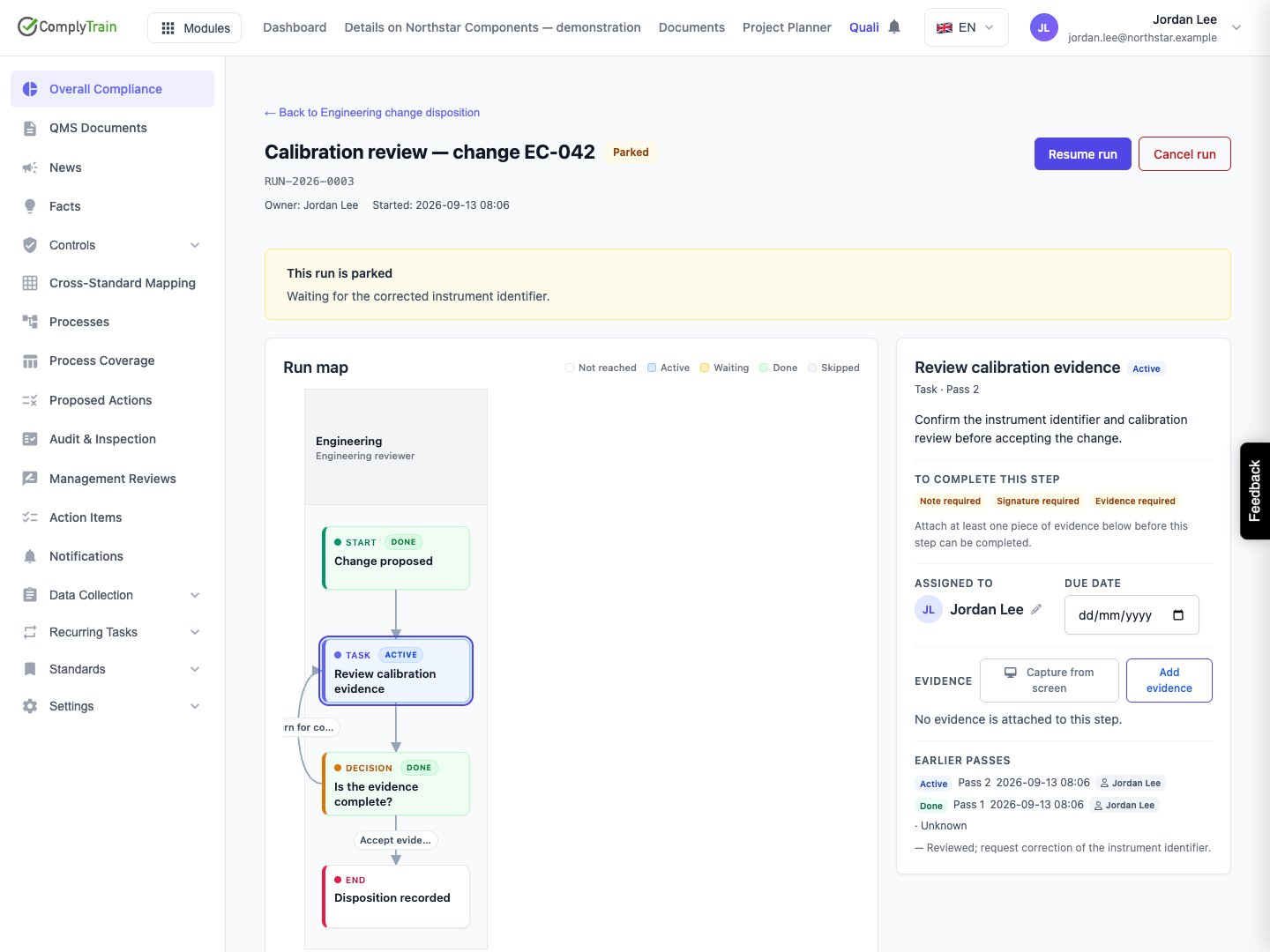
Product location: /qms/runs/{runId} (fallback: /qms/processes). Select the intended run and step; step selection does not have a separate URL.
Completing an end step finishes the run only when no other step remains live. Check for the Completed banner and review the walked path, including correction passes and branches not taken.
The Run record is generated after completion. Confirm its record number and sealed state when it becomes available. See completed run records for the retained evidence, pending generation and optional signed copy.
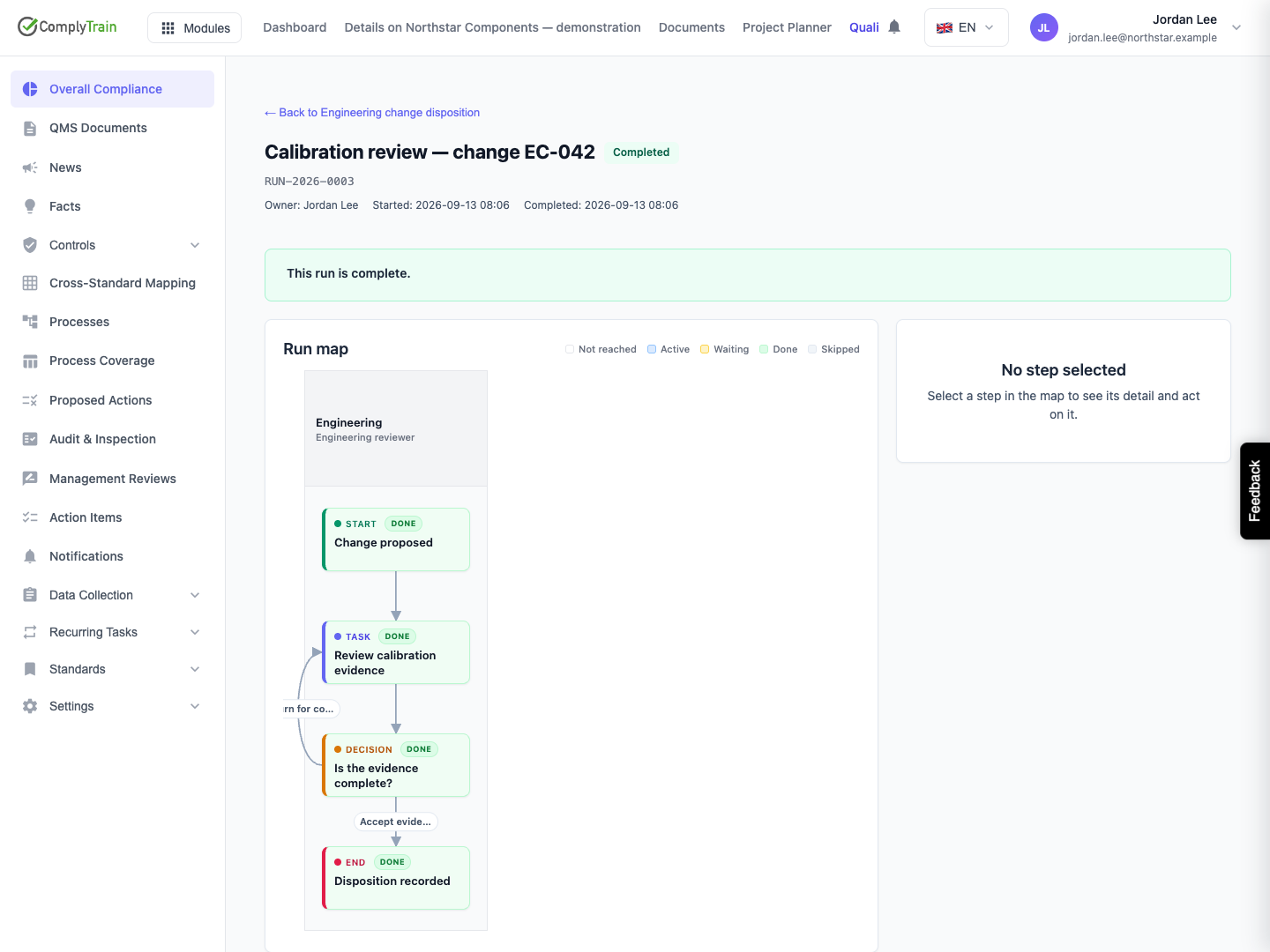
Product location: /qms/runs/{runId} (fallback: /qms/processes). Select the intended run and step; step selection does not have a separate URL.
What you see | What to check |
|---|---|
Start is unavailable | An approved definition, execution permission and a complete cast are required. |
Complete step is disabled | Select an active visit, attach required evidence and confirm the run is in progress. |
Completion confirmation is disabled | Supply the required note, signature and decision choice. |
Step belongs to someone else | Ask its assignee or run owner to act; have an authorised owner reassign live work if needed. |
Another user changed the run | Reload, inspect what was already saved and retry only the action still required. |
The step is waiting despite completed work | Check its incoming paths, completion binding and timing rather than repeatedly completing unrelated work. |
