Create recurring run records while retaining the human casting step.
Product location: /qms/processes/{processId} (fallback: /qms/processes). Open Runs and the run-schedule controls.
Use a run schedule when each occurrence needs the process's steps, assigned people and execution record. For recurring work with no process map, use Recurring Tasks instead.
You need Manage processes and an approved, non-archived process to configure a schedule through this panel. A process owner still needs the applicable permission; responsibility for a process and permission to change it are separate.
Open QMS → Processes, select the definition and open Runs.
In Run schedules, select Add schedule.
Choose Repeats and complete the fields for that pattern.
Set This schedule is active and will create runs. Leave it clear when preparing a schedule that should remain paused.
Select Save schedule. Confirm that the list contains the chosen recurrence and active or paused state.
Reopen the process to check the saved summary and Next run before relying on the schedule.
A new form starts with quarterly recurrence and the active switch selected. Review both choices before saving. Closing or cancelling an unsaved form leaves the stored schedules unchanged.
Product location: /qms/processes/{processId} (fallback: /qms/processes). Open Runs and the run-schedule controls.
Repeats | What to enter | Example |
|---|---|---|
Every day | No additional date fields. | A daily operational check. |
Every week | Day of the week. | Every Friday. |
Every month | Day of the month, 1–31. A day past the end of a shorter month runs on that month's last day. | Day 15 of each month. |
Every quarter | Day of the month, 1–31. The form uses January, April, July and October. | Day 10 of each quarter's first month. |
Every year | Month and day of the month, 1–31. | 15 September each year. |
Every N days | A whole-number interval from 1 to 3,650 days. | Every 14 days. |
On a specific date | The intended occurrence date. | A one-off review on a future date. |
If a day or interval is outside the allowed range, the form shows the valid range beside the field.
Choose the pattern that matches the obligation. Every month follows the calendar; Every N days follows an interval and can move between calendar dates. A specific-date schedule creates one occurrence for the selected date.
When changing patterns, complete the fields displayed for the new pattern. Check the saved summary afterwards, particularly the weekday, month and interval.
Product location: /qms/processes/{processId} (fallback: /qms/processes). Open Runs and the run-schedule controls.
The list separates the schedule's active or paused state, Next run and Last run. Use these together:
Active means the schedule is enabled to create work when due and when the process is eligible.
Paused means it should not create further runs. A displayed date alone does not make a paused schedule active.
Next run identifies the next scheduled occurrence. A specific-date schedule with no remaining dates has no future occurrence.
Last run provides the history of the most recent occurrence. Open the resulting run to inspect the work it created.
Due work is created automatically by the scheduling service. Saving or enabling a schedule is a configuration change; confirm actual generation in the process's run list when its occurrence is due.
Product location: /qms/processes/{processId} (fallback: /qms/processes). Open Runs and the run-schedule controls.
A generated run waits for a person to confirm the cast and start it. Scheduling creates the work record; it does not assign people to lanes and start the process on their behalf.
Open the process's Runs list and select the new occurrence.
Check its owner, scheduled date and process definition.
Use Start to assign the people who will perform the lanes for this occurrence.
Confirm the cast and start the run, then follow the process execution guide.
Generated runs use the schedule's configured owner where one exists; otherwise ownership follows the process owner, with the schedule creator as the fallback. Keep process ownership current and check the actual owner on the generated run.
Each occurrence has its own work and history. Completing one run does not complete a later occurrence or change the schedule's active state.
Product location: /qms/processes/{processId} (fallback: /qms/processes). Open Runs and the run-schedule controls.
Select Edit on the intended schedule.
Change Repeats, its date or interval fields, or the active switch.
Select Save schedule.
Check the saved recurrence and Next run, then reopen the panel to confirm them.
An edit recalculates the next occurrence using the saved configuration. Existing runs retain their own records; changing the schedule does not rewrite their dates, cast, evidence or progress. Review any already-created work separately when the underlying obligation changes.
If you decide to keep the original configuration, cancel the edit before saving.
Product location: /qms/processes/{processId} (fallback: /qms/processes). Open Runs and the run-schedule controls.
Select Pause to stop future generation while retaining the schedule. Confirm that the saved entry is paused. Existing runs continue to need their normal owners and follow-up.
Select Enable to resume the schedule, then review its recalculated Next run. Check whether any work became due during the pause and handle that work explicitly; the new next date does not establish that missed work has been completed.
The illustrated paused daily entry shows a retained schedule and its maintenance actions. Its status and existing runs are separate records.
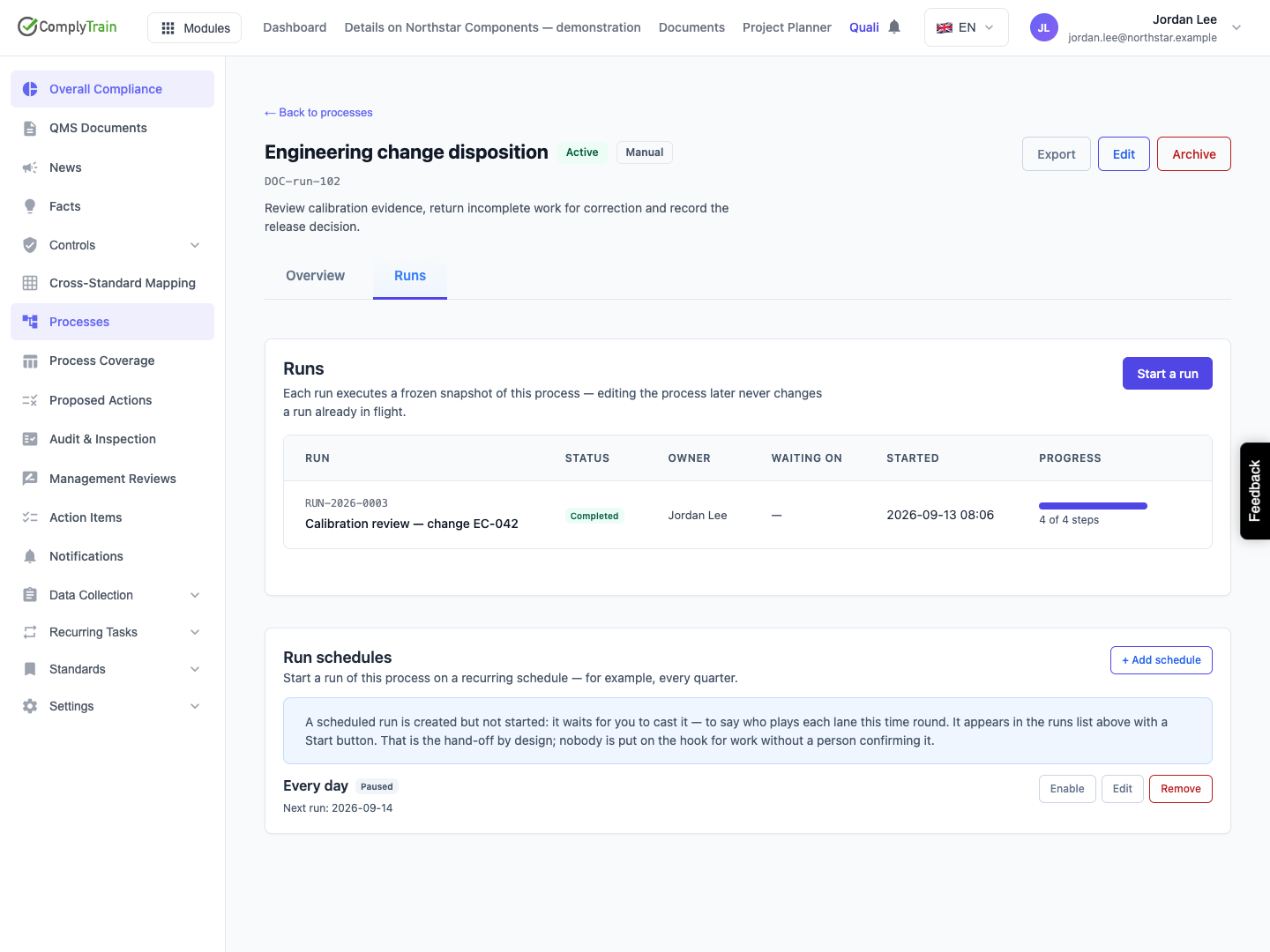
Product location: /qms/processes/{processId} (fallback: /qms/processes). Open Runs and the run-schedule controls.
Use Remove when the recurrence is no longer needed. Review the selected schedule in the confirmation, then either confirm removal or cancel to retain it.
Removing the schedule preserves the runs it already created. Continue to manage their outstanding work and retain their run records through the normal process lifecycle. Use Pause when the intention is to stop future creation temporarily and keep the schedule available for later use.
Product location: /qms/processes/{processId} (fallback: /qms/processes). Open Runs and the run-schedule controls.
View processes allows the schedule list to be inspected. Manage processes is required to add, edit, pause, enable or remove schedules. The panel also checks approval and archive state before offering these changes. If the action is unavailable, check the process's status and your assigned permissions with the responsible administrator.
After a save, verify the stored recurrence and status. If the form reports an error, keep the intended values available, correct any indicated input and confirm the saved list before retrying. After a connection interruption, reload the schedule list first to see whether the operation completed.
For an enabled schedule, the complete outcome is a resulting run with the expected date and owner, followed by a confirmed cast and normal execution. A successful configuration save alone does not establish that the process work has been performed.
