Find the intended form, inspect or edit its definition, manage automatic actions, generate linked record templates and export the definition.
Use a standard's Forms catalogue to find the questionnaire for a task, start a response, inspect previous responses or maintain its definition. For example, a calibration form collects an equipment identifier, calibration result and next due date; its automatic actions can then create a separate record.
Product location: /qms/{standardCode}/forms (fallback: /qms/standards). Expand Standards, choose the intended standard, then select Forms.
Expand Standards in QMS.
Expand the standard you are working on and select Forms.
Confirm the standard in the breadcrumb before selecting a form. For ISO 9001, the location is /qms/ISO-9001/forms.
The catalogue presents forms associated with that standard. Use the same standard context when moving between Forms, Documents and Records. If you are setting up a standard for the first time, follow initial setup before selecting forms for everyday use.
Product location: /qms/{standardCode}/forms (fallback: /qms/standards). Confirm the form document and underlying template identity.
Item | Purpose | Where to work |
|---|---|---|
Form template | Defines the questions, sections, validation and response settings. | Edit Form opens the shared definition. |
Form document | Makes a form available in the standard's document collection. | The standard's Forms catalogue. |
Draft response | Holds answers that someone intends to finish later. | Data Collection → Drafts. |
Submitted response | Holds a completed set of answers, its submitter and submission time. | View History or Data Collection → Submissions. |
Generated record | Presents a response through a record template and its configured destination. | Follow the output result to the record. |
A card can use the name of the form document while the response history identifies its underlying template. Check the form's purpose and template identity when names are similar. Editing a shared definition affects how that template is used; agree changes with its owner before altering questions used by other teams.
Product location: /qms/{standardCode}/forms (fallback: /qms/standards). Read the intended form card.
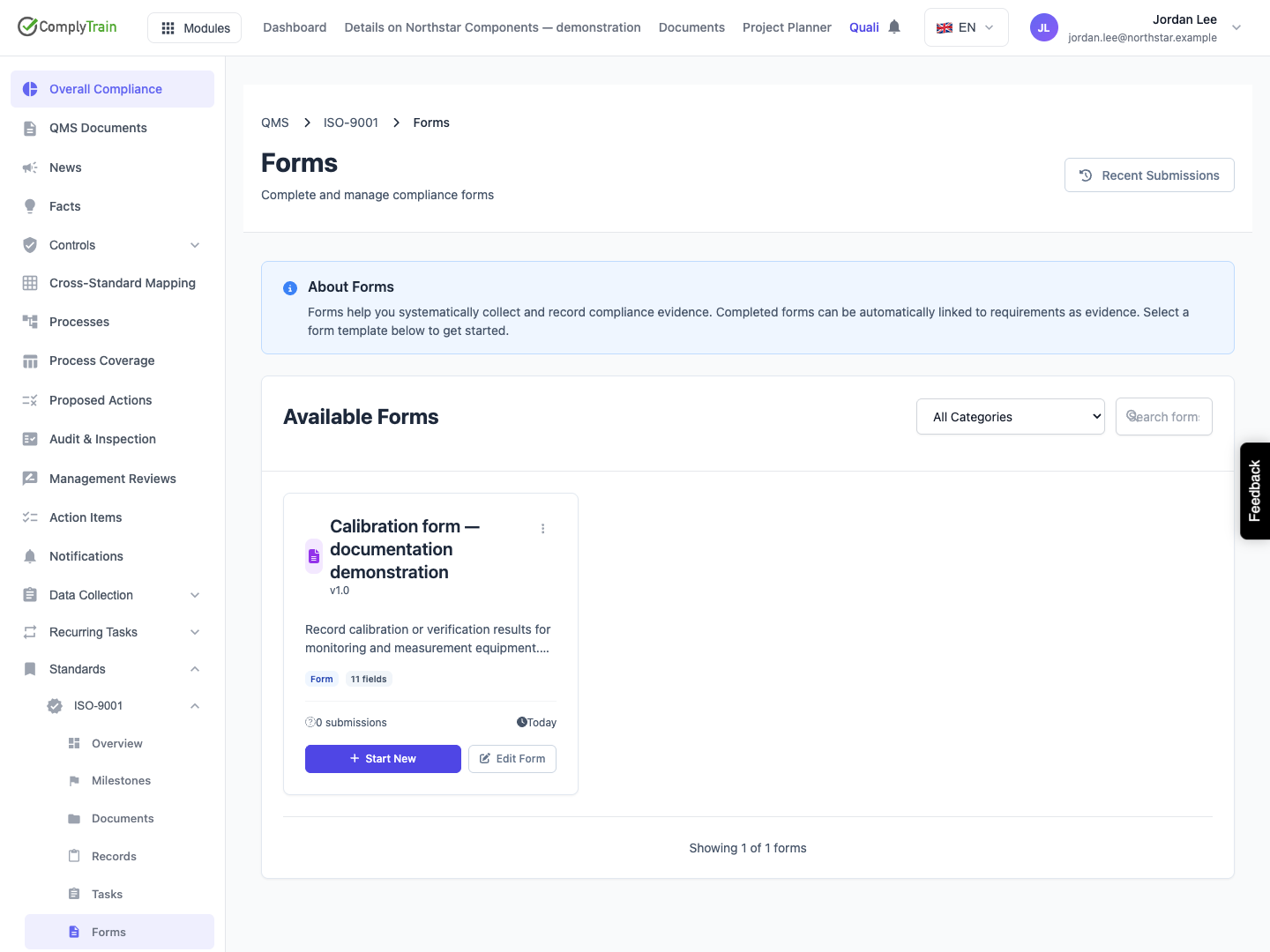
Read the name, description and category to establish what the form is for. The field count gives an indication of its size. Revision and submission information help identify the definition and its use; open the definition or history when you need the underlying detail.
The calibration example has eleven questions. Start New begins a response, while Edit Form opens the designer. History, shown once the form has responses, opens its response history. Use the three-dot menu for additional actions. Confirm the card name before choosing an action, especially when several forms have similar descriptions.
Product location: /qms/{standardCode}/forms (fallback: /qms/standards). Use Search forms and the category filter.
Enter a distinctive term in Search forms, then wait for the results to update. Use the category selector to narrow the list further; for example, choose Checklist when finding a review checklist. Search and category apply together.
Review the active-filter badges above the cards. Clear an individual search or category badge to remove that restriction, or select Clear All to return to the full catalogue for the current standard. Use All Categories when you do not know how the form is classified.
Check the result count, for example “Showing 20 of 45 forms”, and choose Load more forms to see the rest. If there are no matches, shorten the search and clear the category before deciding that the form is unavailable. Keep the standard context unchanged unless you deliberately need another standard's forms.
Product location: /qms/{standardCode}/forms (fallback: /qms/standards). Open the intended card’s three-dot menu.
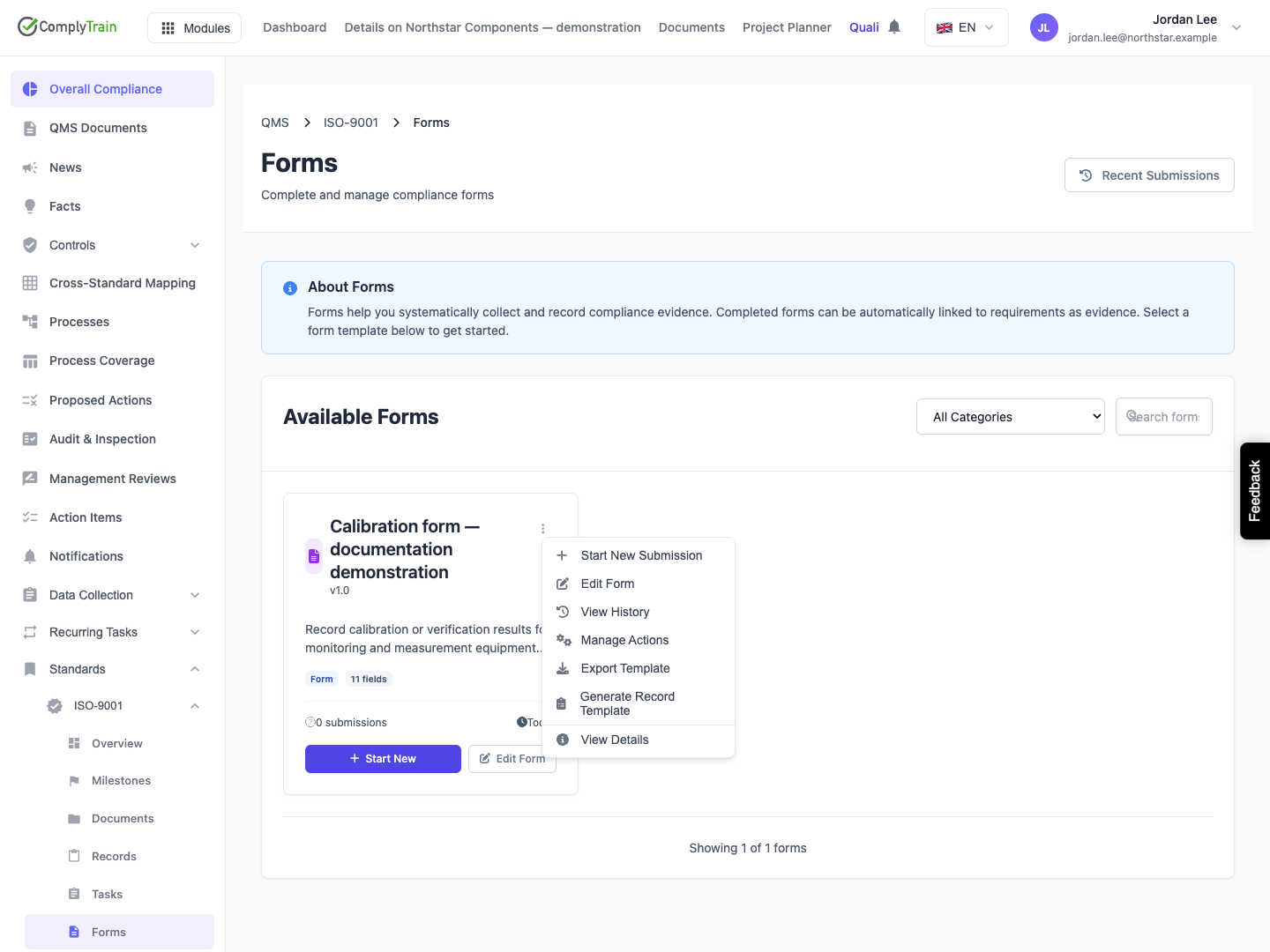
Open the three-dot menu on the intended card.
Action | Use it to |
|---|---|
Start New Submission | Enter answers for a new response or recover unfinished work offered by the form. |
Edit Form | Maintain questions, sections and form settings. |
View History | Find responses for this template and inspect their saved answers. |
Manage Actions | Configure what happens when a response is submitted. |
Export Template | Download the form definition as JSON. |
Generate Record Template | Create a linked record definition from the form. |
Linked to … | Identify an existing link to a record template. |
View Details | Inspect the form definition without starting a response. |
For unfinished work you already saved, open Drafts. For a completed response, use submission history. This keeps a new response separate from the one you intend to continue or review.
Product location: /qms/{standardCode}/forms (fallback: /qms/standards). Choose View Details, or Edit Form to make changes.
Choose View Details to see the form's questions by section, each with its type and how it behaves. Nothing on this page is saved or submitted. Choose Back to Forms when you have finished. To change the definition, choose Edit Form and confirm the template title in the builder.
In the builder, use Add Field, Add Section and Form Settings for the corresponding part of the definition. Save each intended change, then use Preview to walk through the respondent's experience. See field design, section organisation and settings and preview.
The builder route is /qms/{standardCode}/forms/{templateId}/edit. Replace {templateId} with the actual form template identifier. A form document or submitted response has a different identifier.
Product location: /qms/output-rules/{documentTemplateId} (fallback: /qms/output-rules). From the intended form card, choose Manage Actions; use the actual template identifier.
Choose Manage Actions to open /qms/output-rules/{documentTemplateId}, using the form template identifier. Review the active rules, their conditions and the actions inside each rule before changing them.
Decide which result the process needs: a record, a task, a CAPA, a notification or another supported output. Configure its destination and required mappings, then verify the result from a demonstration submission. Follow output-rule configuration and the action reference for the individual controls.
The form's submission confirmation and each automatic action have separate outcomes. Open the saved response and inspect the output results before relying on a generated record or follow-up task.
Product location: /qms/{standardCode}/forms (fallback: /qms/standards). Choose Generate Record Template and read the confirmation.
Choose Generate Record Template from the form's menu.
Read the confirmation and verify the source form. Cancel if it is not the intended definition.
Confirm generation and review the resulting record code, sections and numbering example.
Review the offer to create an automatic output rule. Choose it if future responses should generate records; otherwise configure the rule later through Manage Actions.
Reopen the form catalogue and check the linked template information. Inspect the output rule and its destination before using it with live responses.
Generating a record template creates the structure for records. A response must still be submitted and the corresponding output must complete to create a populated record. When the form already shows Linked to …, review that relationship before arranging another record workflow.
Product location: /qms/{standardCode}/forms (fallback: /qms/standards). Choose Export Template.
Select Export Template. Your browser downloads a JSON file named after the form's template code, ending in _form_definition.json. Keep it with an identifying description of the standard, form and purpose of the export.
Open the downloaded file and check that it contains the intended definition, including its questions and the configuration needed to interpret them. For a form with sections, repeating entries, selections or calculations, include those parts in your check. This export concerns the template; use submission history to inspect completed answers and their outputs.
If the definition cannot be read completely, nothing is downloaded and the page explains why; try again, or ask an administrator if the form no longer exists.
Share the file through your organisation's approved channel. Template text, defaults and configuration can themselves contain information that needs appropriate handling.
Product location: /qms/{standardCode}/forms (fallback: /qms/standards). Check the selected standard, filters and displayed error.
The catalogue requires QMS View documents. Completing responses requires Submit forms or Manage documents; designing the form requires Manage forms. Ask an administrator to check the permission for the action you need, together with the standard and template involved.
For an empty successful search, clear the filters and confirm the standard. For a loading error, choose Try Again and retain the displayed error if it persists. An unavailable standard should be resolved before selecting a form from another context.
If a vault configuration notice appears, ask the quality manager to complete the standard's output destination before relying on record generation. Check saved responses and automatic outputs after a demonstration submission.
