Complete sections and repeating entries, resolve validation and training prerequisites, save unfinished work and verify the submitted response.
Use a standard's form to record the information requested by its author, review your answers and submit a saved response. This walkthrough uses a demonstration calibration form; enter your own operational information when completing a real form.
Product location: /qms/{standardCode}/forms (fallback: /qms/standards). Open the intended form and use its named section, entry or response control.
Open Standards, choose the intended standard and select Forms at /qms/{standardCode}/forms. Find the intended form and choose Start New. Check its name, purpose and any restored answers before continuing.
The response header identifies the form and shows its description, field count, required-field count and Completion Progress when configured. The calibration example has eleven questions, eight required fields, and two sections: Calibration Details and Equipment Information.
Use saved drafts when continuing earlier work. Check the response's identity before replacing restored values or starting another response for the same activity.
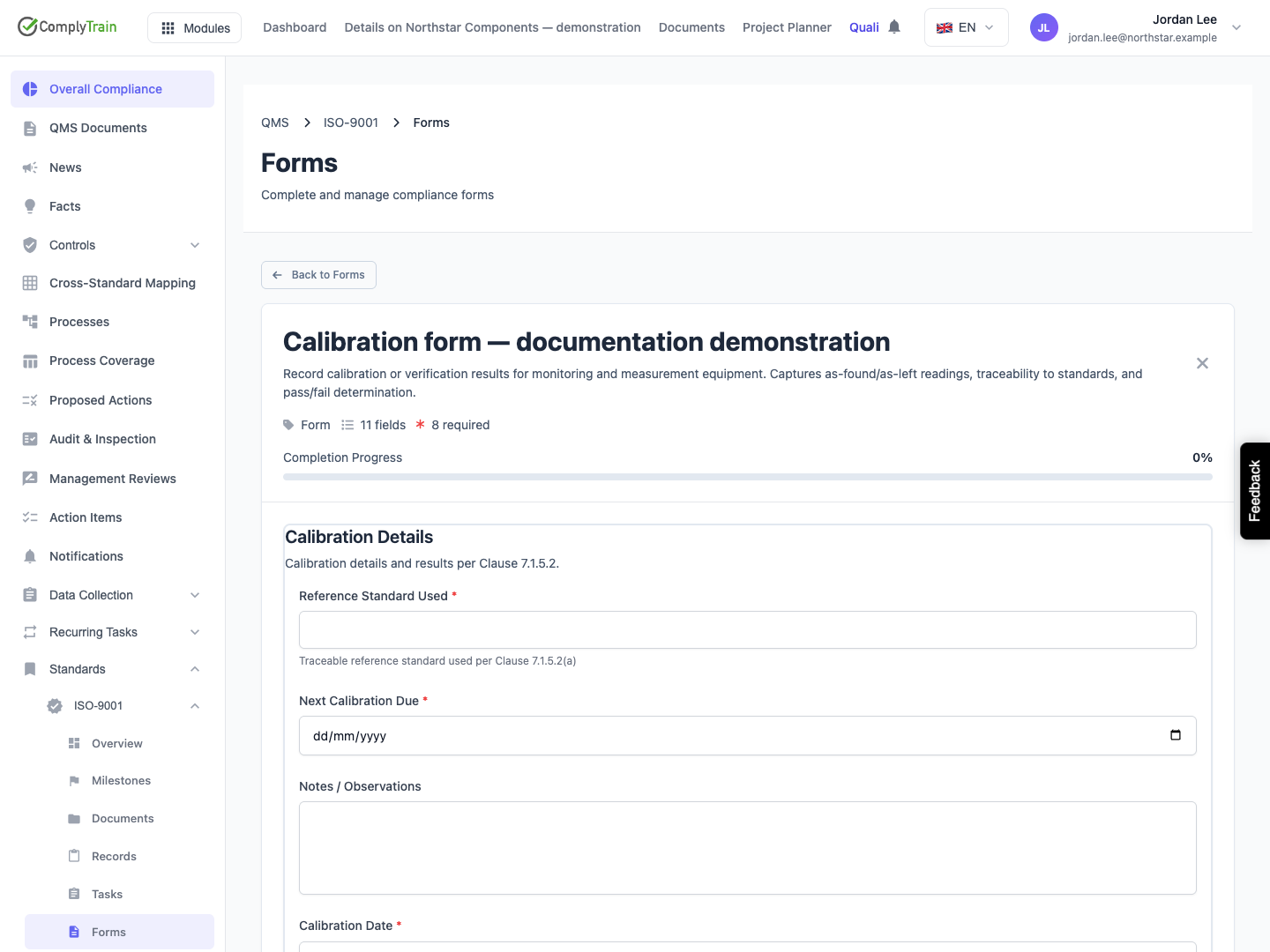
Product location: /qms/{standardCode}/forms (fallback: /qms/standards). Open the intended form and use its named section, entry or response control.
A form can show its sections on one page or as a sequence of wizard steps. On a single page, expand each section to read its questions. Collapsing a section keeps its answers and required questions part of the response.
In a wizard, complete the displayed step and use Next to continue. Use Previous to review an earlier answer, then return to the remaining steps. Correct validation feedback before advancing where the form requires it. Review the complete response before submitting from the final step.
Section descriptions and help text explain what belongs in each part. Follow the configured order, especially when later questions depend on earlier answers.
Product location: /qms/{standardCode}/forms (fallback: /qms/standards). Open the intended form and use its named section, entry or response control.
Field | Required | How to complete it |
|---|---|---|
Reference Standard Used | Yes | Identify the reference used for the activity. Follow the traceability guidance in the help text. |
Next Calibration Due | Yes | Choose the next due date using the date field. |
Notes / Observations | No | Record observations and qualifications relevant to the result. |
Calibration Date | Yes | Choose the date of the activity being recorded. |
Calibrated By | Yes | Enter the responsible person's name or the identification required by your procedure. |
Calibration Result | Yes | Select Pass - Within Tolerance, Fail - Out of Tolerance (Adjusted), or Fail - Out of Tolerance (Not Adjustable). |
These labels and requirements belong to the example template. Complete the actual questions in your form and use the help text to distinguish similarly named dates, references or results.
Product location: /qms/{standardCode}/forms (fallback: /qms/standards). Open the intended form and use its named section, entry or response control.
Field | Required | Purpose |
|---|---|---|
Manufacturer / Model | No | Identify the manufacturer or model. |
Location | Yes | Identify where the equipment belongs. |
Equipment ID | Yes | Provide the equipment's identifier. |
Equipment Description | Yes | Describe the equipment being recorded. |
Serial Number | No | Add its serial number when applicable. |
Review the equipment identifier, activity date and result together. Use a distinctive identifier when several instruments have similar descriptions. Complete the response from the actual activity and supporting records.
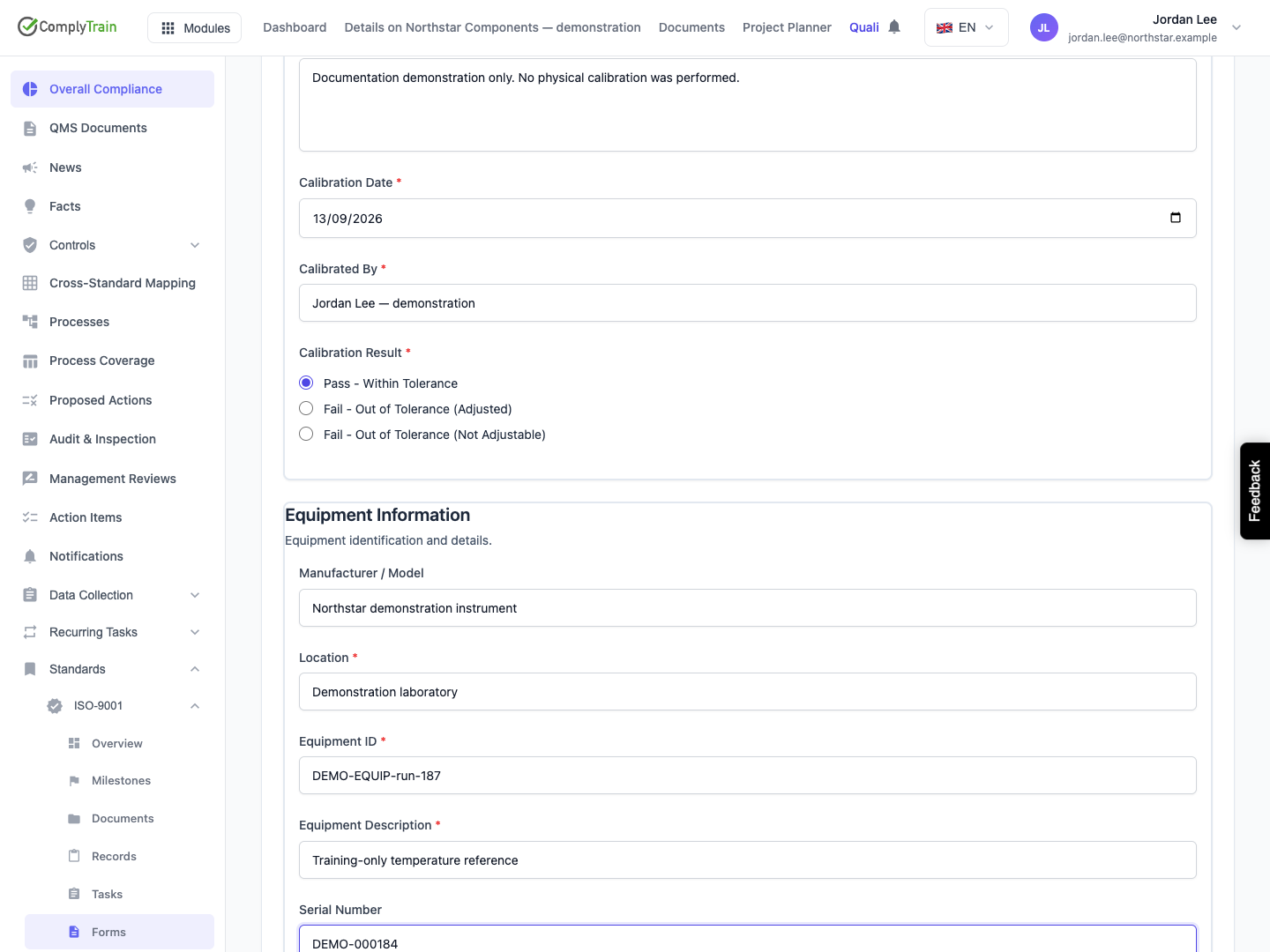
Product location: /qms/{standardCode}/forms (fallback: /qms/standards). Open the intended form and use its named section, entry or response control.
Some forms contain a repeating group, such as a list of findings, inspected items or participants. Each entry has its own set of questions. Use the group's add control to create another entry; its wording uses the entry name configured by the form author.
Complete every required question in each entry. Check the displayed minimum and maximum number of entries. Give similar entries distinguishing information so that you can identify them when reviewing the submitted response.
Use an entry's remove control only for the entry you intend to remove. Review the confirmation before proceeding; cancel it to keep the entry. Recheck the remaining entries and their values afterward.
When resuming a draft, review the existing entries before adding more. After final submission, inspect the saved response and confirm that every intended entry and its answers are present. Submission review explains how the answers of repeated entries are listed.
Product location: /qms/{standardCode}/forms (fallback: /qms/standards). Open the intended form and use its named section, entry or response control.
Required questions are marked beside their labels. A form configured to validate on submission checks its answers when you choose Submit Form. Follow the error summary and the messages beside each question; complete the missing or invalid answers before trying again. The empty calibration example lists its eight required questions.
Other forms validate when you leave a field or as you type. Follow the displayed number, length and format requirements. For a repeating group, correct the indicated entry and question as well as any group-level count requirement.
A dropdown with a failed option request provides Retry. Wait for the choices to load before selecting the intended value. Calculated fields use their configured inputs; review those inputs and the resulting calculation.
Treat Completion Progress as an aid to finding unanswered questions. Required-field validation, the meaning of the answers and any prerequisites still need checking before submission. If the server returns additional validation feedback, keep the response open, correct the identified answers and submit again.
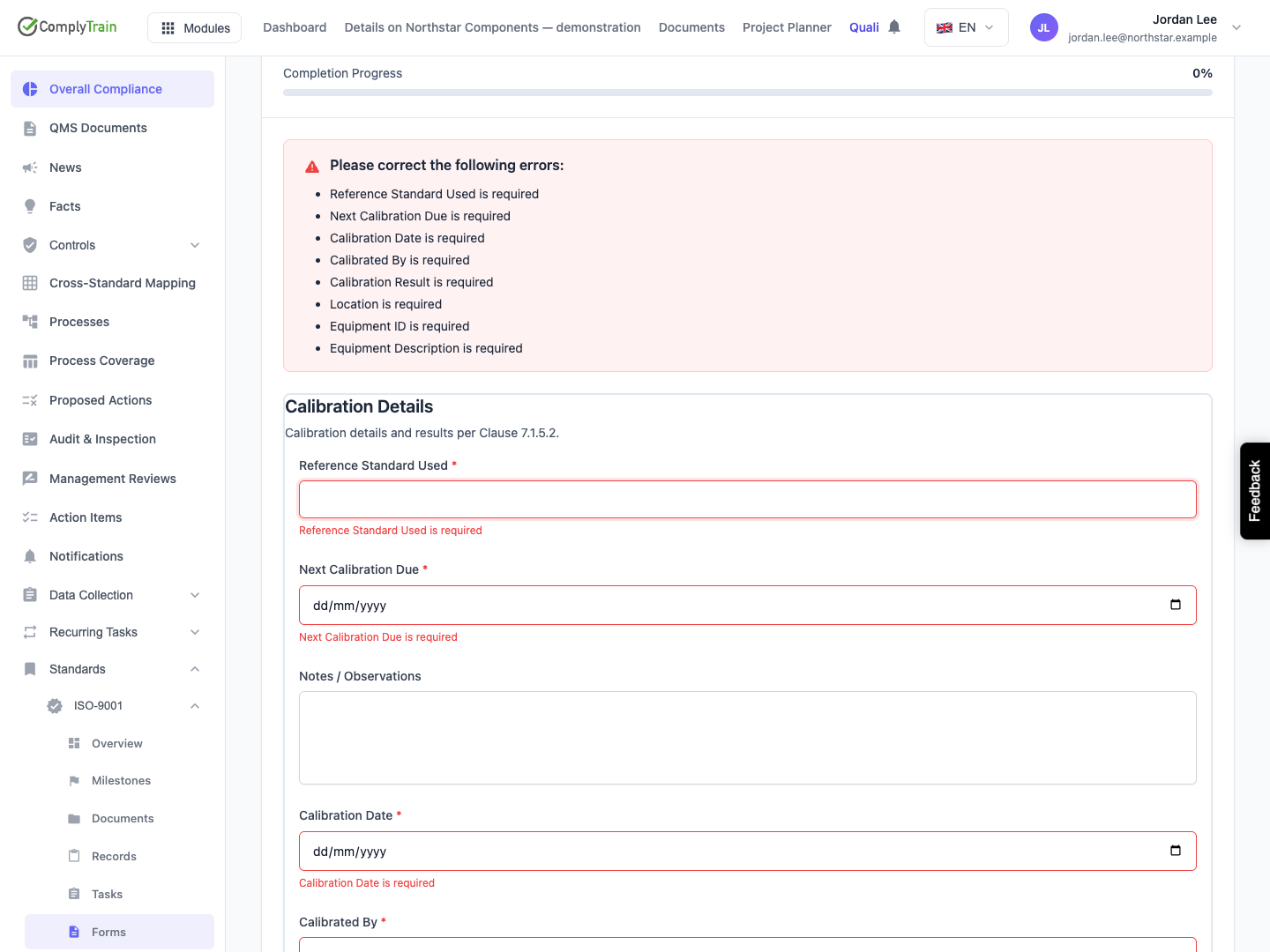
Product location: /qms/{standardCode}/forms (fallback: /qms/standards). Open the intended form and use its named section, entry or response control.
A form section can require completion of a course or curriculum before final submission. Read the prerequisite information and complete the required training using your own account.
Save a draft when you need to leave the form to complete training. Return to that draft afterward, review its answers and try final submission again. A saved draft preserves work in progress; the training requirement is checked when submitting the completed response.
If the prerequisite still appears unmet after completion, confirm that you completed the named training and contact the form owner with the form name and displayed requirement.
Product location: /qms/{standardCode}/forms (fallback: /qms/standards). Open the intended form and use its named section, entry or response control.
Use Save Draft when you need to continue later. Wait for confirmation before leaving, then find the response through Data Collection → Drafts. See save and resume form drafts for local recovery and continuation on another device.
When leaving a changed response, choose whether to stay, save and leave, or discard the unsaved changes. Staying keeps the response open. Saving and leaving waits for the save to succeed; discarding abandons the changes you have not saved.
Check that you are continuing the intended draft when returning. Keep separate responses for separate activities or records.
Product location: /qms/{standardCode}/forms (fallback: /qms/standards). Open the intended form and use its named section, entry or response control.
Review the form identity, all answers and each repeating entry.
Resolve validation feedback and complete required training.
Choose Submit Form, or the submit label configured by the author, and wait for confirmation.
Read the submission confirmation and any summary of automatic actions.
Open Submissions or the form's View History, then inspect the saved response.
Compare the stored answers, submitter and date with the intended work. Check the identifiers, selected results, dates and any repeated entries. The response's Submitted status records submission; approval, signing and automatic output results have their own states.
Use submission and output review to inspect generated records, tasks, evidence links or approval work. A customized confirmation message can describe the form's purpose; use the saved response and action results to establish what was completed.
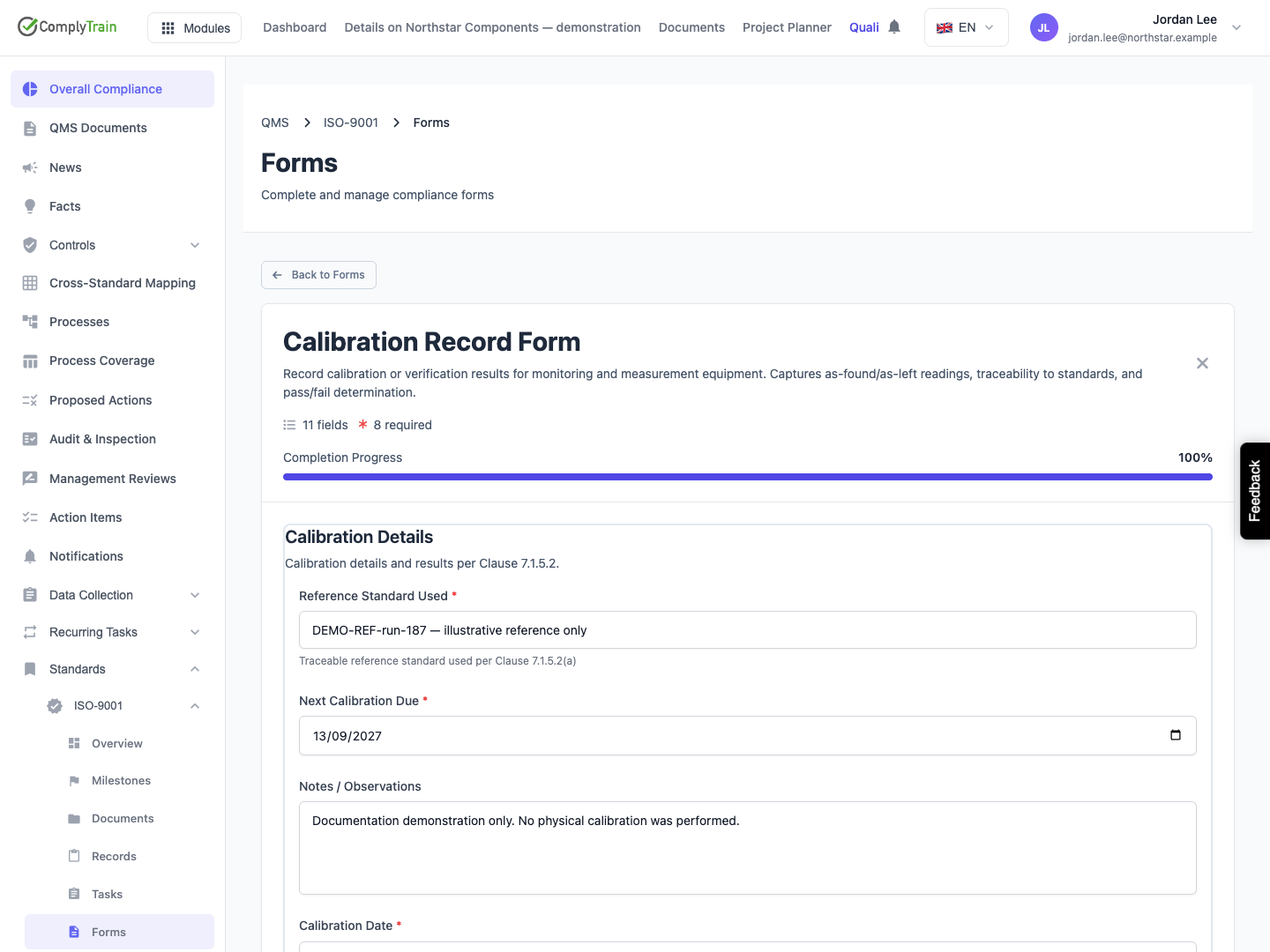
Product location: /qms/{standardCode}/forms (fallback: /qms/standards). Open the intended form and use its named section, entry or response control.
For validation feedback, correct the identified field or entry in the open response. For a failed submission request, keep your answers, read the feedback and retry after resolving the cause. If the outcome is uncertain, check whether the response was saved before sending it again.
A saved response can have a separate action that needs attention. Open that response and inspect Output Rule Executions. Give the form owner its link, rule name and relevant feedback so that the action can be investigated without creating another response for the same activity.
If you need to pause, save a draft when available and verify that it appears in Drafts. Keep the original submission identifiable when a correction or follow-up is required.
